NC Password Change and E-mail Update Guide
If you need to improve the security of your NC account or replace the currently linked e-mail address, follow the steps below to change your password and update your e-mail. The entire process can be completed on the NC account management page. Before you begin, have your current account password and a new e-mail address that can receive verification codes ready.
1. Change Your Password
Step 1: Open the account management page
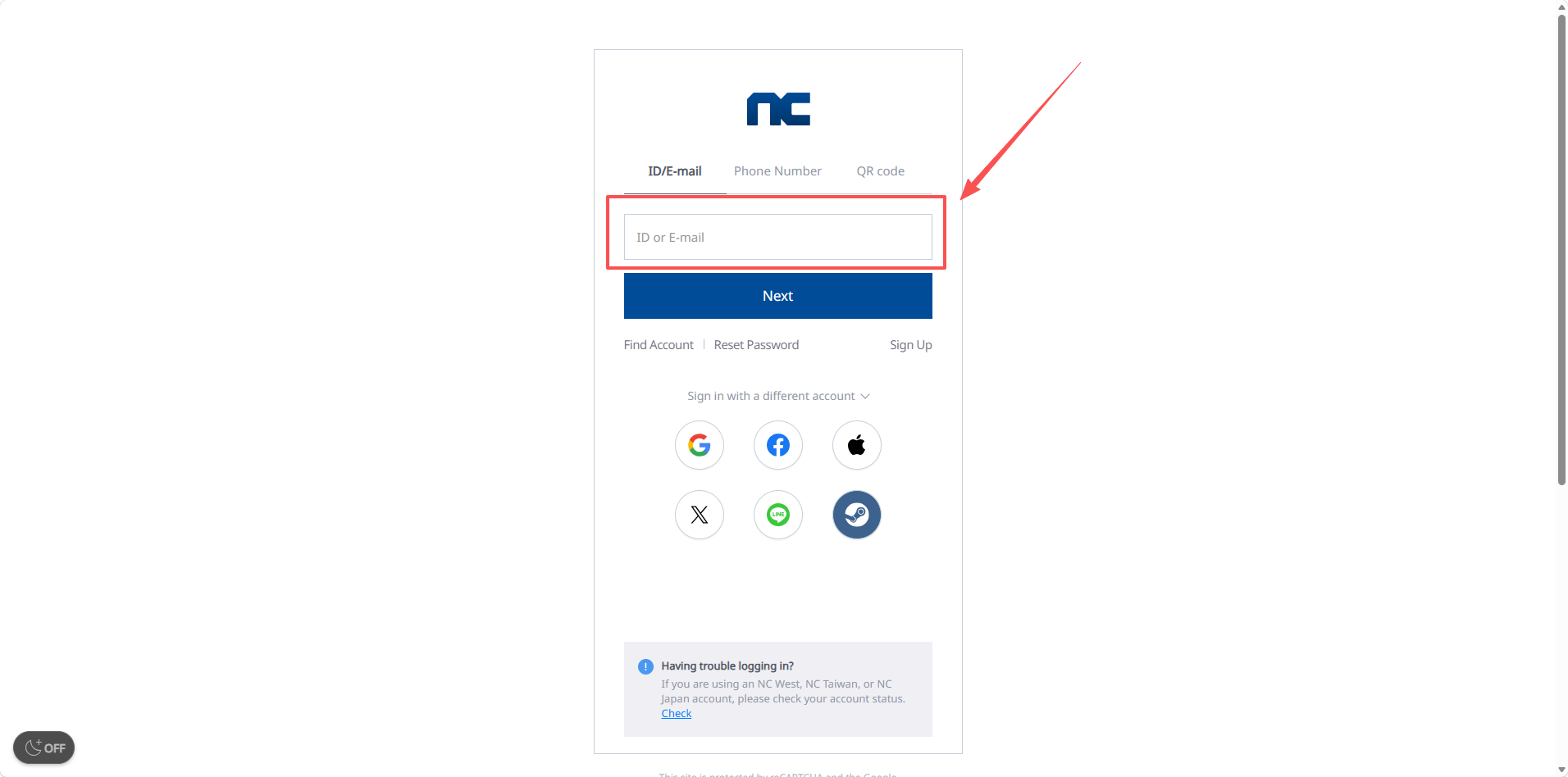
Go to the NC account management page: https://id.plaync.com/myinfo. Enter your account e-mail address, then click “Next.”
Step 2: Sign in to your account
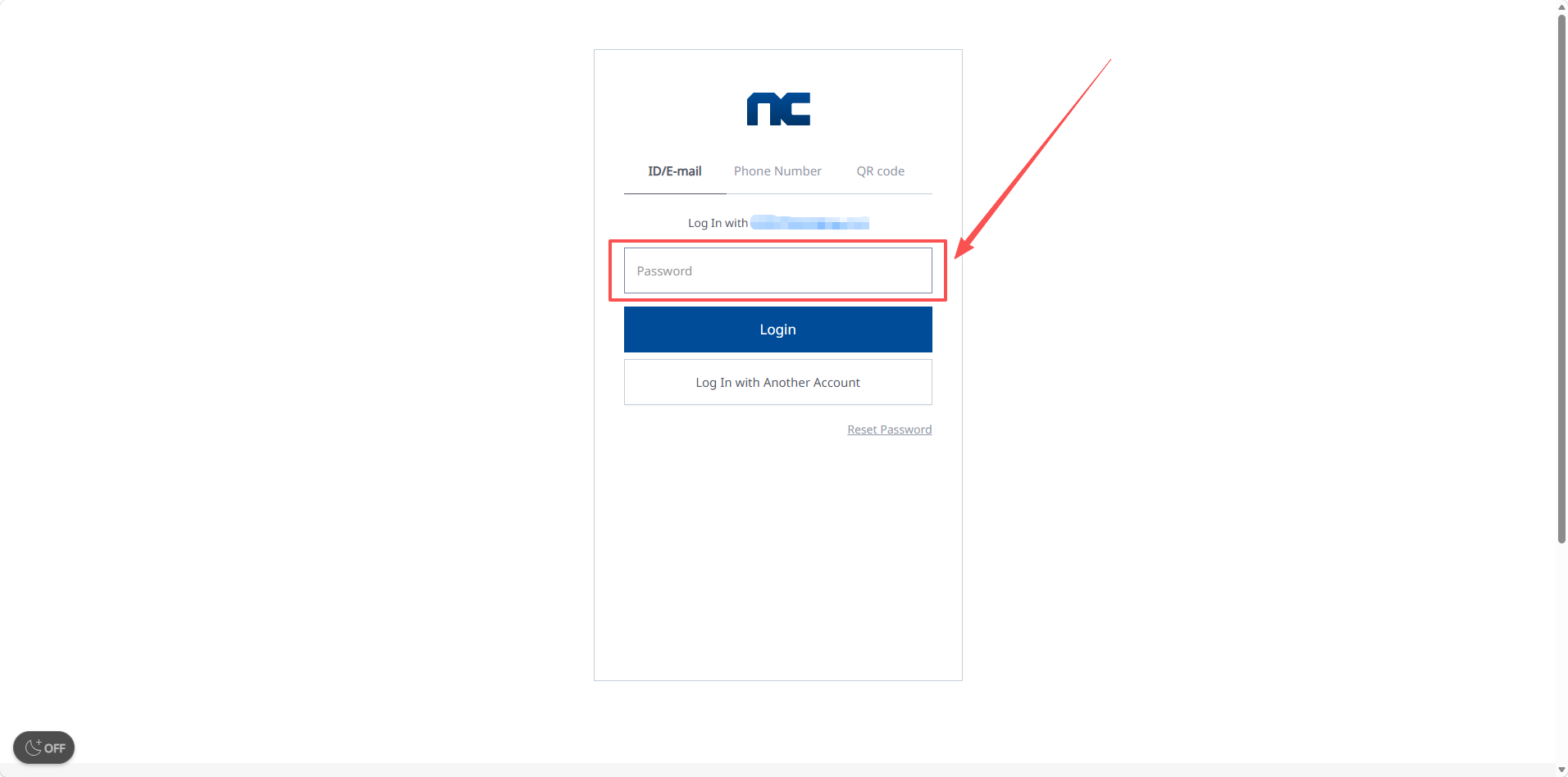
Enter your current account password, then click “Login” to sign in.
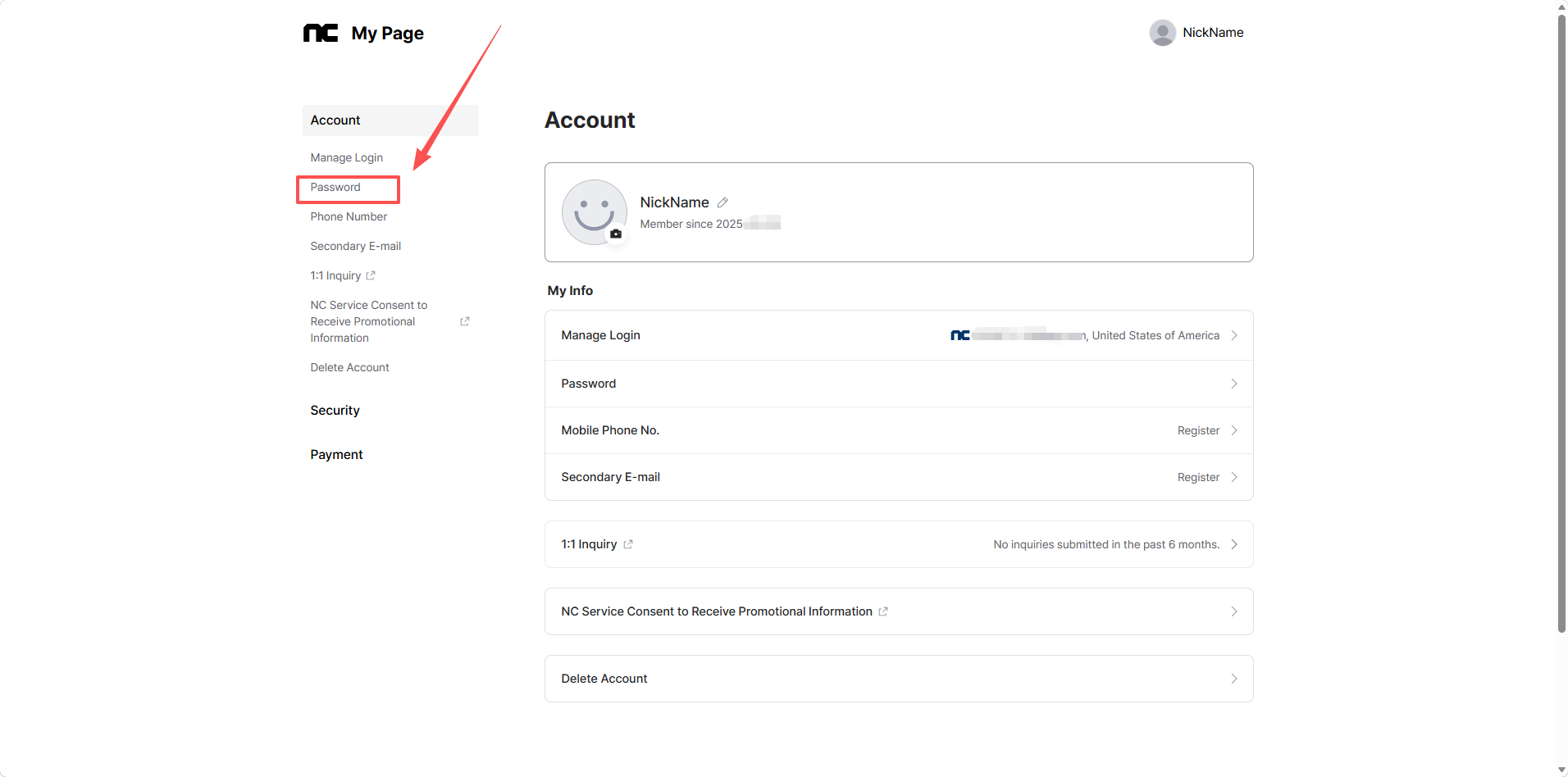
Step 3: Open the password settings
After signing in, find and click “Password.”
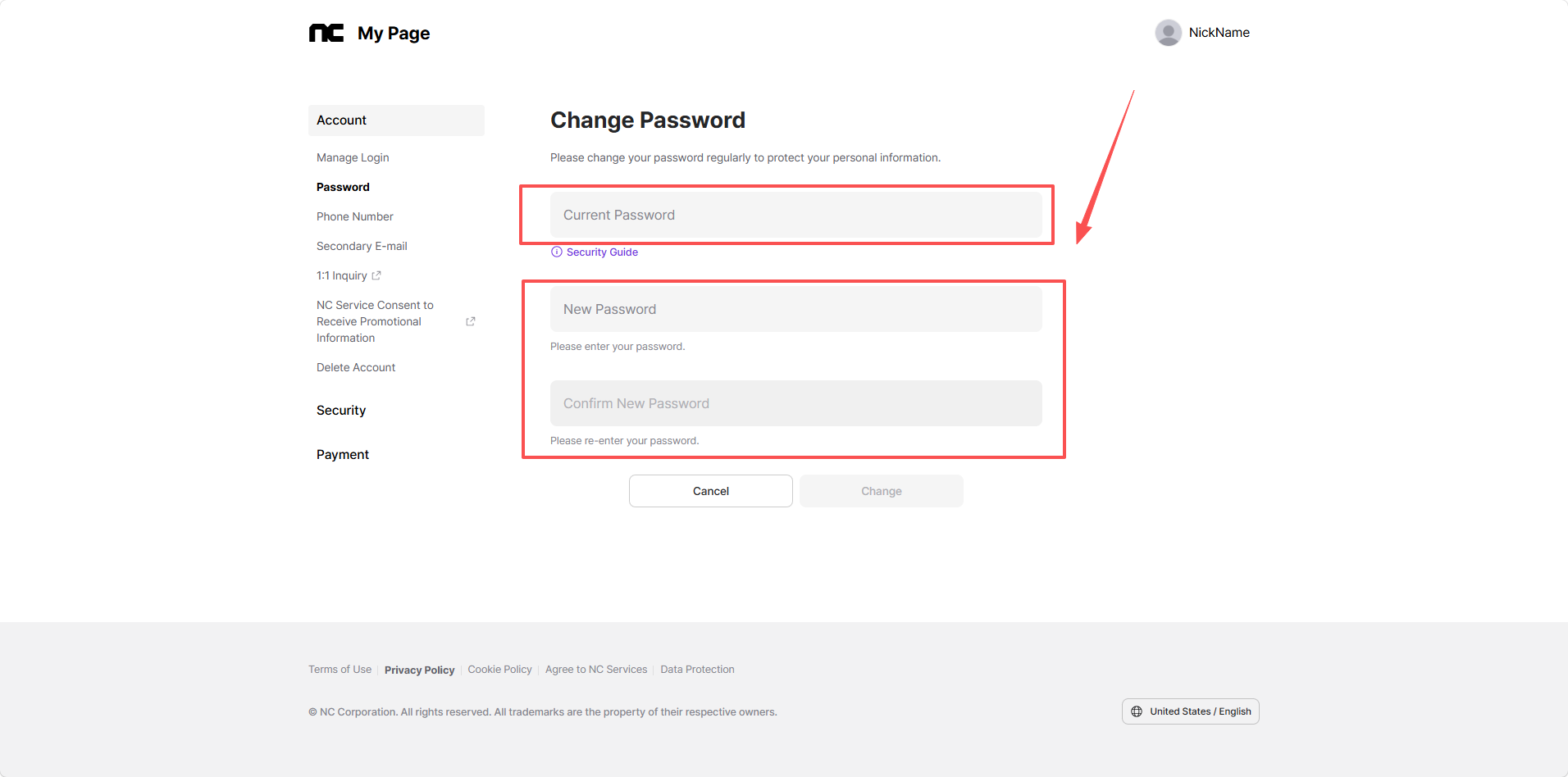
Step 4: Change your password
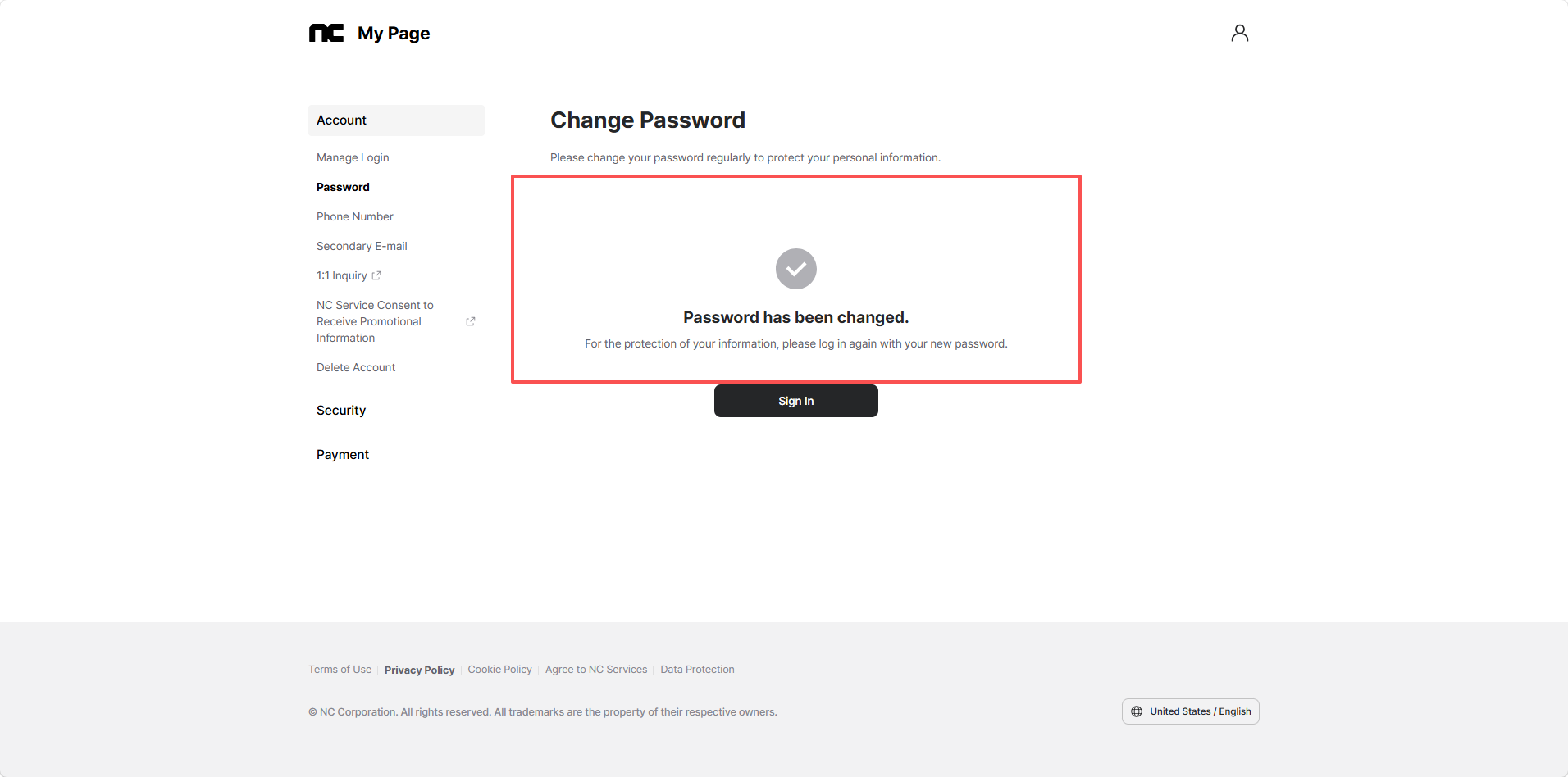
Enter your new password as prompted. Confirm that the information is correct, then click “Change” to complete the password change.
2. Update Your Linked E-mail Address
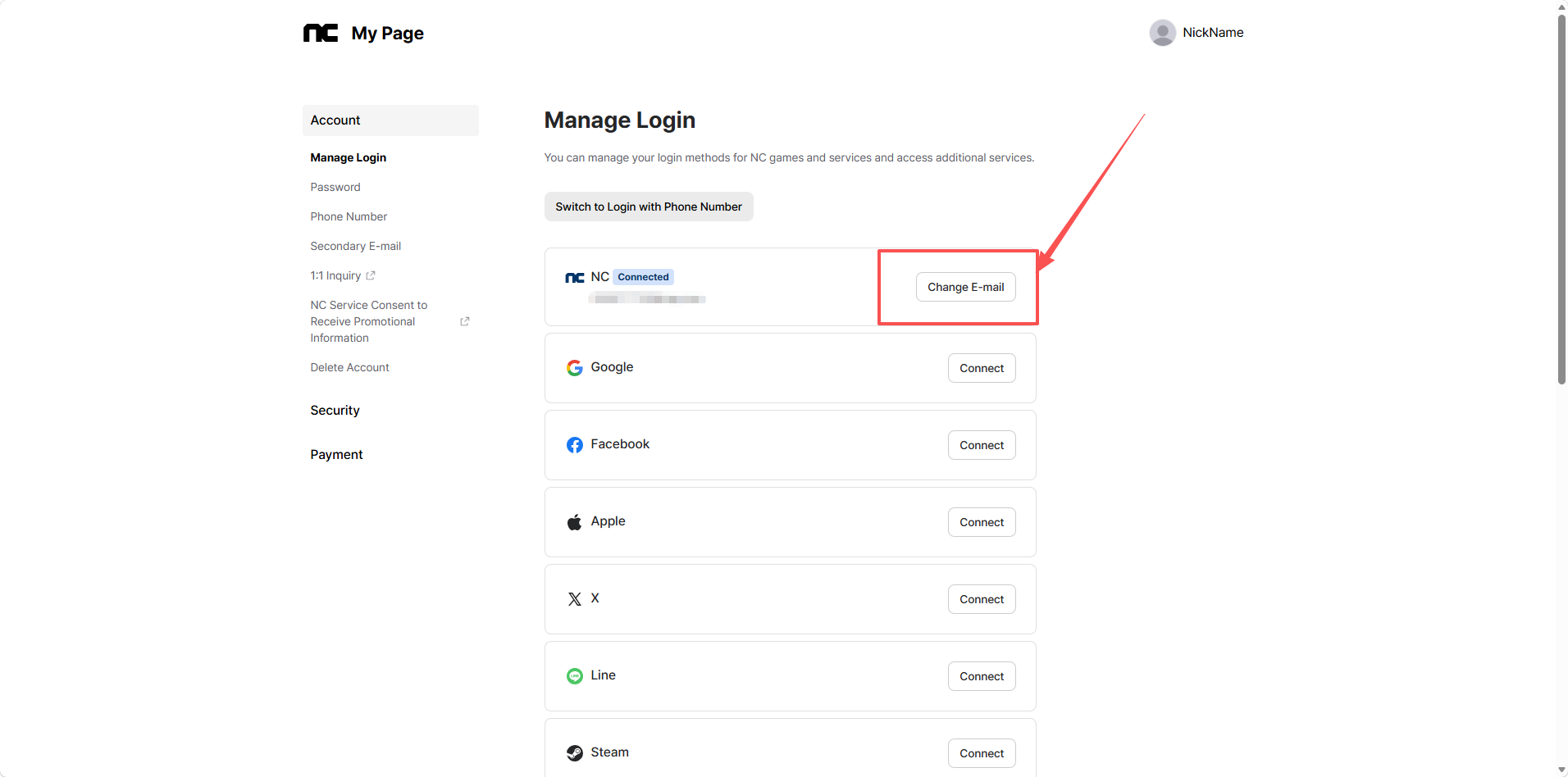
Step 1: Open the e-mail management page
On the account management page, click “Manage Login,” then select “Change E-mail.”
Step 2: Verify your account and link the new e-mail address
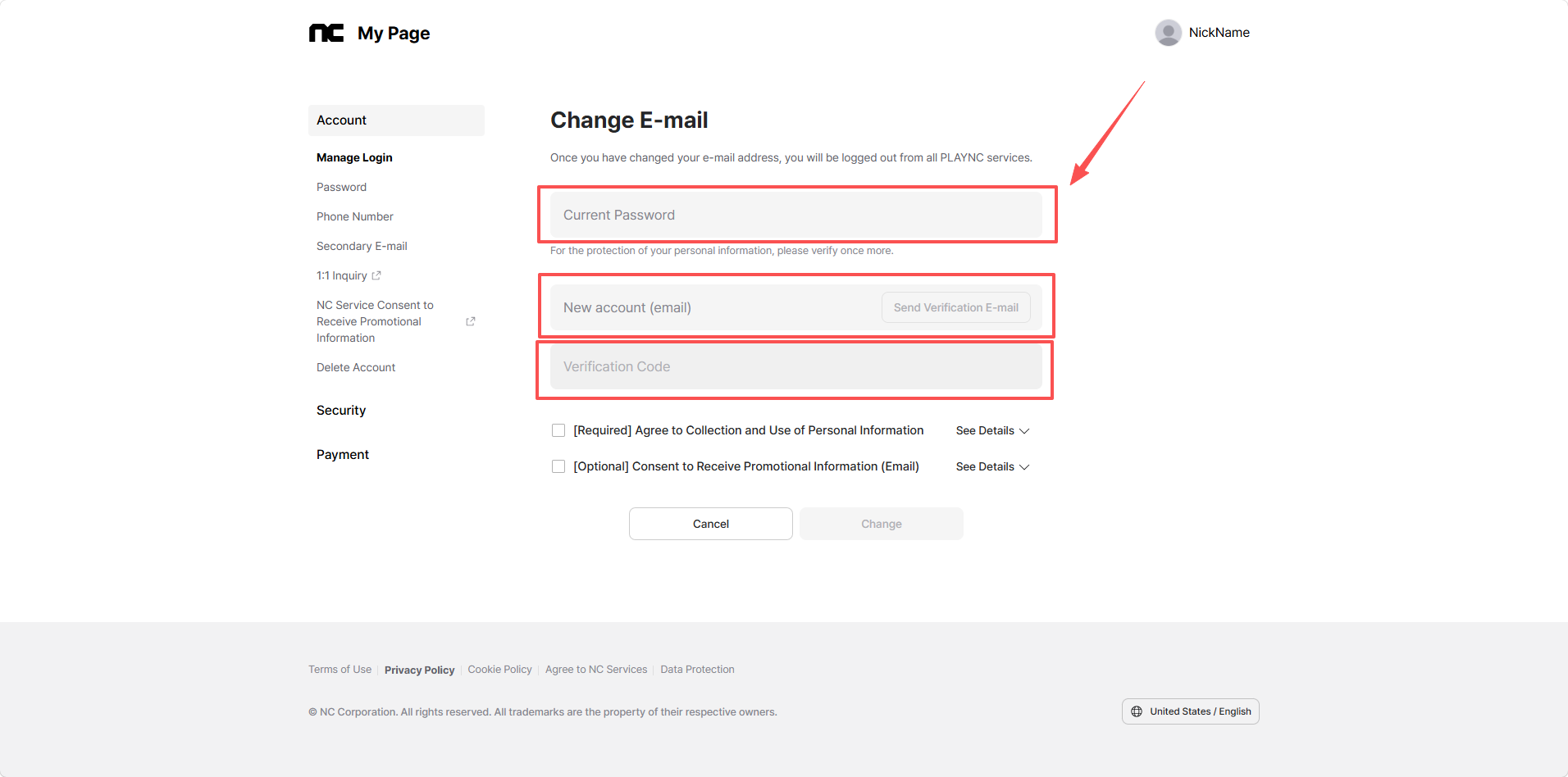
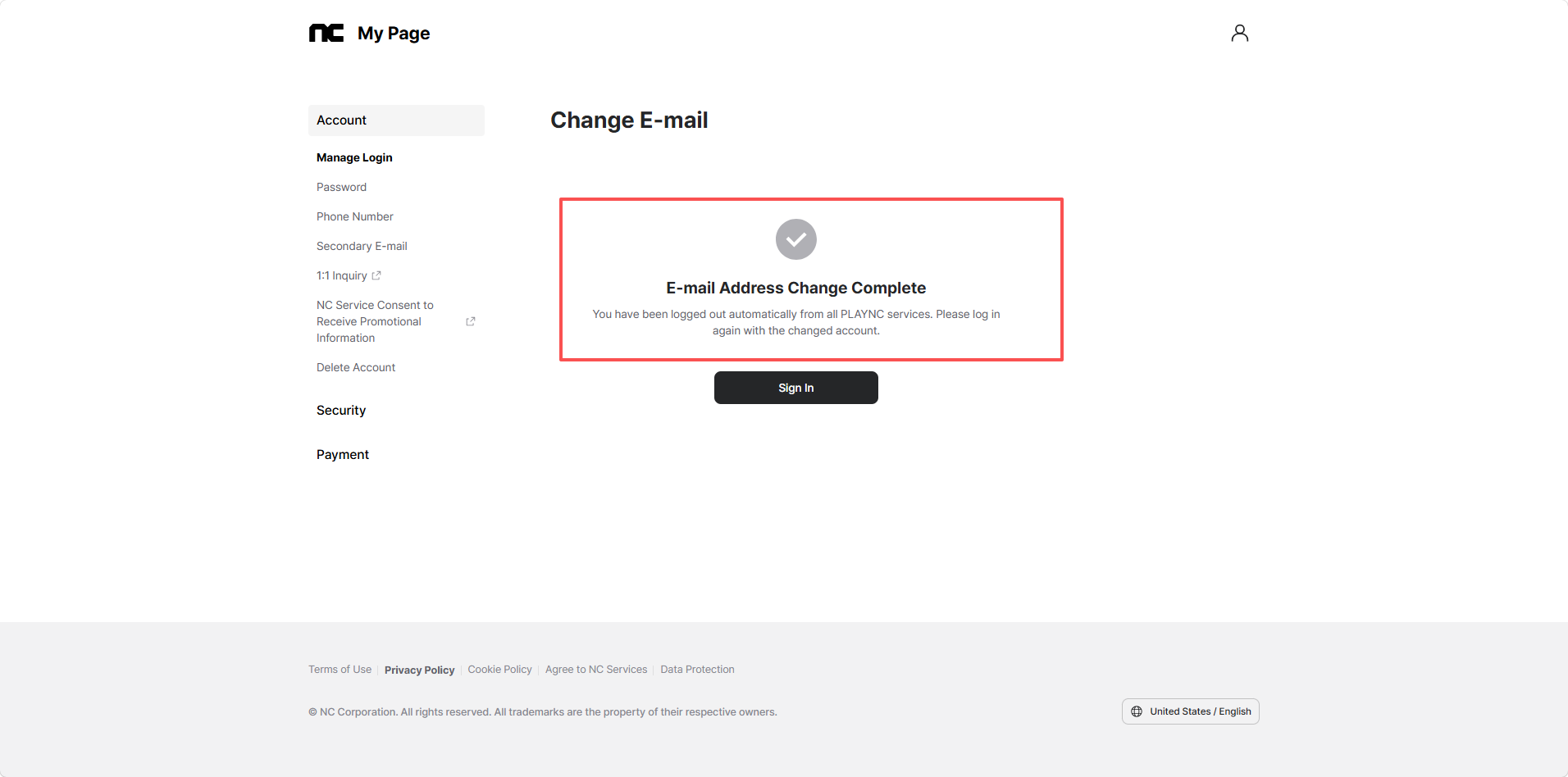
Enter your current NC account password to verify your identity, then enter the new e-mail address you want to use. The system will send a verification code to that address. Enter the code you receive and follow the on-screen instructions. After verification succeeds, your account will be linked to the new e-mail address.