
PlayStation network connection setup
Console connection method
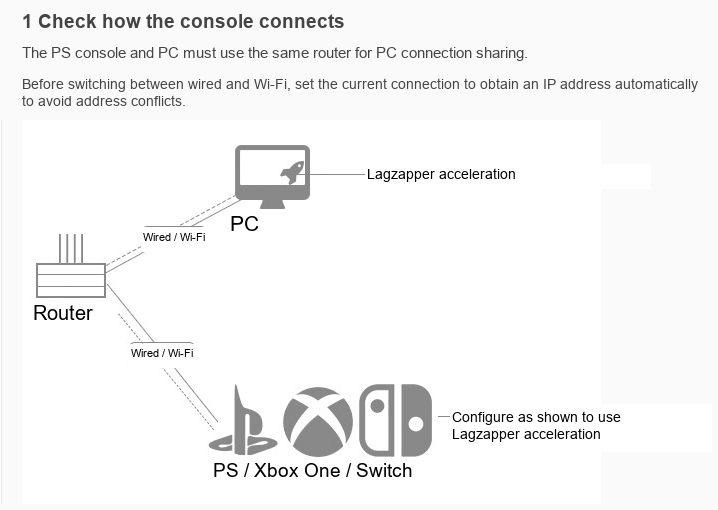
How to accelerate your console connection
Open Lagzapper and start acceleration for the PS game you want to play. This example uses Delta Force Global - PS.
Note: Lagzapper currently offers three network connection configurations. If the network does not work correctly, switch to another configuration. Each configuration uses a different IP address and subnet mask. Use the matching values to avoid connection problems.
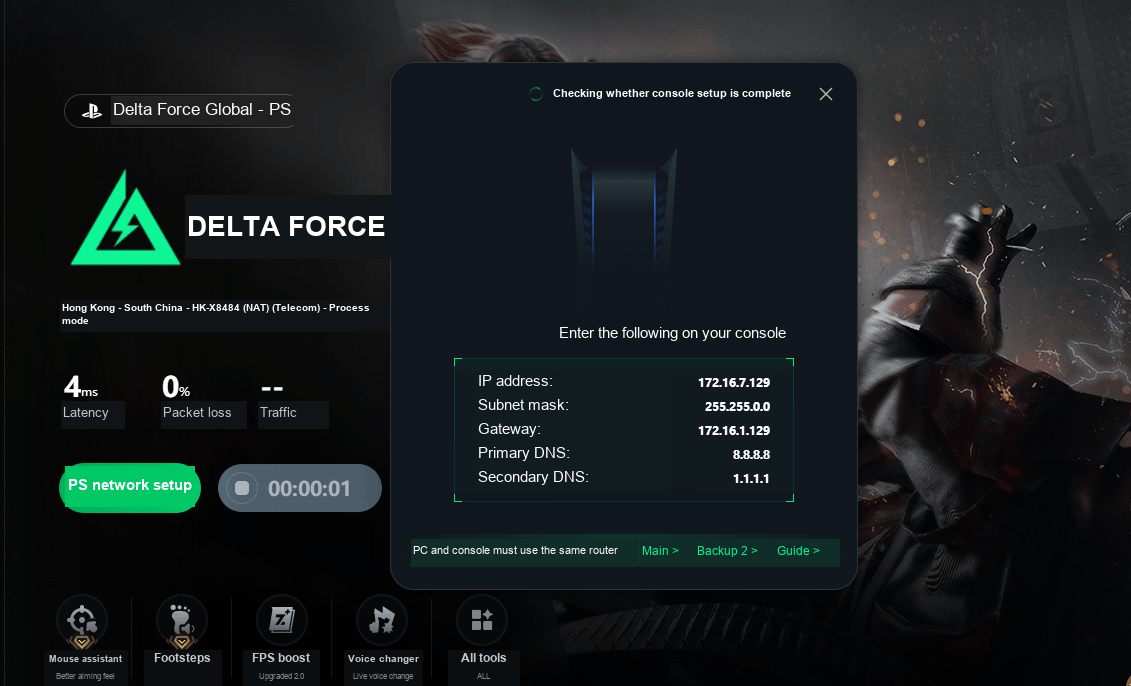
Once acceleration is active, check the displayed IP address, subnet mask, DNS addresses and other details, then configure your console.
Set up the connection on PlayStation
1 Configure the console network
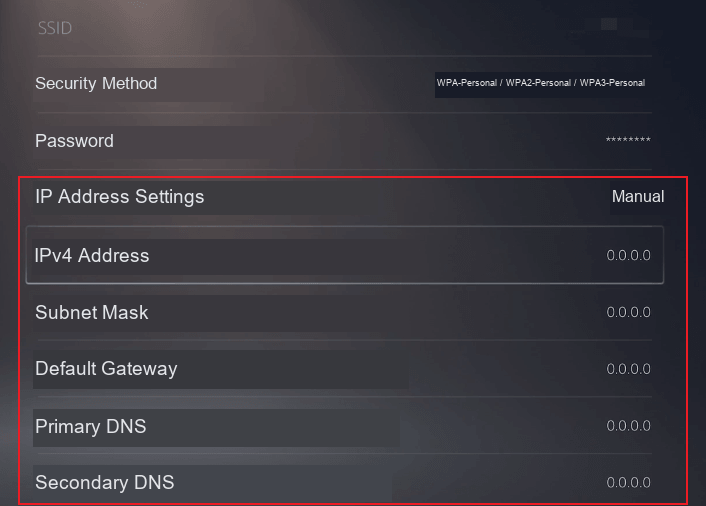
Settings → Network → Set Up Internet Connection → Use a LAN Cable (or choose Wi-Fi for a wireless connection) → Custom → Manual → Enter the values displayed after acceleration starts → MTU Settings: Automatic → Proxy Server: Do Not Use → Test Internet Connection.
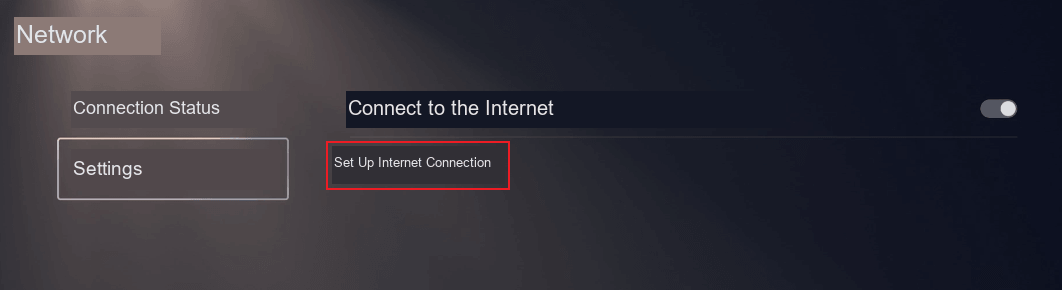
Select your network, then open Advanced Settings.
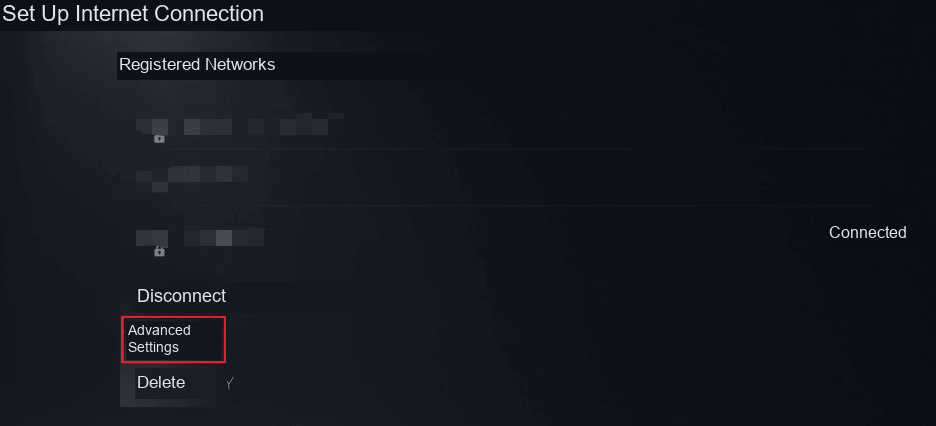
In Advanced Settings, change IP Address Settings to Manual.
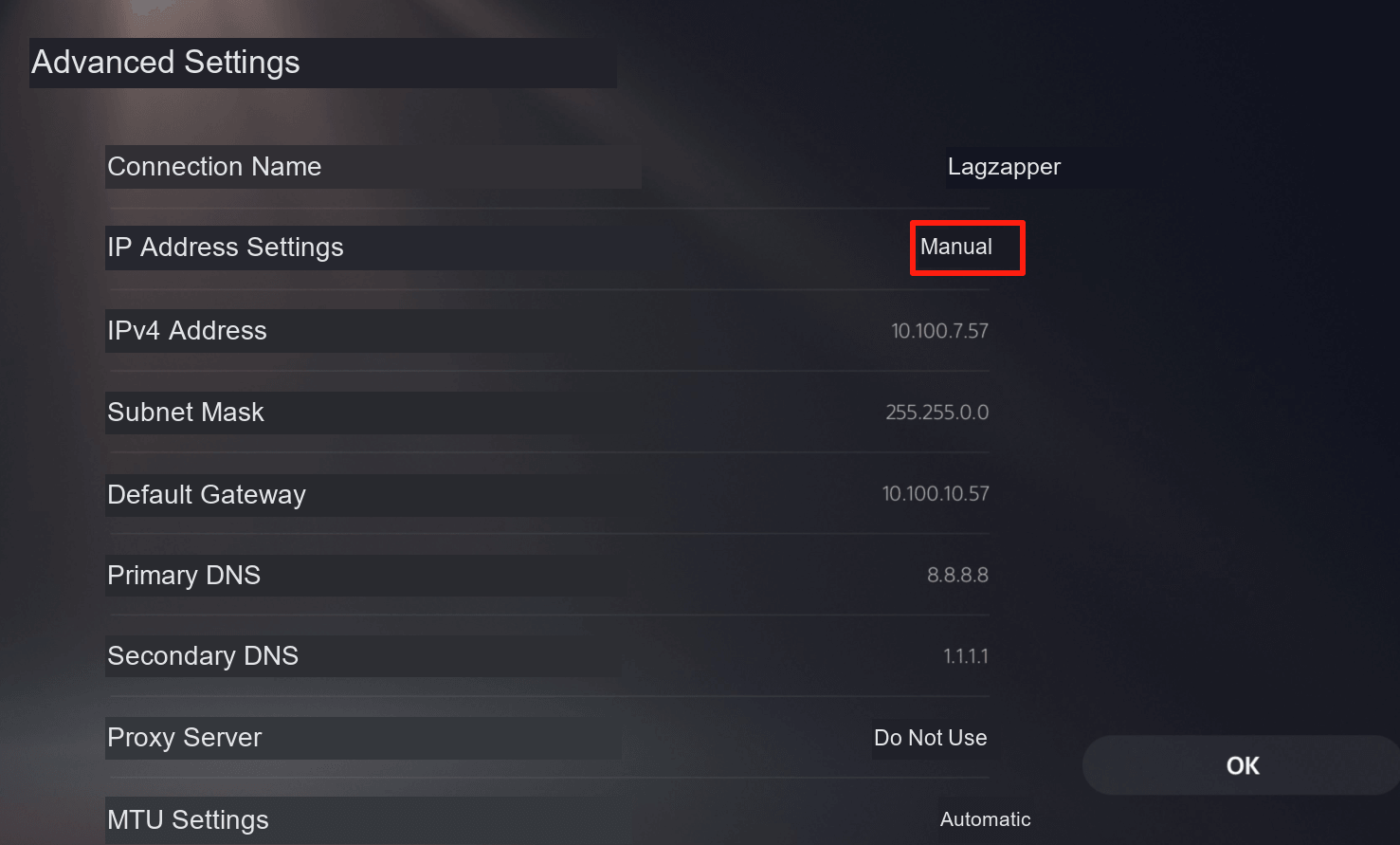
2 Enter the values shown by Lagzapper
Use the values displayed in Lagzapper after acceleration starts. The values in this tutorial are examples only.
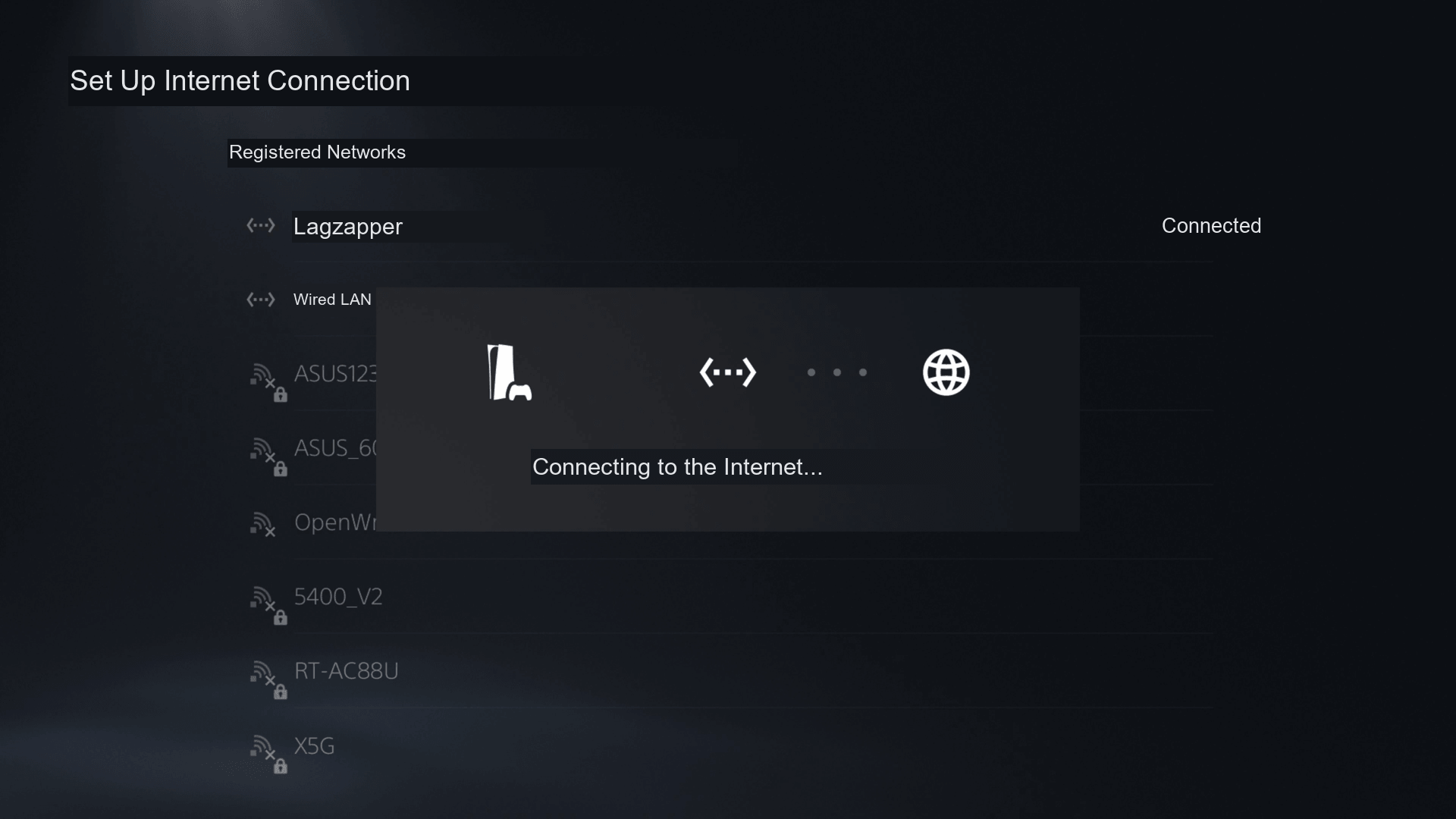
When the following prompt appears, the connection has been established successfully.
3 Once setup is complete, launch your game.