
Region switch Fix guide
1. Symptoms
After a recent PUBG update, some players' game accounts have been locked to a specific region. If your account is region-locked, you will see the following:
- Selecting a different server region in LagZapper does not take effect;
- After entering the game, you are still assigned to servers in the locked region;
- Switching nodes, restarting acceleration, or restarting the game does not help.
If these issues only started appearing after the update, your account has most likely been region-locked.
2. Why This Happens
The region lock is a restriction applied by the game update to the account itself, not to your network route. As a result, no matter which region you select in LagZapper, the game will still assign you to servers in the locked region.
To restore normal region selection, the account's region lock must be removed first. LagZapper now includes the Region Repair tool, which removes the account region lock in one click. Once repaired, region selection in LagZapper will work normally again.
3. Repair Steps
Step 1: Exit the game. Before repairing, completely close PUBG, including any background processes.
Step 2: Open the repair tool. Open LagZapper, go to the PUBG: BATTLEGROUNDS acceleration page, and open the Region Repair window.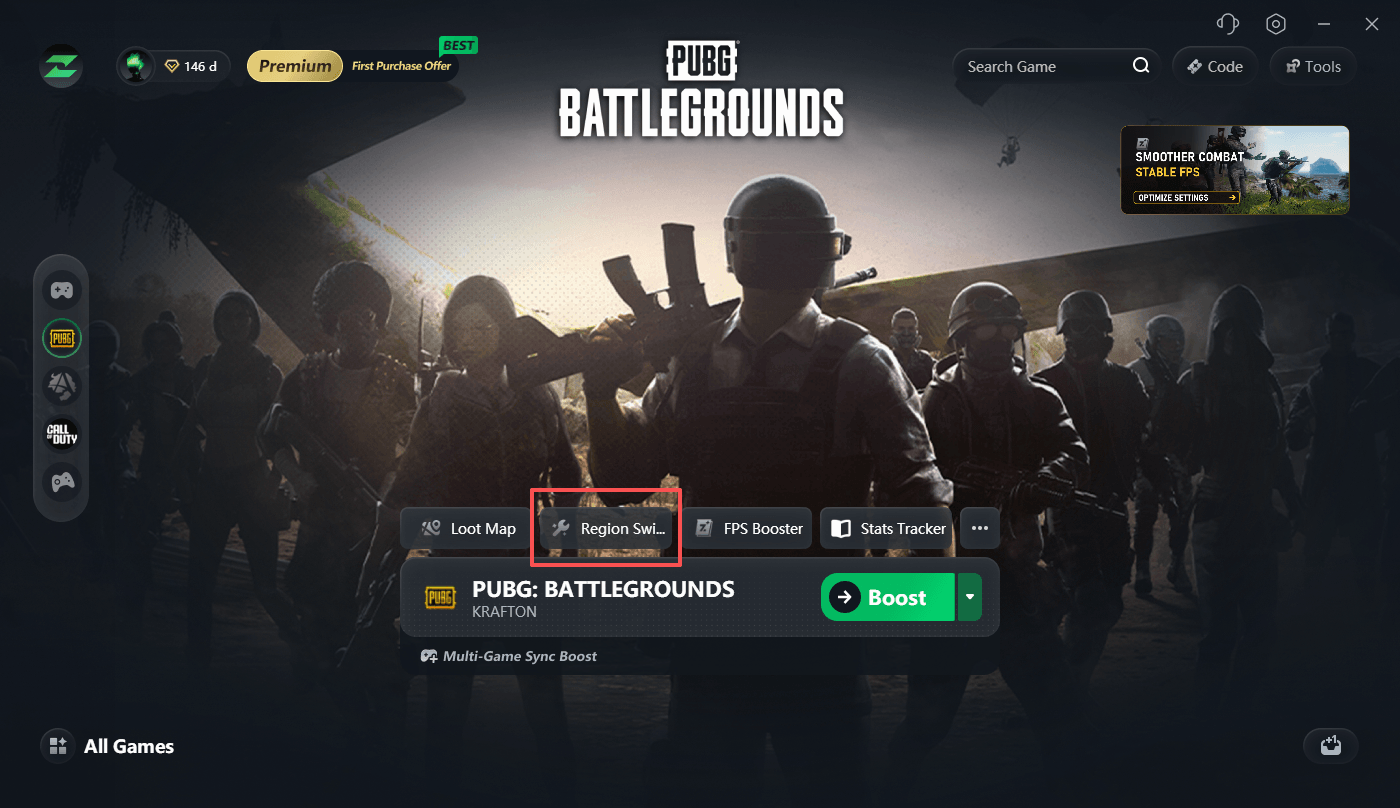
Step 3: Start the repair. Click Repair now and wait for the repair to complete.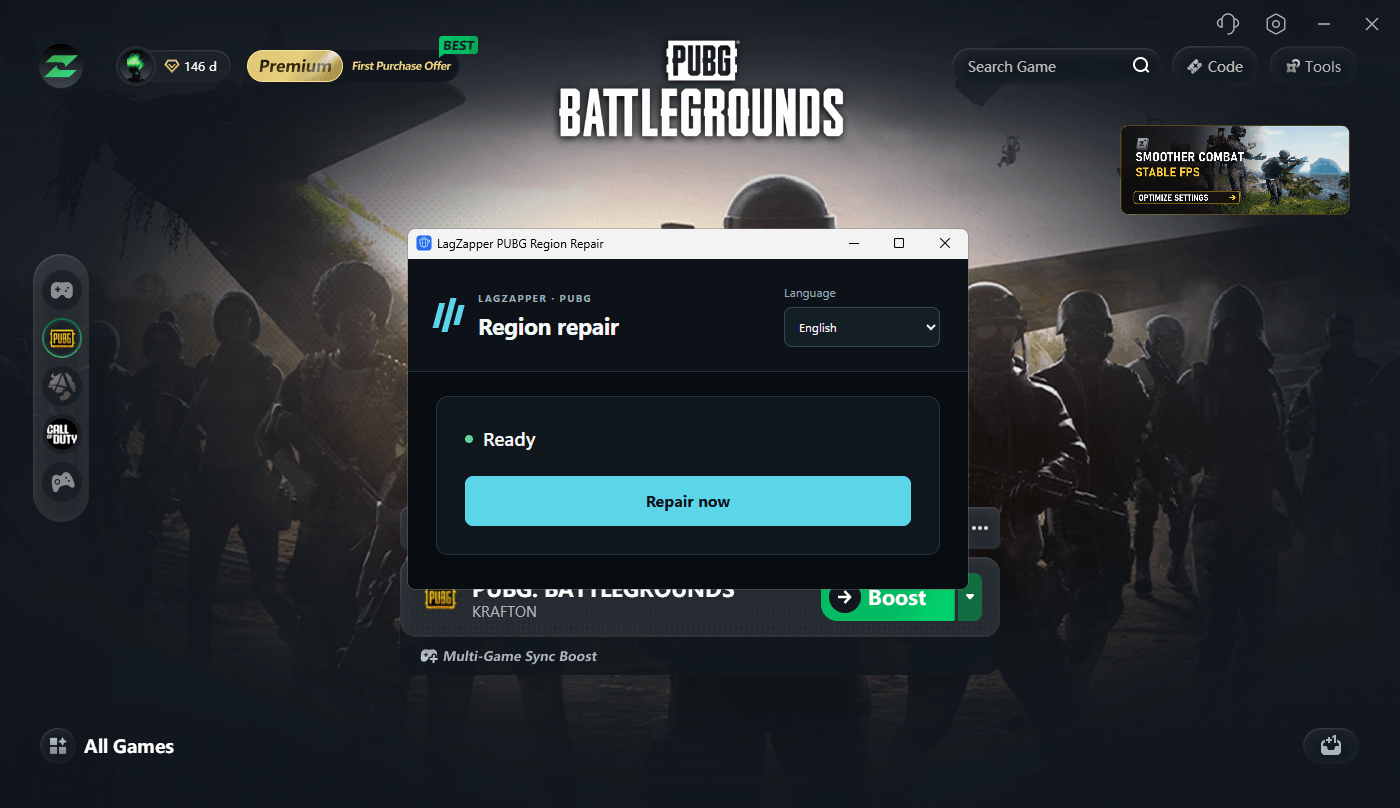
Step 4: Launch the game. Once the success message appears, restart the game.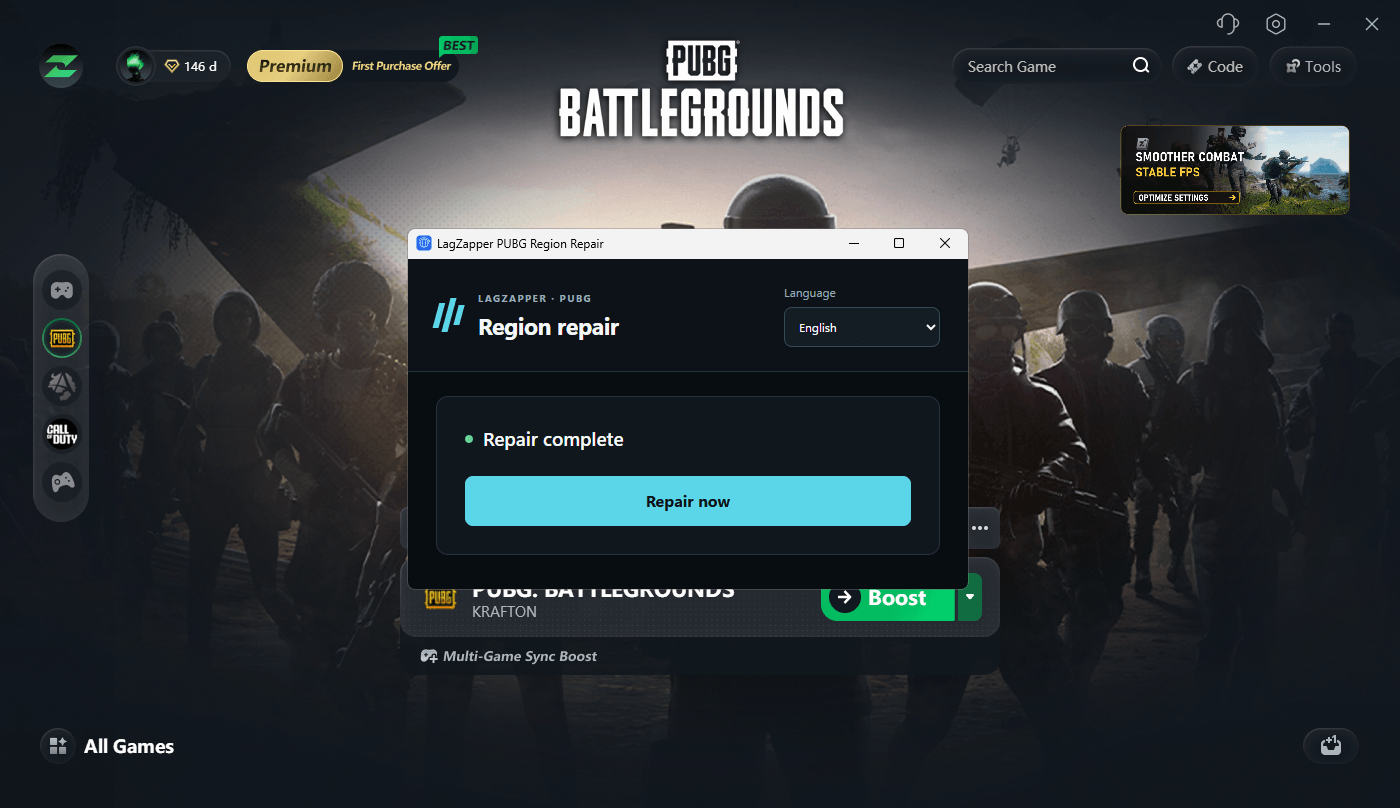
4. Verifying the Repair
After the repair is complete, follow these steps to confirm it worked:
- In LagZapper, select your target server region for PUBG and click Boost to start acceleration;
- Enter the game and play a match, then check your match information on any third-party stats website;
- If the region has switched to your selected server region, the region lock has been removed and region selection is working normally.
5. About Geo Fence Servers
PUBG has now enabled a Geo Fence mechanism on its precisely region-locked servers. In the LagZapper server list, any server with a (Geo Fence) label after its name is a precisely region-locked server. Please refer to the actual labels shown in LagZapper.
When using these servers, please note:
- Geo Fence verifies the network region you are actually connecting from. After the account region lock is repaired, you still need to select the matching region in LagZapper in order to enter the target server;
- If the accelerated region does not match the target server, you may still be assigned to servers in other regions, even after the lock has been removed;
- Therefore, accessing a Geo Fence server requires both steps: first repair the account region lock with Region Repair, then select the corresponding server region in LagZapper.
6. Notes
- Do not launch the game, disconnect from the network, or close LagZapper during the repair.
- This tool only resolves account region locks. For everyday network issues such as high latency or lag, please use the acceleration feature directly.
- Under normal circumstances, one repair is enough to restore normal region selection.
- When selecting a server labeled (Geo Fence), make sure the region selected in LagZapper matches the target server.
- If you still cannot switch regions after the repair, restart LagZapper and the game, then try again. If the problem persists after multiple attempts, please contact LagZapper support.