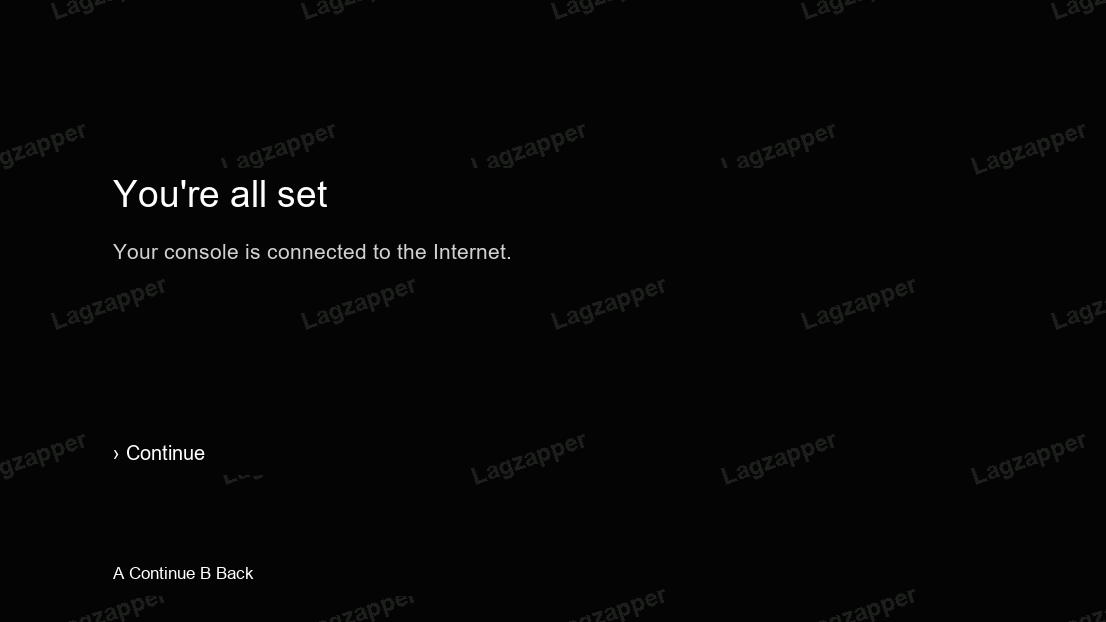
Xbox network connection setup
1 Check how the console connects
The Xbox console and PC must be connected to the same router to use PC connection sharing.
Note: Before switching between wired and wireless connections, set the current connection to obtain an IP address automatically. Then switch connection types to avoid IP address conflicts that could prevent setup.
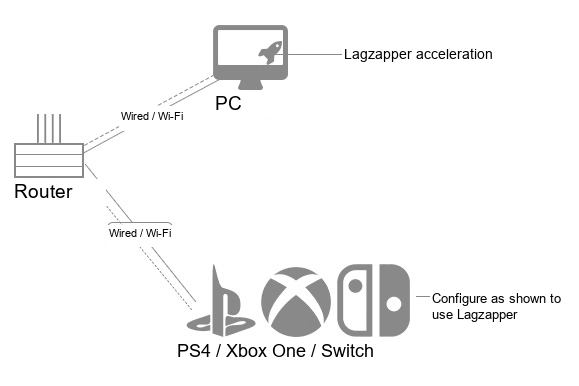
2 Set up the connection on your PC
Search for the game you want to accelerate. If your game is not supported, select All Xbox Games. This example uses Delta Force Global - Xbox.
Note: Lagzapper currently offers three network connection configurations. If the network does not work correctly, switch to another configuration. Each configuration uses a different IP address and subnet mask. Use the matching values to avoid connection problems.
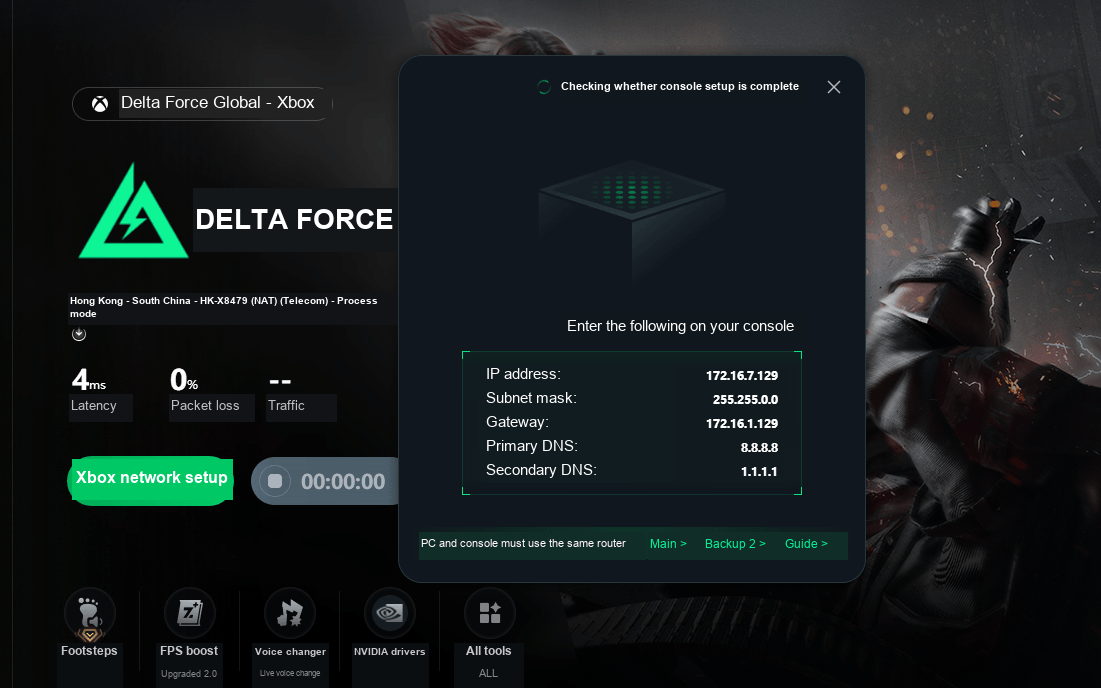
Once acceleration is active, check the information displayed, then continue with setup on the console.
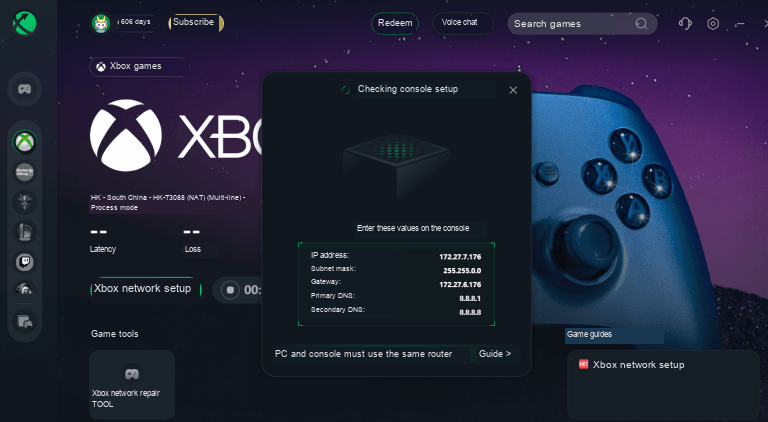
Set up the connection on Xbox One
1 Configure the console network
Press the Xbox button in the middle of the controller to open the Home screen → Scroll left to open the guide → Settings → All Settings → Network → Network Settings → Advanced Settings.
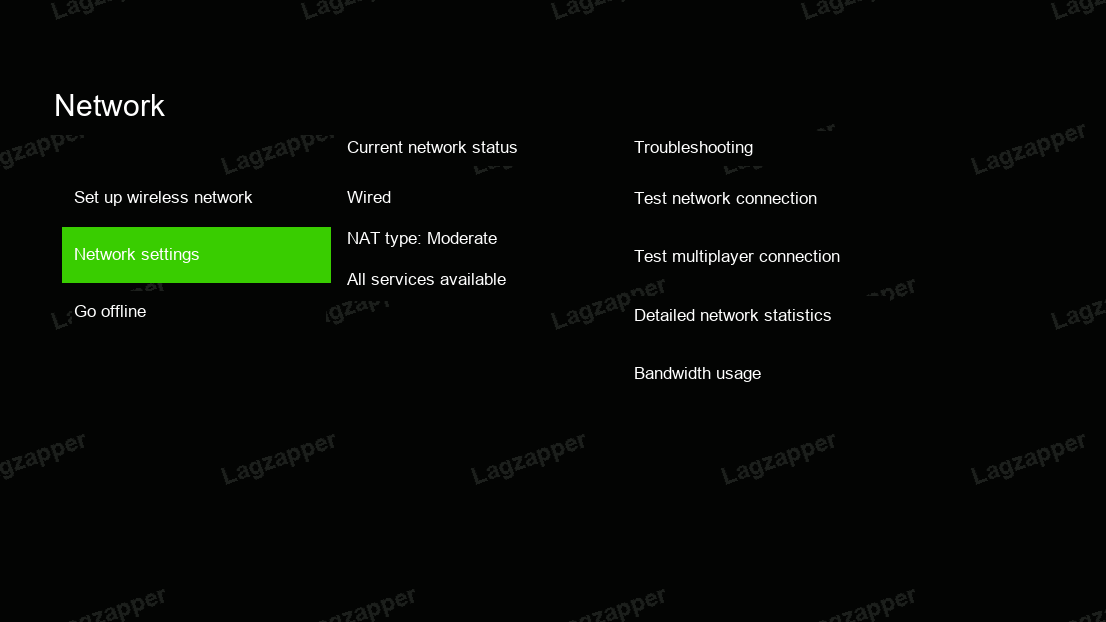
2 Enter the IP and DNS settings
IP Settings → DHCP Manual → Enter the IP address, subnet mask and gateway displayed after acceleration starts.
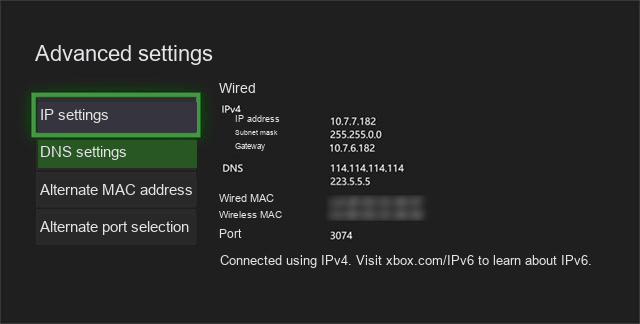
DNS Settings → Enter the primary and secondary DNS addresses displayed after acceleration starts.
3 Once setup is complete, enjoy online gaming.