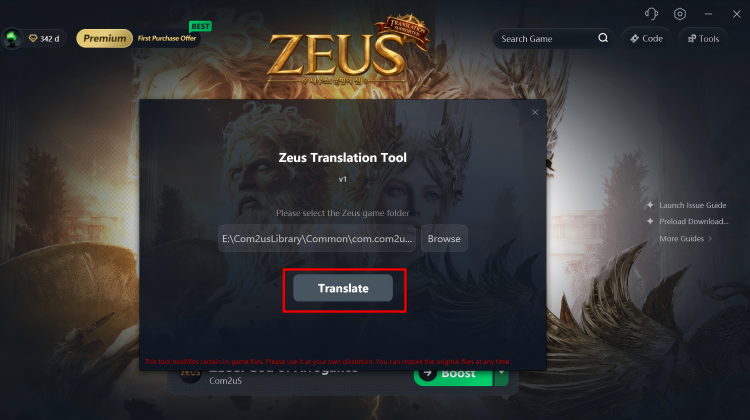
Translation Tool User Guide
This guide will show you how to use the Translation Tool and complete the required folder selection and basic setup.
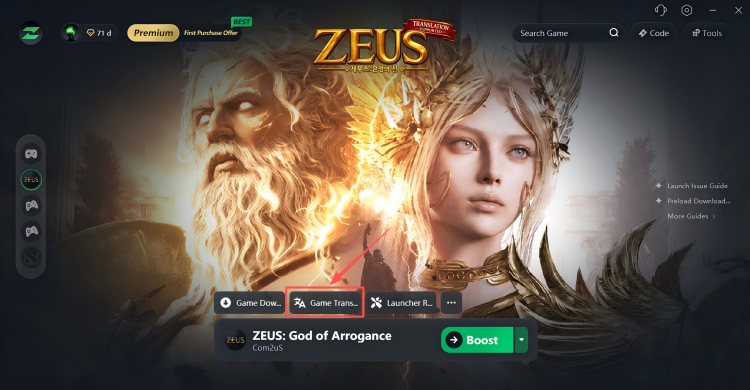
Step 1: Open the Folder Selection Window
After opening the translation tool, click Browse.
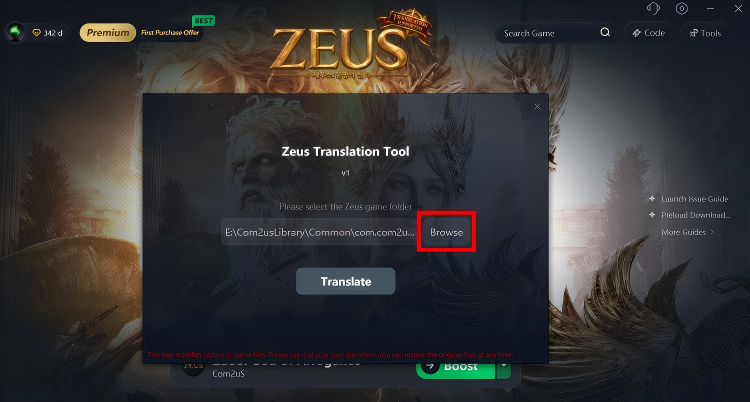
Step 2: Locate the Com2usLibrary Folder
Go to the game installation directory and find the Com2usLibrary folder.
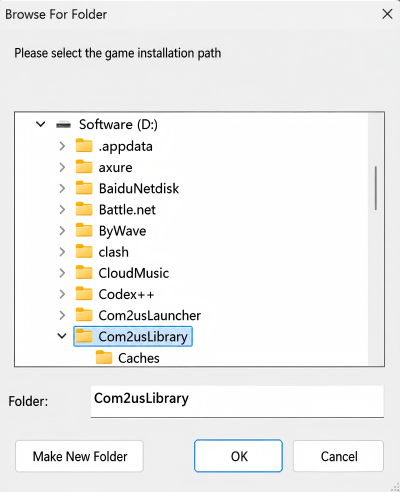
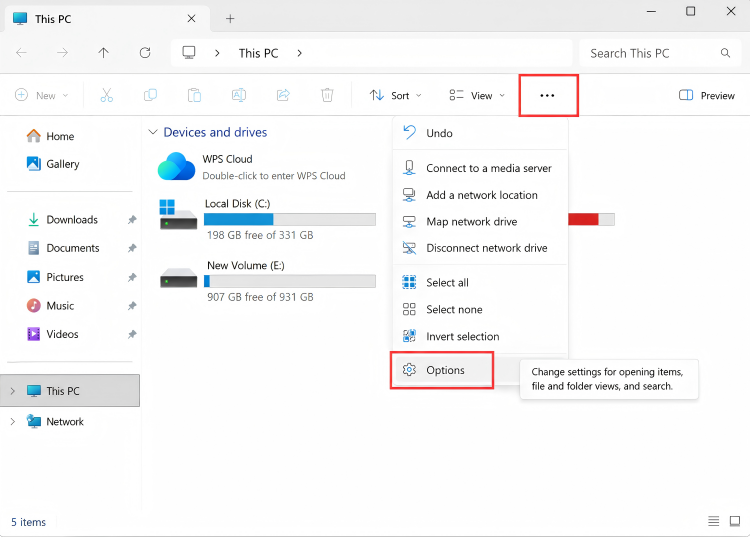
If the folder does not appear in the game installation directory, it may be hidden by Windows. Please follow these steps:
First, open This PC, click More in the upper-right corner, and then select Options.
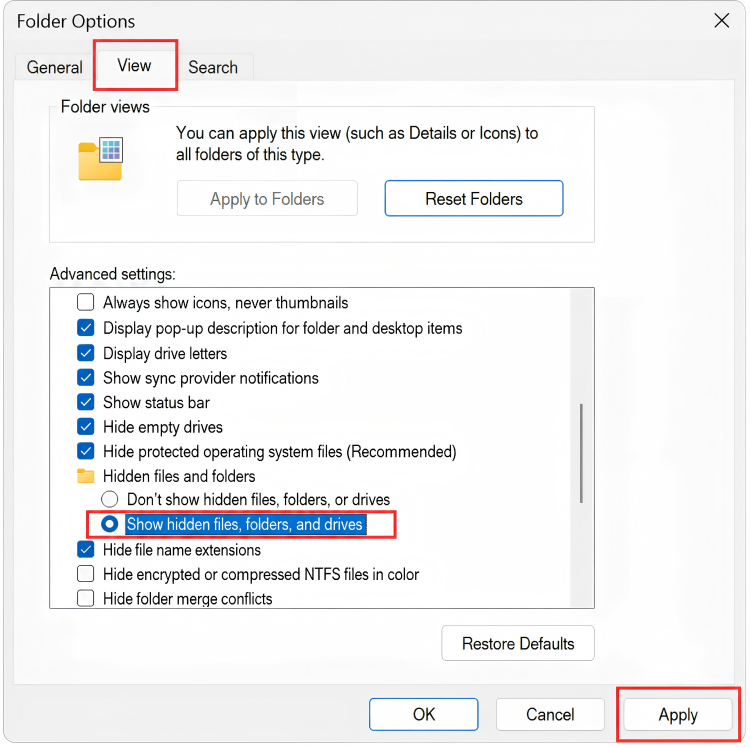
Next, go to the View tab and find Hidden files and folders under Advanced settings.
Finally, select Show hidden files, folders, and drives, then click Apply to save the changes.
Step 3: Select the Common Folder
- Return to the translation tool and open the Common folder inside Com2usLibrary.
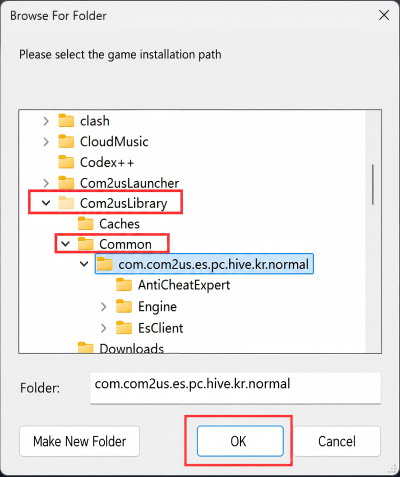
2. Select the Common folder and confirm your selection. You can then start using the translation tool.