
AION 2 Crash or Fatal Error? 7 Fixes for Startup and Random Crashes
AION 2 crash issues can prevent players from launching the game, entering gameplay, or completing sessions. Some players may find AION 2 closing immediately after startup, showing a black screen, or displaying an AION 2 Fatal Error before the client shuts down. These problems may prevent AION 2 from launching or cause it to keep crashing during gameplay, even if the game worked previously.
This guide will explain why AION 2 keeps crashing and provide seven practical fixes for startup crashes, Fatal Errors, and random PC crashes.
Why Does AION 2 Keep Crashing?
AION 2 crashes can have different causes depending on when the client closes and which error appears. Check the table below to find the most relevant fix.
| Crash Symptom | Likely Cause | First Fix to Try |
|---|---|---|
| Crashes after an update | Patch issue or corrupted game files | Check for updates and repair game files |
| Aion2.exe - 0xE0000015 | Previous client process conflict | Fully close AION 2 from Task Manager and restart the game |
| UE-AION2 Fatal Error | Overlay or client compatibility issue | Disable the PURPLE in-game Overlay |
| Logo closes or DirectX 12 warning | DirectX or graphics driver issue | Update the graphics driver and check DirectX 12 |
| Crashes during combat or loading | Graphics settings or hardware load | Lower the graphics settings |
How to Fix AION 2 Crashes and Fatal Errors - 7 Useful Fixes
Use the table above to identify the fix that matches your symptom. If no row fits your problem, try the following fixes in order.
Fix 1. Check Known Issues and Updates
If AION 2 started crashing after a patch, check the official notices for your region before changing Windows settings. Install any pending AION 2, PURPLE, or Steam updates. If NCSOFT has confirmed a crash issue, wait for the related hotfix and avoid repeating local fixes that cannot correct a game-side bug.
Fix 2. Fully Close and Restart AION 2
Closing the game window may leave an AION 2 or launcher process running, which can prevent a clean restart and contribute to the Aion2.exe - 0xE0000015 error. Follow the steps below to end any remaining processes and relaunch the game.
Step 1. Close AION 2 and exit PURPLE or Steam from the system tray.
Step 2. Press Ctrl + Shift + Esc, then end any remaining AION 2, Aion2.exe, PURPLE, or Steam processes in Task Manager.
Step 3. Restart PURPLE or Steam and launch AION 2 again. Restart Windows if the process immediately returns.
Fix 3. Disable the PURPLE In-Game Overlay
NCSOFT recommends disabling the PURPLE in-game overlay when AION 2 shows a UE-AION2 Fatal Error or repeatedly crashes. The overlay can conflict with the game client or other programs that display information over the game. Follow the steps below.
Step 1. Open PURPLE and click the Settings gear icon in the upper-right corner.
Step 2. Select General, then turn off Enable Overlay while in-game.
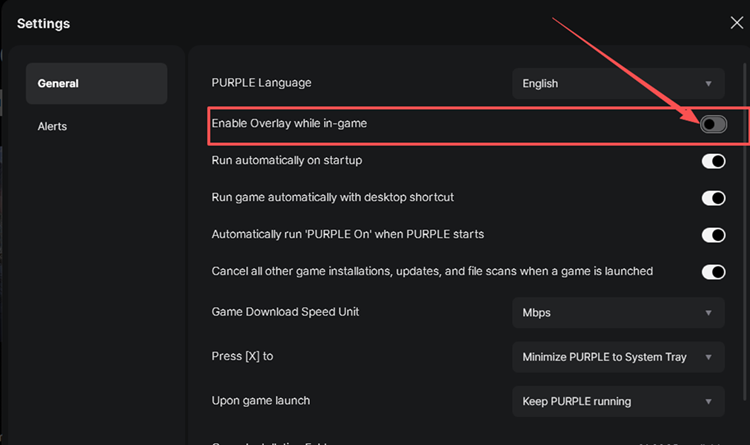
Step 3. Restart PURPLE, launch AION 2, and check whether the Fatal Error returns.
Fix 4. Scan and Repair AION 2 Game Files
An interrupted download or update may leave damaged or missing files that cause startup crashes, Fatal Errors, or crashes while loading. Scanning the installation can replace affected files without reinstalling the entire game. Use the instructions for your launcher below.
👉 For PURPLE
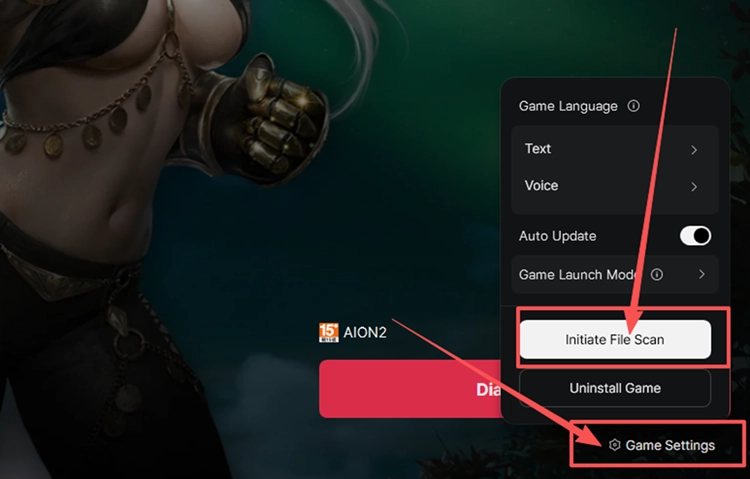
Step 1. Open PURPLE, select AION 2, click the menu beside Play, and select Game Settings.
Step 2. Click Initiate File Scan and wait for PURPLE to finish checking the installation.
👉 For Steam (When Available in Your Region)
Step 1. Right-click AION 2 in your Steam Library and select Properties > Installed Files.
Step 2. Click Verify integrity of game files and wait for the scan to finish.
Fix 5. Lower the Graphics Settings
If AION 2 crashes during combat, teleporting, or crowded scenes, high GPU or VRAM usage may be contributing to the problem. Lowering the graphics load can help identify whether the crash is performance-related. Follow the steps below.
Step 1. Open Settings > Graphics and lower the graphics settings.
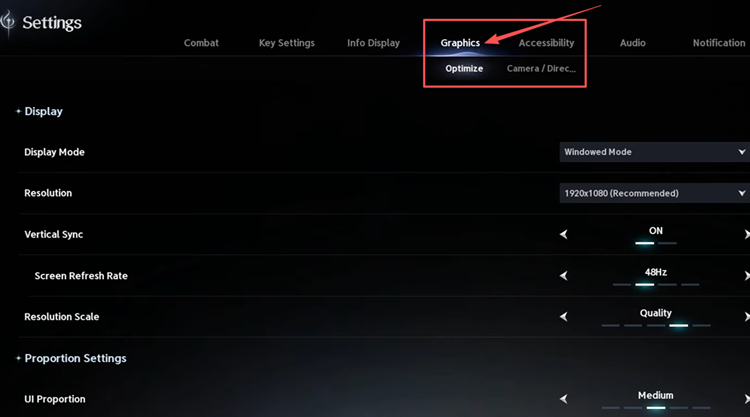
Step 2. Reduce the resolution or render scale and lower demanding options such as shadows and effects.
Step 3. Apply the changes and test the same area or activity again.
Fix 6. Update the Graphics Driver
Outdated or unstable graphics drivers can cause AION 2 crashes, black screens, or DirectX 12 errors. Updating the driver may improve compatibility with the game and resolve driver-related crashes. Follow the steps below to install the latest available driver.
Step 1. Open NVIDIA app on your PC.
Step 2. Select Drivers, check for updates, then download and install the latest Game Ready Driver.
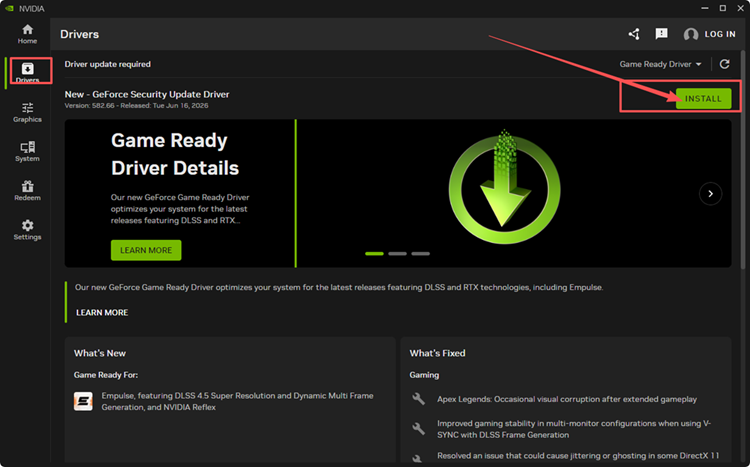
Step 3. Restart your PC and launch AION 2 again.
Tip: AMD and Intel users can update through AMD Software: Adrenalin Edition or Intel Driver & Support Assistant.
Fix 7. Check DirectX 12 and Required Runtime Components
AION 2 requires DirectX 12. If a DirectX, VCRUNTIME, or MSVCP error persists after updating the graphics driver, check DirectX and repair the Visual C++ runtime. Follow the steps below.
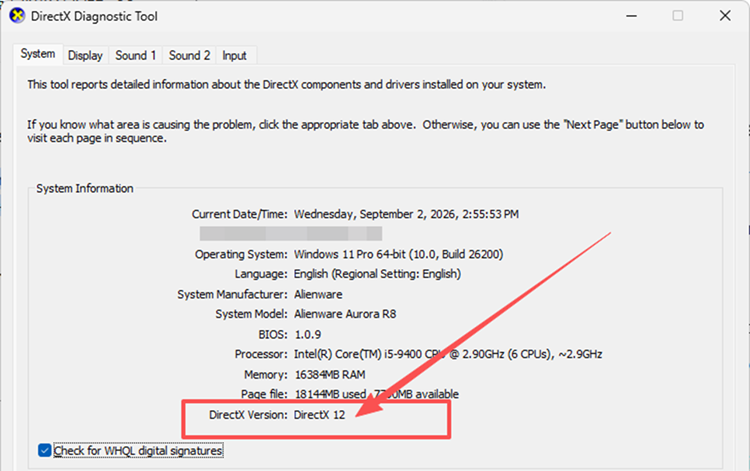
Step 1. Press Windows + R, enter dxdiag, and check DirectX Version under System. Confirm that it shows DirectX 12.
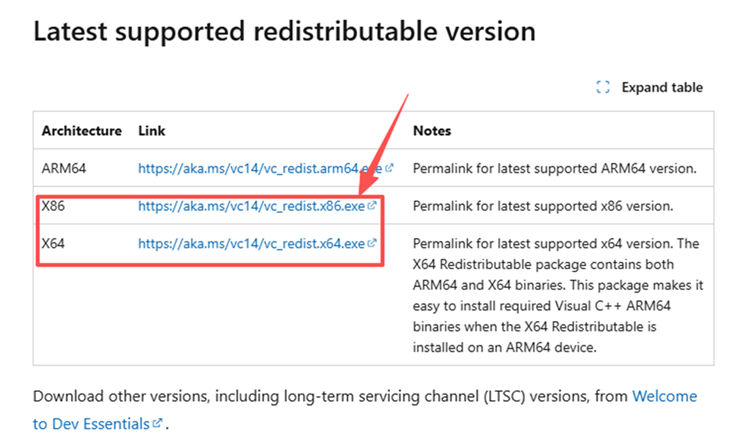
Step 2. If a VCRUNTIME or MSVCP error appears, open Microsoft’s Visual C++ Redistributable page and download the latest x64 and x86 packages.
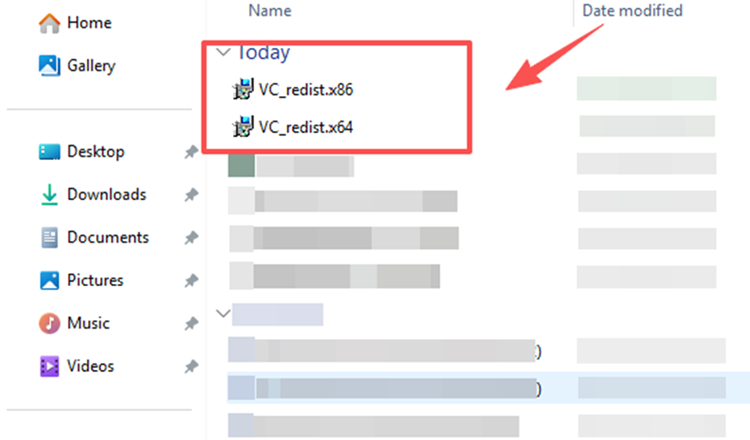
Step 3. Run both installers and select Install or Repair. Restart your PC, then test AION 2 again.
[Bonus] Reduce AION 2 Lag and Disconnects with LagZapper
AION 2 relies on a stable connection for open-world exploration, dungeons, and PvP. If the client stays open but high ping, packet loss, lag spikes, or unstable routing still cause delayed skills or disconnects, LagZapper can optimize the connection route and help improve stability during online play.
Why Use LagZapper for AION 2?
LagZapper can help AION 2 players:
- Smart Route Optimization: Finds a faster and more stable route to AION 2 servers, helping reduce high ping, packet loss, jitter, and unstable connections.
- Reduce Lag & Improve Stability: Helps lower ping, reduce game lag, minimize lag spikes, and improve responsiveness during dungeons and PvP.
- One-Click Boost: Optimizes the AION 2 connection without manually changing complicated network, DNS, or router settings.
- Support for 3,000+ Games: Supports AION 2 and thousands of other popular online games.
How to Boost AION 2 with LagZapper
Follow the three steps below to optimize your AION 2 connection before entering the game.
Step 1. Download and Install LagZapper
Download LagZapper for Windows and follow the on-screen instructions to complete the installation on your PC.
Step 2. Open LagZapper and Search for AION 2
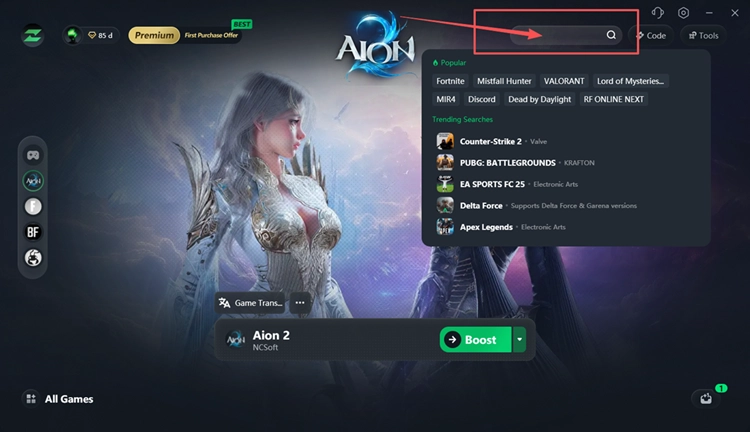
Launch LagZapper, sign in, and enter AION 2 in the search box.
Step 3. Select a Recommended Node and Click Boost
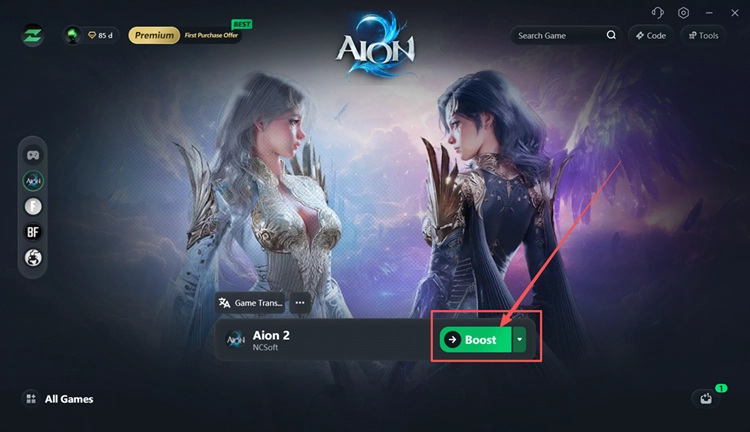
Select your AION 2 server and a recommended node, click Boost, then launch the game through your game launcher.
Also Read: AION 2 High Ping? Try 7 Useful Fixes
The Bottom Line
AION 2 may crash because of patch issues, stuck processes, overlay conflicts, damaged files, demanding graphics settings, outdated drivers, or missing system components. Try the seven fixes in order. If the game stays open but high ping or disconnects continue, download LagZapper to optimize the connection route.
FAQs About AION 2 Crashes
Q1. What Causes an AION 2 Crash?
Patch bugs, stuck processes, damaged files, overlays, graphics drivers, or runtime problems may cause crashes.
Q2. Why Does AION 2 Keep Crashing During Combat or Loading?
If AION keeps crashing during combat, excessive GPU or VRAM load may be responsible.
Q3. How Do I Fix AION 2 Crashing on Startup?
Restart the client, disable overlays, repair game files, and update the graphics driver.
Q4. What Does an AION 2 Fatal Error Mean?
It means the Unreal Engine client stopped unexpectedly; overlays or graphics problems may be involved.
Q5. Why Is AION 2 Not Launching?
A stuck process, damaged files, missing runtimes, or an incompatible graphics driver may block launch.
Q6. Can the PURPLE Overlay Cause AION 2 to Crash?
Possibly. NCSOFT recommends disabling it when AION 2 crashes or displays a Fatal Error.