
How to Fix AION 2 Error 0xE0000029
Getting AION 2 error 0xE0000029 when launching the game? Aion2.exe may close before login and display exit: 0xE0000029. Multiple players previously reported the same problem after an AION 2 PC update, with remote-control software, background services, or remaining drivers commonly involved. This guide explains what AION 2 error 0xE0000029 means and how to fix NCGuard conflicts, remote-control software detection, damaged files, and related AION 2 launch problems.
What Is AION 2 Error 0xE0000029?
AION 2 error 0xE0000029 is a PC launch error that closes the game before normal gameplay begins. NCSoft has not published an official definition for the code, but multiple player reports connect it with NCGuard detecting conflicting software, services, or drivers.
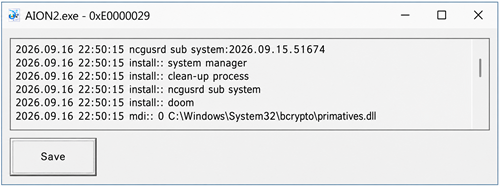
Common situations include:
- Aion2.exe closes immediately after launch.
- The game displays exit: 0xE0000029.
- AION 2 stops before reaching login.
- The error appears after an AION 2 or NCGuard update.
- Remote-control software is installed on the PC.
- The error remains after the remote program is closed.
- A related service or driver remains after uninstallation.
Players on the AION 2 Taiwan community and Bahamut forum reported that removing remote-control programs resolved the error. These are community-reported solutions rather than an official NCSoft workaround.
How to Fix AION 2 Error 0xE0000029
AION 2 error 0xE0000029 is usually connected with NCGuard, remote-control software, background services, or remaining drivers. Try the following fixes in order.
Fix 1. Check AION 2 and NCGuard Updates
A widespread launch error after an update may require a newer game or security-module version. Before changing Windows settings, check:
- Latest AION 2 announcements
- Recent Steam or PURPLE updates
- Current AION 2 maintenance notices
- Recent player reports involving the same error code
Install every available launcher and game update, restart Windows, and launch AION 2 again. Reinstalling the game is unlikely to help while an official compatibility problem remains unresolved.
Fix 2. Fully Restart AION 2 and the Launcher
A stuck launcher or NCGuard process may continue running after the game closes.
Step 1. Close AION 2 and fully exit Steam or PURPLE.
Step 2. Open Task Manager and end any remaining AION 2, Steam, PURPLE, or NCGuard processes.
Step 3. Restart your PC, reopen the launcher, and start AION 2.
A complete restart may clear a temporary security-module conflict. Error 0xE0000029 returning immediately suggests that another program, service, or driver is still being detected.
Fix 3. Uninstall Remote-Control Software
Previous AION 2 player reports most consistently connect error 0xE0000029 with remote-control or unattended-access programs.
Step 1. Open Settings > Apps > Installed apps.
Step 2. Find software used for remote desktop access, remote support, screen control, or unattended device management.
Step 3. Uninstall the suspected program, restart Windows, and reopen AION 2.
Closing the program may not be enough because its Windows service or driver can continue running in the background. Remove only software you recognize and temporarily do not need.
Fix 4. Verify AION 2 Game Files
Damaged AION 2 or NCGuard files may cause the client to close after an incomplete download or update.
For Steam:
Step 1. Open Steam > Library and right-click AION 2.
Step 2. Select Properties > Installed Files > Verify integrity of game files.
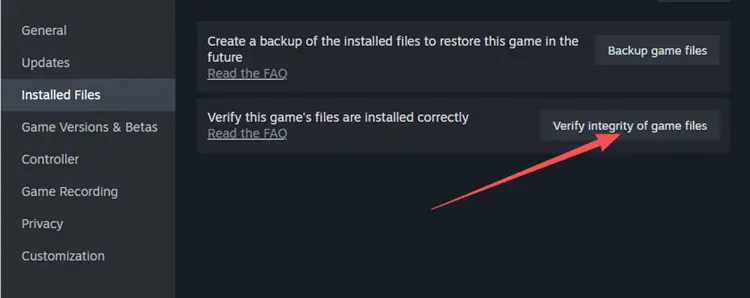
Step 3. Restart Steam after verification finishes and launch the game.
For PURPLE:
Step 1. Open the AION 2 game settings and use Scan and Repair.
Step 2. Restart PURPLE after the repair finishes.
Fix 5. Perform a Clean Boot
A clean boot can identify the background service triggering NCGuard without requiring you to uninstall several programs.
Step 1. Press Windows + R, enter msconfig, and open System Configuration.
Step 2. Select Services > Hide all Microsoft services > Disable all, then disable nonessential startup apps in Task Manager.
Step 3. Restart Windows and open AION 2. Re-enable the services in small groups to identify the conflict.
AION 2 opening during the clean boot confirms that a third-party startup service or application is involved. Follow Microsoft’s Windows clean-boot instructions and restore your normal startup configuration afterward.
Fix 6. Remove Remaining Drivers or Reinstall AION 2
Some programs leave services or drivers behind after the main application is uninstalled. These remaining components may continue triggering error 0xE0000029.
Step 1. Open Task Manager > Services and check for a clearly identified service belonging to the removed program.
Step 2. Use the software vendor’s official cleanup method to remove the remaining service or driver, then restart Windows.
Step 3. When no conflicting component remains, reinstall AION 2 through Steam or PURPLE and complete every update before launching it.
Do not manually delete unknown .sys, .inf, NCGuard, or Windows system files. Removing the wrong driver can disable hardware or damage Windows. For the complete installation process, follow the AION 2 download guide.
[Bonus] Optimize Your Connection to AION 2
AION 2 error 0xE0000029 normally occurs before the game establishes a stable server connection. LagZapper cannot remove conflicting software, repair NCGuard, or change its security detection.
Once AION 2 launches normally, LagZapper can optimize the connection route between your PC and the selected server region, helping reduce high ping, packet loss, and connection instability.
Highlights of LagZapper for AION 2
- Lower and Stabilize Ping: Optimize your route to the selected AION 2 server region.
- Reduce Lag: Reduce routing-related delays and sudden latency spikes during combat.
- Reduce Packet Loss: Maintain a more stable connection during AION 2 sessions.
- Recommended Server Nodes: Select your region and use a recommended connection node.
How to Use LagZapper for AION 2
Follow these steps after resolving error 0xE0000029 and successfully opening AION 2.
Step 1. Download and Install LagZapper
Download LagZapper for Windows, complete the installation, and sign in.
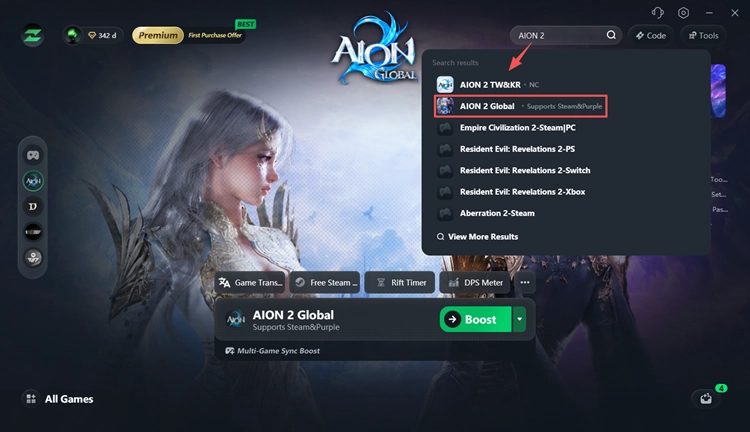
Step 2. Search for AION 2
Open LagZapper and search for AION 2. Select the game to open its connection settings.
Step 3. Select a Region and Boost
Choose your AION 2 server region and a recommended node, then click Boost.
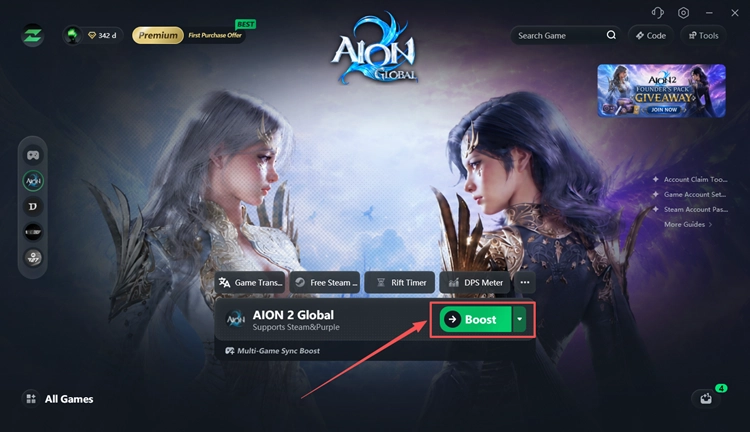
Once the connection is ready, launch AION 2 with an optimized network route.
The Bottom Line
AION 2 error 0xE0000029 is most likely connected with an NCGuard software or driver conflict. Fully restart the launcher, uninstall recognized remote-control software, verify the game files, and use a clean boot to identify remaining background services.
LagZapper cannot directly fix error 0xE0000029. After the game opens normally, download LagZapper to optimize the connection route to your AION 2 server region.
AION 2 Error 0xE0000029 FAQs
Q1. What does AION 2 error 0xE0000029 mean?
It usually means NCGuard detected conflicting software, a background service, or a driver while AION 2 was launching.
Q2. Why does AION2.exe close with 0xE0000029?
A security-module conflict may close AION2.exe before login, especially when remote-control software or its driver remains installed.
Q3. Is AION 2 error 0xE0000029 a server problem?
Current evidence points to a local NCGuard conflict rather than an AION 2 server or network problem.
Q4. Which programs can cause AION 2 error 0xE0000029?
Player reports mainly mention remote-control and unattended-access programs. NCSoft has not published an official list of conflicting software.
Q5. Why does closing remote-control software not fix the error?
The application may leave its Windows service or driver active. A complete uninstall and system restart may be required.
Q6. Should I reinstall AION 2 to fix error 0xE0000029?
Reinstall only after removing conflicting software and repairing files. Reinstallation cannot remove an unrelated background service or driver.