
How to Fix AION 2 Error 40309:500 & Phone Number Error
Getting AION 2 error 40309:500 while trying to verify your phone number or register your device? The message usually says: “A temporary error has occurred. Please try again later. (40309:500)”. AION 2’s Taiwan official site has also addressed this temporary device registration error. Players commonly encounter it when requesting an SMS verification code or completing account security checks.
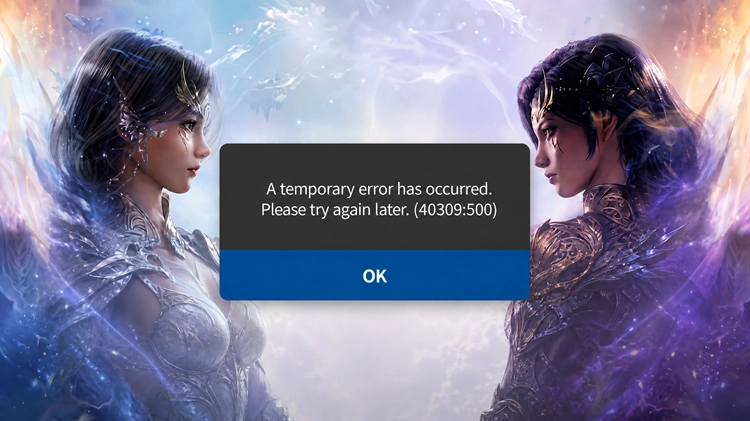
This guide explains what AION 2 error 40309:500 means and how to fix phone number errors, temporary verification failures, authentication problems, and related PURPLE login issues.
What Is AION 2 Error 40309:500?
AION 2 error 40309:500 usually occurs during account authentication, phone verification, or device registration rather than normal gameplay. Players may see it after entering a phone number or requesting an SMS verification code. In some cases, one number works while another triggers the error. Common situations include:
- AION 2 cannot complete phone verification
- The SMS verification request fails
- The verification code does not arrive
- Device Registration cannot be completed
- PURPLE cannot complete account authentication
- The message A temporary error has occurred appears
- Too many verification requests have been submitted
Since this is mainly an authentication error, reinstalling AION 2 or changing graphics settings should not be the first fix.
How to Fix AION 2 Error 40309:500
AION 2 error 40309:500 is usually related to phone verification, Device Registration, or NC account authentication. Try the following fixes in order.
Fix 1. Stop Repeated Verification Attempts
If you have already clicked Send Verification Code several times, stop requesting new codes for a while. Repeated requests may trigger a temporary verification limit and cause further attempts to fail. In this case, you should:
- Close the verification window.
- Wait before trying again.
- Request only one new verification code when you retry.
This is especially important if you see a verification request limit message.
Fix 2. Check AION 2 and PURPLE Server Status
When multiple players report AION 2 error 40309:500 at the same time, the problem is more likely related to NC authentication or verification services rather than your device. Check:
- Latest AION 2 announcements
- PURPLE maintenance or login notices
- Recent player reports of verification issues
Wait for the service to recover before trying again. Reinstalling AION 2 is unlikely to help with a server-side issue.
Fix 3. Check Your Phone Number Format
If error 40309:500 appears after entering your phone number, check the number format.
Step 1. Select the correct country or region code.
Step 2. Enter your mobile number without repeating the country code. Remove the leading 0 when required. For example:
- Local format: 07123 456789
- International format: +44 7123 456789
Step 3. Request one new verification code.
An incorrectly formatted or unsupported phone number may be rejected before the SMS request is sent.
Fix 4. Fully Restart PURPLE and Sign In Again
A temporary PURPLE authentication session issue may interfere with verification.
Step 1. Close AION 2 and fully exit PURPLE. End any remaining PURPLE processes in Task Manager.
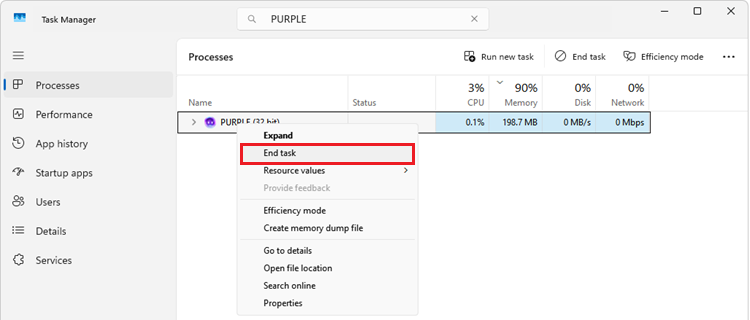
Step 2. Restart your PC, then open PURPLE and sign in again.
Step 3. Install any pending PURPLE updates, launch AION 2, and retry Device Registration or verification.
Fix 5. Check Your NC Account Security Settings
AION 2 may still require additional authentication even after your NC account has been verified. Check that:
- Your registered phone number is correct.
- Your account security information is complete.
- Any available authentication methods are enabled and set up correctly.
- Any OTP or additional verification method is linked to the correct NC account.
Then restart PURPLE and try the verification process again.
Fix 6. Check Your Connection to the AION 2 Region
An unstable connection to NC authentication services can cause verification requests to time out.
Step 1. Pause large downloads, close bandwidth-heavy apps, and restart your router.
Step 2. Use a stable Ethernet connection or try another network, such as Wi-Fi or a mobile hotspot.
Step 3. Reopen PURPLE and retry verification.
When the connection route to the AION 2 region remains unstable, LagZapper can help optimize the network route and reduce AION 2 lag before you reopen PURPLE.
[Bonus] Optimize Your Connection to AION 2
When AION 2 error 40309:500 appears together with connection instability, login timeouts, or trouble reaching PURPLE services, your network route may also contribute to the problem.
LagZapper optimizes the connection route between your PC and the AION 2 server region, helping stabilize the connection while reducing latency and packet loss. It cannot fix an NC authentication service outage, but it can help rule out network routing problems on your side.
Highlights of LagZapper for AION 2
- Lower and Stabilize Ping: Optimize your route to the selected AION 2 region and troubleshoot AION 2 high ping.
- Reduce Lag and Connection Instability: Improve routing to reduce login delays, timeouts, and unstable connections.
- Reduce Packet Loss: Maintain a more stable connection and reduce packet loss during AION 2 sessions.
- Recommended Server Nodes: Select your AION 2 region and use recommended network nodes for a better connection.
How to Use LagZapper for AION 2
Follow these steps to optimize your connection before launching AION 2.
Step 1. Download and Install LagZapper
Download LagZapper for Windows, install it, and sign in.
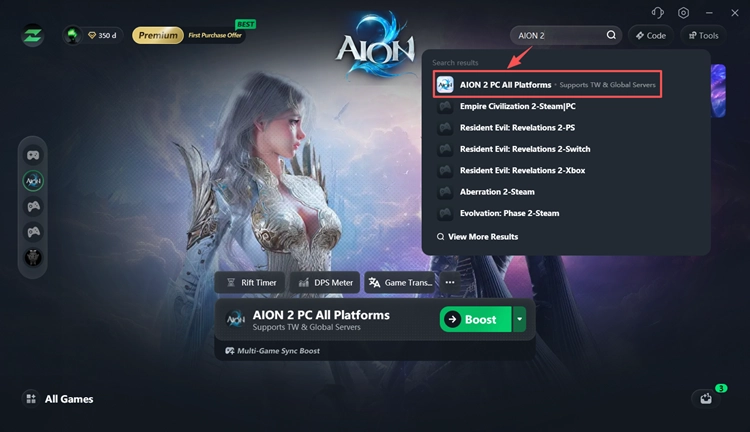
Step 2. Search for AION 2
Open LagZapper and search for AION 2. Select the game to open its acceleration settings.
Step 3. Select a Region and Boost
Choose your AION 2 server region and a recommended node, then click Boost.
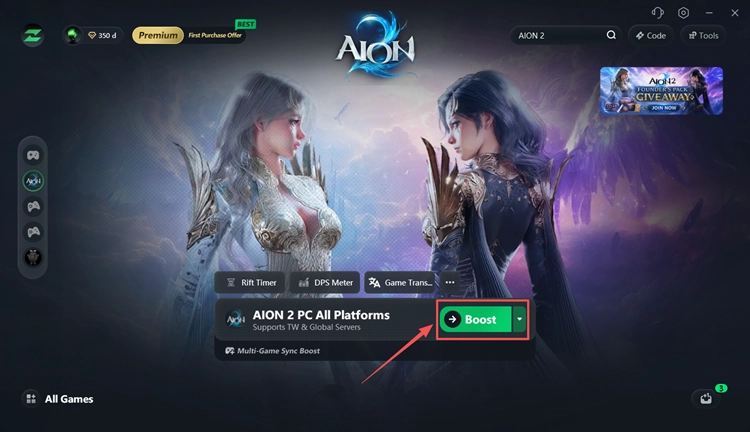
Once your connection is ready, launch the game and play AION 2 with a more stable network route.
The Bottom Line
AION 2 error 40309:500 is usually tied to phone verification, authentication, or Device Registration. Check server status, stop repeated SMS requests, verify your phone number format, and restart PURPLE first. For connection-related login or verification timeouts, download LagZapper and use it to optimize your route to AION 2.
AION 2 Error 40309:500 FAQs
Q1. What does AION 2 error 40309:500 mean?
It usually means AION 2 could not complete phone verification, authentication, or Device Registration.
Q2. Why does AION 2 say “A temporary error has occurred”?
The verification or authentication service may be temporarily unavailable or overloaded.
Q3. Why is my phone number not working in AION 2?
Check the country code and phone number format. The verification service may also be temporarily unavailable.
Q4. Why am I not receiving the AION 2 verification code?
SMS delivery may be delayed or the verification request may have failed. Wait before requesting another code.
Q5. How do I fix the AION 2 verification request limit?
Stop requesting new codes and wait for the temporary limit to clear.
Q6. Should I reinstall AION 2 to fix error 40309:500?
Usually not. Check server status, phone verification, PURPLE, and your NC account first.