
AION 2 Low FPS? 7 Fixes for FPS Drops & Stuttering
AION 2 low FPS may not be noticeable all the time. The game can feel smooth while exploring quieter areas, then start losing frames when you enter a crowded city or large-scale battle. You may also notice short stutters during movement or find that your FPS stays lower than expected even when your PC should be able to deliver better performance.
This guide will explain why AION 2 has low FPS and walk you through seven practical PC performance fixes for FPS drops, stuttering, graphics settings, background apps, and GPU-related issues.
Why Is AION 2 FPS So Low?
AION 2 FPS problems can look different depending on when and where they appear. Check the table below to match your symptoms with a cause and first fix to try.
| Symptom | Possible Cause | First Fix to Try |
|---|---|---|
| Low FPS with apps running | Background resource usage | Close heavy apps |
| Low FPS across most areas | Demanding graphics settings | Lower heavy settings |
| FPS drops in crowded battles | Mass combat and player effects | Reduce player effects |
| Low FPS at high resolutions | High rendering load | Test upscaling |
| Low FPS on a gaming laptop | Integrated GPU in use | Use the dedicated GPU |
| Stuttering or unstable FPS | Outdated GPU driver | Update the GPU driver |
[Quick Way] Improve AION 2 FPS with LagZapper
LagZapper includes FPS Master to optimize supported PC settings and system resources, helping improve AION 2 low FPS, frame drops, and stuttering.
Why Use LagZapper for AION 2?
LagZapper can help AION 2 players:
- One-Click FPS Boost: FPS Master optimizes supported PC settings and system resources without requiring multiple manual adjustments.
- Smart Route Optimization: Finds a faster and more stable route to AION 2 servers, helping reduce high ping, packet loss, jitter, and unstable routing.
- Reduce Lag & Improve Stability: Helps reduce game lag, ping spikes, and connection instability during exploration, dungeons, and large-scale battles.
- 3,000+ Game Support: Works with AION 2 and thousands of other popular online games.
How to Use FPS Master for AION 2
Follow these three steps to use FPS Master and optimize supported AION 2 settings and system resources.
Step 1. Download and Install LagZapper
Download LagZapper for Windows and follow the on-screen instructions to complete the installation.
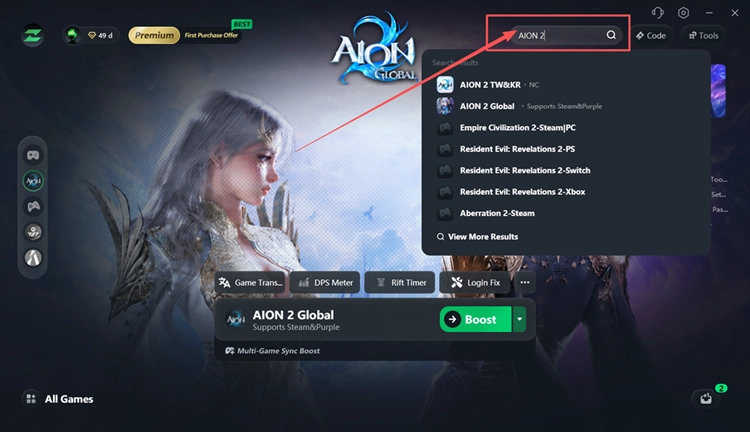
Step 2. Open LagZapper and Select AION 2
Launch LagZapper, enter AION 2 in the search bar, and select the game from the results.
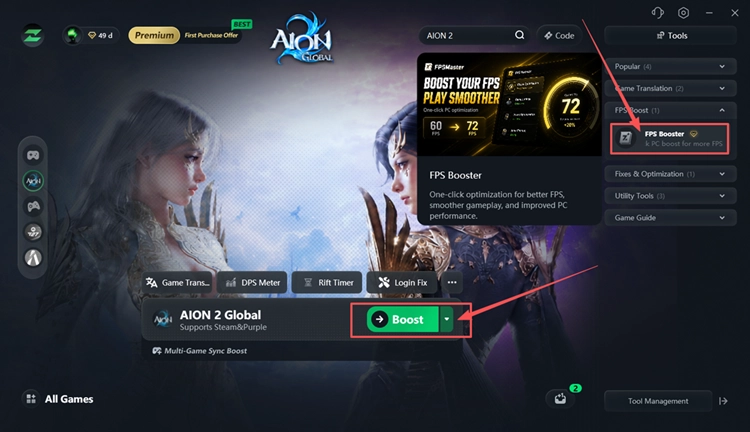
Step 3. Open FPS Booster and Run FPS Master
Open Tools > FPS Boost > FPS Booster, click Try Now, then run FPS Master to optimize supported PC settings and system resources.
Tip: If your FPS is stable but combat still feels delayed, check AION 2 High Ping guide for network-related fixes.
How to Fix AION 2 Low FPS and Stuttering - 7 Useful Fixes
If AION 2 keeps dropping frames or stuttering on PC, try the following fixes in order and test performance after each change.
Fix 1. Update AION 2 to the Latest Version
Performance problems can sometimes come from bugs that are corrected in later game updates. Close AION 2, check Steam or PURPLE for any available update or hotfix, and install it before changing other settings. If the game is already fully updated, continue with the fixes below.
Fix 2. Close Heavy Background Apps and Overlays
Browsers, recording tools, overlays, and other background apps can use CPU, GPU, or memory that AION 2 needs. Close unnecessary programs before launching the game, temporarily disable overlays, then test the same area again to see whether FPS or stuttering improves.
Fix 3. Lower Shadows and Demanding Graphics Settings
High Shadow Quality, Global Illumination, and Reflection Quality can increase GPU load and make FPS drops more noticeable in AION 2. Instead of lowering every graphics option, start with these demanding settings and compare performance after each change. Follow the steps below.
Step 1. Open Settings > Graphics > Optimize in AION 2.
Step 2. Lower Shadow Quality, Global Illumination, and Reflection Quality by one level.
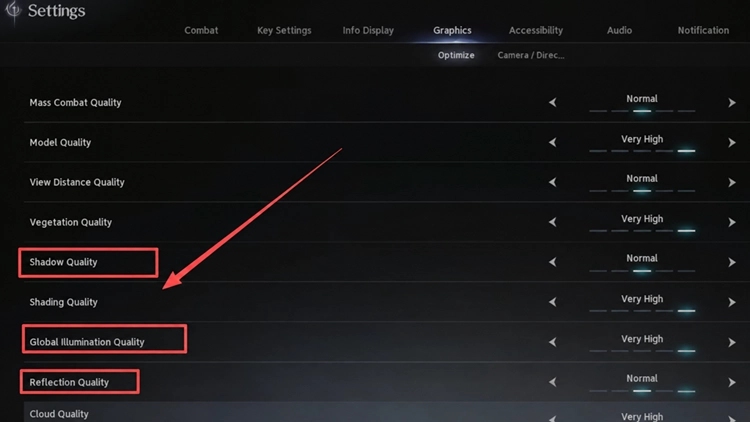
Step 3. Apply the changes and test FPS in the same area before lowering additional settings.
Fix 4. Reduce Mass Combat and Other-Player Effects
Crowded cities and large battles can put extra load on your PC because AION 2 must render many characters and skill effects at once. Lowering Mass Combat Quality and limiting other-player effects can reduce this load when FPS drops mainly in busy areas. Follow the steps below.
Step 1. Open Settings > Graphics > Optimize in AION 2.
Step 2. Lower Mass Combat Quality and reduce Player Particle Effect Display.
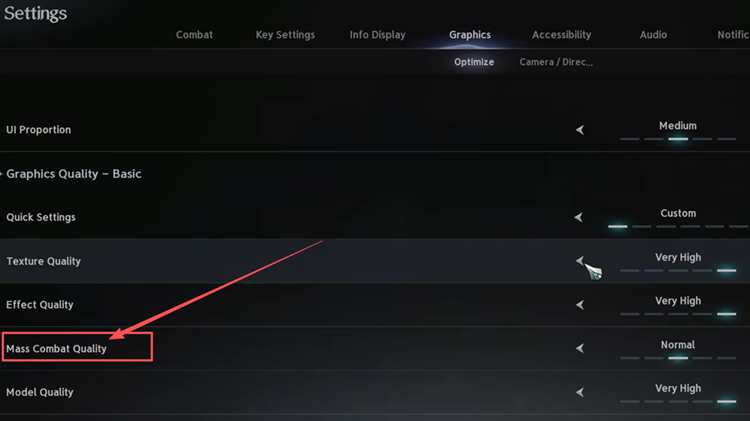
Step 3. Return to a crowded area or large battle and check whether FPS improves.
Fix 5. Test Upscaling or Lower Render Resolution
AION 2 supports upscaling options such as DLSS, FSR, and TSR, which can reduce rendering load when your GPU is struggling at higher resolutions. Test a supported upscaler first, or lower Resolution Scale separately if you prefer manual scaling. Follow the steps below.
Step 1. Open Settings > Graphics > Optimize > Graphics Quality - Advanced.
Step 2. Select a supported Upscaler such as DLSS, FSR, or TSR and test the game.
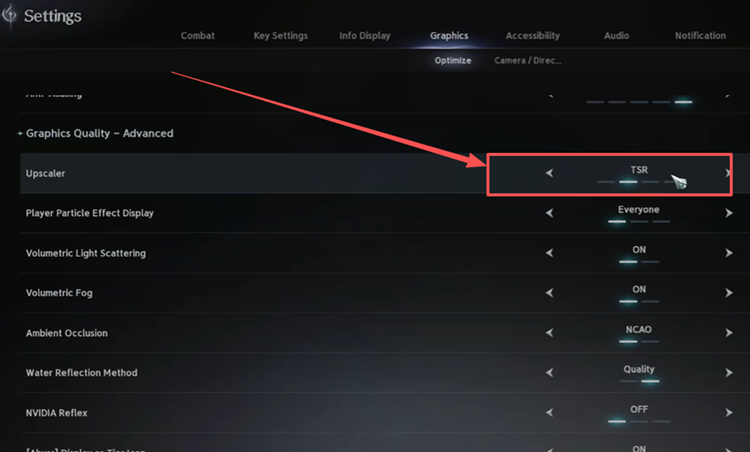
Step 3. If you do not use an upscaler, lower Resolution Scale slightly and compare performance and image quality.
Fix 6. Make Sure AION 2 Uses the Dedicated GPU
On laptops or PCs with both integrated and dedicated graphics, AION 2 may use the lower-power GPU instead of the faster one. Setting the game to High performance in Windows can help ensure it uses the dedicated GPU. Follow the steps below.
Step 1. Open Settings > System > Display > Graphics.
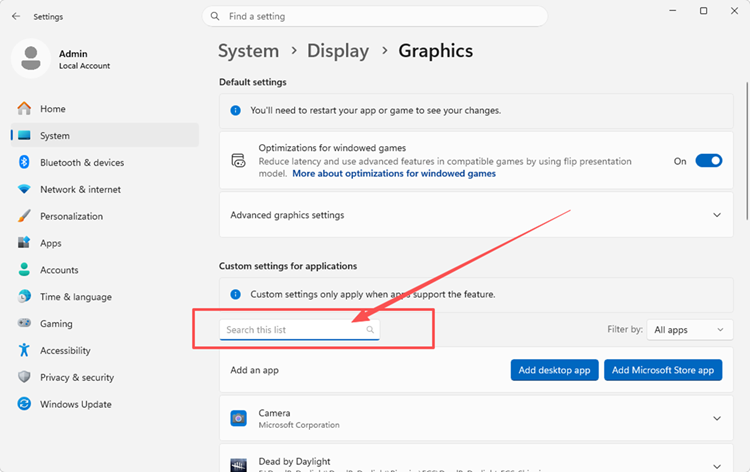
Step 2. Select AION 2, click Options, choose High performance, and click Save.
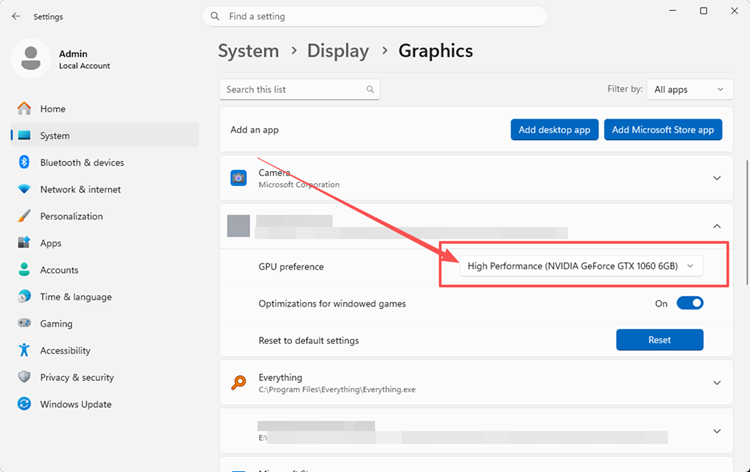
Step 3. Restart AION 2 and check whether FPS improves.
Fix 7. Update Your GPU Driver
Outdated or unstable graphics drivers can contribute to AION 2 low FPS, stuttering, or other graphics-related performance issues. Updating your GPU driver can improve compatibility with the latest game build and graphics features. Follow the steps below to install the latest available driver.
Step 1. Open the NVIDIA app on your PC.
Step 2. Open the Drivers tab, check for updates, then download and install the latest available Game Ready Driver.
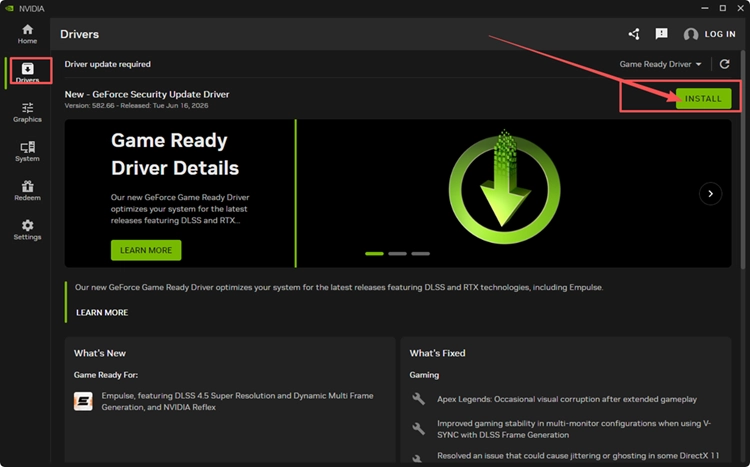
Step 3. Restart your PC and launch AION 2 again.
Tip: AMD and Intel users can update through AMD Software: Adrenalin Edition or Intel Driver & Support Assistant.
The Bottom Line
AION 2 low FPS can come from demanding graphics settings, crowded battles, background apps, incorrect GPU selection, or outdated drivers. Start with FPS Master, then reduce heavy graphics and player effects before moving through the remaining fixes. For a quicker performance setup, download LagZapper and run FPS Booster for AION 2.
FAQs About AION 2 Low FPS
Q1. Why Am I Getting AION 2 Low FPS?
Demanding graphics, background apps, incorrect GPU selection, or outdated drivers can lower AION 2 FPS.
Q2. What Causes AION 2 FPS Drops in Crowded Areas?
Crowded battles render more players and effects, increasing CPU and GPU load and causing FPS drops.
Q3. How Can I Fix AION 2 Stuttering?
Update the game, lower demanding settings, close background apps, and update your graphics driver.
Q4. How to Increase FPS in AION 2?
Reduce graphics load, close unnecessary apps, check GPU selection, and keep your driver updated.
Q5. What Are the AION 2 Best Settings for Higher FPS?
Lower shadows, illumination, reflections, and player effects first, then test a supported upscaler.
Q6. How Can I Get an AION 2 FPS Boost?
FPS Master can optimize supported PC settings and system resources to help improve AION 2 performance.