
ARC Raiders Packet Loss: 6 Fixes for Lag & Rubberbanding
ARC Raiders packet loss can cause rubberbanding, teleporting, lag spikes, desync, and red network warnings during a raid. Some players report smooth FPS and fast internet but still experience unstable movement or high latency only in ARC Raiders.
These ARC Raiders connection issues may come from unstable Wi-Fi, background traffic, poor routing, the selected server region, or temporary server problems. Below are 6 fixes to reduce rubberbanding, stabilize your connection, and get you back into the Rust Belt.
Why Am I Getting Packet Loss in ARC Raiders?
Why do ARC Raiders keep losing connection to game servers? ARC Raiders packet loss can come from server instability, poor routing, Wi-Fi interference, or unstable latency. Common causes include:
- Server instability: Heavy traffic, maintenance, or temporary outages can cause ARC Raiders lag, rubberbanding, desync, or packet loss.
- Poor network routing: Congested or unstable routes between your ISP and the game server can cause high latency, packet loss, or disconnects.
- Unstable Wi-Fi: Wireless interference or a weak signal can cause jitter, lag spikes, packet loss, and ARC Raiders rubberbanding.
- Background traffic: Downloads, streaming, cloud backups, and game updates can use bandwidth and make the connection less stable.
- High jitter: Ping may look normal overall, while rapid latency changes between packets still cause lag spikes, desync, or rubberbanding.
- Wrong server region: Connecting to a distant matchmaking region can increase latency and make ARC Raiders connection issues more noticeable.
[Quick Way] Reduce ARC Raiders Packet Loss with LagZapper
When ARC Raiders servers are online but packet loss, lag spikes, or rubberbanding continue, the route between your PC and the game server may be unstable.
LagZapper optimizes game connection routes and can help improve connection stability when poor routing contributes to ARC Raiders lag or packet loss.
Why Use LagZapper for ARC Raiders?
- Reduce Packet Loss: Improve connection stability and reduce packet loss during ARC Raiders raids.
- Reduce Lag: Minimize sudden lag spikes, rubberbanding, and unstable movement in ARC Raiders.
- Lower Ping: Improve network routing and reduce ARC Raiders high ping during online matches.
- Smart Route Optimization: Automatically optimize the network path for ARC Raiders.
How to Boost ARC Raiders with LagZapper
Follow these three steps to optimize your ARC Raiders connection with LagZapper.
Step 1. Download LagZapper
Download and install LagZapper on your Windows PC.
Step 2. Search for ARC Raiders
Search for ARC Raiders and select the game.
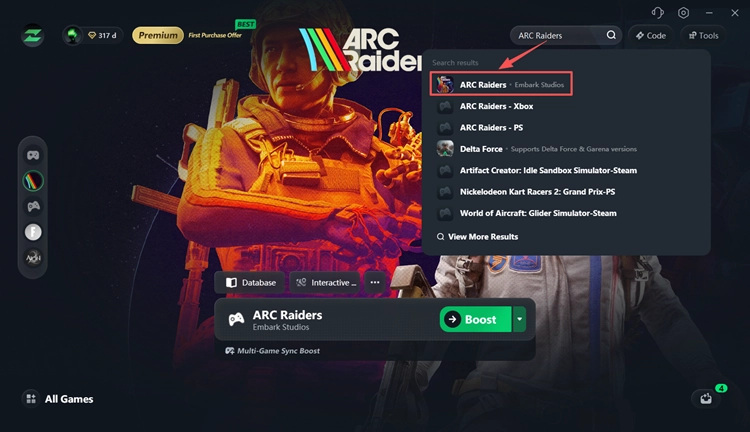
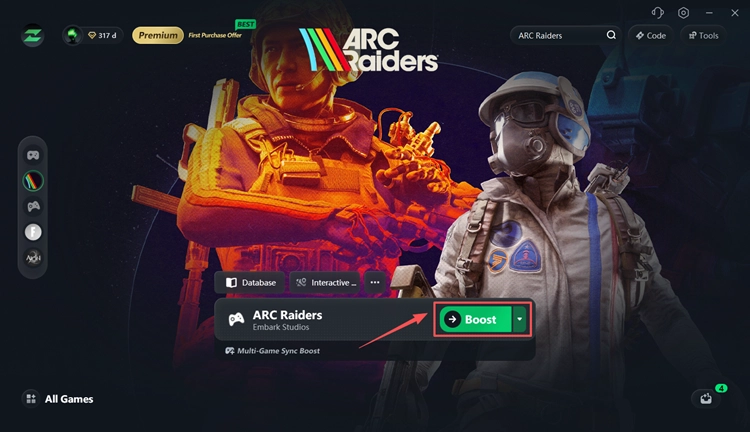
Step 3. Boost ARC Raiders
Choose a recommended route and click Boost. Then launch ARC Raiders and check whether packet loss or lag improves.
In addition to ARC Raiders, LagZapper supports online games like Escape from Tarkov, Delta Force, and Once Human, where stable routing can help reduce ping, packet loss, and lag.
How to Fix ARC Raiders Packet Loss and Rubberbanding
How to fix ARC Raiders packet loss and rubberbanding? Start with these fixes to check the servers, your connection, and the route to the game server.
Fix 1. Check ARC Raiders Server Status
Before changing network settings, check whether ARC Raiders is having a server-side issue. ARC Raiders server problems can cause red or yellow network warnings, rubberbanding, teleporting, and sudden disconnects.
Check the ARC Raiders Official Website and ARC Raiders Help Center for server updates, maintenance notices, and known issues. When the problem is server-side, wait for the service to stabilize before trying local fixes.
Fix 2. Restart Your Router and Stop Background Traffic
Background downloads and network-heavy apps can increase congestion and worsen ARC Raiders packet loss or lag spikes.
Step 1. Restart your modem and router.
Step 2. Pause downloads, streaming, cloud backups, game updates, and file uploads.
Step 3. Press Ctrl + Shift + Esc to open Task Manager, check the Network column, and close unnecessary bandwidth-heavy apps.
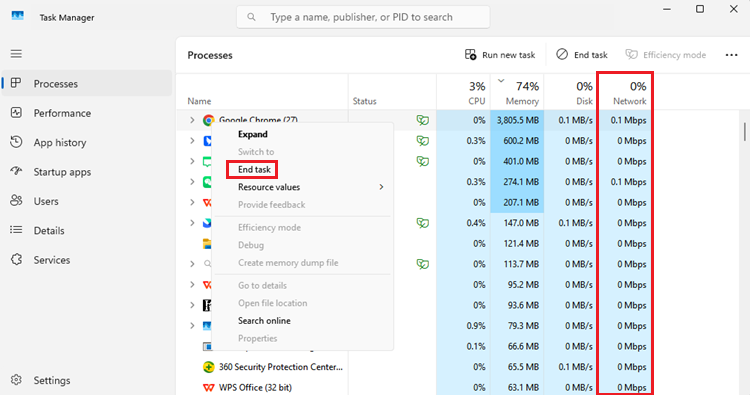
Launch ARC Raiders again and check whether packet loss, rubberbanding, or lag improves.
Fix 3. Use Ethernet Instead of Wi-Fi
Wi-Fi interference can cause packet loss, jitter, and ARC Raiders rubberbanding even when your internet speed looks fast. Embark recommends a stable connection and suggests using wired Ethernet instead of Wi-Fi when troubleshooting ARC Raiders network issues.
Connect your PC directly to the router with an Ethernet cable whenever possible.
When using Wi-Fi:
- Move closer to your router.
- Use 5 GHz or 6 GHz when available.
- Disconnect unnecessary devices.
- Avoid playing on a weak Wi-Fi signal.
Enter another raid and check whether packet loss, lag spikes, or rubberbanding improves.
Fix 4. Reset Windows Network Settings
Windows network errors, a corrupted IP configuration, or an outdated DNS cache can sometimes contribute to ARC Raiders connection issues, packet loss, or rubberbanding.
Step 1. Search for cmd in Windows. Right-click Command Prompt and select Run as administrator.
Step 2. Run these commands one at a time:
- netsh winsock reset
- netsh int ip reset
- ipconfig /flushdns
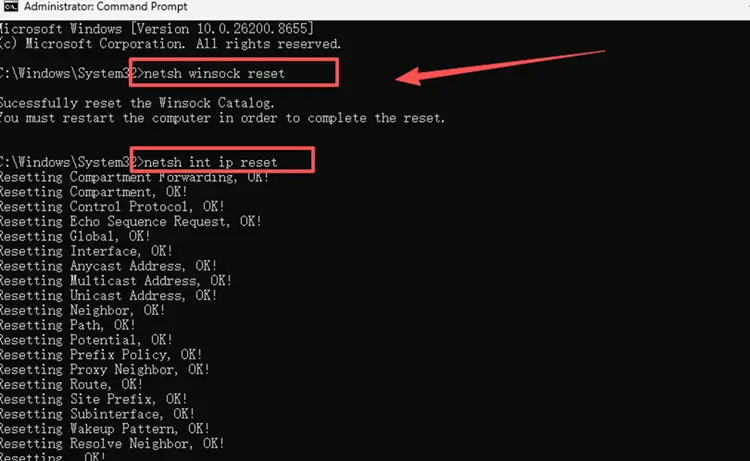
Step 3. Restart your PC. Then launch ARC Raiders again and check whether packet loss improves.
Note: Embark also recommends renewing your IP address and flushing DNS when troubleshooting persistent PC connection problems.
Fix 5. Check Packet Loss and Jitter
A fast connection can still have ARC Raiders rubberbanding, desync, or lag spikes when packet loss or jitter occurs. Speed tests often use a nearby server, while ARC Raiders may use a different route.
Use Cloudflare Speed Test to check packet loss, jitter, and unstable latency instead of relying only on download speed.
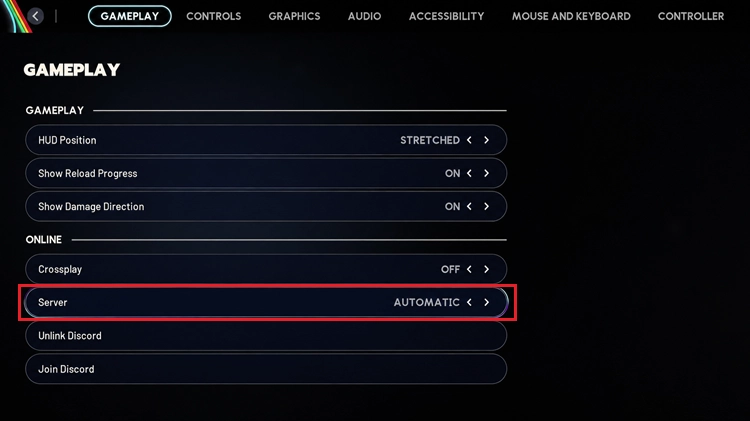
Fix 6. Check Your ARC Raiders Server Region
A distant or unsuitable server region can increase latency, packet loss, and connection instability in ARC Raiders.
On PC
Step 1. Open ARC Raiders and click the gear icon at the bottom right.
Step 2. Go to Gameplay > Server, and set the server to Automatic.
On Console
Step 1. Open the Social menu and select the gear icon.
Step 2. Go to Gameplay > Server, and set the server to Automatic.
Start matchmaking again and check whether the next raid has lower ping, fewer packet loss warnings, or less rubberbanding.
The Bottom Line
ARC Raiders packet loss can cause rubberbanding, lag spikes, teleporting, desync, and delayed movement even when your internet speed looks normal. Check the servers first, then test your router, Ethernet connection, Windows network settings, packet loss, jitter, and server region.
When the servers are stable but routing problems continue, download LagZapper to optimize your game connection and help reduce packet loss, lag, and high ping.
FAQs About ARC Raiders Packet Loss
Q1. Why am I suddenly getting packet loss in ARC Raiders?
Sudden ARC Raiders packet loss can come from server issues, Wi-Fi interference, congestion, jitter, or poor routing.
Q2. Why is ARC Raiders rubberbanding with good internet?
Fast download speed does not guarantee a stable game route. Packet loss, jitter, or server problems can still cause ARC Raiders rubberbanding and desync.
Q3. What does the red network icon mean in ARC Raiders?
The red network icon usually indicates high latency, packet loss, or an unstable connection to the ARC Raiders server.
Q4. Why do ARC Raiders keep losing connection to game servers?
Frequent disconnects can come from unstable servers, Wi-Fi problems, poor routing, or an unsuitable matchmaking region.
Q5. Can LagZapper help reduce ARC Raiders packet loss?
LagZapper can help when poor routing contributes to packet loss, high ping, lag spikes, or rubberbanding by optimizing the game connection route.