
Battlefield 6 Crashing on PC After Update? Try These 8 Fixes
Is Battlefield 6 crashing on PC after the latest update? Recent reports show that BF6 crashing issues are still affecting players. Some experience crashes to desktop, freezes, black screens, or full PC restarts, while others report Battlefield 6 keeps crashing after one or two matches or within minutes of joining multiplayer.
Although Update 1.4.1.5 addressed a known NVIDIA GPU driver crash, newer reports suggest problems remain. If BF6 keeps crashing, BF6 crashing on PC, or Battlefield 6 keeps crashing on PC, try the fixes below.
Why Does Battlefield 6 Keep Crashing?
There is no single cause behind Battlefield 6 crashing on PC. Common issues may involve GPU drivers, corrupted game files, background programs, or unstable graphics settings. Common symptoms include:
- Crashing to desktop without an error
- BF6 freezing during matches
- Crashes after 5–20 minutes
- Black screens
- GPU driver crashes
- PC restarts while playing
- PC freezes or becomes unresponsive
If BF6 keeps crashing, try repairing game files, closing conflicting programs, performing a clean boot, or reinstalling Battlefield 6 or the EA app.
How to Fix Battlefield 6 Crashing on PC After Update
For Battlefield 6 crashing on PC after an update, start with the fixes most closely related to recent BF6 crash reports before moving on to general troubleshooting.
Fix 1. Disable Dynamic Resolution Scaling
For Battlefield 6 crashing after Update 1.4.1.5, Dynamic Resolution Scaling is one of the first settings to check. A recent Reddit report found that disabling it stopped a repeatable crash even after game repair failed.
Step 1. Launch Battlefield 6 and open Settings > Graphics.
Step 2. Open Advanced Settings, then set Dynamic Resolution Scale to Off.
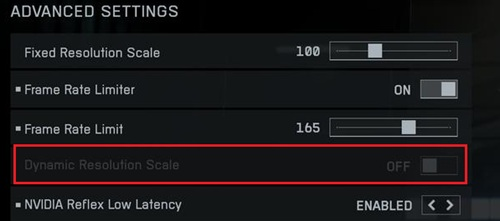
Step 3. Apply the changes, restart Battlefield 6, and test a multiplayer match.
Fix 2. Repair Battlefield 6 Game Files
Corrupted or incomplete game files can cause Battlefield 6 crashing on PC, especially after an update. EA recommends repairing the game files as part of its standard crash troubleshooting.
👉 EA app:
Step 1. Open the EA app and go to Library.
Step 2. Find Battlefield 6, click Manage, and select Repair.
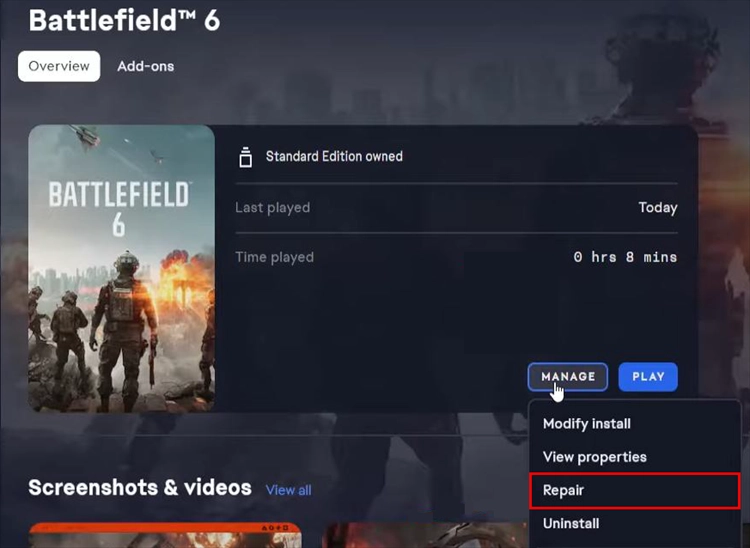
Step 3. Wait for the repair to finish, then restart your PC and launch the game again.
👉 Steam:
Step 1. Open Steam and go to Library.
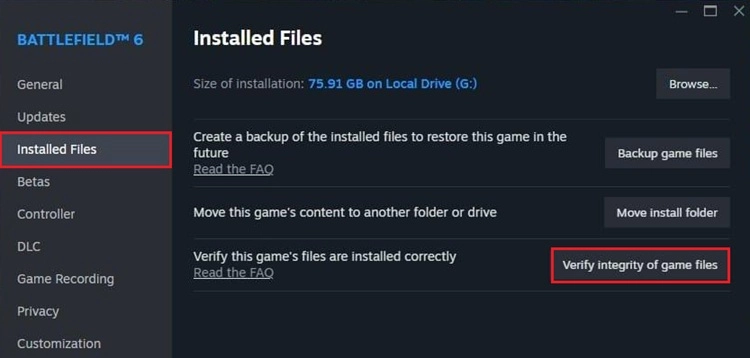
Step 2. Right-click Battlefield 6 and select Properties > Installed Files.
Step 3. Click Verify integrity of game files, wait for the scan to complete, then relaunch Battlefield 6.
Fix 3. Update or Roll Back Your GPU Driver
GPU drivers can contribute to BF6 crashing on PC. Update 1.4.1.5 fixed several NVIDIA-related crashes, while some AMD users on Reddit reported improved stability after rolling back to an earlier driver.
👉 To update your GPU driver:
Step 1. Open NVIDIA App / GeForce Experience or AMD Software: Adrenalin Edition.
Step 2. Check for the latest driver and install it.
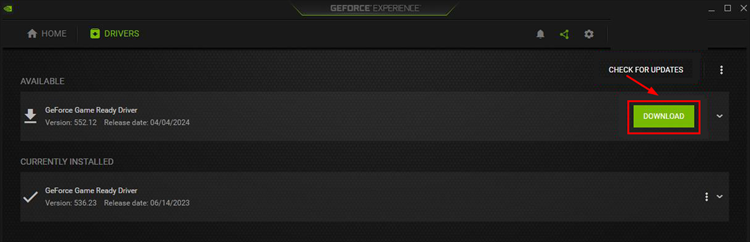
Step 3. Restart your PC and test Battlefield 6 again.
👉 To roll back your GPU driver:
Step 1. Press Win + X and open Device Manager.
Step 2. Expand Display adapters, right-click your GPU, and select Properties > Driver.
Step 3. Click Roll Back Driver, restart your PC, and test Battlefield 6.
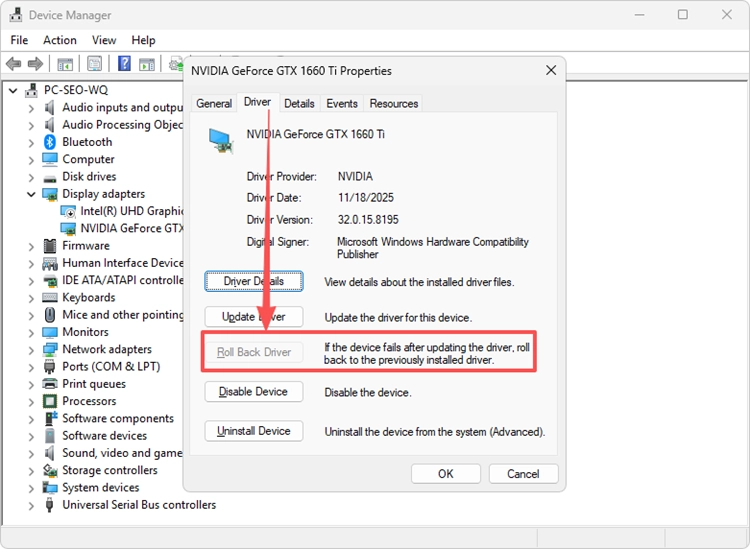
When Battlefield 6 crashing began after a recent driver update, rolling back to the last stable version may improve performance.
Fix 4. Disable Overlays and Remove GPU/CPU Overclocks
Overlays, monitoring tools, and unstable overclocks can contribute to Battlefield 6 crashing on PC. Temporarily disable them and test the game at stock settings.
👉 To disable overlays and monitoring tools:
Step 1. Turn off Discord Overlay, NVIDIA Overlay, AMD Overlay, and Steam Overlay in their respective settings.
Step 2. Close MSI Afterburner, RivaTuner Statistics Server, and other monitoring software.
Step 3. Restart Battlefield 6 and test a multiplayer match.
👉 To remove GPU/CPU overclocks:
Step 1. Open your GPU tuning or overclocking software.
Step 2. Reset the GPU core clock, memory clock, CPU overclock, and GPU undervolt to default values.
Step 3. Restart your PC and launch Battlefield 6 again.
When BF6 keeps crashing stops after these changes, re-enable each overlay or custom setting one at a time to identify the conflict.
Fix 5. Close Background Apps or Perform a Clean Boot
Background software conflicts can cause BF6 crashing, freezing, or unexpected exits. EA recommends closing unnecessary apps first, then using a clean boot when the problem continues.
👉 To close background apps:
Step 1. Press Ctrl + Shift + Esc to open Task Manager.
Step 2. Under Processes, select unnecessary background apps and click End task.
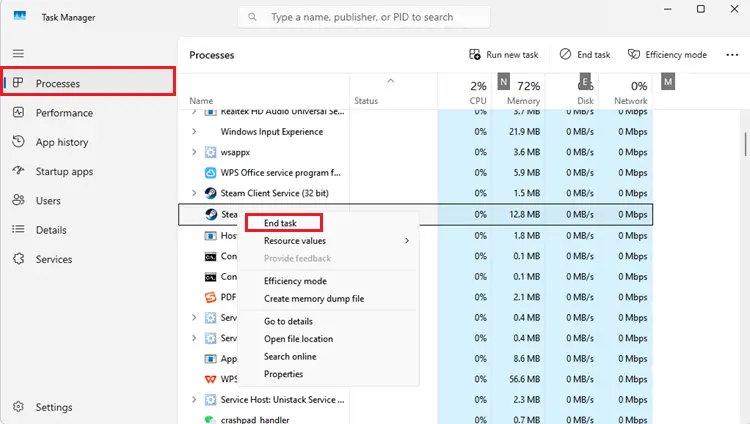
Step 3. Launch Battlefield 6 and test the game again.
👉 To perform a clean boot:
Step 1. Press Windows + R, type msconfig, and press Enter.
Step 2. Open Services, check Hide all Microsoft services, then click Disable all.
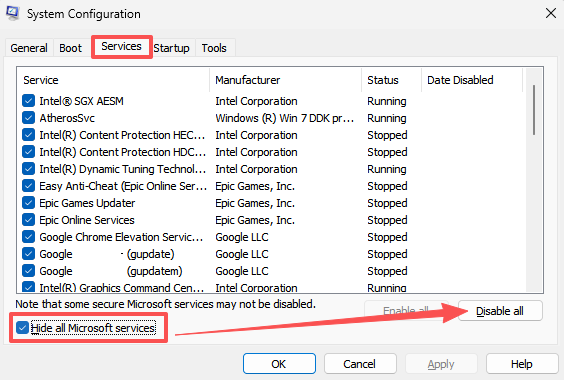
Step 3. Open Startup > Task Manager, disable unnecessary startup apps, restart your PC, and test Battlefield 6 again.
Fix 6. Repair EA Javelin Anticheat
EA Javelin Anticheat can also cause Battlefield 6 crashing during launch, shortly after joining a match, or after an update. EA recommends repairing or reinstalling the anticheat component when installation or update errors occur.
Step 1. Close Battlefield 6 and the EA app, then restart your PC.
Step 2. Open EA Javelin Anticheat Setup, select Battlefield 6, and click Repair. If the problem continues, uninstall and reinstall EA Javelin Anticheat.
Step 3. Restart your PC again and launch Battlefield 6.
Fix 7. Clear the EA App Cache
A corrupted EA app cache can sometimes cause Battlefield 6 launch or loading problems. EA includes an App Recovery tool that lets you clear the cache quickly.
Step 1. Open the EA app, click the menu in the top-left corner, then select Help > App Recovery.
Step 2. Click CLEAR CACHE and wait for the EA app to restart.
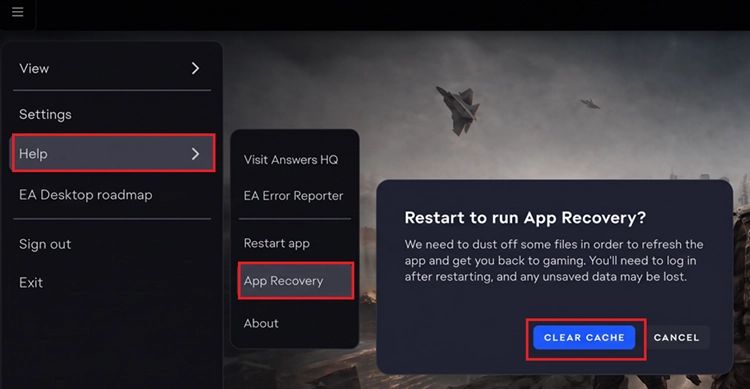
Step 3. Wait for the EA app to restart, then launch Battlefield 6 again.
After clearing the cache, you can also repair the game from Library > Battlefield 6 > three-dot menu > Repair.
Fix 8. Install Battlefield 6 Update 1.4.2.0
Battlefield 6 Update 1.4.2.0 goes live on August 18 at 08:00 UTC. The update includes several stability improvements, such as reduced GPU performance spikes from heavy smoke and level-of-detail transitions, plus a fix for a client crash when exiting the Settings menu.
Step 1. Completely close Battlefield 6, then restart the EA app.
Step 2. Open Battlefield 6 in your Library and download Update 1.4.2.0 when the update appears. Wait for the installation to complete before launching the game.
Step 3. Restart your PC and test Battlefield 6 again.
The patch does not claim to fix every Battlefield 6 crashing issue, so continue with the fixes above when crashes persist.
[Bonus] Reduce Battlefield 6 Lag and Connection Instability
Crashing and network issues require different fixes. Even after resolving Battlefield 6 crashing, high ping, packet loss, lag spikes, or unstable connections can still affect multiplayer matches. For these network-related problems, LagZapper is a game booster that optimizes the route between your PC and Battlefield 6 servers to help reduce lag, lower ping, and improve connection stability.
Highlights of LagZapper for Battlefield 6
- Lower Ping: Helps lower ping and reduce latency spikes during multiplayer matches.
- Reduce Packet Loss: Optimizes unstable routes to reduce packet loss, rubber-banding, and connection instability.
- Reduce Lag: Uses one-click route optimization to reduce lag and improve connection stability in Battlefield 6.
- Smart Route Optimization: Finds a faster and more stable route to Battlefield 6 servers.
How to Use LagZapper for Battlefield 6
Getting started with LagZapper takes just a few steps:
Step 1. Download and Install LagZapper
Download LagZapper for Windows and follow the on-screen instructions to complete the installation.
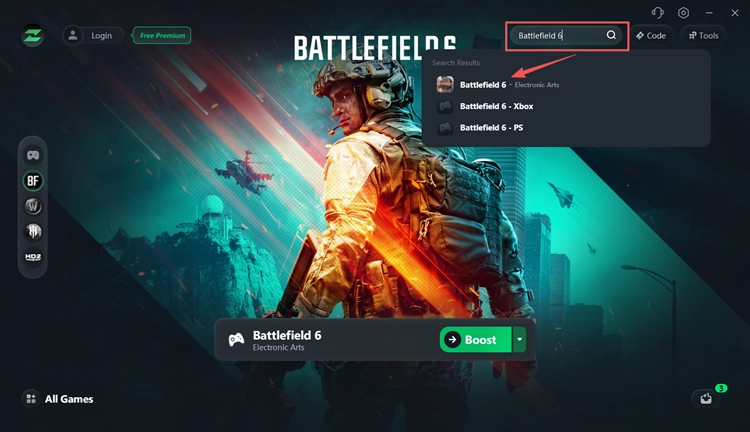
Step 2. Sign In and Search for Battlefield 6
Open LagZapper, sign in to your account, then search for and select Battlefield 6.
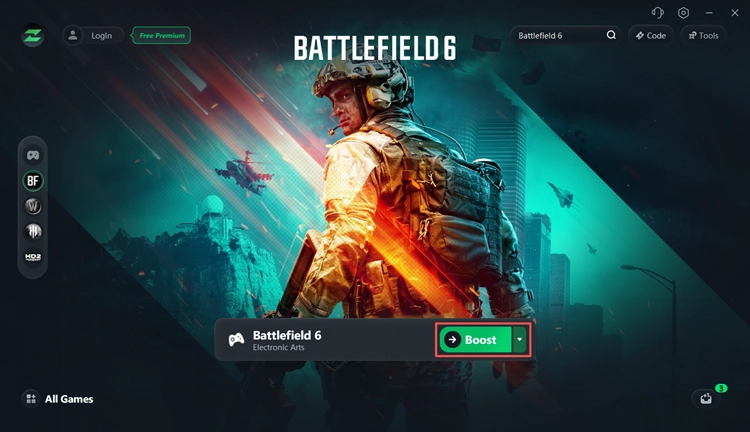
Step 3. Select a Server and Boost
Choose a suitable server or node, click Boost, then launch Battlefield 6 with an optimized connection.
Tip: Players who cannot start the game after installing the latest update can also check our BF6 won't launch guide for additional troubleshooting steps.
The Bottom Line
When Battlefield 6 keeps crashing, start with Dynamic Resolution Scaling, then repair game files, update or roll back GPU drivers, disable overlays, and check EA Javelin Anticheat. Keep the game updated for the latest stability fixes. Once crashes are resolved, high ping, packet loss, or lag spikes may still affect multiplayer. Download LagZapper to optimize your connection route and improve Battlefield 6 network stability.
FAQ About Battlefield 6 Crashing
Q1. Why Does Battlefield 6 Crash to Desktop Without an Error?
A crash without an error can involve corrupted files, GPU instability, background software, or other system conflicts.
Q2. Why Does BF6 Keep Crashing Mid-Match?
Mid-match crashes may be related to GPU drivers, graphics settings, overlays, system instability, or background applications.
Q3. Can GPU Drivers Cause Battlefield 6 Crashes?
Yes. NVIDIA and AMD driver issues can cause crashes, so updating or rolling back your GPU driver may help.
Q4. Why Does Battlefield 6 Crash and Restart My PC?
PC restarts may indicate driver, memory, CPU/GPU stability, power supply, or other system-level issues.
Q5. Can EA Javelin Anticheat Cause Battlefield 6 to Crash?
Yes. Anticheat conflicts or corrupted files can affect startup and stability. Repair Javelin Anticheat and follow EA’s error-specific guidance.