
BF6 Won’t Launch? Try 6 Fixes for Black Screen and Startup Crashes
Battlefield 6 (BF6) can fail to start on PC in several ways. If BF6 won't launch, clicking Play may do nothing, Steam may briefly show Running before stopping, the game may close after the EA Javelin screen, or a black screen may appear. Common causes include anticheat errors, damaged game files, conflicting software, and outdated or incompatible graphics drivers.
This guide explains why BF6 may not launch and walks Steam, EA app, and Epic Games Store players through six practical fixes.
Why Won't BF6 Launch on PC?
BF6 can fail at different stages before reaching the main menu. The symptom usually indicates whether the problem involves the launcher, security requirements, anticheat, game files, conflicting software, or system drivers.
EA Javelin Anticheat Fails to Start
Javelin may close BF6 if it cannot start the game or locate its installation folder, or if it detects disallowed software.
BF6 Files Are Corrupted or Incomplete
Missing, corrupted, or partially updated game files can interrupt startup, cause a black screen, or return you to Play.
Background Software Conflicts with BF6
Overlays and incompatible background tools can interfere with the EA app, Javelin Anticheat, or the BF6 startup process.
Graphics Driver or DirectX Problems
Outdated graphics drivers or DirectX-related problems may trigger error messages, black screens, or crashes before the main menu.
How to Fix BF6 When It Won’t Launch on PC – 6 Useful Fixes
Try the fixes below in order, starting with a full restart before moving to Javelin repair, file and cache checks, software conflicts, driver updates, and reinstallation only if necessary.
Fix 1. Fully Restart BF6 and Install Pending Updates
A stalled BF6 or launcher process can leave Play unresponsive or make Steam switch from Running back to Play. A pending game or platform update can produce the same behavior. Restarting everything first clears the temporary session and lets the launcher apply required files before you move to deeper fixes.
Fully exit BF6 and Steam, the EA app, or Epic Games Launcher. Open Task Manager and end any related processes that remain, then restart your PC. Reopen the platform where you own BF6, install any available launcher and game updates, and try launching the game again.
Tip: Updating BF6 for the latest Top Gun content? Check our Battlefield 6 Wake Island guide for release details and how to find the map in-game.
Fix 2. Repair EA Javelin Anticheat
If BF6 closes after the EA Javelin screen, the anticheat may be unable to start the game or locate its installation folder. EA recommends launching BF6 through the EA app as an administrator, then reinstalling Javelin if the error remains. Follow the steps below to run the EA app as an administrator and reinstall Javelin.
Step 1. Right-click the EA app, choose Run as administrator, and launch BF6 from it - even for Steam or Epic copies.
Step 2. Open C:\Program Files\EA\AC and run EAAntiCheat.Installer.exe.
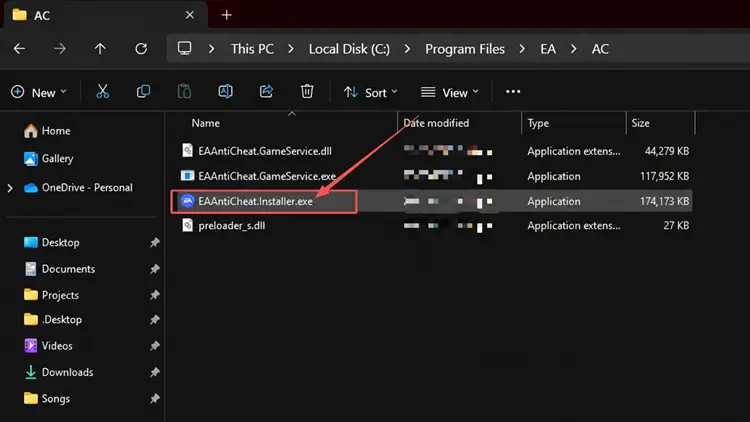
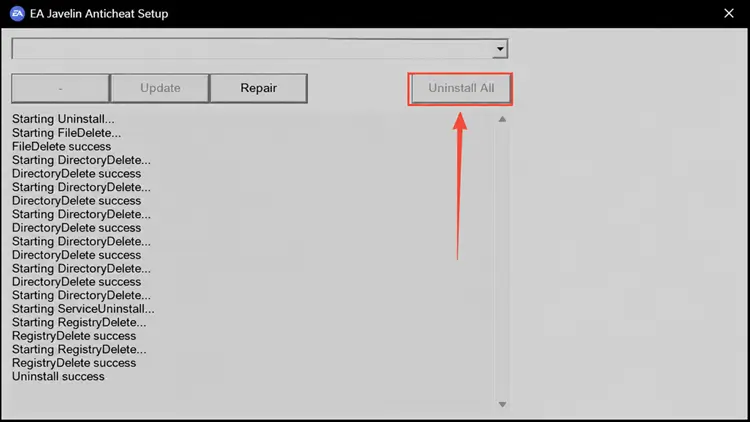
Step 3. Select Battlefield 6 and choose Uninstall.
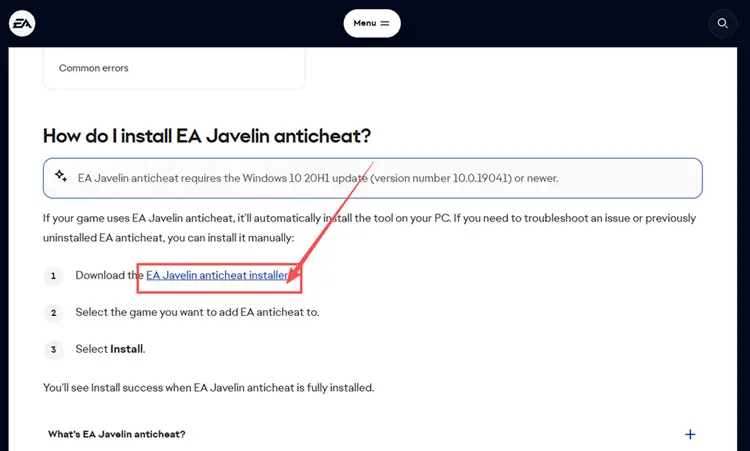
Step 4. Download and open EA’s latest Javelin anticheat installer, select Battlefield 6, choose Install, and wait for Install success.
Fix 3. Check and Re-enable Secure Boot
Battlefield 6 requires Secure Boot for EA Javelin Anticheat. Make sure your system is using UEFI with Secure Boot enabled. If Secure Boot is still off, enable or re-enable it according to your PC or motherboard manufacturer’s instructions before launching BF6.
Fix 4. Verify BF6 Files and Clear the Relevant Launcher Cache
Missing or altered BF6 files can cause a black screen or close the game during startup, while stale launcher data may leave Play unresponsive. Verify or repair the installation first, then clear only the cache used by your version if the launcher remains stuck. Use the relevant steps below.
👉 Steam: Verify Files and Clear Cache
Step 1. Right-click BF6 in Steam Library, then select Properties > Installed Files > Verify integrity of game files.
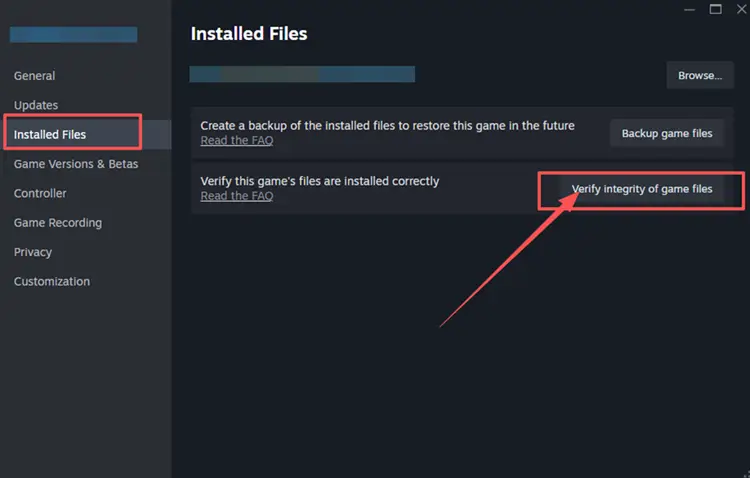
Step 2. If Steam remains stuck, open Steam > Settings > Downloads > Clear Download Cache, then sign in again.
👉 EA App: Repair Files and Clear Cache
Step 1. Open BF6 in the EA app Library and select Manage > Repair.
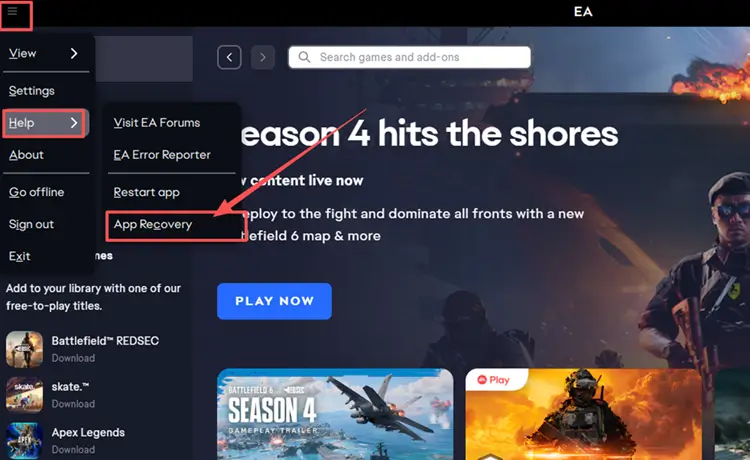
Step 2. If the EA app remains stuck, open Menu > Help > App Recovery and select Clear cache.
Fix 5. Disable In-Game Overlays and Reset Tuning Tools
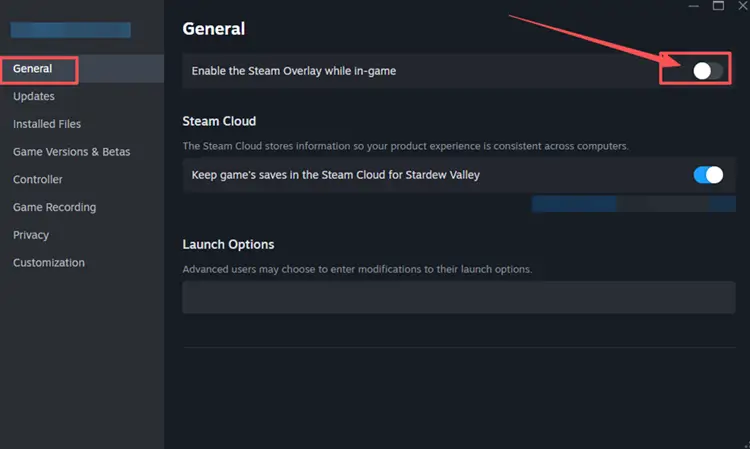
Overlays and hardware-monitoring or tuning tools can load with BF6 and interfere with startup or trigger a Javelin warning. Restore custom CPU or GPU settings to their defaults, then close those utilities before testing the game. Temporarily disable any overlays you use as well. Use the Steam steps below; other overlay apps follow a similar settings-and-toggle process.
Step 1. In Steam Library, right-click Battlefield 6 and select Properties.
Step 2. Under General, turn off Enable the Steam Overlay while in-game, then relaunch BF6.
Fix 6. Update Your Graphics Driver
Outdated or incompatible GPU drivers can prevent BF6 from rendering correctly, causing a black screen, DirectX error, or startup crash. EA identifies driver problems as a possible cause of Battlefield 6 DirectX errors. Update the driver first, then test the NVIDIA-specific workaround below only if the problem continues.
👉 Update Your Graphics Driver
Installing the latest compatible driver may resolve conflicts introduced by game or system updates. NVIDIA users can update through NVIDIA app with the steps below.
Step 1. Open NVIDIA app on your PC.
Step 2. Open the Drivers tab, check for updates, then download and install the latest available Game Ready Driver.
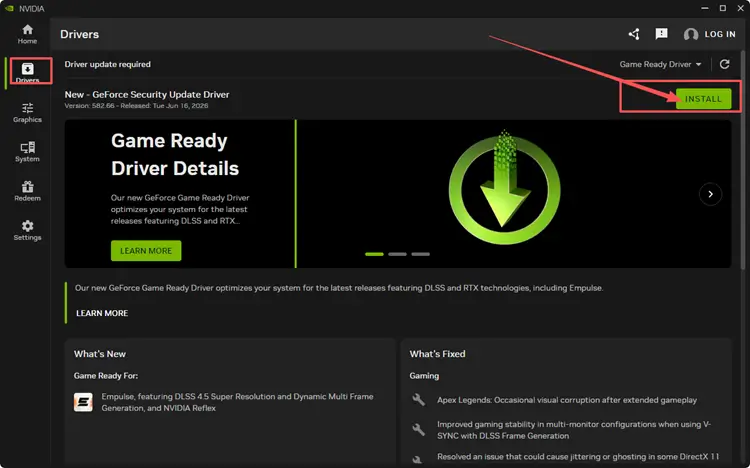
Step 3. Restart your PC and try launching BF6 again.
Tip: AMD and Intel users can update through AMD Software: Adrenalin Edition or Intel Driver & Support Assistant.
👉 Disable NVIDIA Smooth Motion
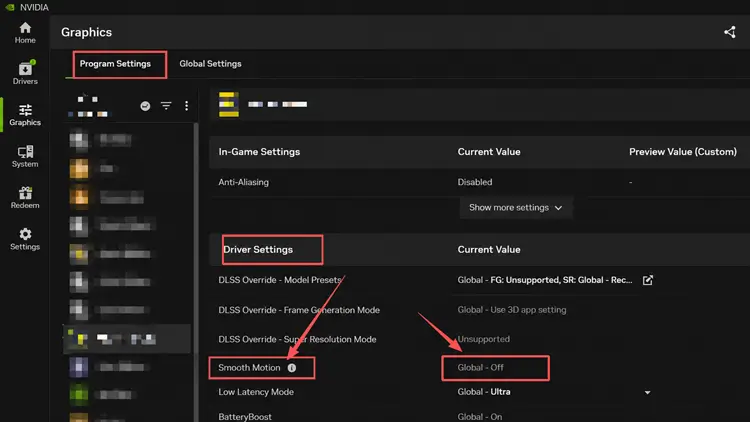
If BF6 still shows a black screen or closes immediately after updating the driver, NVIDIA Smooth Motion may be interfering with startup. Disable it for Battlefield 6 and relaunch the game.
Step 1. Open NVIDIA app, go to Graphics > Program Settings, and select Battlefield 6.
Step 2. Scroll to Driver Settings, set Smooth Motion to Off, then relaunch BF6.
[Bonus] Optimize Your BF6 Connection with LagZapper
BF6 depends on a stable online connection for login, matchmaking, and multiplayer matches. If the game opens normally but high ping, packet loss, lag spikes, or disconnects affect online play, unstable routing may interrupt data exchange with the server. LagZapper can optimize this connection route and improve stability before you join a match.
Why Use LagZapper for BF6?
- Smart Route Optimization: Finds stable routes to reduce high ping, packet loss, and jitter.
- Connection Stability: Helps reduce game lag, lower ping, and limit sudden latency changes during matches.
- One-Click Boost: Optimizes the BF6 connection without manual router, DNS, or Windows changes.
- 3,000+ Game Support: Supports Battlefield 6 and thousands of other online games.
How to Optimize BF6 with LagZapper
Follow these three steps to optimize your connection before launching BF6.
Step 1. Download and Install LagZapper
To begin, download LagZapper for Windows and follow the on-screen instructions to complete the installation on your PC.
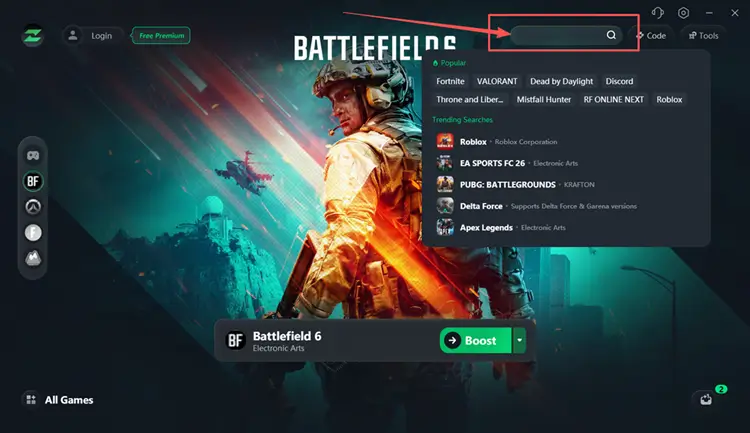
Step 2. Search for Battlefield 6
Launch LagZapper, sign in to your account, then use the search bar to find Battlefield 6.
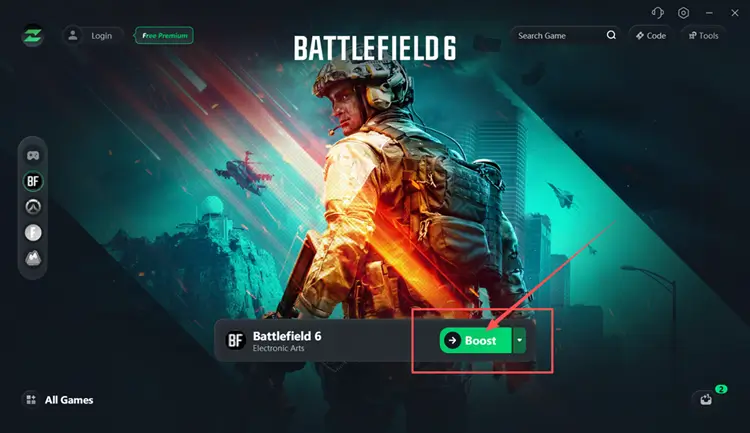
Step 3. Select a Recommended Node and Click Boost
Select a Battlefield 6 server or recommended node, then click Boost before launching the game.
Also Read: Battlefield 6 Crashing on PC? Try 8 Fixes
The Bottom Line
When BF6 won't launch, begin with a full restart and pending updates, then check Javelin, game files, overlays, and graphics drivers. Match any displayed error to the relevant fix, and reinstall the affected program only if the problem continues after the earlier checks. If BF6 opens but high ping, packet loss, or unstable routing disrupts online play, download LagZapper to optimize the game route and improve connection stability.
FAQs About BF6 Won’t Launch
Q1. What Should I Do If BF6 Won't Launch?
Restart BF6, install pending updates, repair Javelin, then try the remaining fixes in order.
Q2. What Causes Problems When Battlefield 6 Won't Launch?
Common causes include stalled launcher sessions, Javelin errors, corrupted files, software conflicts, and outdated drivers.
Q3. Why Can't I Launch BF6 After the Javelin Screen?
Javelin may be damaged, unable to locate BF6, or blocked by incompatible background software.
Q4. How Do I Fix a Battlefield 6 Black Screen?
Verify BF6 files, disable overlays, restore default tuning settings, and update your graphics driver.
Q5. Why Is BF6 Not Launching After an Update?
Interrupted updates, corrupted files, or stale cache may block BF6; repair files and clear cache.