
Big Walk Multiplayer Not Working? 7 Fixes for Connection Errors
Big Walk multiplayer not working can stop players from joining friends and accessing the game’s core co-op experience. Reddit users have reported encountering a Big Walk connection error immediately after entering a friend’s lobby, even after switching hosts, restarting the game, and recreating the session multiple times.
Some affected players were both using Windows and Steam with otherwise stable internet connections. Since Big Walk is built around two-to-12-player online co-op, these connection issues can make the game nearly unplayable. Read on for seven useful fixes.
Why Is Big Walk Multiplayer Not Working?
Big Walk multiplayer not working can appear in several different ways:
- The game displays a Big Walk connection error.
- The lobby shows a Big Walk Session Unavailable message.
- A Big Walk Join Code is not working.
- Players cannot find or join a friend’s hosted game.
- Steam invitations do not open the correct session.
- Big Walk crossplay is not working between platforms.
- Players disconnect after the host leaves.
- The game gets stuck while joining a session.
- Big Walk voice chat is too quiet.
- Big Walk voice chat or mic is not working.
The correct fix depends on whether the issue is related to the host, the joining player, different game versions, platform settings, voice chat permissions, or an unstable network connection.
How to Fix Big Walk Multiplayer Not Working
Here are 7 practical fixes for Big Walk multiplayer issues, including connection errors, unavailable sessions, Join Code failures, and failed friend invites.
Fix 1. Make Sure the Host Starts the Session First
Big Walk does not use traditional public matchmaking. The host must start the saved journey before other players can join.
Step 1. Launch Big Walk and start or continue the correct saved journey.
Step 2. Wait until the session is fully active, and then ask other players to open the Friends’ Games menu.
Step 3. Share the newly generated Join Code if the session does not appear.
According to the official FAQ, the host keeps the save file. When the host ends the session, all other players are disconnected.
Note: Do not join an old session. Restart the journey and use the latest Join Code.
Fix 2. Generate a New Join Code
An old Join Code may stop working after the host closes or restarts the session. Generate a new code and try again.
Step 1. Ask the host to close the current session, return to the main menu, and restart the saved journey.
Step 2. Generate and share the new Join Code.
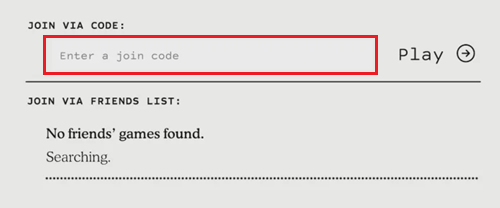
Step 3. Check every letter and number, remove extra spaces, and type the code manually if it was copied from a chat app.
Players outside the same platform friends list can use the unique Join Code created when the host starts a session.
Fix 3. Make Sure Everyone Has the Same Game Version
A pending Big Walk update can cause version mismatches between players, which may prevent a session from appearing or cause the connection to fail.
Step 1. Close Big Walk and open your Steam Library.
Step 2. Update Big Walk and enable automatic updates:
- Select Big Walk in Steam and install any pending update.
- Open Properties > Updates.
- Set Automatic Updates to Immediately download updates.
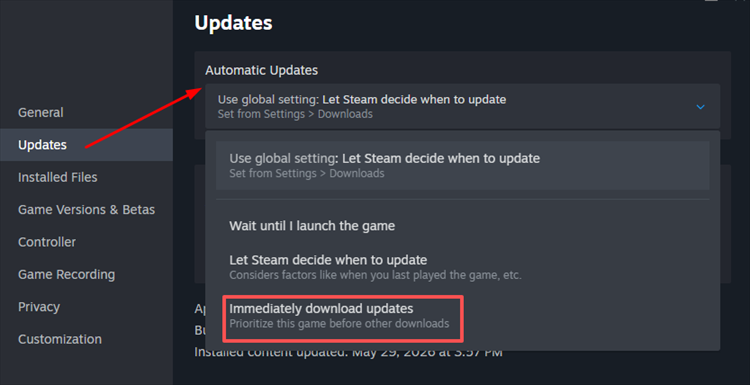
Step 3. Restart Steam after the update finishes. Console players should also check for updates manually.
All players must use the same game version. Otherwise, the session may appear unavailable or fail while connecting.
Fix 4. Restart the Host and Recreate the Session
A broken lobby may keep sending players back to the same connection error. Recreate the session from scratch.
Step 1. Ask everyone to leave, close Big Walk completely, and wait about 30 seconds.
Step 2. Restart Steam or the console, then let the original host create a new session.
Step 3. Use the new session or Join Code. If the issue continues, try a different host to check whether the problem is tied to one player’s connection.
Story progress is saved by the original host, so another host will not automatically have access to the same journey.
Fix 5. Re-add the Friend or Use the Join Code Instead
If a friend’s active game does not appear, the issue may be related to the platform friends list or invitation system.
Step 1. Confirm that both players appear online, then remove and re-add the friend if needed.
Step 2. Restart Steam or the console friends service, ask the host to recreate the session, and refresh the Friends’ Games screen.
Step 3. Use a Join Code instead of a platform invite. If the code fails, try joining through the friends list instead.
This helps identify whether the issue comes from the Join Code, the platform invitation system, or the hosted session.
Fix 6. Check Crossplay and Platform Connectivity
Big Walk crossplay may fail when players use different game versions or platform settings block online communication.
Step 1. Update Big Walk and restart Steam, PS5, or Nintendo Switch 2 completely.
Step 2. Confirm that online play, cross-platform communication, and privacy permissions are enabled on each account.
Step 3. Create a new Join Code and let the player with the most stable connection host the session.
When platform updates arrive at different times, players may need to wait until the same version is available on every system.
Fix 7. Restart and Stabilize Your Network
An unstable connection between the host and joining player can cause timeouts, failed sessions, or sudden disconnections. Try the following:
- Restart your router and modem.
- Use Ethernet instead of Wi-Fi when possible.
- Move closer to the router if you are using Wi-Fi.
- Pause downloads, cloud backups, and video streaming.
- Disconnect unnecessary devices from the network.
- Restart Big Walk after the connection is restored.
- Test another network to check for router or ISP issues.
Avoid repeatedly restarting the router if other online services work normally. First check whether only one player is unable to join the session.
How LagZapper May Reduce Big Walk Connection Issues
High ping, packet loss, congested routes, and long-distance connections can lead to slow joining, unstable voice chat, or unexpected disconnections in Big Walk. LagZapper optimizes the network route between your Windows PC and Big Walk’s online services, helping reduce ping spikes, packet loss, and connection instability during multiplayer sessions.
Highlights of Using LagZapper for Big Walk
- Helps lower ping and reduce sudden spikes that may interrupt joining, movement, or voice chat.
- Helps reduce packet loss and routing instability during long-distance multiplayer sessions.
- Recommends suitable connection nodes based on your location and the host’s region.
- Optimizes network routes to reduce lag and support a more stable Big Walk multiplayer connection.
How to Boost Big Walk with LagZapper [Step-by-Step Guide]
Follow these three steps to optimize your Big Walk connection before joining a friend’s session.
Step 1. Download and install LagZapper
Install LagZapper on your Windows PC, launch the app, and sign in to your account.
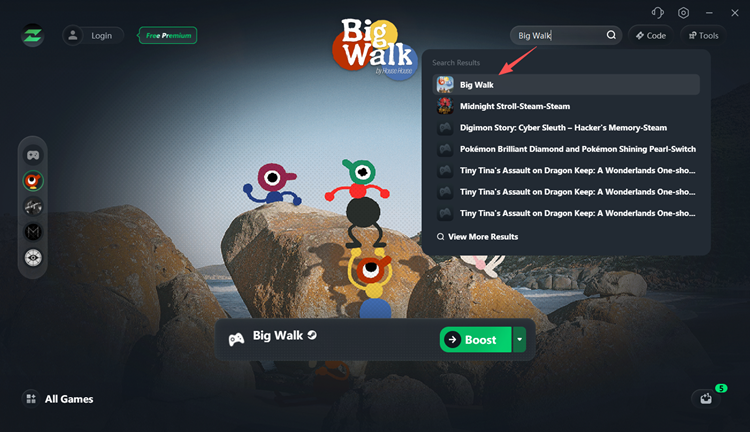
Step 2. Search for Big Walk
Enter Big Walk in the search bar and select the game from the results.
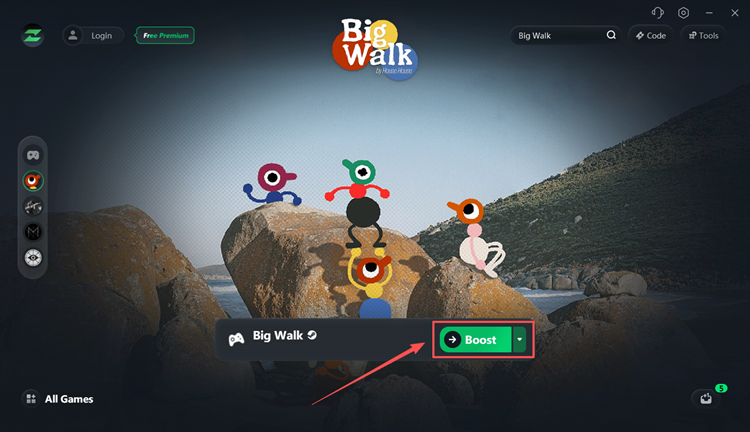
Step 3. Select a node and start boosting
Choose a recommended node or one near the host’s region, click Boost, and launch Big Walk to join the session again.
The Bottom Line
When Big Walk multiplayer is not working, confirm that the host has started the correct saved session. Then create a new Join Code, update the game on every platform, restart the lobby, and test both friend invites and code-based joining. For crossplay issues, review account permissions and version compatibility. If connections remain unstable, optimize your network route to reduce lag, packet loss, disconnections, and voice chat problems. Download LagZapper and try a more stable Big Walk connection.
FAQs About Big Walk Multiplayer Not Working
Q1. Why is my Big Walk Join Code not working?
The session may no longer be active. Ask the host for a new code and enter it without spaces or typing errors.
Q2. Why can’t I see my friend’s Big Walk game?
Make sure the host is already in the game and appears online. Re-add the friend or use a Join Code instead.
Q3. Why does Big Walk say Session Unavailable?
The host may have ended the game, disconnected, or started an incompatible version. Ask them to create a new session.
Q4. Does Big Walk support crossplay?
Yes. Big Walk supports crossplay between Windows and Mac, PlayStation 5, and Nintendo Switch 2.
Q5. Why is Big Walk voice chat not working or too quiet?
Check the selected microphone, mute settings, input volume, and Microphone Activity under Settings > Audio. Voices also become quieter over distance.