
Big Walk Voice Chat Too Quiet? How to Fix Low Voice Volume
Is Big Walk voice chat too quiet even when your friends are standing nearby? Since launch, players have reported low Big Walk voice volume, quiet microphones, and teammate voices sounding like whispers. A Steam Discussion titled “MIC VOLUME TOO LOW!” also attracted players experiencing the same issue.
House House acknowledged that some voices were quieter than intended and released Version 1.4.8 to address the problem. If Big Walk voice chat is not working, your Big Walk mic is too quiet, or your microphone still has little or no input after updating, try the fixes below.
Why Is Big Walk Proximity Chat Still Quiet After the Update?
Patch 1.4.8 improves unexpectedly low voice volume, but it does not remove Big Walk’s distance-based voice behavior. Proximity chat is intentionally limited because communication is part of the game’s exploration and puzzle design. If your Big Walk voice volume still seems too low, the cause usually falls into one of these situations:
- Voice is too quiet even when friends are nearby: Your microphone input may be too low, the wrong input device may be selected, or the Big Walk microphone is not working correctly.
- Voice gets quieter as friends move farther away: This is usually normal Big Walk proximity-chat behavior rather than a bug.
- Voice changes through walls or corridors: Distance, obstacles, and player positioning can affect how clearly teammates are heard.
Also having trouble joining friends or getting Connection Errors? See Big Walk Multiplayer Not Working? Try These 7 Fixes
How to Fix “Big Walk Voice Chat Too Quiet”
If your friends are still barely audible even when standing next to you, try the fixes below.
Fix 1. Update Big Walk to Version 1.4.8 or Later
First, make sure everyone in your group has installed the latest Big Walk update. Version 1.4.8 specifically improves cases where Big Walk voice chat is too quiet, so older builds may still have the original low Big Walk voice volume issue. Here is how to update Big Walk on Steam:
Step 1. Close Big Walk and open your Steam Library.
Step 2. Select Big Walk. If an Update button appears, click it and wait for the update to finish.
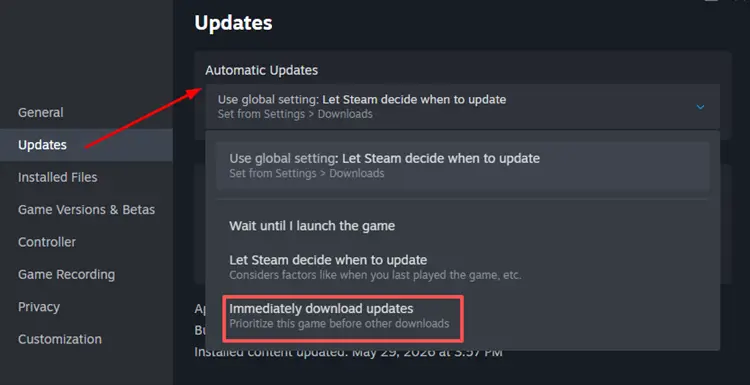
Step 3. Restart Steam, then launch the game again.
Tip: Ask your friends to update the game as well before creating a new multiplayer session.
Fix 2. Make Sure Big Walk Is Using the Correct Microphone
If your Big Walk mic is too quiet or the Big Walk microphone is not working, the game may be using the wrong input device. This is common on PCs with multiple microphones, such as a headset mic, webcam mic, built-in laptop mic, USB audio interface, or Bluetooth headset. Before launching Big Walk:
Step 1. Open Windows Settings > System > Sound.
Step 2. Under Input, select the microphone you want to use.
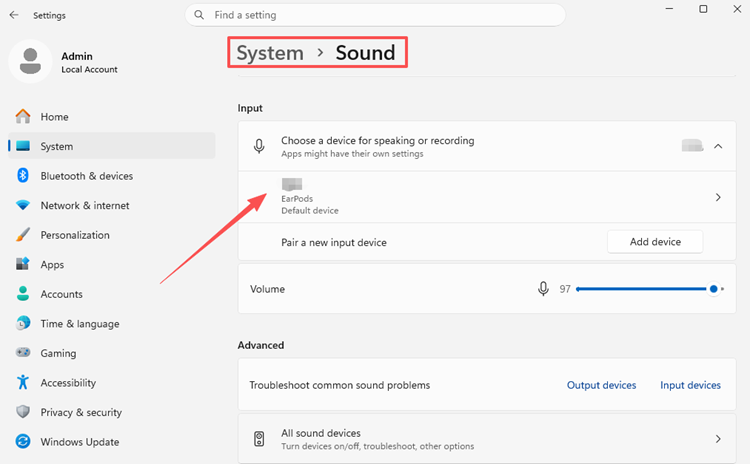
Step 3. Speak into the mic and check whether the input level responds normally.
If Windows barely detects your voice, the problem is likely with the microphone or system settings rather than Big Walk.
Fix 3. Increase Your Windows Microphone Input Volume
A low system-level microphone volume can make your voice extremely quiet inside Big Walk. On Windows:
Step 1. Open Settings > System > Sound.
Step 2. Select your microphone under Input.
Step 3. Increase the Input volume and test the mic again.
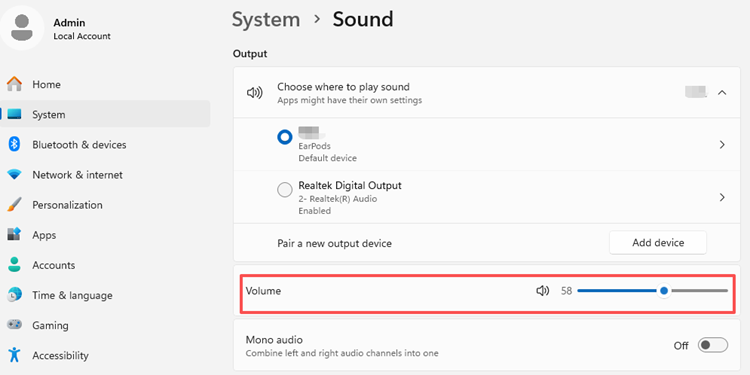
Raise the volume gradually to avoid background noise or distortion. Then ask a friend nearby in Big Walk to check whether your voice sounds louder.
Fix 4. Reconnect Your Microphone Before Launching Big Walk
If the Big Walk microphone is not working correctly, reconnecting it may restore normal input.
Step 1. Close Big Walk completely.
Step 2. Disconnect and reconnect your headset, microphone, or audio interface.
Step 3. Confirm Windows recognizes the device, then restart Steam and launch Big Walk again.
For Bluetooth headsets, disconnect and pair the device again if needed.
Fix 5. Restart the Big Walk Session
If Big Walk voice chat is not working or suddenly becomes too quiet during a session, restarting the lobby may help.
Step 1. Ask everyone to leave the current session.
Step 2. Close and reopen Big Walk, then let the host restart the saved journey.
Step 3. Generate a new Join Code, rejoin the session, and test voice chat again.
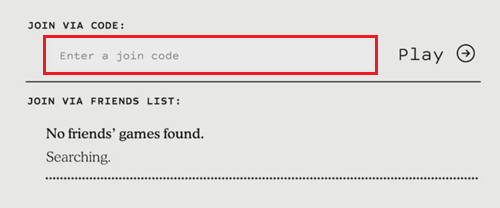
This may also help with related multiplayer issues such as disconnects, failed joins, or Session Unavailable errors.
Fix 6. Test the Microphone Outside Big Walk
If Big Walk voice chat is not working, test your microphone outside the game first. Try it with Windows microphone testing, Steam voice settings, another voice app, or another game.
- Mic is quiet in other apps too: Check your Windows input volume or microphone settings.
- Mic only has problems in Big Walk: Restart the game, reconnect the microphone, and install the latest update.
[Bonus] Reduce Big Walk Connection Issues with LagZapper
LagZapper cannot increase microphone volume or change Big Walk’s proximity-chat range. However, if voice problems happen together with high ping, packet loss, lag, or unstable multiplayer connections, LagZapper can help optimize your network route while playing Big Walk.
Highlights of LagZapper for Big Walk
- Optimize network routes to reduce lag in Big Walk and keep multiplayer sessions smoother.
- Help lower ping in Big Walk when playing with friends across different regions.
- Improve connection stability and reduce packet loss in Big Walk during online sessions.
- Use smart node selection to connect through a recommended route near the host’s region.
How to Reduce Big Walk Connection Issues with LagZapper
If Big Walk voice issues happen together with unstable multiplayer connections, you can use LagZapper to optimize your network route before launching the game.
Step 1. Download and Install LagZapper
Download LagZapper for Windows and complete the installation.
Step 2. Search for Big Walk
Open LagZapper, sign in, and search for Big Walk.
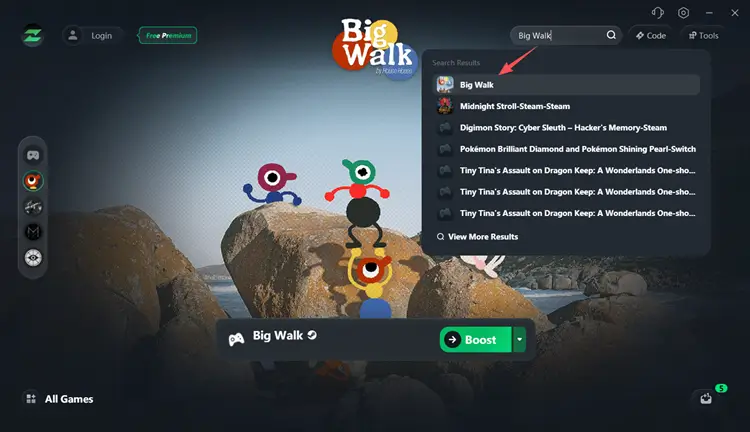
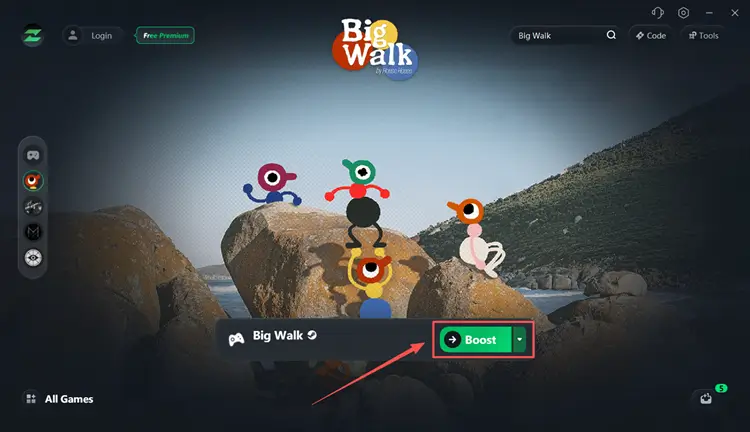
Step 3. Start Boosting Big Walk
Choose a recommended node or one close to the host’s region, click Boost, and then launch Big Walk.
In addition to boosting Big Walk, LagZapper also supports similar multiplayer games such as MECCHA CHAMELEON, helping optimize connection stability when joining or playing with friends.
Also Read: MECCHA CHAMELEON Can’t Join Friends? Fix Server Issues
The Bottom Line
House House has addressed the Big Walk voice chat too quiet issue with Version 1.4.8, but close-range voice problems may still require microphone or Windows input adjustments. If voices only fade as friends move farther away, that is usually normal proximity-chat behavior.
For voice issues that happen alongside lag, high ping, or unstable multiplayer connections, download LagZapper to optimize your Big Walk network route and improve connection stability.
FAQ About Big Walk Voice Chat
Q1. Why is Big Walk voice chat so quiet?
Some microphones were quieter than intended at launch. Version 1.4.8 improves voice volume for affected setups.
Q2. Did Big Walk fix the low voice volume?
Yes. Version 1.4.8 fixes unexpectedly quiet voices, especially for players with quieter microphone setups.
Q3. Why is Big Walk proximity chat still too quiet after the update?
Voices intentionally fade with distance. Version 1.4.8 improves volume but does not increase proximity-chat range.
Q4. Can I increase Big Walk proximity chat range?
No built-in option currently increases the normal voice range. Limited hearing distance is an intentional gameplay mechanic.
Q5. Why does Big Walk voice chat keep cutting out?
Distance-based fading may be normal. If voices cut out with lag or disconnects, the issue may be connection-related.
Q6. Why can nobody hear me in Big Walk?
Make sure the correct mic is selected, it is not muted, Microphone Activity responds, and your microphone works normally outside Big Walk.