
Diablo 4 Error Code 315306: 7 Fixes for "Unable to Find a Valid License"
Diablo 4 error code 315306 can block players from logging in with the message "Unable to find a valid license for Diablo IV." The error can appear during startup or login, and it resurfaced on PS5 in September 2026 after some players received Patch 3.2.1 earlier than intended. This guide will explain what Diablo 4 error code 315306 means, cover the latest PS5 update issue, and provide seven fixes for license verification and login problems.
What Is Diablo 4 Error Code 315306?
Diablo 4 error code 315306 is a login or access error that appears when Diablo IV cannot confirm that your account can enter the game. It is usually accompanied by "Unable to find a valid license for Diablo IV" and can prevent you from logging in. The message does not always mean that you no longer own the game.
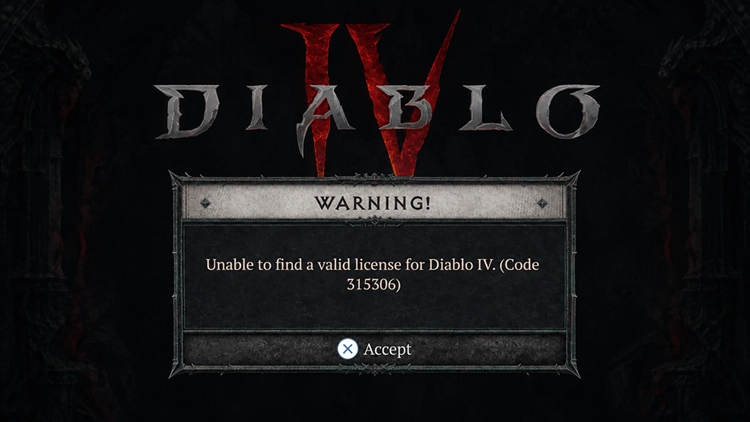
Why Does Diablo 4 Say "Unable to Find a Valid License"
The Diablo 4 license error can appear for different reasons across platforms. Check the table below to match your symptom with a likely cause and first fix.
| Symptom | Possible Cause | First Fix to Try |
|---|---|---|
| Many players get 315306 at once | Diablo 4 or platform-side issue | Check service status |
| Error appears after a failed login | Temporary authentication session | Restart game and platform |
| PS5 cannot verify the game license | License synchronization issue | Restore PS5 licenses |
| Only one account or shared console is affected | Ownership or sharing issue | Check ownership and Console Sharing |
| Error starts immediately after a patch | Game/live version mismatch | Check the current live version |
| Only your device still gets 315306 | Connection or local client issue | Test another connection or repair files |
How to Fix Diablo 4 Error Code 315306 - 7 Useful Fixes
Use the table above to identify the fix that best matches your situation. If the cause is unclear, try the following methods in order, starting with service and platform checks.
Fix 1. Check Diablo 4 and Platform Status First
Before changing local settings, check whether Diablo IV, Battle.net, PlayStation Network, or Xbox services are having login, authentication, or maintenance issues. If many players report similar problems at the same time, Diablo 4 error code 315306 may be service-side, so wait for the affected service to recover before trying local fixes.
Fix 2. Fully Restart Diablo 4 and Your Platform Session
A temporary login or authentication session may prevent Diablo IV from validating access correctly. Fully close the game instead of leaving it suspended, then restart your console or completely exit and reopen Battle.net before signing in again. PlayStation also recommends restarting the console as an early troubleshooting step when a game cannot start normally.
Fix 3. Restore Diablo 4 Licenses on PS5
If PS5 cannot verify your Diablo IV access even though the game belongs to your account, restoring the PlayStation license may refresh its entitlement information. Sony notes that restoring licenses does not affect saved data. Follow the steps below to restore the Diablo 4 license on PS5.
Step 1. Open Settings > Users and Accounts > Other > Restore Licenses.
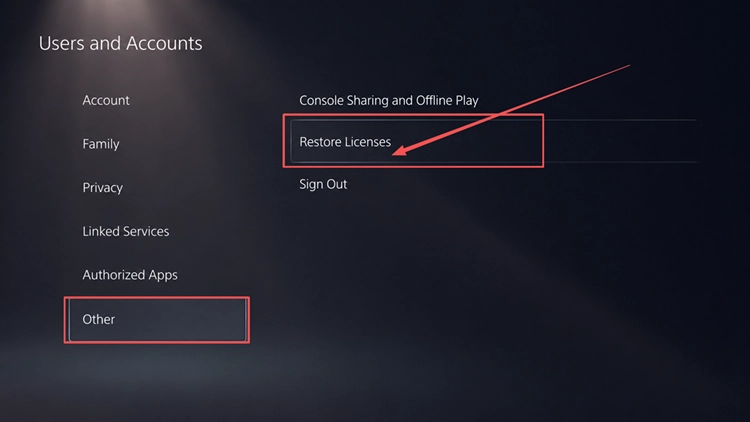
Step 2. Select the Diablo IV license you want to restore, complete the process, and launch the game again.
Fix 4. Check Game Ownership and Console Sharing
If only one account or shared PS5 gets the license error, confirm that Diablo IV is owned by the correct PlayStation account. If another account purchased the game, Console Sharing and Offline Play must be enabled on that PS5. Follow the steps below to check both settings.
Step 1. Sign in to the account that purchased Diablo IV and confirm the purchase in Transaction History.
Step 2. Open Settings > Users and Accounts > Other > Console Sharing and Offline Play.
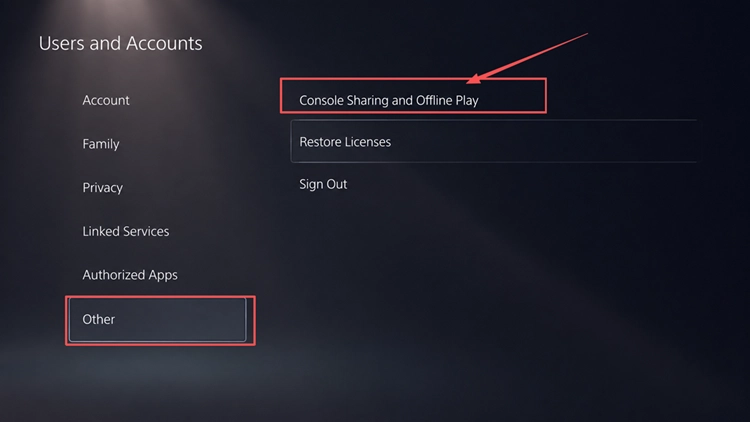
Step 3. Select Enable if the game is being shared from that account.
Fix 5. Make Sure Diablo 4 Matches the Current Live Version
Diablo 4 error code 315306 can appear when your installed build does not match the version currently active on the live service. Check Blizzard’s latest patch notes and announcements against your installed version. If your client received a patch before the official rollout, wait for that version to go live; if it is behind, install the available update.
Fix 6. Test the License Check on Another Connection
If Diablo IV services are online and your game version is correct, test another connection to see whether the current network is interrupting license verification. Temporarily connect your console or PC to another network, such as a mobile hotspot, then launch Diablo IV again. If 315306 disappears, the original connection may be involved; if it remains, continue with the next fix.
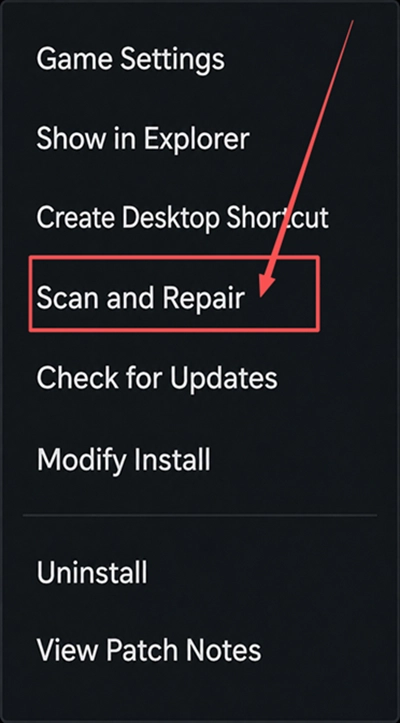
Fix 7. Scan and Repair Diablo 4 on Battle.net
If Diablo 4 error code 315306 still appears only on PC after you rule out server, version, and account issues, use Battle.net’s repair tool to check the local game installation. Blizzard provides Scan and Repair for Battle.net games, making it a useful final local check.
Step 1. Open the Battle.net app, select Diablo IV, and click the gear icon next to Play.
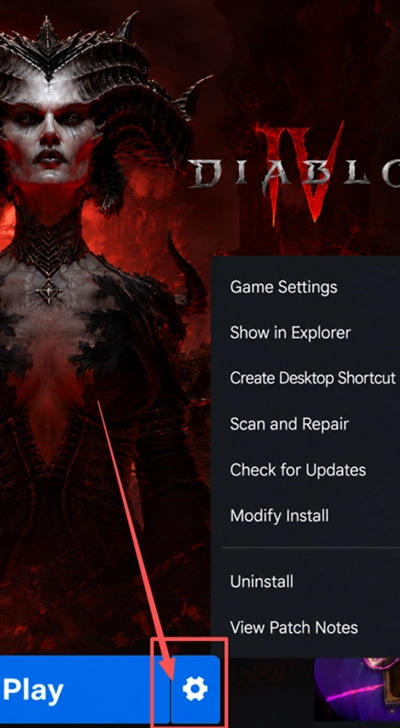
Step 2. Select Scan and Repair > Begin Scan, wait for the process to finish, then relaunch Diablo IV.
[Bonus] Improve Diablo 4 Connection Stability With LagZapper
After Diablo 4 error code 315306 is resolved and you can log in normally, connection problems may still affect gameplay. LagZapper can optimize the route to Diablo 4 servers, helping reduce high ping and packet loss caused by inefficient routing.
Why Use LagZapper for Diablo 4
- Smart Route Optimization: Finds a stable route to help reduce high ping, packet loss, jitter, and routing problems.
- Connection Stability: Helps reduce game lag, lower ping, and limit sudden latency changes during gameplay.
- One-Click Boost: Optimizes the game connection without manual router, DNS, or Windows changes.
- 3,000+ Game Support: Works with Diablo 4 and thousands of other online games.
How to Use LagZapper for Diablo 4
Follow these three steps to optimize your Diablo 4 connection before launching the game.
Step 1. Download and Install LagZapper
Download LagZapper for Windows and follow the on-screen instructions to complete the installation on your PC.
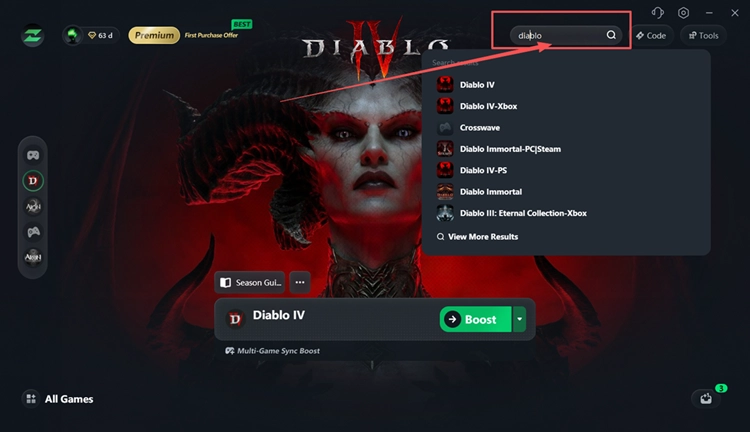
Step 2. Search for Diablo IV
Launch LagZapper, then use the search bar or supported games list to find Diablo IV.
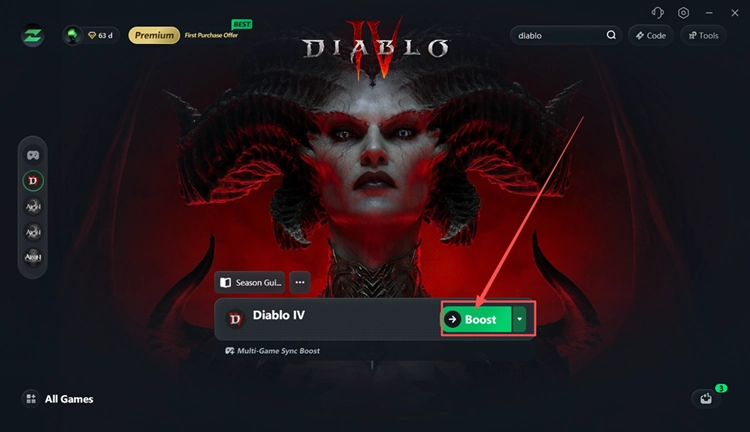
Step 3. Select a Recommended Node and Click Boost
Select a recommended server or node, then click Boost before launching Diablo IV.
Also Read: Diablo 4 High Ping: Reduce Lag Spikes and Fix Connection Issues
The Bottom Line
Diablo 4 error code 315306 can be linked to service problems, temporary authentication issues, PS5 license verification, account sharing, version mismatches, or connection and client-side problems. Check service status first, then work through the seven fixes based on your symptoms. If login access returns but high ping, packet loss, or unstable routing affects gameplay, download LagZapper to optimize your Diablo 4 connection.
FAQs About Diablo 4 Error Code 315306
Q1. What Does "Diablo 4 Unable to Find a Valid License" Mean?
It means Diablo IV could not verify your account's access during startup or login.
Q2. Why Did Diablo 4 Error 315306 Appear After the PS5 Update?
Some PS5 players received Patch 3.2.1 early and could not access Diablo IV until the official rollout.
Q3. Does "Unable to Find a Valid License for Diablo 4" Mean I Lost the Game?
No. Server, version, authentication, or PlayStation license-sync problems can also trigger the error.
Q4. How Do I Restore the Diablo 4 License on PS5?
Go to Settings > Users and Accounts > Other > Restore Licenses, then select Diablo IV.
Q5. Can Console Sharing Cause a Diablo 4 License Error?
Yes. Shared access can fail when the purchasing account has not enabled Console Sharing and Offline Play.