
Diablo 4 Season 15 PTR Not Working? 7 Fixes for Download, Launch & Login Issues
Diablo 4’s 3.2.0 PTR runs from August 4 to August 11, 2026, giving players a limited window to test upcoming Season 15 changes before release. However, you may find the Diablo 4 Season 15 PTR not working because it does not appear in Battle.net, its download gets stuck, Corrupted Data prevents it from launching, or the PTR servers remain unavailable.
This guide will explain why these PTR problems occur and provide seven practical fixes for download, corrupted data, launch, and login issues.
Why Is Diablo 4 Season 15 PTR Not Working?
Diablo 4 PTR failures may come from access restrictions, an outdated preload, Battle.net errors, stalled downloads, or server issues. Check the table below for each symptom’s likely cause.
| Symptom | Likely Cause |
|---|---|
| Diablo 4 PTR not showing in Battle.net | Unsupported platform, or the live Diablo IV version is selected in Battle.net. |
| Corrupted Data error or an outdated version shown | Outdated or incomplete files left by the earlier PTR preload. |
| Diablo 4 PTR download stuck at 0 B/s | Temporary file processing, insufficient disk space, a low bandwidth limit, or an unstable connection. |
| Diablo 4 PTR not launching | Stalled Update Agent, corrupted Battle.net cache, or damaged PTR files. |
| Unable to log in or PTR server unavailable | PTR outside its test window, server outage, firewall interference, or routing problems. |
Before Trying Fixes: Confirm the Diablo 4 PTR Is Available
Before changing Battle.net or Windows settings, first confirm that the Diablo 4 PTR is currently available. Blizzard’s 3.2.0 PTR runs from August 4 at 10:00 a.m. PDT to August 11 at 10:00 a.m. PDT. Diablo 4 Season 15 PTR is available only on PC through Battle.net.
PC Game Pass and Game Pass Ultimate users must open Battle.net through the Xbox App before selecting the PTR. If you receive a server unavailable message outside the official testing window, the test servers are offline by design, so local troubleshooting will not restore access.
How to Fix Diablo 4 Season 15 PTR Not Working - 7 Useful Fixes
Work through these fixes in order, or jump to the method that matches your issue, whether the PTR is missing, stuck downloading, unable to launch, or unable to log in.
Fix 1. Select the Public Test Realm Version in Battle.net
If the Diablo 4 PTR is not showing, Battle.net may still be displaying the live Diablo IV client instead of the test version. Follow the steps below to select the correct Public Test Realm version.
Step 1. Open Battle.net and select Diablo IV from your Games list.
Step 2. Open the version menu above Play and select Public Test Realm.

Step 3. Click Install and wait for the button to change to Play, then launch the PTR.
Fix 2. Fully Restart Battle.net and Check for a PTR Update
Closing the Battle.net window does not always stop its background Update Agent. If that process is stalled, the launcher may keep showing an outdated PTR build or fail to detect a new patch. Follow the steps below to restart Battle.net completely and check for updates.
Step 1. Right-click Battle.net in the system tray and select Exit.
Step 2. Open Task Manager and make sure all Battle.net-related processes are closed.
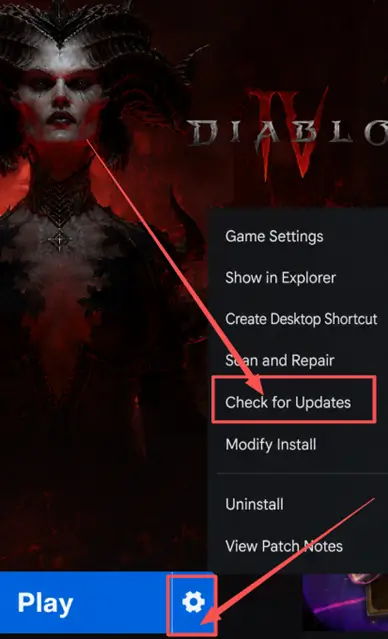
Step 3. Reopen Battle.net, select the PTR, click the gear icon and Check for Updates.
Fix 3. Troubleshoot a Diablo 4 PTR Download Stuck at 0 B/s
A Diablo 4 PTR download stuck at 0 B/s does not always mean the download has failed. Battle.net may temporarily display 0 B/s while processing or applying game files. If the speed does not recover, confirm that the installation drive has enough free space and check Settings > Downloads to make sure the download bandwidth limit is not set too low.
Fix 4. Refresh the PTR Installation Through Modify Install
Outdated or mismatched PTR files may cause Corrupted Data or prevent the client from launching. Changing the optional High-Resolution Assets package can make Battle.net reprocess the installation before you resort to a full reinstall. Follow the steps below to refresh the PTR files.
Step 1. Select the PTR, click the gear icon beside the Play button, and select Modify Install.
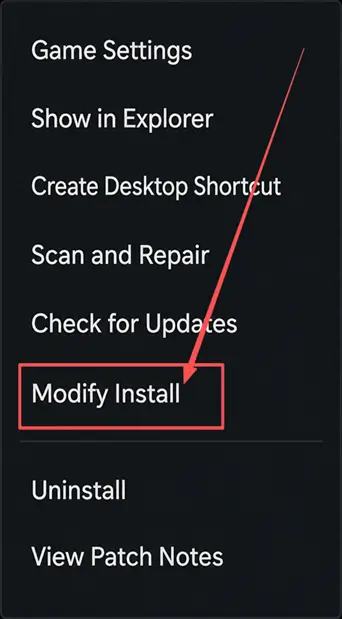
Step 2. Open Game Content and toggle High-Resolution Assets.
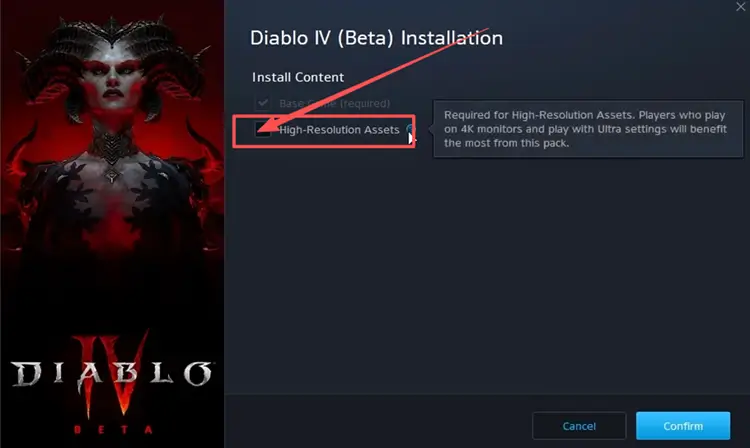
Step 3. Confirm the change, wait for Battle.net to finish applying it, then retry Play.
Fix 5. Resolve Local PTR Data Corruption
Corrupted Battle.net cache data can prevent the launcher from reading the updated PTR, while damaged game files can cause Corrupted Data or launch failures. Deleting the cache does not remove the installed client, and Scan and Repair checks the PTR files before a reinstall. Follow the steps below to complete both actions.
👉 Clear the Battle.net Cache
Step 1. Close Battle.net. Press Win + R, enter %ProgramData%, and click OK.
Step 2. Find the Blizzard Entertainment folder and delete it.
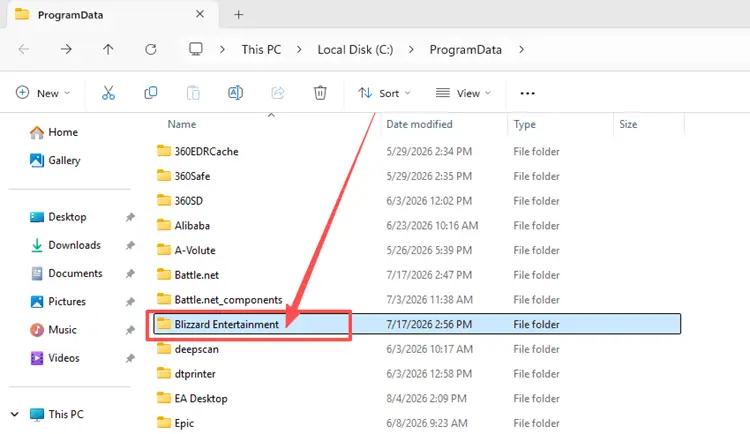
Step 3. Reopen Battle.net to recreate the folder.
👉 Repair PTR Files
Step 1. Select Diablo IV in Battle.net and choose Public Test Realm from the version menu.
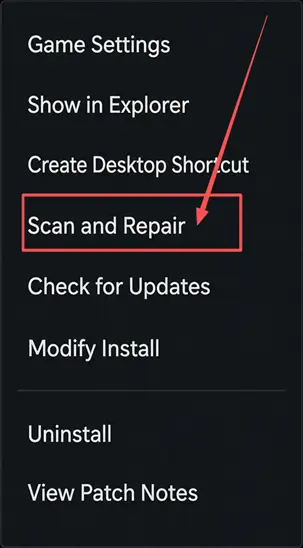
Step 2. Click the gear beside Play and select Scan and Repair.
Fix 6. Test Another Network for PTR Login Problems
When the Diablo 4 PTR is unable to log in, the PTR servers may not be the only cause. Testing another network can reveal whether unstable Wi-Fi, router problems, or poor ISP routing is blocking the connection.
Try a mobile hotspot or another Wi-Fi network, or switch to wired Ethernet, then reopen Battle.net and retry. If the PTR works, troubleshoot your usual network; if it fails on every connection, check the PTR server status before changing more local settings.
Fix 7. Reinstall the PTR Client
Reinstalling the PTR requires downloading the client again, so use this method only after all other fixes have failed. If Corrupted Data or an outdated version remains after refreshing and repairing the PTR, uninstall only the Public Test Realm client, restart Battle.net, and download the current 3.2.0 PTR build again.
[Bonus] Improve Diablo 4 Connection Stability with LagZapper
The Diablo 4 PTR relies on a stable connection for entering test servers, responsive combat, and uninterrupted gameplay. LagZapper can optimize the route to the selected server, helping reduce high ping and packet loss caused by inefficient routing.
Why Use LagZapper for Diablo 4 Connection Issues?
- Smart Route Optimization: Finds a stable route to help reduce high ping, packet loss, jitter, and routing problems.
- Connection Stability: Helps reduce game lag, lower ping, and limit sudden latency changes while testing the PTR.
- One-Click Boost: Optimizes the connection without manual router, DNS, or Windows changes.
- 3,000+ Game Support: Works with Diablo 4 and thousands of other online games.
How to Use LagZapper for Diablo 4
Follow these three steps to optimize the connection before launching the Diablo 4 PTR.
Step 1. Download and Install LagZapper
Download LagZapper for Windows and follow the on-screen instructions to complete the installation on your PC.
Step 2. Search for Diablo 4
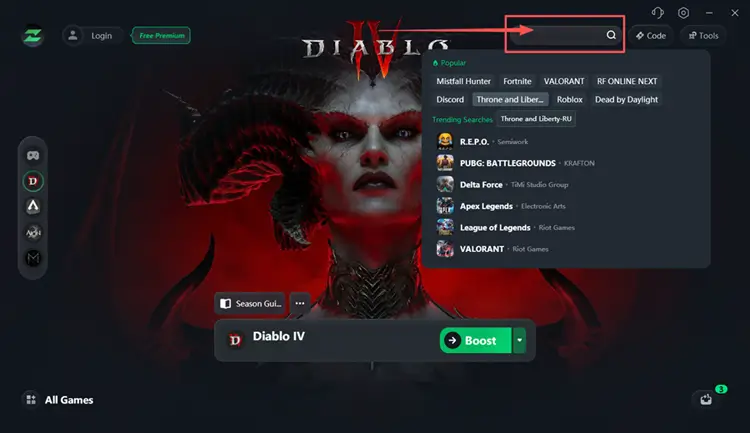
Launch LagZapper, then use the search bar or browse the supported games list to find Diablo 4.
Step 3. Select a Server and Click Boost
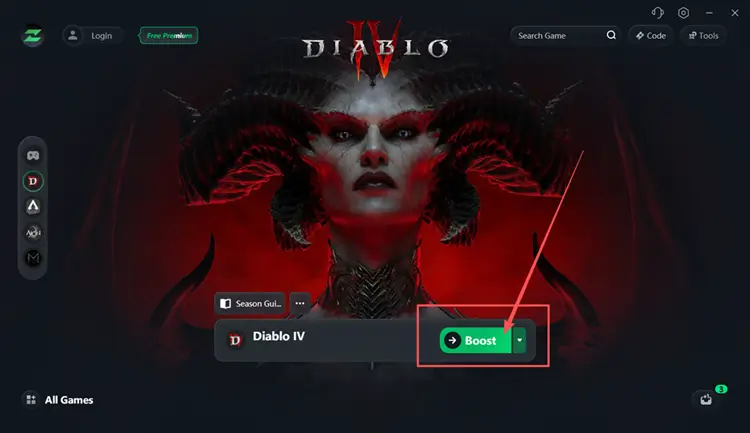
Select a suitable server or recommended node, then click Boost before launching the game.
Also Read: Diablo 4 High Ping: Reduce Lag Spikes and Fix Connection Issues
The Bottom Line
The Diablo 4 Season 15 PTR may fail because the test is closed, the wrong Battle.net version is selected, preload data is outdated, launcher services are stalled, files are corrupted, or the connection is unstable. Confirm availability first, then work through the seven fixes in order and reinstall the PTR only as a last resort.
After access is restored, download LagZapper when high ping, packet loss, or inefficient routing affects PTR connection stability.
FAQs About Diablo 4 Season 15 PTR Not Working
Q1. Why Is the Diablo 4 Season 15 PTR Not Working?
The PTR may be closed, outdated, incorrectly selected, corrupted, or affected by Battle.net problems.
Q2. Why Is the Diablo 4 PTR Not Showing?
The PTR appears only in Battle.net on PC after selecting the Public Test Realm version.
Q3. Why Is the Diablo 4 PTR Download Stuck?
File processing, limited storage, bandwidth caps, or unstable connectivity may stall the Battle.net download.
Q4. Why Is the Diablo 4 PTR Not Launching?
Outdated preload files, corrupted data, or stalled Battle.net processes can block the PTR client.
Q5. How Do I Fix Diablo 4 PTR Unable to Login In?
Restart Battle.net, confirm the PTR is open, check server notices, and test another network.
Q6. Why Is the Diablo 4 PTR Server Unavailable?
The test may be closed, under maintenance, overloaded, or unreachable through your current network route.