
Fortnite Keeps Crashing on PC? 11 Proven Fixes That Actually Work
Wondering why Fortnite keeps crashing on your PC? Whether you're dealing with startup crashes or freezing during matches, these issues can quickly ruin your gaming experience. After a new update, such as Chapter 7 Season 3, crashes still remain one of the most commonly reported problems on PC. The good news is that most Fortnite crashing issues are caused by common software, hardware, or configuration problems that can be fixed without advanced technical knowledge. This guide will explain the most common reasons why Fortnite keeps crashing and walk you through 11 proven fixes to stop crashes, freezing, and startup issues.
Why Does Fortnite Keep Crashing on PC
1. Corrupted or Missing Game Files
Fortnite may crash if essential game files become corrupted or go missing due to interrupted updates, disk errors, or unexpected system shutdowns.
2. Outdated or Incompatible Graphics Drivers
Outdated, corrupted, or incompatible graphics drivers can cause rendering failures, game instability, and crashes, especially after major Fortnite or Windows updates.
3. DirectX and Rendering Conflicts
Fortnite supports multiple rendering modes, including DirectX 11, DirectX 12, and Performance Mode. Conflicts between these APIs and your hardware configuration can trigger crashes during launch, loading screens, or gameplay.
4. Overlay Software Conflicts
Third-party overlays from applications such as Discord, NVIDIA GeForce Experience, AMD Software, or performance monitoring tools can interfere with Fortnite's rendering process. In some cases, these overlays may cause crashes or stability issues while playing.
5. Easy Anti-Cheat (EAC) Issues
Easy Anti-Cheat is required for Fortnite to run properly, but installation errors, corrupted EAC files, or conflicts with system software can prevent the game from launching or cause random crashes.
6. Insufficient System Resources
If your PC does not meet Fortnite's system requirements or runs low on available RAM, CPU resources, or storage space, the game may struggle to load assets and eventually crash. Resource shortages are more common when multiple background applications are running simultaneously.
7. Overheating and Hardware Instability
Excessive CPU or GPU temperatures, unstable overclocks, or power delivery issues can cause Fortnite to crash under heavy gaming workloads. Hardware instability often becomes more noticeable during extended gaming sessions or graphically intensive moments.
8. Windows Compatibility Issues
Windows updates, corrupted system files, compatibility settings, or conflicts with background services can interfere with Fortnite's operation.
How to Fix Fortnite Crashing on PC
Fix 1. Verify Game Files
If Fortnite keeps crashing after an update, some game files may be missing, corrupted, or installed incorrectly. Verifying the game files allows the Epic Games Launcher to scan and replace damaged files automatically.
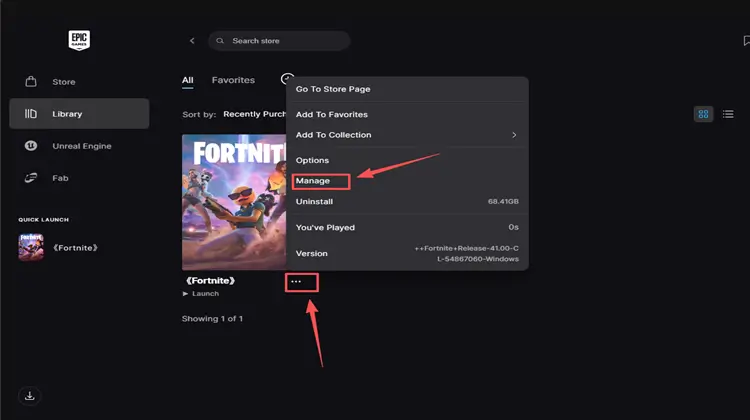
Step 1. Open Epic Games Launcher and go to Library.
Step 2. Click the three dots below Fortnite and select Manage.
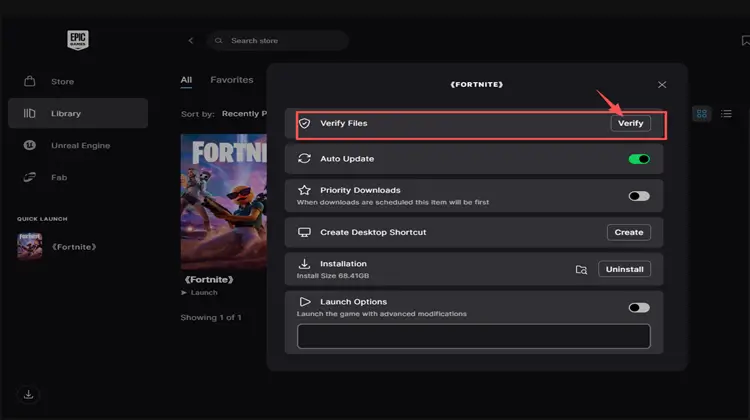
Step 3. Click Verify and wait for the scan to complete.
Fix 2. Run Epic Games Launcher as Administrator
Insufficient permissions can sometimes prevent Fortnite or Easy Anti-Cheat from properly accessing required system resources. Running the Epic Games Launcher as administrator ensures the game and its services are launched with the necessary privileges, which may help reduce crashes or startup issues.
Step 1. Close Fortnite and the Epic Games Launcher completely.
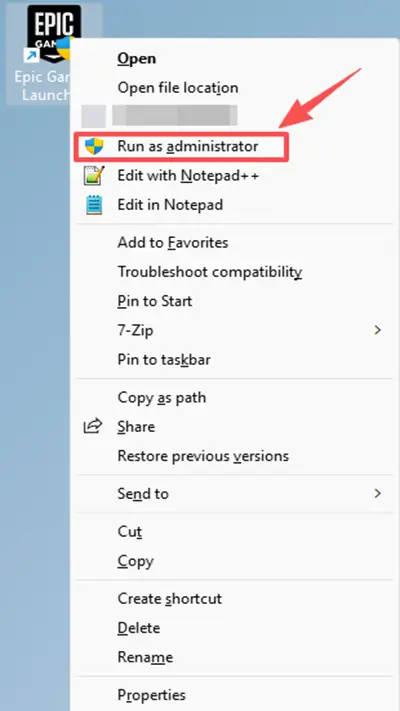
Step 2. Right-click the Epic Games Launcher shortcut and select Run as administrator.
Step 3. Launch Fortnite again and check whether the crashing issue is fixed.
Fix 3. Update Graphics Drivers
Outdated or corrupted graphics drivers can cause Fortnite to crash, freeze, or perform poorly. Keeping your GPU drivers updated helps improve stability and compatibility with the latest Fortnite patches. For best results, download the latest drivers from the official NVIDIA, AMD, or Intel websites. Follow the simple steps below:
Step 1. Open the official NVIDIA Driver Downloads page and download the latest driver for your graphics card.
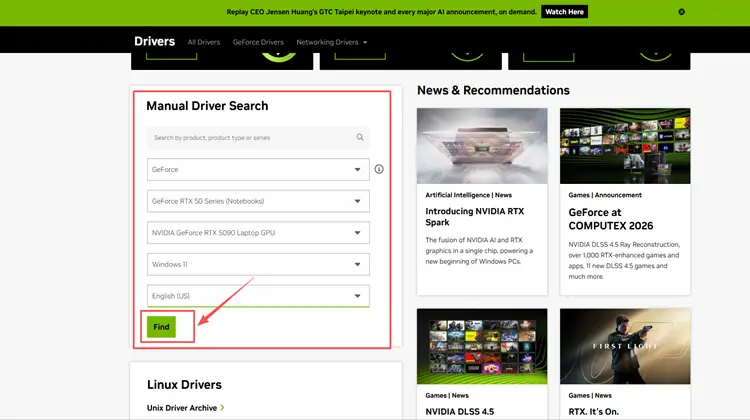
Step 2. Install the driver, restart your PC, and launch Fortnite again.
The same process applies to AMD and Intel driver update.
Fix 4. Change Fortnite's Rendering Mode
Rendering conflicts between DirectX 11, DirectX 12, and Performance Mode can cause random crashes, freezing, or startup issues. Switching to a different rendering mode may improve stability.
Step 1. Open Fortnite and go to Settings.
Step 2. Navigate to the Video tab and find Rendering Mode.
Step 3. Switch between DirectX 11, DirectX 12, or Performance Mode.
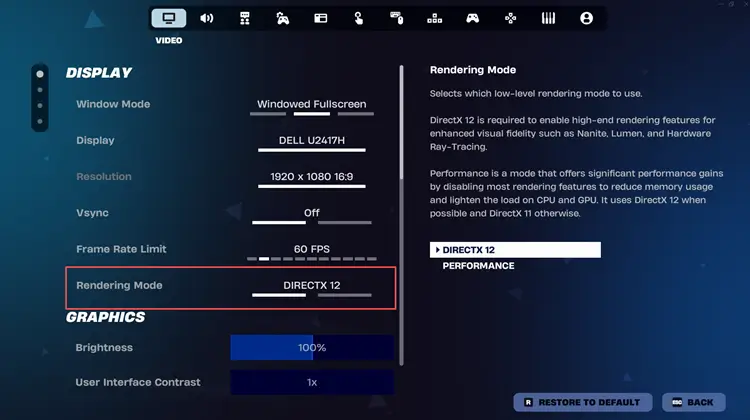
Step 4. Restart the game and test for stability.
Fix 5. Disable Overlays and Close Unnecessary Background Applications
Software conflicts are a common reason why Fortnite keeps crashing, freezing, or becoming unstable on PC. Applications such as Discord, NVIDIA App, AMD Software, Xbox Game Bar, screen recorders, and hardware monitoring tools may interfere with Fortnite and consume valuable system resources.
Before launching Fortnite, close unnecessary background applications and disable any overlays that are not required. This can help reduce software conflicts, free up CPU and RAM resources, and improve overall game stability.
Step 1. Press Ctrl + Shift + Esc to open Task Manager.
Step 2. Under the Processes tab, close unnecessary applications running in the background.
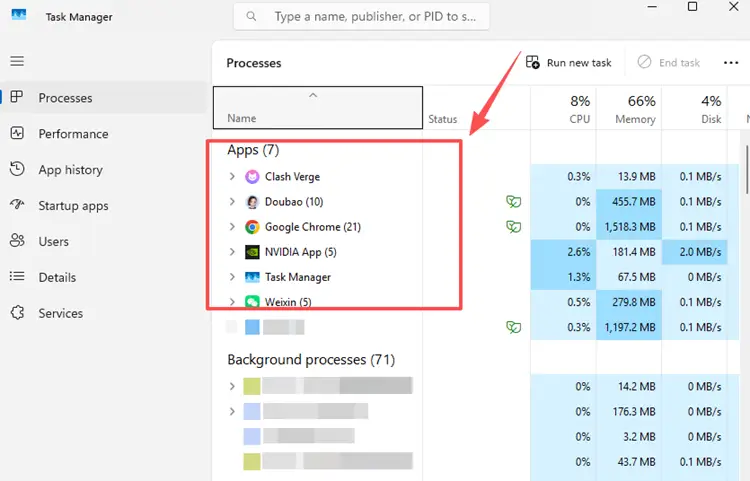
Step 3. Restart Fortnite and check whether the crashing issue has been resolved.
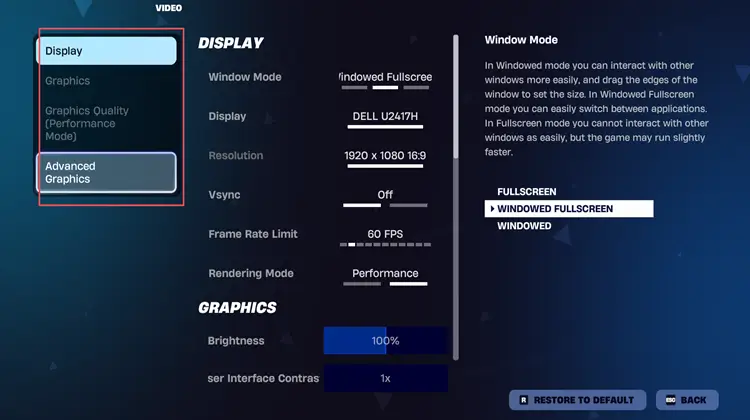
Fix 6. Lower In-game Graphics Settings
High graphics settings can place excessive strain on your CPU, GPU, and memory, especially on older hardware. Lowering graphics settings may reduce crashes caused by hardware limitations.
Fix 7. Reinstall Easy Anti-Cheat
Corrupted Easy Anti-Cheat files can prevent Fortnite from launching correctly or cause unexpected crashes during gameplay. The most reliable fix is to verify Fortnite’s files through the Epic Games Launcher, which will automatically repair or reinstall damaged EAC components. If EAC is still causing problems, try reinstalling it manually.
Fix 8. Check for Overheating
Overheating CPUs and GPUs can become unstable under heavy gaming workloads, causing Fortnite to crash unexpectedly.
If temperatures are unusually high:
● Clean dust from fans and heatsinks
● Improve case airflow
● Increase fan speeds
● Remove unstable overclocks
Once temperatures return to normal levels, test Fortnite again.
Fix 9. Check Windows updates
Outdated Windows components can sometimes cause compatibility issues with Fortnite, graphics drivers, or Easy Anti-Cheat. Installing the latest Windows updates may help resolve crashes, freezing, and startup problems.
After updating Windows, restart your computer and launch Fortnite again to see if the issue has been fixed.
Fix 10. Delete Fortnite Configuration Files
Corrupted configuration files can cause startup crashes, graphical glitches, and persistent settings conflicts. Deleting them forces Fortnite to generate fresh configuration files.
Step 1. Press Win + R and type %localappdata%
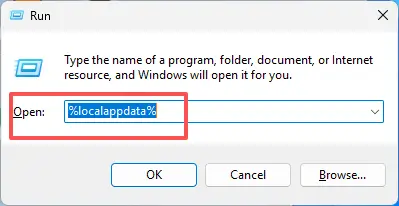
Step 2. Find the FortniteGame folder and delete it.
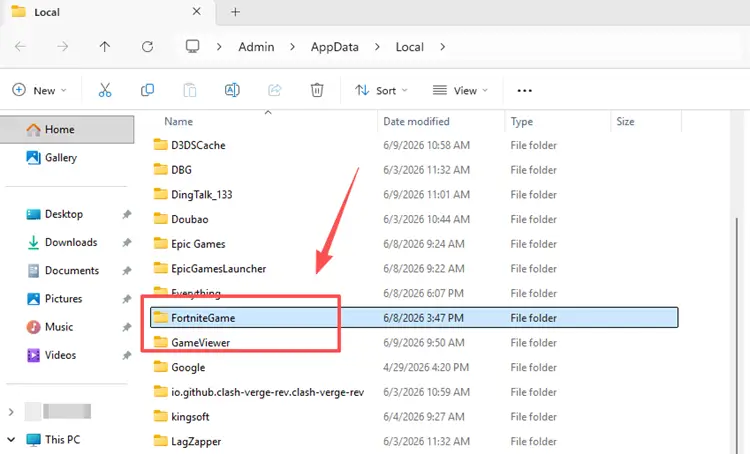
Step 3. Launch Fortnite again.
The game will automatically create new configuration files during startup.
Fix 11. Reinstall Fortnite
If none of the previous fixes work, a clean reinstall may be necessary. This can resolve deeply corrupted game files, installation errors, and configuration problems that verification cannot fix.
Although reinstalling takes longer, it often resolves persistent crashing issues that survive other troubleshooting methods.
Enjoy Smoother Fortnite Gameplay with LagZapper
While Fortnite crashing issues are usually caused by software or hardware issues, network quality still plays a major role in overall gameplay. Such issues as high ping, packet loss, lag spikes, and unstable server connections will ruin your gaming experience.
That's where LagZapper can help. LagZapper is a powerful PC game booster that helps optimize your connection route to Fortnite servers, reduce high ping, fix packet loss, and stabilize gameplay during peak hours or cross-region matches.
Highlights of LagZapper Game Booster
● One-Click Boost for Fortnite: Quickly find Fortnite in LagZapper, choose a suitable server or node if needed, and optimize your connection before jumping into a match.
● Lower Ping in Fortnite Matches: LagZapper helps optimize the route between your PC and Fortnite servers, which may lower ping and improve response time during fights.
● Reduce Lag and Packet Loss During Gameplay: LagZapper helps reduce lag, packet loss, and ping spikes, making drops, builds, fights, and endgame moments smoother.
● Smart Route Optimization for Cross-Region Play: When playing Fortnite across regions, LagZapper helps route your game traffic through a more optimized path for a more stable connection.
● Support for 3,000+ Games, Including Fortnite: LagZapper supports Fortnite and 3,000+ online games across FPS, MMORPG, MOBA, action, and multiplayer genres.
How to Boost Fortnite with LagZapper [Step-by-Step Guide]
Step 1. Download and Install LagZapper
Download LagZapper for Windows and follow the on-screen instructions to complete the installation.
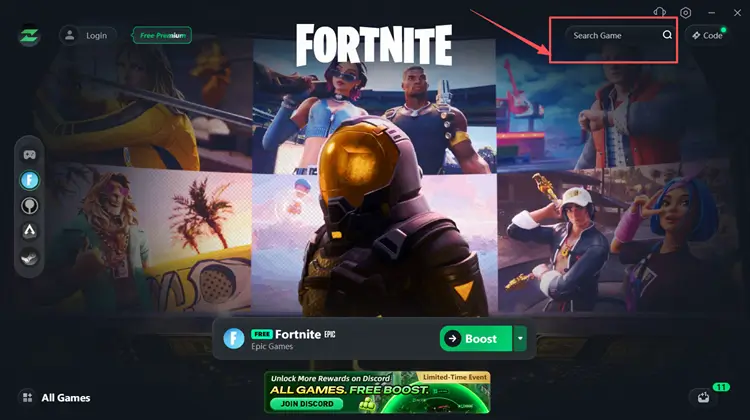
Step 2. Open LagZapper and Search for Fortnite
Launch LagZapper, and then use the search bar or browse the supported games list to find Fortnite.
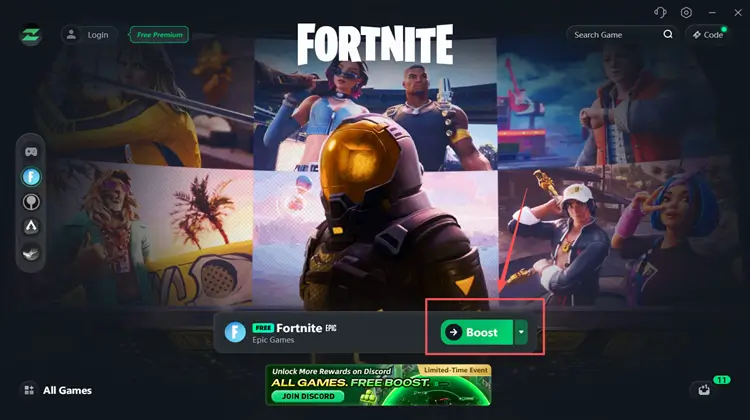
Step 3. Boost and Play Fortnite
Select your preferred server or node if needed, then click Boost to boost Fortnite.
Also Read: Is Fortnite Down? How to Check Server Status and Fix Issues >>
The Bottom Line
If Fortnite keeps crashing on PC, the issue is usually related to corrupted game files, outdated graphics drivers, Easy Anti-Cheat errors, DirectX conflicts, or Windows compatibility problems. Fortunately, most Fortnite crashing, freezing, and startup issues can be resolved by verifying game files, updating drivers, adjusting rendering settings, or repairing Easy Anti-Cheat. By following the fixes in this guide, you should be able to stop Fortnite from crashing and enjoy a smoother, more stable gaming experience in Chapter 7 Season 3 .
For players who need a stable network connection, download LagZapper and use it to optimize your route to Fortnite servers for a smoother, more stable gameplay experience.
FAQ
Q1: Why does Fortnite keep crashing on PC?
Fortnite keeps crashing on PC due to corrupted game files, outdated graphics drivers, Easy Anti-Cheat issues, DirectX conflicts, or insufficient system resources. These issues often appear after updates or system changes.
Q2: Why does Fortnite keep crashing after an update?
After a Fortnite update, some files may not install correctly or become incompatible with your current drivers or Windows version. Verifying game files and updating drivers usually resolves this issue.
Q3: Why does Fortnite keep freezing or not responding?
Fortnite freezing or not responding is often caused by high CPU/GPU usage, background applications, or unstable rendering settings. Lowering graphics settings or switching rendering mode can help improve stability.
Q4: Is Fortnite crashing related to internet connection?
In most cases, Fortnite crashing is not caused by internet issues. However, unstable network conditions can lead to lag, disconnects, or matchmaking problems, which may feel similar to crashes.
Q5: Can Easy Anti-Cheat cause Fortnite to crash?
Yes. If Easy Anti-Cheat is corrupted, outdated, or blocked by system permissions, Fortnite may fail to launch or crash during gameplay. Repairing or reinstalling EAC usually resolves the problem.
Q6: Why does Fortnite keep crashing randomly during gameplay?
Random crashes are often caused by overheating, unstable drivers, or conflicting overlay software such as Discord, GeForce Experience, or Xbox Game Bar.