
Grounded 2 Crashing After Into the Abyss? 7 Useful Fixes
Is Grounded 2 crashing after the Into the Abyss update? Since Update 0.5 launched on August 11, 2026, PC players have reported crashes at the Logging in screen, startup freezes, high memory usage, and random crashes during gameplay. Obsidian has released several hotfixes addressing memory leaks and stability issues, including Hotfix 0.5.0.3 with crash fixes across all platforms. When Grounded 2 keeps crashing on PC, Xbox App, or Game Pass, try the seven fixes below for Grounded 2 crashing, crash on startup, and crashing at login issues.
Why Does Grounded 2 Keep Crashing?
Grounded 2 crashing can be caused by several issues introduced or exposed after the Into the Abyss Update 0.5. Common causes include:
- Game bugs after the 0.5 update, including crash and stability issues.
- Memory leaks or unusually high RAM usage, especially during longer sessions.
- Corrupted or incomplete update files after installing a major patch.
- Outdated Grounded 2 builds missing the latest stability fixes.
- Xbox Gaming Services errors affecting Xbox App and PC Game Pass players.
- Incompatible mods built for an older version of the game.
- Outdated drivers or unstable Windows components causing startup or gameplay crashes.
These issues can result in Grounded 2 crashing on PC, crashing at login, freezing on startup, or randomly closing during gameplay.
How to Fix Grounded 2 Crashing After Update - 7 Fixes
To fix Grounded 2 crashing after update, install the latest official hotfix first, then try the fixes below to address corrupted files, incompatible mods, memory issues, and Xbox-related issues.
Fix 1. Update Grounded 2 to Hotfix 0.5.0.3 or Later
Start here when Grounded 2 started crashing after the Into the Abyss update. Obsidian released 3 hotfixes for memory leaks, Windows crashes, and stability issues:
- Hotfix 0.5.0.1: Improved memory handling for potential leaks during long sessions.
- Hotfix 0.5.0.2: Fixed a Windows crash and a Status Effects UI memory leak.
- Hotfix 0.5.0.3: Added broader crash and stability fixes across all platforms.
For Grounded 2 crashing after update, installing the latest build should be the first step.
👉 For Steam
Step 1. Completely close Grounded 2.
Step 2. Open Steam > Library > Grounded 2 and install any available update.
Step 3. Launch Grounded 2 and confirm the game version before loading your world.
👉 For Xbox App / PC Game Pass
Step 1. Open the Xbox app and select My Library > Grounded 2.
Step 2. Select More options (...) > Manage > Files > Check for updates.
Step 3. Restart the Xbox app and launch Grounded 2 again.
Fix 2. Check Your Xbox Blocked Users List
This fix is most relevant when Grounded 2 crashes at the Logging in screen on Windows. Version 0.5.0.2 fixed a crash linked to blocked users, so update the game first. Players on older builds can also check their blocked users.
Step 1. Search for the blocked player and open their Xbox profile.
Step 2. Select Report or block > Unblock.
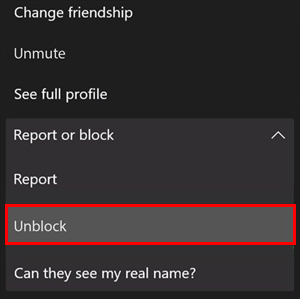
Step 3. Restart the Xbox app and launch Grounded 2 again.
After updating Grounded 2 to 0.5.0.2 or later, you should no longer need to keep players unblocked to avoid this login crash.
Fix 3. Verify and Repair Grounded 2 Game Files
Corrupted or incomplete files after a major update can cause Grounded 2 crashing on PC. Verify the installation before reinstalling the game.
👉 For Steam
Step 1. Open Steam > Library, right-click Grounded 2, and select Properties.
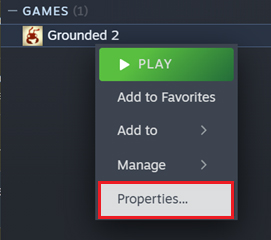
Step 2. Go to Installed Files > Verify integrity of game files and wait for Steam to finish.
👉 For Xbox App on PC
Step 1. Open Xbox app > My Library > Grounded 2, click More options (...), and select Manage.
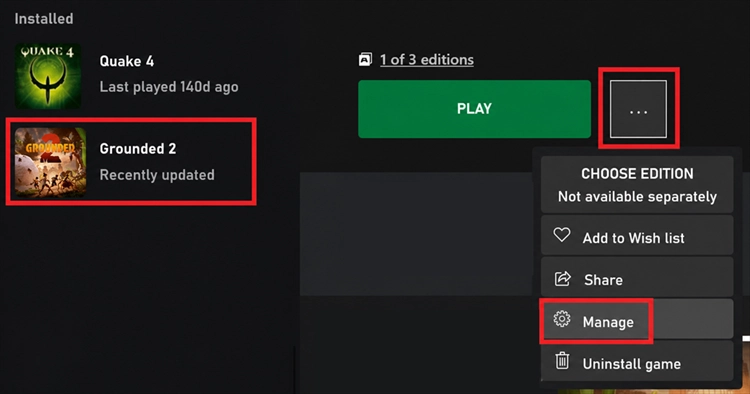
Step 2. Go to Files > Verify and Repair, then wait for the process to finish.
Fix 4. Disable or Update Grounded 2 Mods
Outdated mods can cause Grounded 2 crashing after update, especially when they were built for an older game version. One player reported crashes while loading a save after Into the Abyss, which stopped after updating the FLUSH.R mod. For players using mods:
Step 1. Close Grounded 2 completely.
Step 2. Disable or temporarily remove all third-party mods.
Step 3. Launch Grounded 2 without mods and load the same save.
When the crashing stops, update each mod to a version compatible with the current Grounded 2 build before enabling it again.
Fix 5. Reduce Memory Usage When Grounded 2 Keeps Crashing
High RAM usage or memory leaks can cause Grounded 2 to freeze, stutter, or crash after extended play. Hotfix 0.5.0.1 addressed potential memory leaks after 1–3 hours of gameplay, while 0.5.0.2 fixed another leak related to the Status Effects UI.
Step 1. Press Ctrl + Shift + Esc to open Task Manager.
Step 2. Close unnecessary memory-heavy programs before launching Grounded 2.
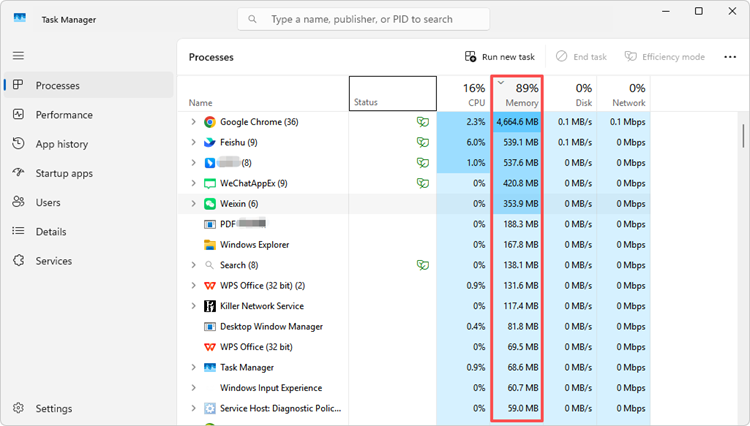
Step 3. Restart Grounded 2 when RAM usage keeps rising during a long session.
Tip: Also install the latest Grounded 2 hotfix, since restarting the game only provides a temporary workaround for memory-related crashes.
Fix 6. Repair Xbox Gaming Services
For Grounded 2 crashing on the Xbox App or PC Game Pass, problems with Xbox Gaming Services may affect game startup or updates.
Step 1. Close Grounded 2 and the Xbox app.
Step 2. Open the official Gaming Services Repair Tool for PC page, then run the tool through the Xbox app for PC or download the standalone version.
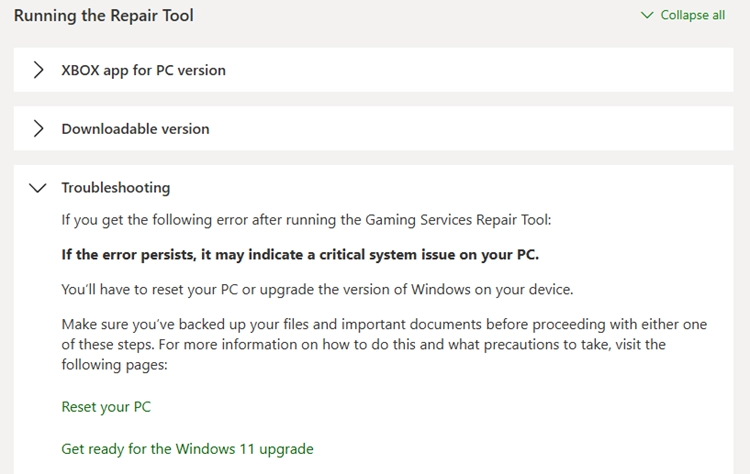
Step 3. Restart Windows, reopen the Xbox app, and launch Grounded 2 again.
You can also open the Microsoft Store and install any pending updates for the Xbox app and Gaming Services.
Fix 7. Reinstall Grounded 2
Use a clean reinstall when Grounded 2 keeps crashing after updating and repairing the game files. At least one Xbox App player reported that reinstalling resolved a post-Into the-Abyss Logging in crash.
Step 1. Uninstall Grounded 2 from Steam or the Xbox app, then restart your PC.
Step 2. Reinstall Grounded 2, make sure the latest hotfix is installed, and launch the game before restoring any third-party mods.
Reinstalling should be one of the final fixes, since verifying or repairing game files is usually faster.
[Bonus] How to Reduce Lag in Grounded 2 with LagZapper
Crash fixes can improve game stability, but online sessions may still suffer from high ping, lag spikes, or packet loss. For connection-related problems in Grounded 2, LagZapper can optimize the network route between your PC and the game server to help maintain a more stable connection.
Highlights of LagZapper for Grounded 2
- Help reduce packet loss and sudden lag spikes
- Select a preferred server or network node before playing
- One-click boost for Grounded 2 and other supported PC games
- Optimize network routes for lower ping and more stable latency
How to Use LagZapper for Grounded 2
Follow these three steps to optimize your connection before launching Grounded 2.
Step 1. Download and Install LagZapper
Download LagZapper for Windows and follow the on-screen instructions to complete the installation.
Step 2. Sign In and Search for Grounded 2
Open LagZapper, sign in, then search for Grounded 2 and select it from the supported games list.

Step 3. Boost and Play Grounded 2
Choose your preferred server or node, click Boost, then launch Grounded 2 with the optimized connection.
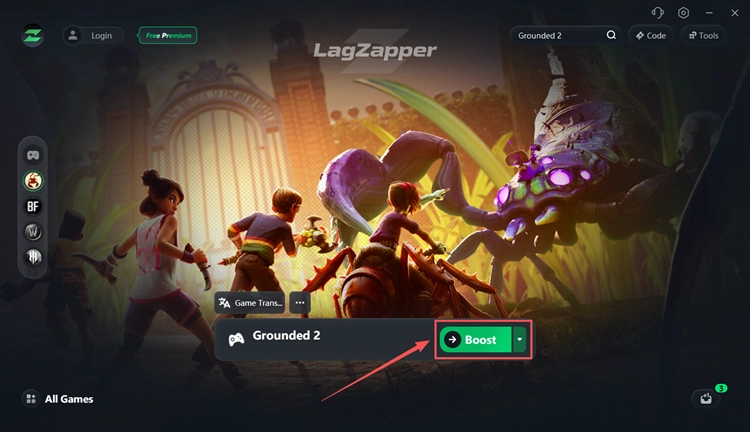
Besides boosting your connection, LagZapper also offers a built-in Game Translation feature for Russian-speaking players. Check our Grounded 2 Russian language guide to learn how to translate the game into Russian.
The Bottom Line
The Into the Abyss update introduced several issues linked to Grounded 2 crashing, including startup, login, and memory-related crashes. Start by installing the latest hotfix, then verify game files, check Xbox services, remove outdated mods, and monitor RAM usage.
For smoother online sessions after fixing crashes, download LagZapper to optimize your connection, reduce lag spikes, and maintain more stable gameplay in Grounded 2.
FAQ About Grounded 2 Crashing
Q1. Why Does Grounded 2 Keep Crashing After the Into the Abyss Update?
Update 0.5 introduced several crash and stability issues. Installing the latest Grounded 2 hotfix can resolve many update-related problems.
Q2. Why Does Grounded 2 Crash on Startup?
Startup crashes may result from corrupted files, outdated drivers, Xbox App issues, incompatible mods, or game-specific bugs.
Q3. Why Does Grounded 2 Crash at the Logging in Screen?
Some PC Game Pass players experienced login crashes after Into the Abyss. One confirmed issue involved blocked Xbox users and was addressed in Hotfix 0.5.0.2.
Q4. Why Does Grounded 2 Keep Crashing on Xbox App or PC Game Pass?
Xbox App crashes can involve game bugs, Gaming Services, damaged files, or account-related issues. Update the game and repair the installation first.
Q5. Does Grounded 2 Have a Memory Leak?
Recent hotfixes have addressed memory-related problems, including UI memory leaks that could cause high RAM usage, hitching, or crashes.
Q6. Can Grounded 2 Mods Cause Crashes After an Update?
Yes. Mods built for older versions may become incompatible after major updates. Disable or update mods before troubleshooting other system components.
Q7. What Is the Latest Grounded 2 Crash Fix Update?
Hotfix 0.5.0.3 includes broader crash and stability fixes. Install it or any newer available version before trying more advanced fixes.