
GTA 6 Download Slow on PS5 & Xbox? 6 Fixes to Try
Is your GTA 6 download slow on PS5 or Xbox? With preloading requiring up to 212 GB of available storage, downloading the game may take hours. Some players may also encounter a GTA 6 download stuck at a certain percentage, interrupted preloads, or failed downloads.
GTA 6 preloading begins on November 10, 2026, ahead of its November 19 release. Whether you're dealing with slow download speeds, a stuck preload, or a failed download, this post covers 6 practical fixes and a dedicated network troubleshooting option for PS5 and Xbox Series X|S.
When Does GTA 6 Preload Start?
Before troubleshooting GTA 6 download issues, confirm that preloading is available on your console. According to Rockstar Games' GTA 6 Pre-Load FAQ, the official schedule is:
| Platform | Preload Start | Release Date |
|---|---|---|
| PS5 | November 10, 12:00 AM local time | November 19, 2026 |
| Xbox Series X|S | November 10, 12:00 AM GMT | November 19, 2026 |
Note: Xbox preloading starts simultaneously worldwide, including November 9 at 4:00 PM PST / 7:00 PM EST in the US. PS5 preloading begins at local midnight.
GTA 6 requires up to 212 GB of available storage, depending on your console. Free up enough space before downloading, and learn more about GTA 6 preload, including download size and platform requirements.
Why Is My GTA 6 Download So Slow?
Several factors can cause GTA 6 slow download speed, stuck preloads, or failed downloads on PS5 and Xbox:
- High download demand: Heavy traffic during the GTA 6 preload period may affect download performance.
- Unstable Wi-Fi: Weak signals or wireless interference can cause slow downloads and interruptions.
- Network congestion: Streaming, background downloads, and other devices compete for available bandwidth.
- Insufficient storage: Limited free space may prevent the GTA 6 preload from starting or completing.
- Background activity: Running games and automatic updates can interfere with downloads.
- Platform service issues: Temporary PlayStation Network or Xbox service problems may cause stalled or failed downloads.
GTA 6 Download Slow or Failed? Try LagZapper Download Fix
When your GTA 6 download keeps failing or getting interrupted on PS5 or Xbox, try LagZapper Download Fix. This dedicated server option helps troubleshoot download failures caused by unstable network connections.
LagZapper supports console network boosting through a Windows PC, so you don't need to install any software directly on your PS5 or Xbox.
Highlights of LagZapper for GTA 6 Downloads
- Dedicated Download Fix Server: Helps resolve GTA 6 download failures and interruptions caused by network connection issues.
- PS5 & Xbox Support: Supports both PlayStation 5 and Xbox Series X|S through dedicated console boosting options.
- PC-to-Console Shared Boosting: Share an optimized network connection from your Windows PC to your console without installing additional console software.
- One-Click Boosting: Select your GTA 6 console version, choose a server, and start boosting with a single click.
- Smoother Online Gaming: Beyond downloading, LagZapper can also help reduce lag, high ping, and packet loss during online gameplay.
How to Use LagZapper for GTA 6 Downloads on PS5 & Xbox
Follow these four steps to get started:
Step 1. Download and Install LagZapper
Download LagZapper on your Windows PC, complete the installation, and sign in.
Step 2. Search for GTA 6
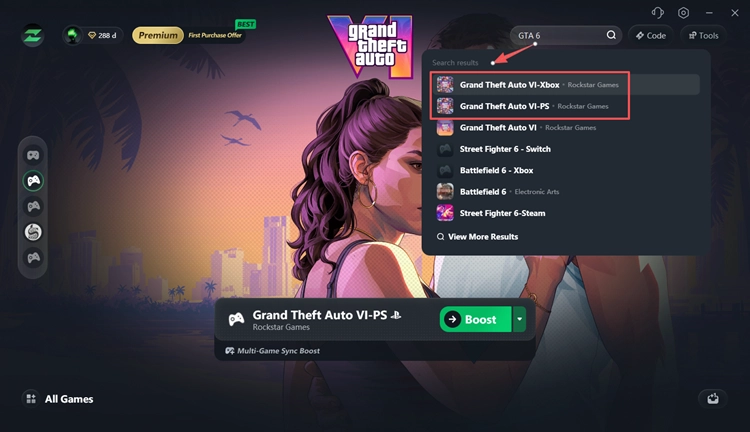
Search for GTA 6 in LagZapper and select Grand Theft Auto VI-PS for PS5 or Grand Theft Auto VI-Xbox for Xbox Series X|S.
Step 3. Select the Download Fix Server
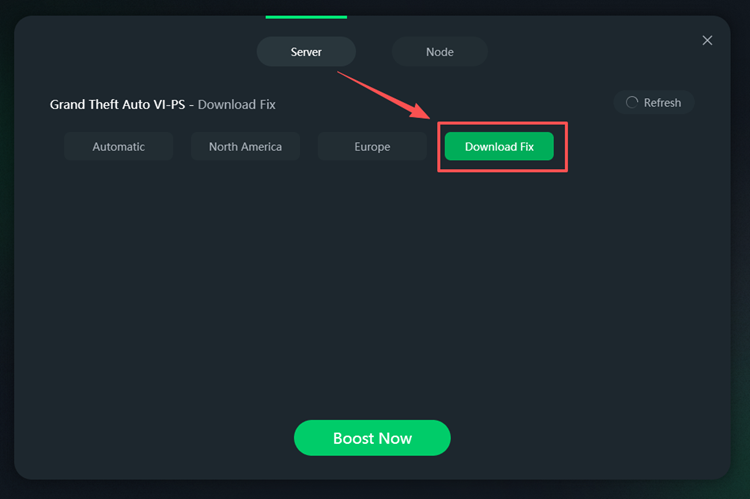
Click the dropdown arrow next to the Boost button, open the Server tab, and select Download Fix for your GTA 6 console version.
Step 4. Boost and Configure Your Console
Click Boost Now, then open Network Settings in LagZapper and follow the on-screen instructions to configure your PS5 or Xbox network connection.
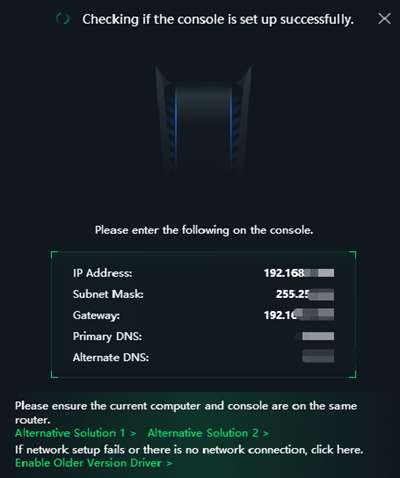
Once configured, retry your GTA 6 download with LagZapper's optimized network connection to help reduce download interruptions and connection failures.
How to Fix GTA 6 Download Slow or Stuck – 6 Fixes
For slow GTA 6 downloads, stuck preloads, or installation issues unrelated to network routing, try the following six fixes on PS5 or Xbox Series X|S.
Fix 1. Check the GTA 6 Preload and Server Status
Before downloading, make sure GTA 6 preloading has started in your region and that you are signed in to the account used to preorder the game. Check the official service status pages:
Server congestion may slow downloads. Wait for services to recover, and make sure you're signed in with the account used to preorder GTA 6.
Fix 2. Pause and Resume the GTA 6 Download
A temporary download interruption may cause GTA 6 to get stuck or stop progressing. Try pausing and resuming the download to get it moving again.
On PS5:
Step 1. Press the PS button and select Downloads/Uploads from Control Center.
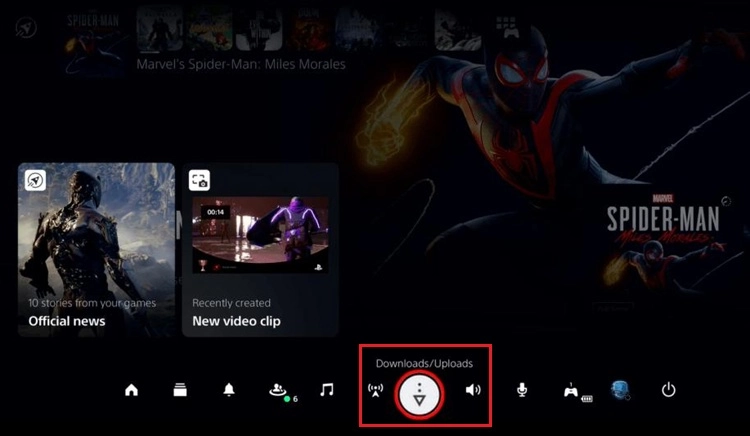
Step 2. Select the GTA 6 download, choose Pause, then Resume. Check whether the download speed improves.
On Xbox Series X|S:
Step 1. Open My games & apps > See all > Manage > Queue.
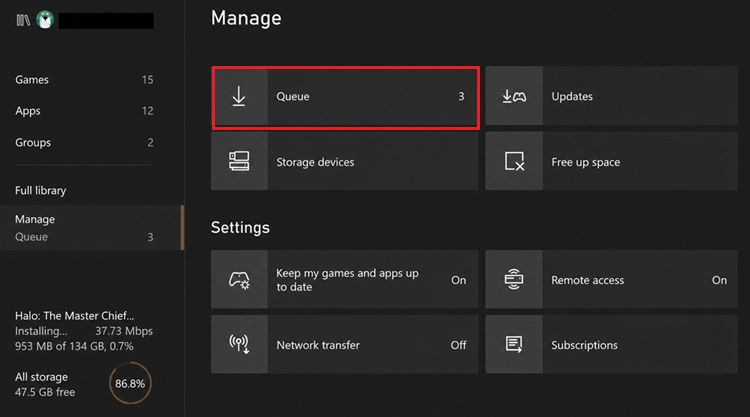
Step 2. Select GTA 6, pause the installation if it is active, and resume it. If already paused, choose Resume installation.
Tip: Pause other game downloads and updates to prioritize GTA 6. Close running games and unnecessary apps to reduce background activity.
Fix 3. Free Up Enough Console Storage
GTA 6 requires up to 212 GB of free storage, depending on your console. Insufficient space may cause the preload to fail, stop unexpectedly, or remain stuck.
On PS5:
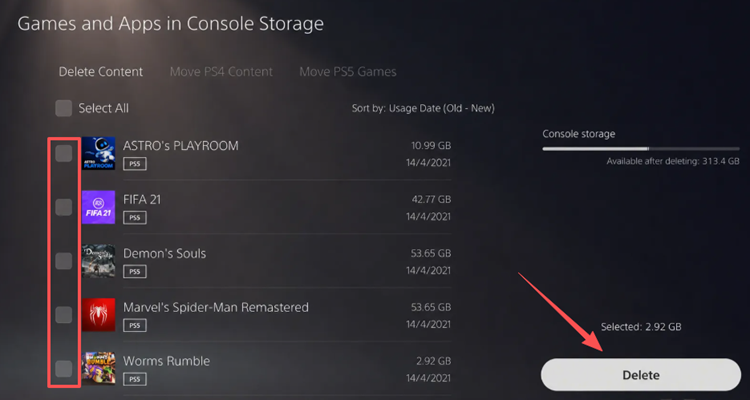
Step 1. Go to Settings > Storage > Console Storage and check the available space.
Step 2. Open Games and Apps, select unused games or apps, and choose Delete to free up space.
On Xbox Series X|S:
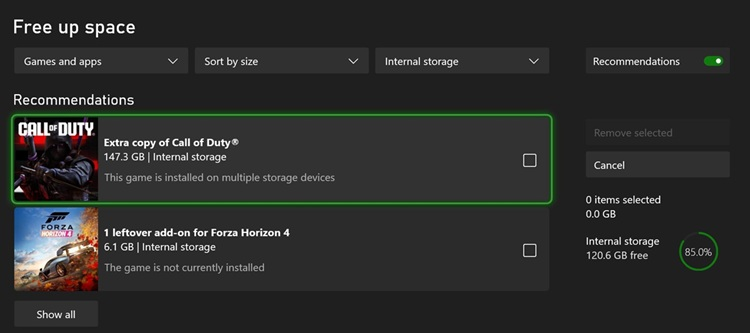
Step 1. Go to Settings > System > Storage devices and check the available space.
Step 2. Open My games & apps > See all > Manage > Free up space to remove unused games, or move games to compatible storage.
Fix 4. Restart Your Console and Retry Failed Downloads
A temporary system or download queue error may cause a GTA 6 download failed message or prevent the preload from progressing. Restarting your console can clear temporary issues without deleting your games.
On PS5:
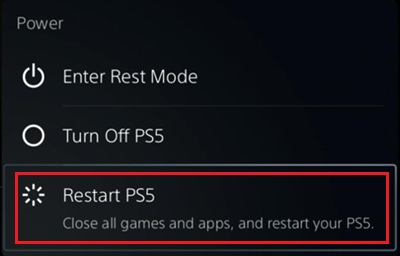
Step 1. Press the PS button, open Power, and select Restart PS5.
Step 2. After restarting, open Downloads/Uploads and check the GTA 6 download status.
Step 3. Resume the download, or open Game Library > Your Collection to restart a failed download when needed.
On Xbox Series X|S:
Step 1. Press and hold the Xbox button on your controller and select Restart console.
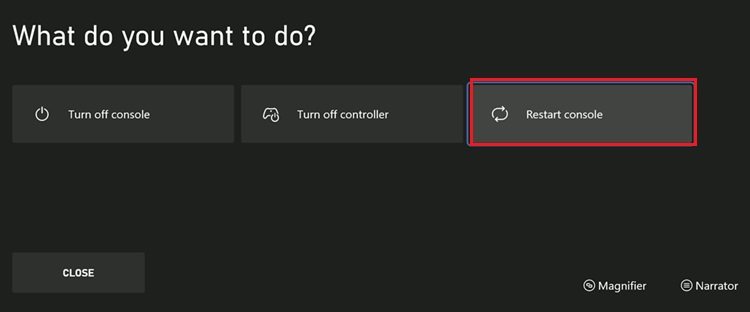
Step 2. Open My games & apps > Manage > Queue after restarting.
Step 3. Resume GTA 6 or restart the failed installation from your owned games library.
Fix 5. Switch to Ethernet and Restart Your Router
Unstable Wi-Fi can cause GTA 6 slow download speed, interruptions, or stalled downloads. Switching to a wired connection can improve network stability.
Step 1. Connect your PS5 or Xbox directly to the router using an Ethernet cable.
Step 2. Restart your router and modem, then reconnect your console.
Step 3. Test your console's network connection:
- PS5: Settings > Network > Connection Status > Test Internet Connection.
- Xbox Series X|S: Settings > General > Network settings > Test network connection.
Tip: For Wi-Fi connections, move your console closer to the router and reduce interference. Ethernet can improve stability, but actual download speeds still depend on your internet connection and the platform's download servers.
Fix 6. Update Your Console and Enable Automatic Downloads
Outdated system software or incorrect power settings may prevent GTA 6 from downloading automatically. Update your console and enable background downloads.
On PS5:
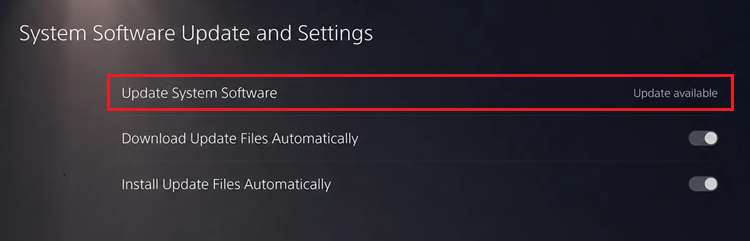
Step 1. Go to Settings > System > System Software > System Software Update and Settings. Install any available updates.
Step 2. Go to Settings > System > Power Saving > Features Available in Rest Mode and enable Stay Connected to the Internet.
Step 3. Check GTA 6 in Game Library > Your Collection, enable automatic preloading if available, and put your PS5 into Rest Mode.
On Xbox Series X|S:
Step 1. Go to Settings > System > Updates and enable Keep my console up to date and Keep my games & apps up to date.
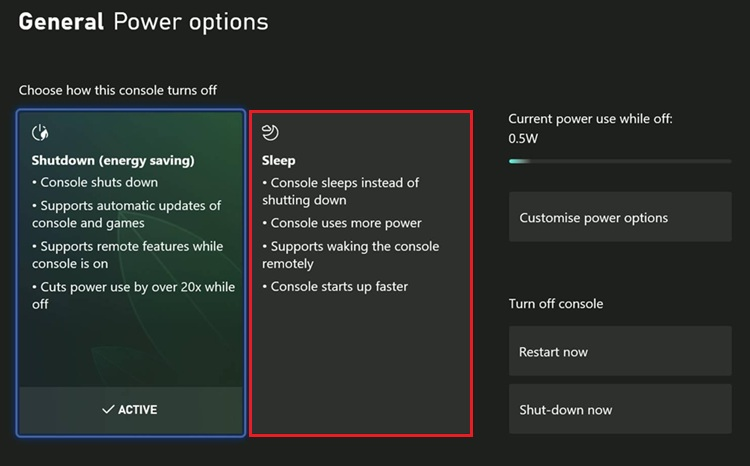
Step 2. Go to Settings > General > Power options and select Sleep.
Step 3. Keep your console connected to the internet to allow background downloads.
The Bottom Line
GTA 6 download slow, stuck, or failed issues on PS5 and Xbox can result from network congestion, unstable Wi-Fi, insufficient storage, or platform service problems. Check your preload availability, free up storage, and follow the six fixes above to troubleshoot common download issues.
For network-related download failures, download LagZapper and try its dedicated GTA 6 Download Fix server on PS5 or Xbox. This feature helps troubleshoot download interruptions, while normal download speeds still depend on your network and platform services.
FAQs About GTA 6 Download Slow
Q1. Why is my GTA 6 download so slow on PS5?
Slow downloads may result from unstable Wi-Fi, network congestion, background downloads, or PlayStation Network issues.
Q2. Why is my GTA 6 download stuck on Xbox?
A GTA 6 download stuck on Xbox may be caused by network interruptions, insufficient storage, or download queue errors. Open My games & apps > Manage > Queue and resume the installation.
Q3. How do I fix GTA 6 download failed on PS5 or Xbox?
Check your storage and platform service status, restart your console, and retry the download. For network-related download failures, try LagZapper's dedicated Download Fix server.
Q4. How much storage space does GTA 6 require?
GTA 6 requires up to 212 GB of available storage, depending on your console. The exact download size may differ by device.
Q5. How can I make GTA 6 download faster on PS5 or Xbox?
Use Ethernet, pause other downloads, close running games, restart your router, and check your network connection.