
GTA 6 Not Working? Fix Launch, Loading & Crashes [6 Fixes]
GTA 6 not working on PS5 or Xbox? Whether the game won't launch, gets stuck on the loading screen, or keeps crashing, these issues can prevent you from playing Grand Theft Auto VI.
With GTA 6 scheduled to launch on November 19, 2026, it's important to distinguish release-time restrictions from actual game errors. This guide covers six practical fixes for GTA 6 launch, loading, and crashing issues on PS5 and Xbox Series X|S.
Why Is GTA 6 Not Working on PS5 or Xbox?
GTA 6 may fail to launch due to its release schedule, license verification, incomplete installation, outdated console software, or network issues. Identify your issue below to find the right fix.
| Issue | Possible Cause |
|---|---|
| GTA 6 preloaded but can't play | Release time not reached |
| GTA 6 locked after release | License or account verification issue |
| GTA 6 won't start on PS5 or Xbox | Incomplete installation or system error |
| GTA 6 stuck on loading screen | Pending update or installation problem |
| GTA 6 crashing or freezing | Software glitch or corrupted game files |
| GTA 6 connection issues | Platform outage or unstable network |
How to Fix GTA 6 Not Working – 6 Useful Fixes
Follow these six fixes to troubleshoot GTA 6 not launching, loading errors, and crashes on PS5 or Xbox Series X|S.
Fix 1. Check the GTA 6 Release and Unlock Time
GTA 6 preloaded but can't play? Preloading lets you download the game early, but it remains locked until the official release. Here is how to do it:
Step 1. Check the official Rockstar release schedule.
| Platform | Preload Start | Official Release |
|---|---|---|
| PS5 / PS5 Pro | Nov. 10, 12:00 AM local time | Nov. 19, 12:00 AM local time |
| Xbox Series X|S | Nov. 10, 12:00 AM GMT | Nov. 19, 12:00 AM local time |
Step 2. Confirm your region's unlock time and make sure your console's date and time are set correctly.
Step 3. Once GTA 6 is officially available, close the game and launch it again.
Tip: A locked GTA 6 icon before the official release is normal. Changing your console's time zone does not unlock the game early.
Fix 2. Verify Your GTA 6 License and Game Ownership
GTA 6 won't start even after the official release? Your console may be unable to verify the game license or purchasing account. Check game ownership and sharing settings using the steps below.
For PS5:
Step 1. Go to Settings > Users and Accounts > Other > Restore Licenses.
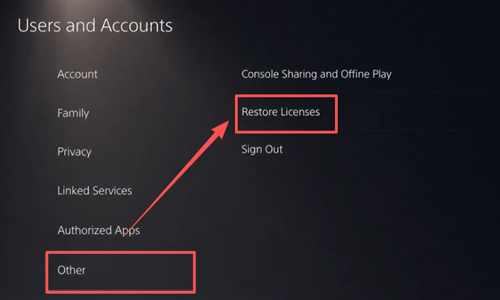
Step 2. Restore the GTA 6 license > Select Restore and wait for the process to finish.
Step 3. Return to your Game Library and launch GTA 6 again.
For Xbox Series X|S:
Step 1. Sign in with the Microsoft account that purchased GTA 6.
Step 2. Go to My games & apps > See all > Full library > All owned games and verify that GTA 6 appears.
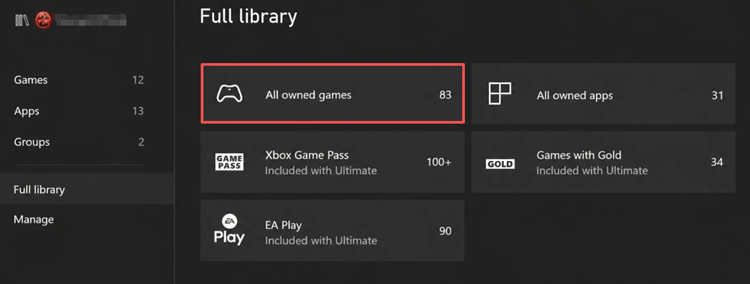
Step 3. For shared purchases, check Settings > General > Personalization > My home Xbox, then restart GTA 6.
Fix 3. Restart GTA 6 and Your Console
Temporary system glitches can prevent GTA 6 from launching or cause the game to freeze during startup. Here is how to fully close the game and restart your console:
For PS5:
Step 1. Highlight GTA 6, press the Options button, and select Close Game.
Step 2. Open the Control Center > Power > Restart PS5.
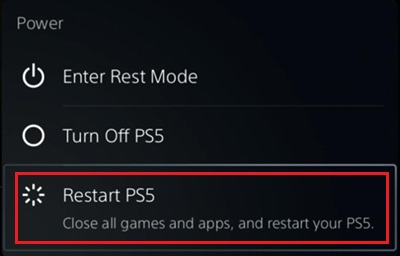
Step 3. Once your PS5 restarts, launch GTA 6 again.
For Xbox Series X|S:
Step 1. Highlight GTA 6, press the Menu button, and select Quit.
Step 2. Press the Xbox button and go to Profile & system > Power > Restart console.
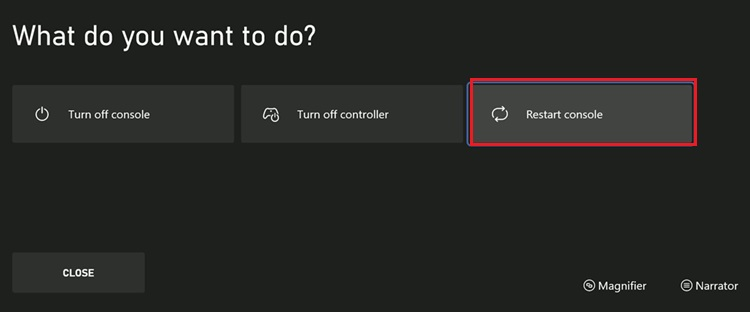
Step 3. Launch GTA 6 again and check whether the issue is resolved.
Fix 4. Update GTA 6 and Your Console Software
GTA 6 may fail to launch, freeze, or crash when required game updates are missing or console software is outdated. Check for pending updates on your PS5 or Xbox.
For PS5:
Step 1. Highlight GTA 6, press the Options button, and select Check for Update.
Step 2. Go to Settings > System > System Software > System Software Update and Settings.
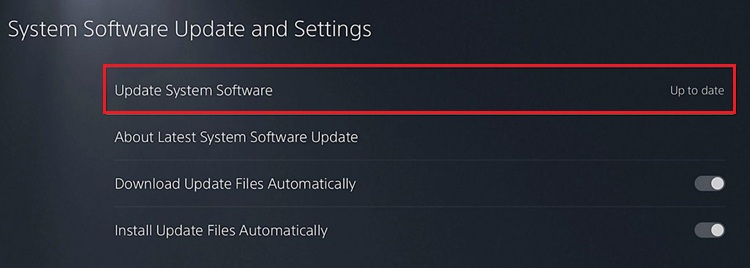
Step 3. Install available updates, restart your PS5, and launch GTA 6 again.
For Xbox Series X|S:
Step 1. Open My games & apps > Manage > Updates and install any available GTA 6 updates.
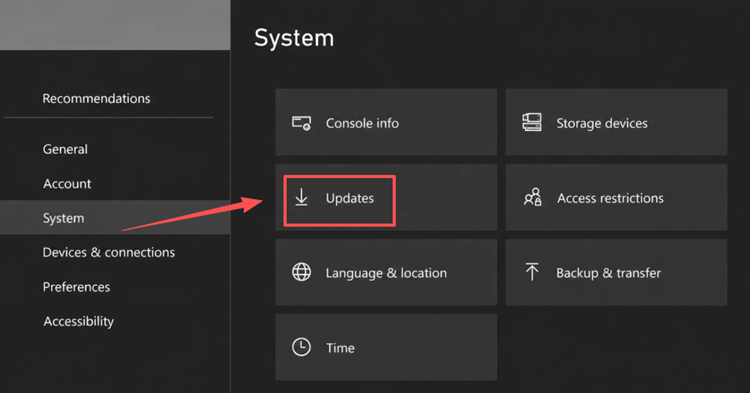
Step 2. Go to Settings > System > Updates and check for console updates.
Step 3. Install available updates, restart your Xbox, and launch GTA 6 again.
Fix 5. Check GTA 6 Download, Installation, and Storage
GTA 6 may not launch when its download or installation is incomplete. Check the download queue, confirm the game is fully installed, and make sure your console has enough free storage.
For PS5:
Step 1. Go to Settings > Storage and check your available space.
Step 2. Press the PS button and open Downloads/Uploads to check GTA 6 installation progress.
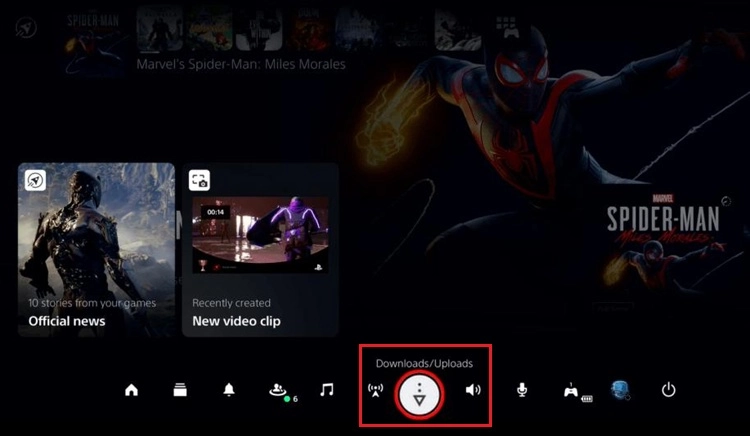
Step 3. Complete any pending downloads or updates before launching GTA 6.
For Xbox Series X|S:
Step 1. Go to My games & apps > See all > Manage > Queue.
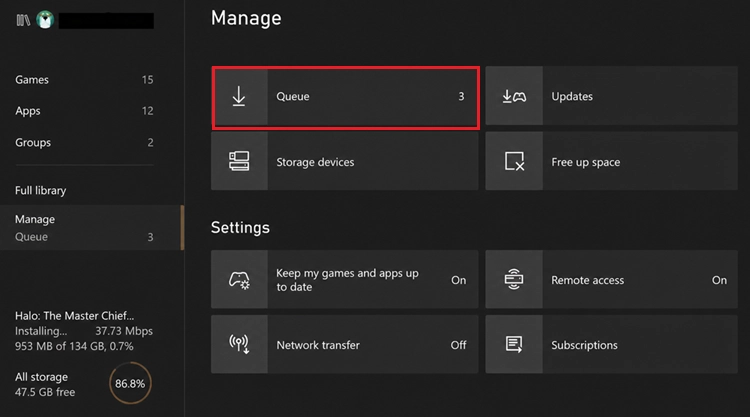
Step 2. Check GTA 6's download and installation status.
Step 3. Open Manage > Storage devices to verify available space and complete any pending installation.
Tip: Resolve GTA 6 download slow or stuck issues and interrupted preloads before launching the game.
Fix 6. Check PSN, Xbox Network, and Your Internet Connection
Unstable internet connections, platform outages, or account authentication issues may prevent GTA 6 from connecting properly. Start by checking the official service status:
Then follow these steps:
Step 1. Restart your router and wait for the internet connection to recover.
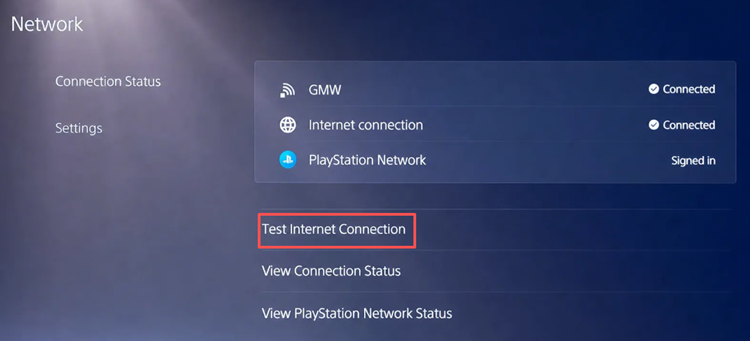
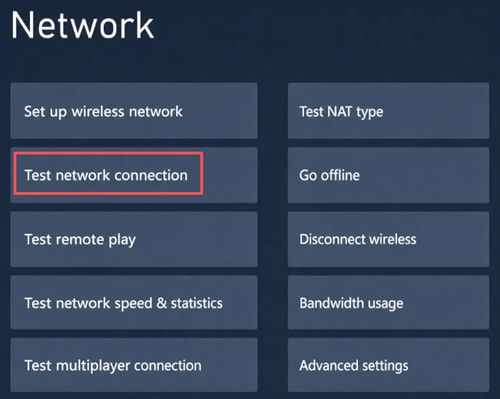
Step 2. Test your console's network connection:
- PS5: Settings > Network > Connection Status > Test Internet Connection.
- Xbox Series X|S: Settings > General > Network settings > Test network connection.
Step 3. Switch to a wired Ethernet connection for a more stable connection.
Step 4. Sign out of your PlayStation or Xbox account, sign back in, and retry the affected online feature.
GTA 6 Connection Issues on PS5 & Xbox? Try LagZapper
Experiencing GTA 6 connection issues, high ping, or packet loss on PS5 or Xbox? LagZapper, a powerful game booster, helps optimize network routing, reduce lag, and improve connection stability. It supports PS5 and Xbox network boosting through a Windows PC, with no software installation required on your console.
Highlights of LagZapper for GTA 6
- Smart Network Routing: Optimizes network routes to reduce connection instability and deliver a smoother gaming experience on PS5 and Xbox.
- Reduce Lag and Packet Loss: Helps lower ping, reduce packet loss, and prevent unexpected disconnections caused by unstable network routing.
- PS5 & Xbox Support: Supports PS5 and Xbox game boosting through dedicated console versions, helping improve connection stability across both platforms.
- PC-to-Console Shared Boosting: Shares an optimized network connection from your Windows PC to your console without requiring additional software installation.
How to Use LagZapper for GTA 6 on PS5 & Xbox
Follow these four steps to get started:
Step 1. Download and Install LagZapper
Download LagZapper on your Windows PC, complete the installation, and sign in.
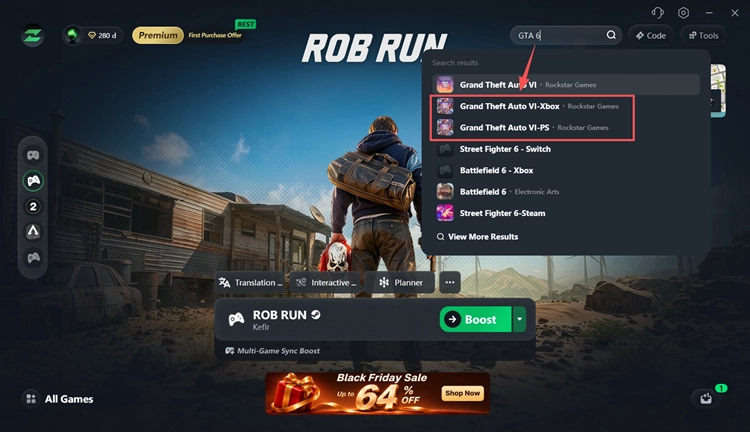
Step 2. Search for GTA 6 on PS5 or Xbox
Search for GTA 6 in LagZapper and select Grand Theft Auto VI-PS for PS5 or Grand Theft Auto VI-Xbox for Xbox Series X|S.
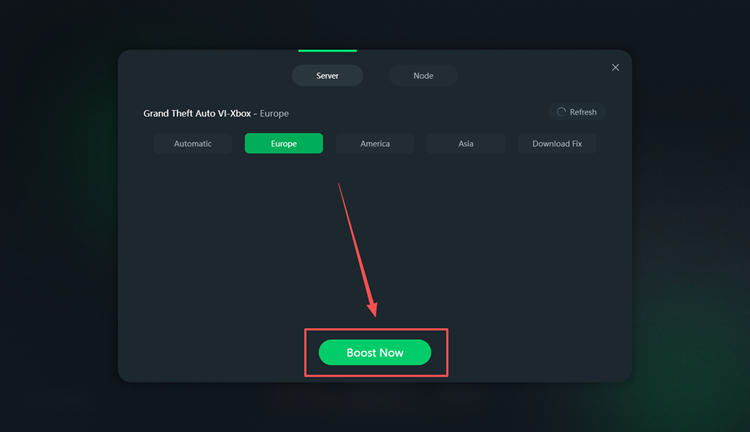
Step 3. Select a Server and Boost GTA 6
Choose an available server for your GTA 6 console version and click Boost Now.
Step 4. Configure Your Console
Open Network Settings in LagZapper and follow the on-screen instructions to configure your PS5 or Xbox network connection.
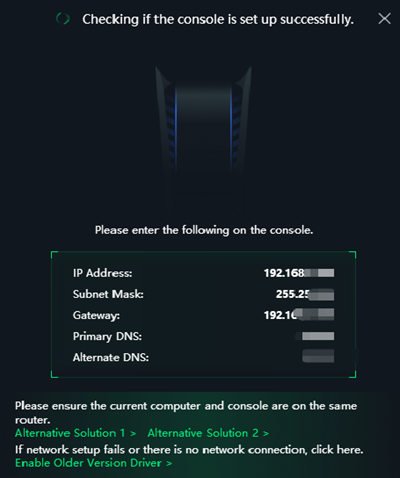
Once configured, retry the affected online feature to see whether the optimized connection improves stability and reduces routing-related lag.
The Bottom Line
GTA 6 not working on PS5 or Xbox can be frustrating, especially when you're ready to play at launch. Most launch and loading issues are worth troubleshooting by checking the game's unlock status, updates, and console settings before trying more advanced fixes.
For routing-related connection instability, download LagZapper to help optimize your PS5 or Xbox network connection and reduce lag or packet loss in supported online features.
FAQs About GTA 6 Not Working
Q1. Why is GTA 6 not working after preloading?
Preloading does not grant early access. Wait until GTA 6 unlocks on November 19, 2026, and complete the installation.
Q2. Why is GTA 6 still locked after release?
Check your game license and purchasing account. Restore licenses on PS5 or verify game ownership on Xbox.
Q3. Why won't GTA 6 launch on Xbox Series X|S?
Check for pending updates, verify game ownership, and restart your Xbox.
Q4. Why is GTA 6 stuck on the loading screen?
Restart your console, install pending updates, and make sure GTA 6 is fully installed.
Q5. What if GTA 6 keeps crashing on PS5 or Xbox?
Update the game and console software, restart your console, and reinstall GTA 6 as a last resort.
Q6. Can I play GTA 6 on PS4 or Xbox One?
GTA 6 has no native PS4 or Xbox One version. Xbox One supports cloud streaming through Xbox Cloud Gaming, subject to availability and eligibility.