
GTA 6 Stuck on Loading Screen? 6 Fixes for PS5 & Xbox
GTA 6 stuck on loading screen on PS5 or Xbox? Some players report that Grand Theft Auto VI freezes during startup, gets stuck on Jason's opening loading screen, or never reaches gameplay. Similar issues have appeared in launch-day Reddit discussions.
Whether you're facing a GTA 6 infinite loading screen or a frozen startup screen, this guide covers six fixes for PS5 and Xbox Series X|S to help you get back into the game.
Why Is GTA 6 Stuck on the Loading Screen?
GTA 6 may get stuck loading due to incomplete installations, pending updates, corrupted cache data, or temporary console glitches. However, the exact cause of the launch-day loading issues has not been confirmed.
Players have reported several problems:
- Xbox Series X: GTA 6 freezes on Jason's opening loading screen and never reaches gameplay.
- Xbox Series S: Players have reported startup freezing when trying to launch GTA 6.
- PS5: GTA 6 may crash during startup, with at least one player reporting error CE-108255-1.
How to Fix GTA 6 Stuck on Loading Screen
Follow these fixes to resolve loading screen issues on PS5 and Xbox Series X|S.
Fix 1. Fully Close GTA 6 and Restart Your Console
Temporary console glitches may cause GTA 6 to freeze on the loading screen. Restarting your console can clear these issues.
On PS5:
Step 1. Press the PS button, return to the home screen, highlight GTA 6, and select Options > Close Game.
Step 2. Go to Power > Restart PS5.
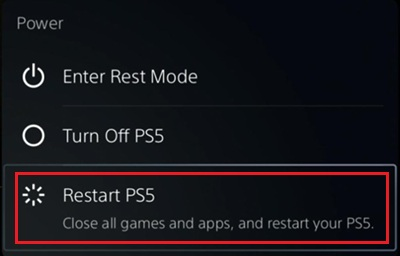
Step 3. Relaunch GTA 6 and check the loading screen.
On Xbox Series X|S:
Step 1. Press the Xbox button, highlight GTA 6, and select Menu > Quit.
Step 2. Go to Profile & system > Power > Restart console.
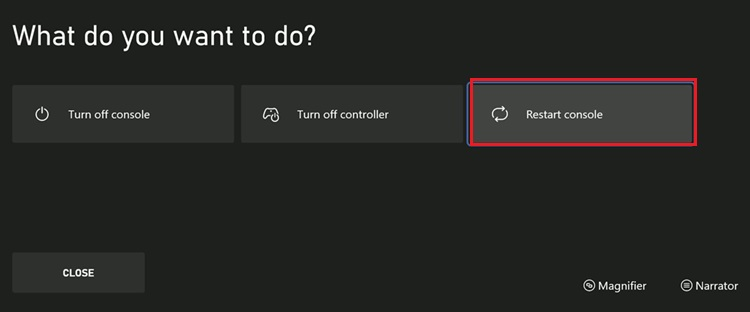
Step 3. Relaunch GTA 6 to check whether the loading issue is resolved.
Fix 2. Check for GTA 6 Game and Console Updates
Outdated game files or pending system updates may cause GTA 6 to get stuck on the loading screen. Update both your game and console to fix potential compatibility issues.
On PS5:
Step 1. Highlight GTA 6 on the home screen, press the Options button, and select Check for Update.
Step 2. Go to Settings > System > System Software > System Software Update and Settings.
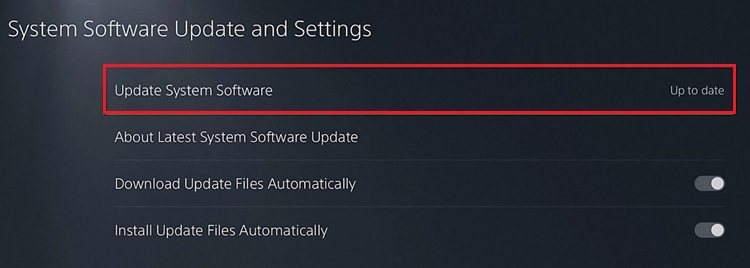
Step 3. Install available updates, restart your PS5, and relaunch GTA 6.
On Xbox Series X|S:
Step 1. Go to My games & apps > Manage > Updates and install any GTA 6 updates.
Step 2. Open Settings > System > Updates to check for console updates.
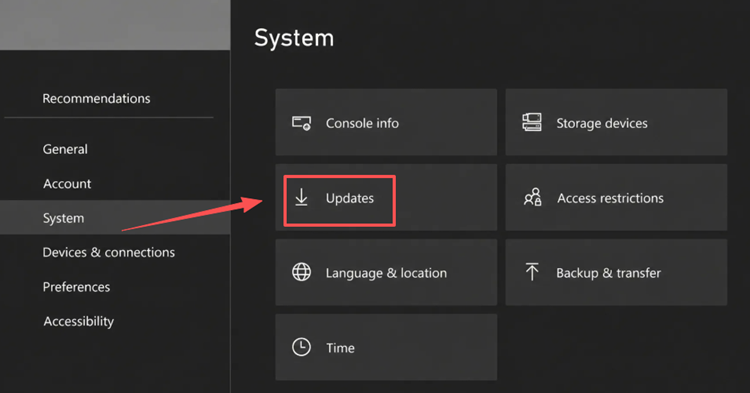
Step 3. Install available updates, restart your Xbox, and relaunch GTA 6.
Fix 3. Clear the Console Cache
Corrupted cache data may cause GTA 6 to freeze or get stuck on the loading screen. Clearing the console cache can help resolve temporary loading issues.
On PS5:
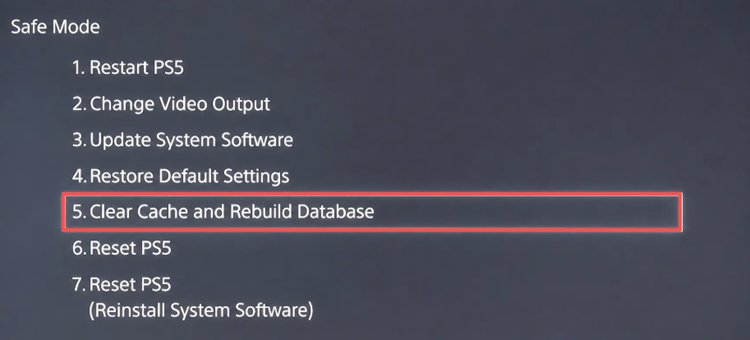
Step 1. Turn off your PS5 completely, then hold the power button until you hear the second beep to enter Safe Mode.
Step 2. Connect your controller via USB and press the PS button.
Step 3. Select Clear Cache and Rebuild Database > Clear System Software Cache, then restart your PS5.
On Xbox Series X|S:
Step 1. Fully shut down your Xbox and unplug the power cable.
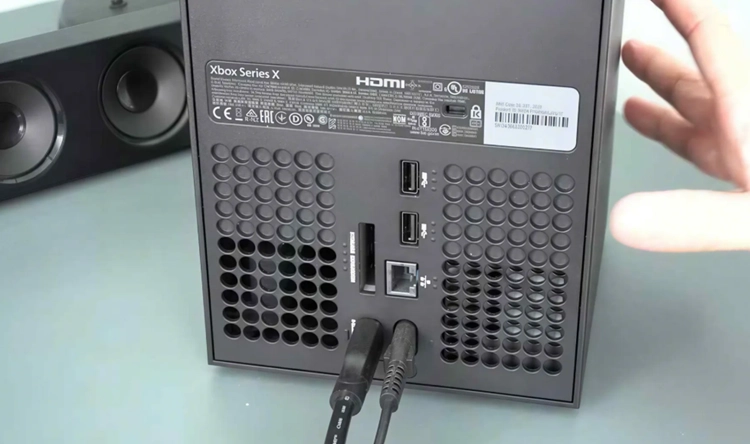
Step 2. Wait about two minutes, then reconnect the power cable.
Step 3. Turn on your Xbox and relaunch GTA 6.
Fix 4. Check GTA 6 Installation and Available Storage
Incomplete game files or insufficient storage may cause GTA 6 to get stuck on the loading screen, especially after preloading or updating the game.
On PS5:
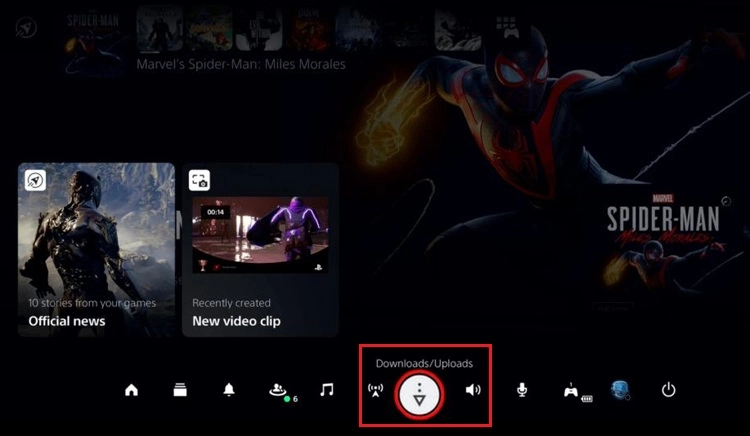
Step 1. Open Downloads/Uploads from the Control Center and confirm GTA 6 is fully installed.
Step 2. Go to Settings > Storage to check available space and free up storage as needed.
Step 3. Complete any pending downloads, restart your PS5, and relaunch GTA 6.
On Xbox Series X|S:
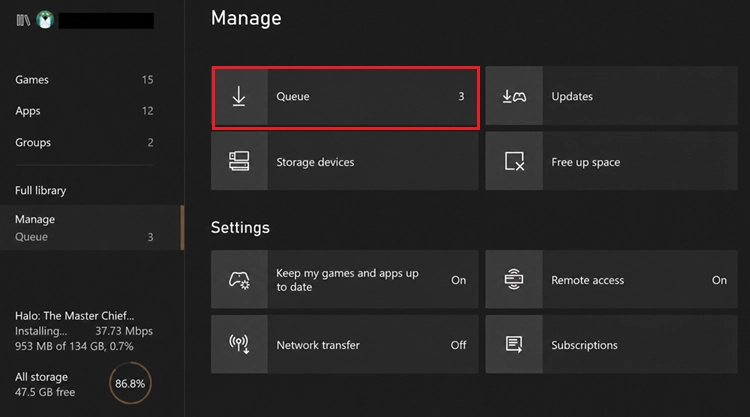
Step 1. Open My games & apps > Manage > Queue to check GTA 6's installation status.
Step 2. Go to My games & apps > Manage > Storage devices to check available space.
Step 3. Complete any pending downloads, restart your Xbox, and relaunch GTA 6.
Tip: A slow GTA 6 download may delay installation and prevent the game from loading properly.
Fix 5. Restore PS5 Licenses or Disable Xbox Quick Resume
If GTA 6 is still not loading on PS5 or Xbox, try these platform-specific fixes. Restoring licenses may help with PlayStation ownership verification issues, while removing a suspended Xbox session can rule out Quick Resume problems.
On PS5:
Step 1. Go to Settings > Users and Accounts > Other > Restore Licenses.
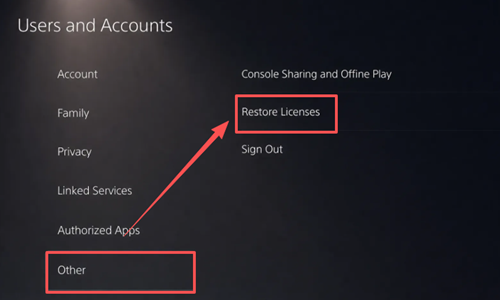
Step 2. Select Restore to refresh your game licenses.
Step 3. Restart your PS5 and launch GTA 6 again.
On Xbox Series X|S:
Step 1. Press the Xbox button and open My games & apps > Groups > Quick Resume.
Step 2. Highlight GTA 6, press the Menu button, and select Remove from Quick Resume, if available.
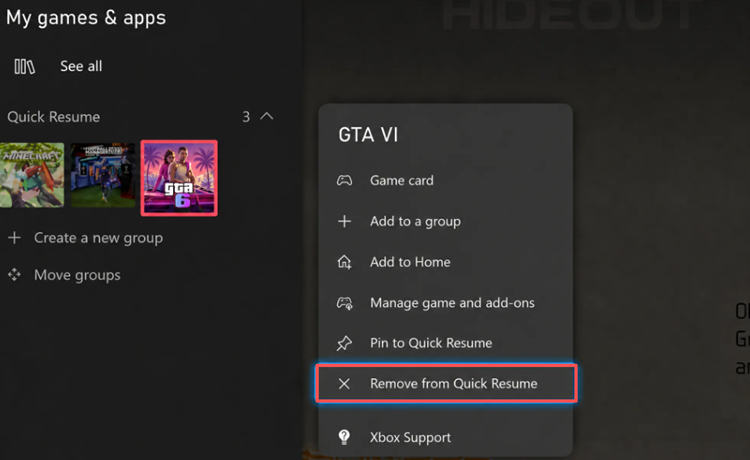
Step 3. Launch GTA 6 again from My games & apps.
Fix 6. Reinstall GTA 6 or Contact Rockstar Support
Corrupted or incomplete game files may cause GTA 6 to remain stuck on the loading screen. Reinstalling the game can help resolve persistent installation issues.
Step 1. Back up your GTA 6 save data or confirm your cloud saves are synced.
Step 2. Uninstall GTA 6 from your PS5 or Xbox Series X|S, then restart your console.
Step 3. Reinstall GTA 6 from your game library and wait for all downloads and updates to finish before launching.
Tip: GTA 6 still not loading? Contact Rockstar Support and provide your console model, error code, and troubleshooting steps you've already tried.
GTA 6 Connection Issues on PS5 & Xbox? Try LagZapper
A frozen GTA 6 loading screen may result from installation or console issues, while unstable network connections can also affect online features. For connection-related problems, LagZapper helps optimize network routing, lower ping, and reduce packet loss on PS5 and Xbox through a Windows PC - no software installation required on your console.
Highlights of LagZapper for GTA 6
- Smart Network Routing: Optimizes network routes to help reduce lag and improve connection stability for smoother online gaming.
- Lower Ping and Packet Loss: Helps lower ping, reduce packet loss, and minimize unexpected disconnections caused by unstable network routing.
- PS5 & Xbox Support: Supports GTA 6 network boosting on PlayStation 5 and Xbox Series X|S through dedicated console versions.
- PC-to-Console Shared Boosting: Shares an optimized network connection from your Windows PC to your console without requiring additional software installation.
How to Use LagZapper for GTA 6 on PS5 & Xbox
Follow these four steps to optimize your console connection.
Step 1. Download and Install LagZapper
Download LagZapper on your Windows PC, install it, and sign in.
Step 2. Search for GTA 6 on PS5 or Xbox
Search for GTA 6 and select Grand Theft Auto VI-PS for PS5 or Grand Theft Auto VI-Xbox for Xbox Series X|S.
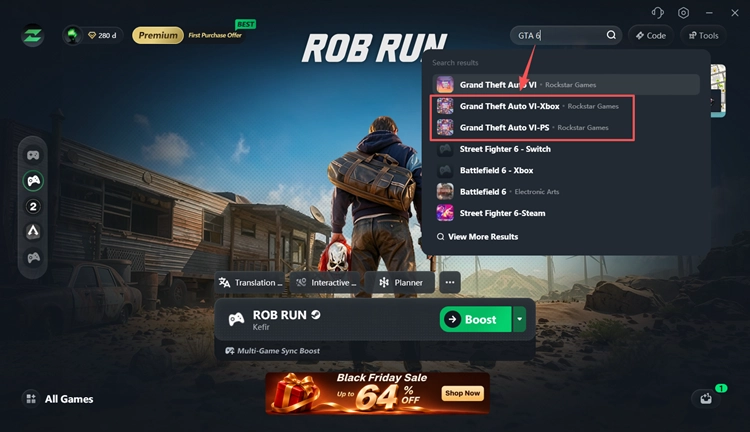
Step 3. Select a Server and Boost
Choose an available server for your GTA 6 console version and click Boost Now.
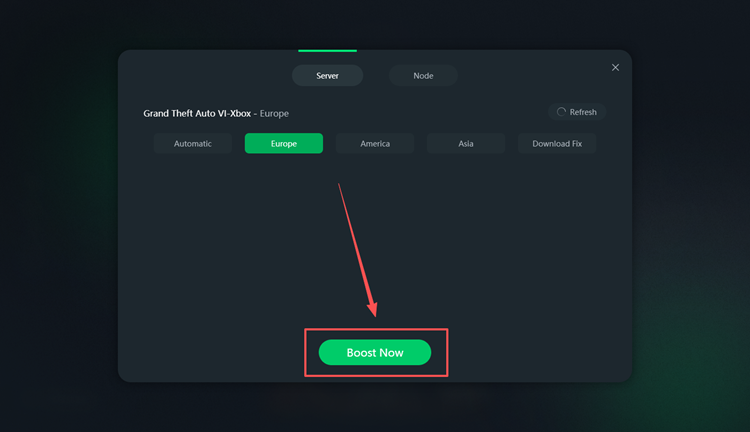
Step 4. Configure Your Console
Open Network Settings in LagZapper and follow the on-screen instructions to configure your PS5 or Xbox connection.
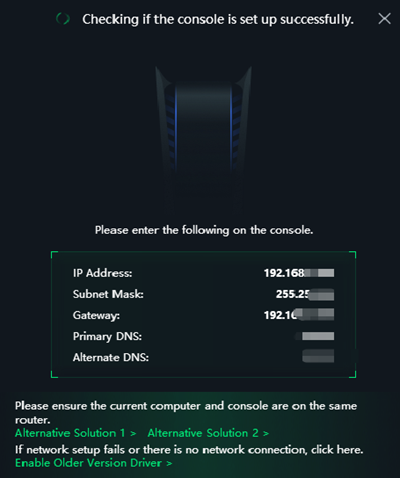
Once configured, retry the affected online feature to see whether network stability improves.
The Bottom Line
GTA 6 stuck on loading screen on PS5 or Xbox? Start by restarting the game, installing updates, and clearing the console cache. If GTA 6 still won't load, check the installation, try platform-specific fixes, or reinstall the game as a last resort.
For persistent startup errors, contact Rockstar Support. If you're experiencing network-related connection issues instead, download LagZapper to help optimize your console connection.
FAQs About GTA 6 Stuck on Loading Screen
Q1. Why is GTA 6 stuck on the loading screen?
GTA 6 may get stuck loading due to incomplete installations, outdated game files, corrupted cache data, or temporary console glitches.
Q2. How do I fix GTA 6 infinite loading screen?
Restart your console, update GTA 6, and clear the system cache. For persistent loading issues, check the installation files or reinstall the game.
Q3. Why is GTA 6 not loading on Xbox Series X|S?
GTA 6 may freeze during startup due to temporary glitches or installation issues. Remove the game from Quick Resume, restart your Xbox, and install available updates.
Q4. How do I fix GTA 6 stuck on loading screen on PS5?
Restart your PS5, update GTA 6, and clear the system cache through Safe Mode. Check the installation status if the loading screen remains frozen.
Q5. Why does GTA 6 freeze on Jason's loading screen?
Some Xbox players have reported GTA 6 freezing on Jason's opening loading screen. The exact cause remains unconfirmed. Restart your console and verify that the game is fully updated.
Q6. Does reinstalling GTA 6 fix infinite loading?
Reinstalling GTA 6 may resolve corrupted or incomplete installation files, but it cannot guarantee a fix for every loading issue. Back up your saved data first.