
Hearthstone Connection Issues? Fix Disconnects and Login Errors
Hearthstone connection issues can interrupt a match without warning, leaving players unable to log in, stuck on reconnecting, or disconnected before they can finish a turn. In Ranked or Battlegrounds, even a brief connection drop may freeze the board, delay actions, or prevent the client from returning to the current game.
This guide will explain why Hearthstone keeps disconnecting and provide practical fixes for server, client, Wi-Fi, routing, and cache problems on PC and mobile devices.
Why Does Hearthstone Keep Disconnecting?
Hearthstone may keep disconnecting even when your internet appears stable, as the interruption can come from the game service, your device, or the network path between them.
Hearthstone Server Maintenance or Outage
Scheduled maintenance, unexpected outages, or overloaded services can cause login failures, frozen matches, and repeated reconnecting. A Battle.net not connecting problem may also prevent Hearthstone from launching or accessing online modes.
Unstable Wi-Fi or Mobile Network Switching
Weak Wi-Fi, wireless interference, or switching between Wi-Fi and mobile data can briefly break the connection and disconnect an active match.
ISP Routing, Packet Loss, or High Latency
Poor ISP routing, packet loss, or high latency can delay game data between your device and Blizzard, triggering freezes or disconnects.
Background Downloads or Bandwidth-Heavy Apps
Downloads, cloud sync, and other bandwidth-heavy apps can compete with Hearthstone, making an already unstable connection more likely to drop.
Outdated Game Versions or Corrupted Client Files
An incomplete update, outdated client, or corrupted game files can prevent Hearthstone from loading correctly and cause login or reconnecting problems.
How to Fix Hearthstone Connection Issues
Start by checking whether Hearthstone services are experiencing problems. If the servers are online, then troubleshoot your device, local network, and game files in order.
Fix 1. Check Hearthstone Server Status and Known Issues
Before changing your network settings, check whether Hearthstone or Battle.net is undergoing maintenance, login problems, or a temporary service disruption. If the issue is server-side, you may remain unable to log in, reconnect to a match, or load game modes even when your home connection appears stable.
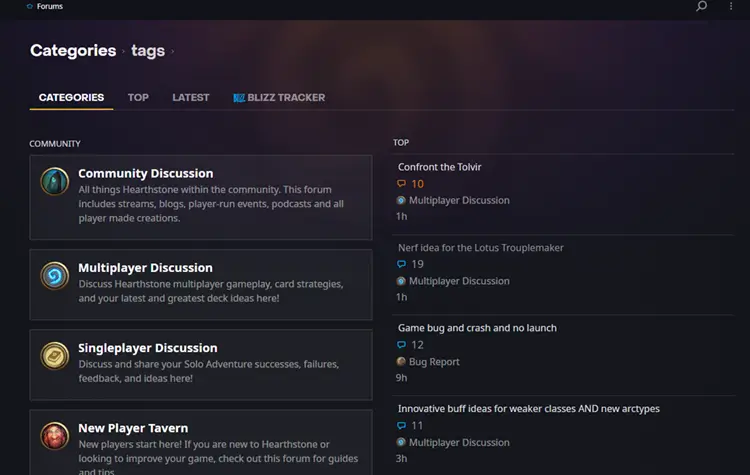
Open Battle.net and review the launcher notices first. You can also visit the Hearthstone official forum to see whether Blizzard or other players are reporting similar login failures, repeated reconnecting, match disconnects, or patch-related issues.
Fix 2. Restart Hearthstone and Battle.net Completely
If Hearthstone disconnected during a match, fully close the game and reopen it immediately to attempt a fresh connection. A stuck client session or pending update may leave you unable to connect to Hearthstone, load a match, or escape a reconnecting loop. Fully restarting Hearthstone and Battle.net closes the old session and allows the client to establish a fresh connection.
Fix 3. Restart Your Router and Test Another Network
Restart your router and modem to clear temporary network errors and refresh the connection to your ISP. Turn both devices off, wait 30-60 seconds, then power them back on. If Hearthstone remains unstable, switch networks. Mobile players can close the game and try Wi-Fi or mobile data, while PC players can use Ethernet to avoid wireless interference and improve connection stability.
Fix 4. Close Background Downloads and Third-Party Apps
Background downloads and third-party apps can consume bandwidth or interfere with Hearthstone while it is running. Battle.net updates, browsers, cloud sync tools, streaming services, deck trackers, and overlays may worsen reconnecting loops, delayed actions, or match disconnects, especially when the connection is already unstable.
Step 1. Press Ctrl + Shift + Esc to open Task Manager and check which apps are running in the background.
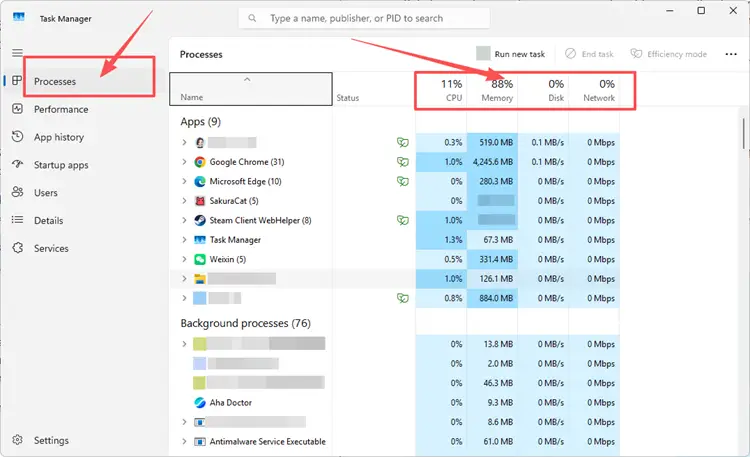
Step 2. Look for apps using high Network, such as Steam downloads, browsers, cloud sync tools, or other game launchers.
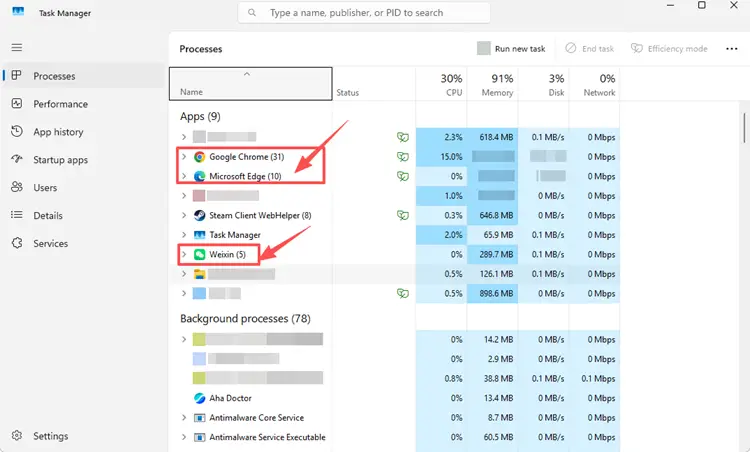
Step 3. Select non-essential programs, click End task, then relaunch Hearthstone and test the connection again.
Fix 5. Flush DNS and Reset Network Settings
A corrupted DNS cache or incorrect TCP/IP configuration may prevent Hearthstone from connecting reliably to Blizzard services. Flushing DNS and resetting the basic network configuration can clear outdated connection data that may cause login failures, reconnecting loops, or repeated match disconnects on Windows.
Step 1. Type cmd in Windows Search, right-click Command Prompt, and select Run as administrator.
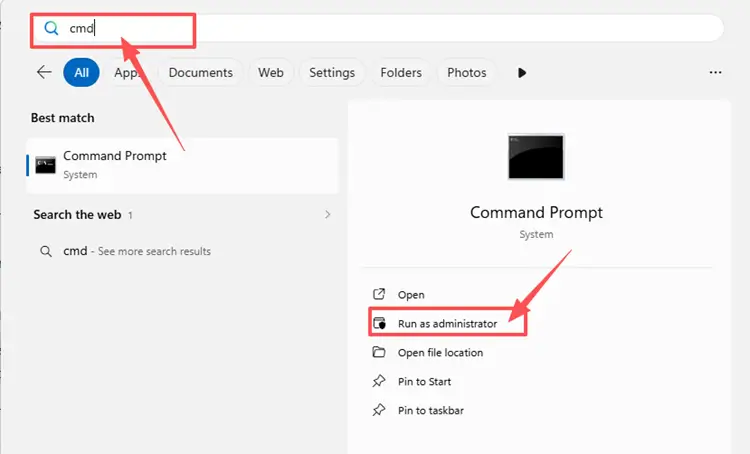
Step 2. Enter the following commands one by one, pressing Enter after each:
- ipconfig /flushdns
- ipconfig /release
- ipconfig /renew
- netsh int ip reset
- netsh winsock reset
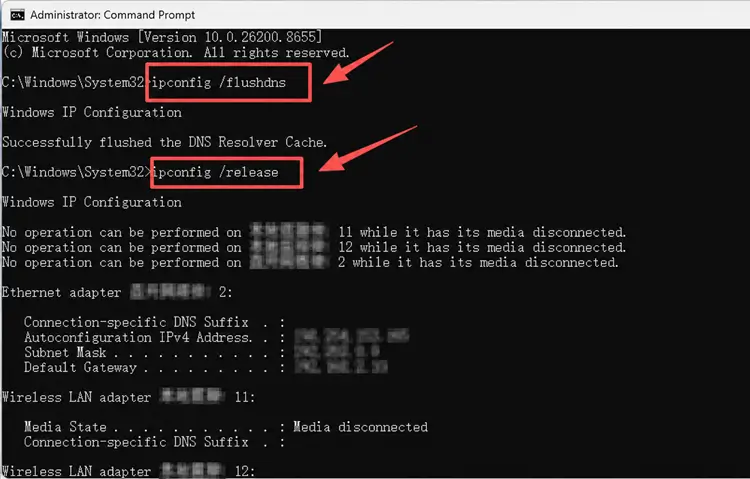
Step 3. Restart your PC to apply the changes, then launch Hearthstone and test the connection again.
Fix 6. Repair Hearthstone Files or Clear the Game Cache
Corrupted game files or outdated cached data can prevent Hearthstone from loading updated resources correctly, leading to login failures, reconnecting loops, or repeated disconnects. Follow the method for your platform, starting with file repair on PC or cache clearing on Android before attempting a complete reinstall.
Scan and Repair Hearthstone on PC
Battle.net can scan the Hearthstone installation and replace damaged or missing files without requiring a complete reinstall. Close Hearthstone before starting the repair and avoid launching the game until the scan finishes.
Step 1. Open Battle.net and select Hearthstone from your game library.
Step 2. Click the gear icon beside Play, then select Scan and Repair.
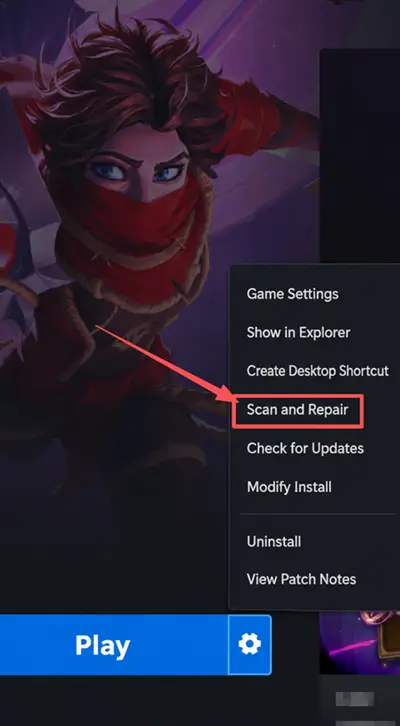
Step 3. Click Begin Scan, wait for the process to finish, and relaunch Hearthstone.
Clear the Hearthstone Cache on Android
Temporary Hearthstone files may become outdated or corrupted after an update. Clearing the cache gives the app a fresh set of temporary data without performing a complete reinstall.
Step 1. Open Settings > Apps and select Hearthstone.
Step 2. Tap Storage and cache, then select Clear cache.
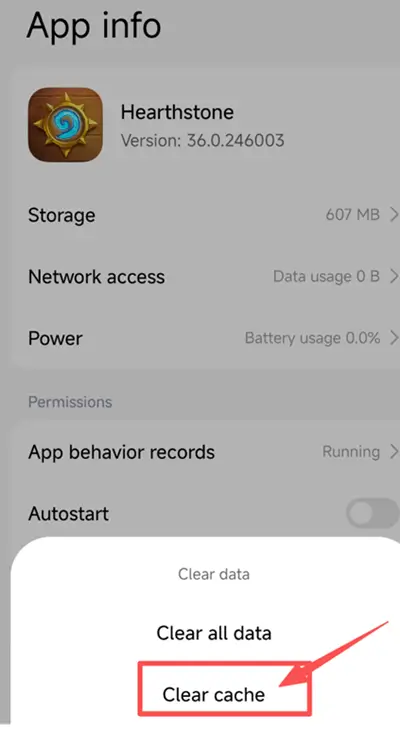
Step 3. Reopen Hearthstone and allow any required game resources to finish downloading.
Reinstall Hearthstone on iOS
Unlike Android, iOS does not provide a separate option to clear the Hearthstone cache. If Hearthstone still cannot connect after restarting, updating, and testing the network, reinstalling the app can replace its local files. Confirm that you know your Battle.net login details before deleting Hearthstone.
Step 1. Touch and hold the Hearthstone icon, tap Remove App, then select Delete App and confirm.
Step 2. Open the App Store, search for Hearthstone, and reinstall the game.
Step 3. Sign in to your Battle.net account and wait for all required game resources to finish downloading.
How to Improve Hearthstone Connection Stability with LagZapper
Hearthstone matches rely on a stable connection to keep every card, turn, and game state synchronized. If reconnecting loops or match disconnects continue after the basic fixes, unstable ISP routing, packet loss, or latency spikes may be affecting the connection between your PC and the game servers. LagZapper can optimize the network route for smoother and more stable gameplay.
Why Use LagZapper for Hearthstone Connection Stability
- Smart Route Optimization: Automatically finds a faster and more stable network route for Hearthstone, helping reduce high ping, packet loss, jitter, and connection fluctuations.
- Reduce Lag and Improve Stability: Lower ping spikes and reduce sudden freezes or disconnects during Ranked matches, Battlegrounds, and other online modes.
- One-Click Boost: Optimize the Hearthstone connection in seconds without manually changing complicated router, DNS, or Windows network settings.
- Support for 3,000+ Games: Use LagZapper to improve connection stability across more than 3,000 online games, including Hearthstone, Fortnite, VALORANT, and Path of Exile 2.
[Step-by-Step Guide] How to Boost Hearthstone with LagZapper
Before starting another match, follow the steps below to optimize your Hearthstone connection with LagZapper.
Step 1. Download and Install LagZapper
Download LagZapper for Windows and follow the on-screen instructions to complete the installation.
Step 2. Open LagZapper and Search for Hearthstone
Launch LagZapper, then enter Hearthstone in the search bar or find it in the supported games list.
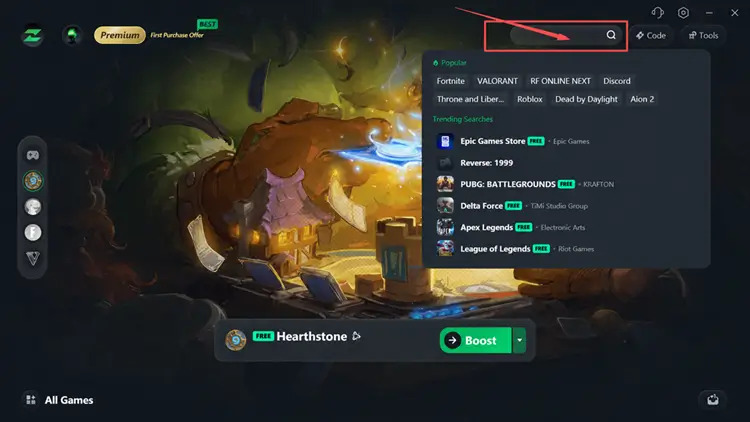
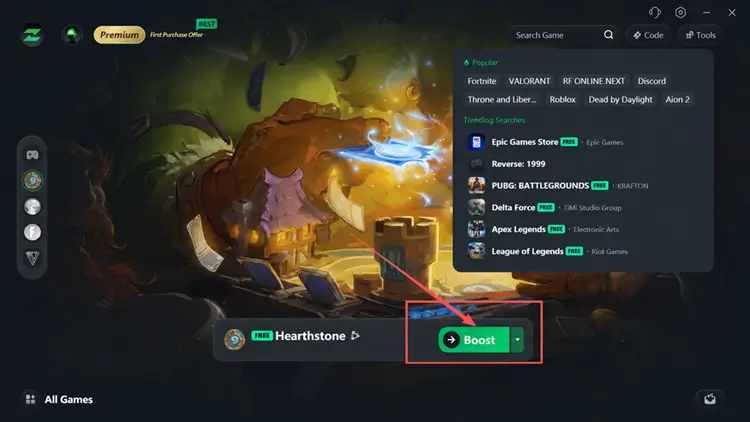
Step 3. Boost and Play Hearthstone
Select a suitable server or node if needed, click Boost, and then launch Hearthstone to test the connection.
The Bottom Line
Hearthstone connection issues can result from server maintenance, unstable Wi-Fi, ISP routing, background downloads, incorrect network settings, or corrupted game files. Check Blizzard services first, then work through the client and network fixes above. If poor routing, packet loss, or latency spikes continue on Windows, download LagZapper to optimize the connection and keep matches more stable.
FAQs About Hearthstone Connection Issues
Q1. Why Is Hearthstone Stuck on Reconnecting?
A dropped session, unstable network, server interruption, or frozen client can leave Hearthstone trapped in a reconnecting loop.
Q2. Why Is Hearthstone Reconnecting During Every Match?
Repeated reconnecting may result from unstable Wi-Fi, packet loss, service problems, or damaged local game data.
Q3. How Do I Fix Hearthstone Not Connecting?
Restart Hearthstone and Battle.net completely, then check server notices, reboot your router, and repair the game files.
Q4. How Can I Check Hearthstone Server Status?
Check Battle.net notices and the official Hearthstone forum for maintenance alerts, login problems, and widespread disconnect reports.
Q5. How Do I Fix Hearthstone Connection Issues on Mobile?
Clear the Android cache first; on iOS, reinstall Hearthstone only after restarting, updating, and testing another network.