
Battle.net Not Connecting? 7 Fixes for Login and Connection Issues
Battle.net is required to access Blizzard games such as World of Warcraft, Diablo IV, Hearthstone, Overwatch 2, and Warcraft III. When Battle.net is not connecting, you may be unable to sign in, download updates, launch games, or join online matches. The launcher may get stuck on Connecting, start in Offline Mode, or work normally while a specific Blizzard game fails to connect. This guide covers the most common Battle.net connection issues and 7 practical fixes to help restore access.
Is Battle.net Down? Common Connection Symptoms
“Battle.net not connecting” can refer to several different issues, from login failures to game-specific server problems. Before trying the fixes below, identify the symptom that most closely matches your situation.
| Connection Symptom | Possible Cause |
|---|---|
| Battle.net remains stuck on Connecting | Authentication or network routing issue |
| Battle.net opens only in Offline Mode | Cannot reach Blizzard authentication servers |
| Battle.net shows BLZBNTBNA00000A8E | Account login or authentication failure |
| Battle.net shows BLZBNTBGS80000011 | Desktop client connection failure |
| Website works, but Battle.net cannot log in | Local launcher or authentication issue |
| Hearthstone works on mobile, but not on PC | PC client or Windows network issue |
| Diablo IV, WoW, or Overwatch 2 cannot connect | Game service, server, or routing issue |
| Battle.net updates remain on Initializing | Update Agent or download CDN issue |
Which Blizzard Games Can Be Affected?
Blizzard games use the same Battle.net launcher but connect to different login, realm, matchmaking, and game services. Therefore, one game may connect normally while another experiences connection issues.
| Blizzard Games | Common Connection Symptoms | Possible Failure Point |
|---|---|---|
| Diablo IV | Error 30008, Diablo IV high ping, or stuck on connecting | Login queue, game server, or network route |
| World of Warcraft | Login failure, disconnects, high latency, or stuck on Retrieving Character List | Authentication, realm, or character service |
| Hearthstone | Login failure, reconnect loop, or Hearthstone connection issues | Desktop client or Windows network |
| Overwatch 2 | Profile loading error, login failure, or Overwatch server connection failure | Profile, matchmaking, or regional service |
| Warcraft III | Launcher authentication or account login error | Battle.net launcher or legacy game service |
| Battle.net Desktop App | Offline Mode, stuck on Connecting, or updates fail | Authentication, Update Agent, cache, or CDN |
The Battle.net website may work even when the launcher or a specific Blizzard game has a separate server or connection issue.
How to Fix Battle.net Not Connecting: 7 Useful Fixes
Once you determine whether the problem affects the launcher, a specific game, or your entire network, use the most relevant fix and avoid changing unrelated settings.
Fix 1. Check Blizzard Server Status
When you experience Battle.net connection issues, first check whether Battle.net or the affected Blizzard game is undergoing maintenance or an outage. Visit Blizzard Support for current maintenance notices and service alerts.
If Blizzard’s servers are unavailable, local troubleshooting will not help. Wait until service is restored before trying the remaining fixes.
Fix 2. Restart Battle.net and Blizzard Processes
Battle.net may remain stuck on Connecting, Offline Mode, or Initializing when a background process stops responding.
Step 1. Close the Battle.net launcher, right-click the Windows icon, and select Task Manager.
Step 2. End the following processes if they are running:
- Battle.net.exe
- Agent.exe
- Blizzard Update Agent
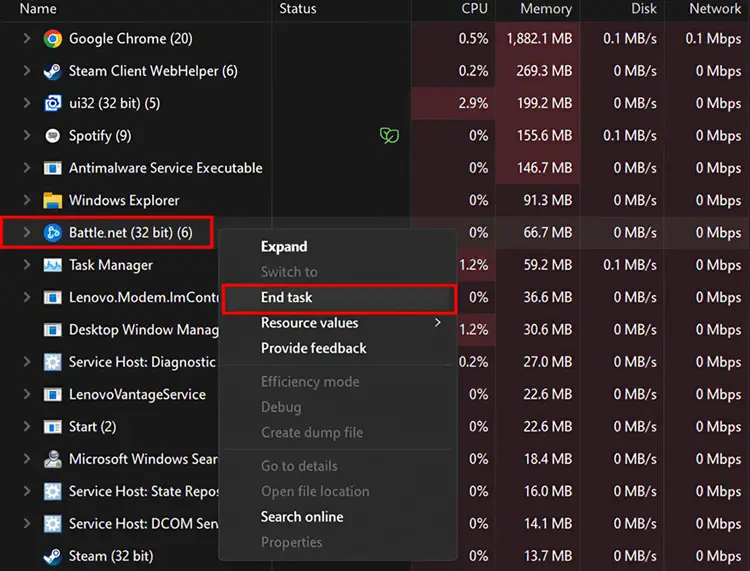
Step 3. Right-click Battle.net and select Run as administrator.
Fix 3. Delete the Battle.net Cache
Corrupted Battle.net cache files can cause login failures, blank launcher pages, update errors, and authentication problems.
Step 1. Close Battle.net completely. Press Win + R, enter %ProgramData%, and click OK.
Step 2. Find and delete the Battle.net folder.
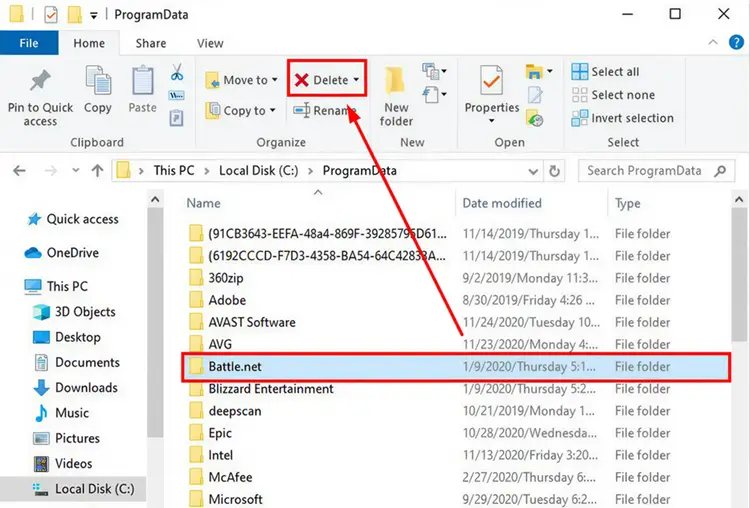
Step 3. Restart the Battle.net launcher.
Battle.net will automatically rebuild the required cache files during startup. This will not delete your installed Blizzard games.
Fix 4. Test Battle.net on Another Network
Connect your PC to a different network to check whether the problem is caused by your current connection. You can try:
- A mobile hotspot
- Another Wi-Fi network
- A wired Ethernet connection
Then reopen Battle.net and test the login or affected game again. If Battle.net works on another network, the issue is likely related to your router, Wi-Fi stability, DNS, or ISP routing rather than the Blizzard launcher itself.
Fix 5. Flush DNS and Restart Your Network
Outdated DNS records or temporary network errors can prevent Battle.net from reaching Blizzard services. Flush the DNS cache and renew your network connection using these steps:
Step 1. Type Command Prompt in the Windows search bar, right-click it, and select Run as administrator.
Step 2. Run the following commands one at a time:
- ipconfig /flushdns
- ipconfig /release
- ipconfig /renew
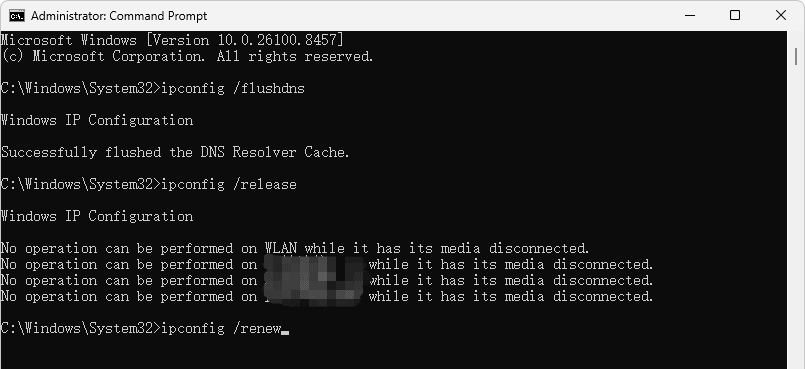
Step 3. Restart your PC and router, then reopen Battle.net to see whether the issue is resolved.
Fix 6. Allow Battle.net Through Windows Firewall
Windows Firewall or antivirus software may block Battle.net, the Blizzard Update Agent, or individual Blizzard games, causing login failures, update errors, or other Battle.net connection issues. Here’s how to allow them through Windows Firewall:
Step 1. Press Win + S, type Windows Security, and open it.
Step 2. Go to Firewall & network protection > Allow an app through firewall.
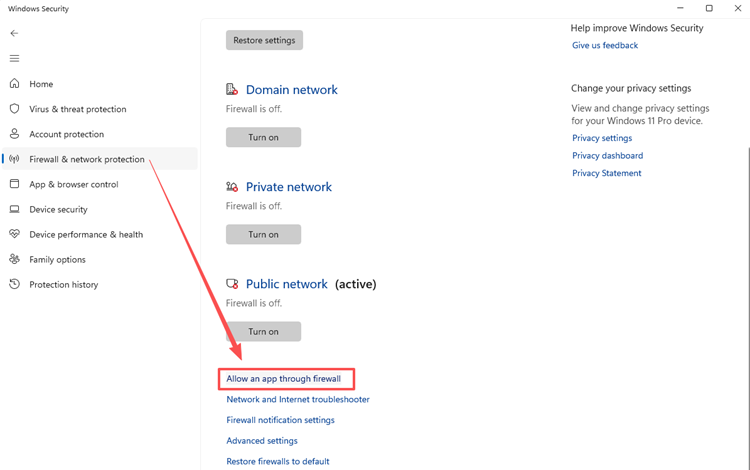
Step 3. Click Change settings, then make sure the following apps are allowed:
- Battle.net Launcher
- Blizzard Update Agent
- Diablo IV
- World of Warcraft
- Hearthstone
- Overwatch 2
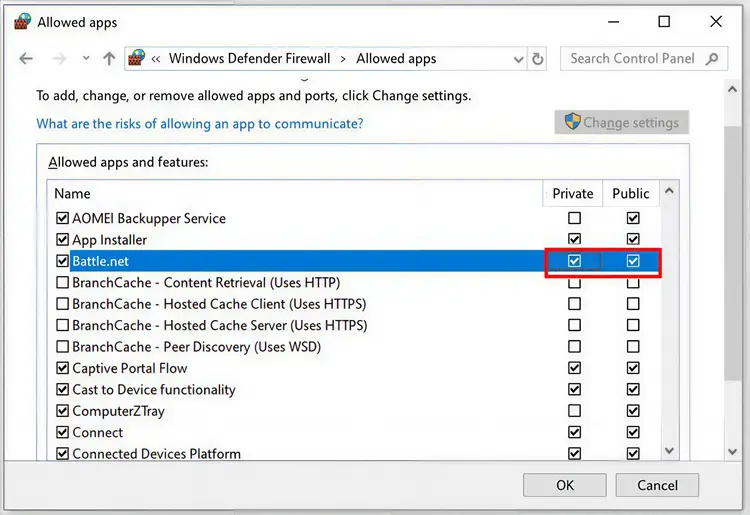
Step 4. Check both Private and Public, then click OK to save the changes.
Also, you can temporarily disable third-party antivirus software to test whether it is blocking Battle.net. Re-enable it after testing.
Fix 7. Repair or Reinstall Battle.net
Reinstall the launcher if Battle.net is still not connecting after clearing the cache and checking your network.
Step 1. Go to Settings > Apps > Installed apps, find Battle.net, and select Uninstall.
Step 2. Delete any remaining Battle.net launcher folders, then download the latest installer from the official Battle.net website.
Step 3. Reinstall Battle.net and run it as administrator.
Reinstalling the launcher normally does not remove your installed Blizzard games, but you may need to locate the game folders again.
[Bonus] Optimize Your Battle.net Connection with LagZapper
Sometimes, Battle.net connection issues come from the network route between your PC and Blizzard’s servers rather than the launcher itself. Unstable routing can cause slow authentication, login failures, disconnects, high ping, lag spikes, or updates stuck on Initializing.
LagZapper optimizes the connection route before you launch a supported Blizzard game, helping reduce delays, packet loss, and routing fluctuations during login, downloads, matchmaking, and gameplay.
LagZapper Highlights:
- Stabilize routes to Battle.net servers
- Boost Battle.net games with one click
- Minimize lag spikes and network jitter
- Reduce packet loss and connection drops
- Lower ping across supported Blizzard games
How to Use LagZapper for Battle.net & Battle.net Games
Follow these steps to optimize your connection before launching a supported Blizzard game.
Step 1. Download and Install LagZapper
Download LagZapper for Windows and follow the on-screen instructions to complete the installation.
Step 2. Sign In and Select Your Game
Open LagZapper, sign in, then search for a supported Blizzard game, such as World of Warcraft, Diablo IV, Hearthstone, or Overwatch 2.
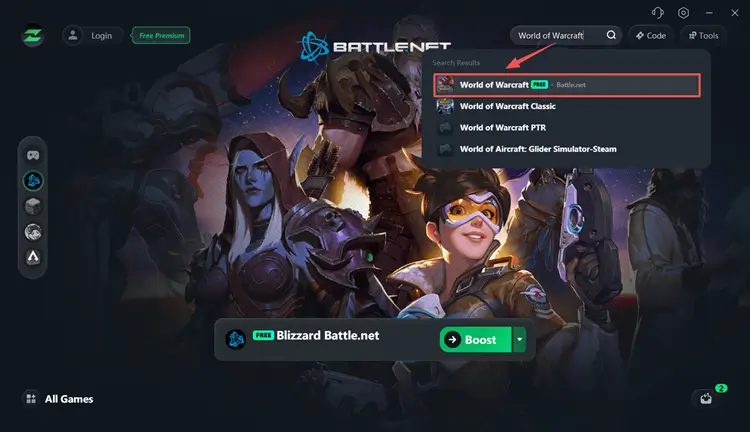
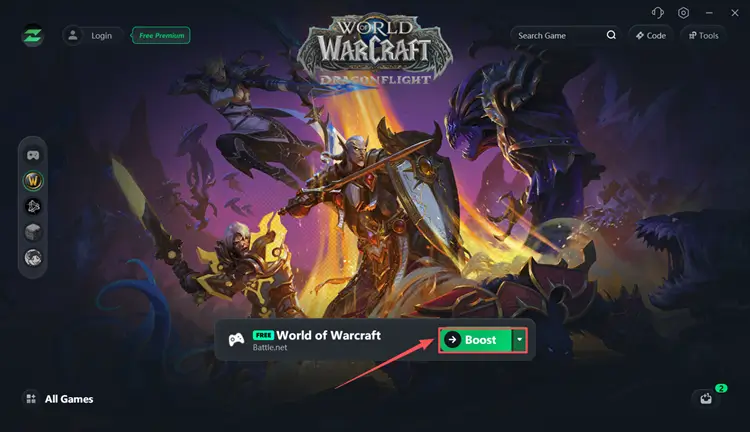
Step 3. Boost and Play
Choose your preferred server or node, click Boost, and launch the game with an optimized connection.
The Bottom Line
When Battle.net is not connecting, first check Blizzard’s service status, restart the launcher processes, clear the cache, and test another network. You can then flush DNS, review firewall permissions, or reinstall the launcher if the issue continues.
When the problem is caused by unstable routing rather than Battle.net itself, LagZapper can optimize the connection to supported Blizzard games, helping reduce lag, packet loss, and unexpected disconnects.
FAQs About Battle.net Not Connecting
Q1: Is Battle.net down or is it my internet?
Check Blizzard service alerts first. If other websites work but Battle.net does not, the issue may involve Blizzard servers, DNS, or routing.
Q2: Why does Battle.net work but a Blizzard game won’t connect?
The launcher and each game use separate services. A game server, login service, or regional route may be unavailable.
Q3: Why is Battle.net stuck on Connecting or Offline Mode?
Common causes include server maintenance, corrupted cache files, firewall restrictions, DNS errors, or unstable network routing.
Q4: Can my ISP cause Battle.net connection issues?
Yes. ISP congestion, packet loss, or inefficient routing can interrupt authentication and game connections.
Q5: Why does Hearthstone work on mobile but not on PC?
The problem may come from the Battle.net desktop client, Windows Firewall, DNS settings, or the PC network.
Q6: Why do Diablo IV or WoW fail while Battle.net is online?
Diablo IV and WoW use separate game and realm services that may fail even when the launcher remains available.