
How to Fish Save Editor Guide: Edit Money, Skins, Progress & More
The How to Fish Save Editor in LagZapper gives players a visual way to read and modify both Player Save and World Save data without manually searching through save text. You can adjust money, appearance, skins, creature records, player stats, inventory data, world unlocks, and other supported values stored in your local saves more easily.
This guide will show you what the How to Fish Save Editor can change, how to use it, and how to restore backups when needed.
What Is the How to Fish Save Editor?
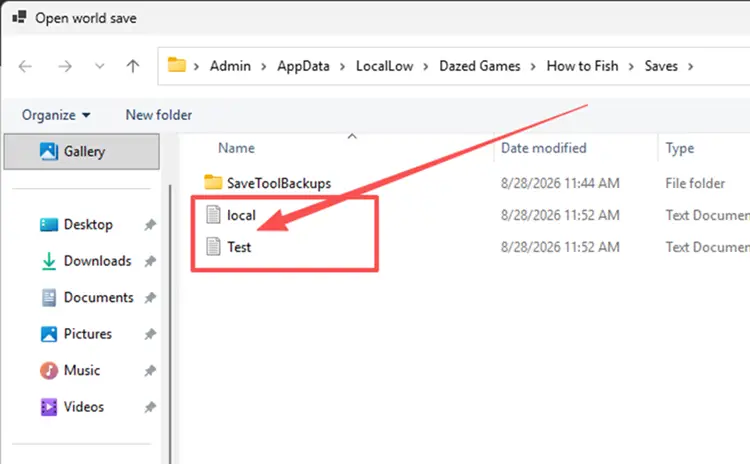
The How to Fish Save Editor is a visual tool in LagZapper that reads Player Save and World Save data, so you can edit supported values without changing complex save text manually. Player data is stored in local.txt, while world saves use named .txt files such as Test.txt. Before editing, fully close How to Fish and preferably exit Steam.
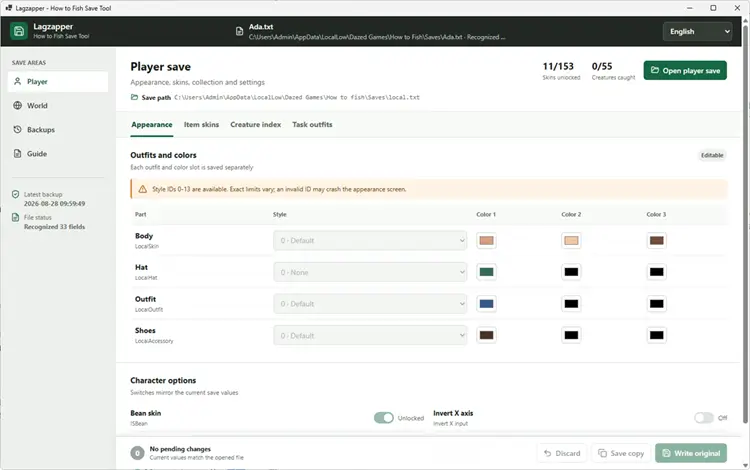
What Can You Change with the How to Fish Save Editor?
The How to Fish Save Editor separates editable data into Player Save and World Save sections, each covering different game progress and settings.
Edit How to Fish Player Save Data
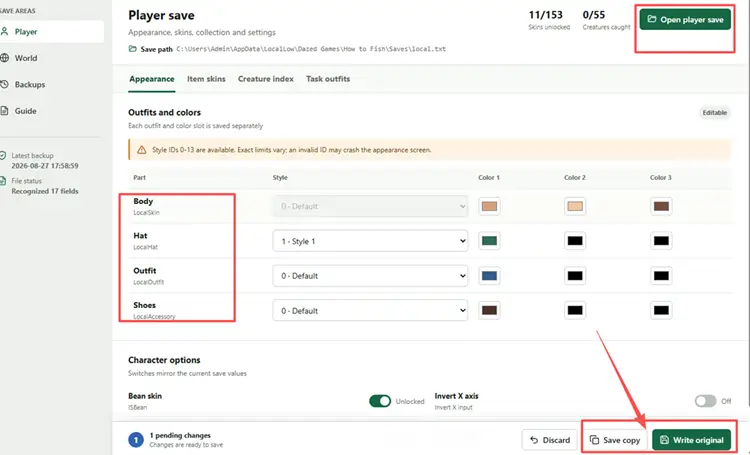
The Player Save, stored as local.txt, covers character-related data. You can change appearance options such as skin, hat, outfit, accessory, and colors, as well as the Bean skin, input settings, and supported item skin unlock records.
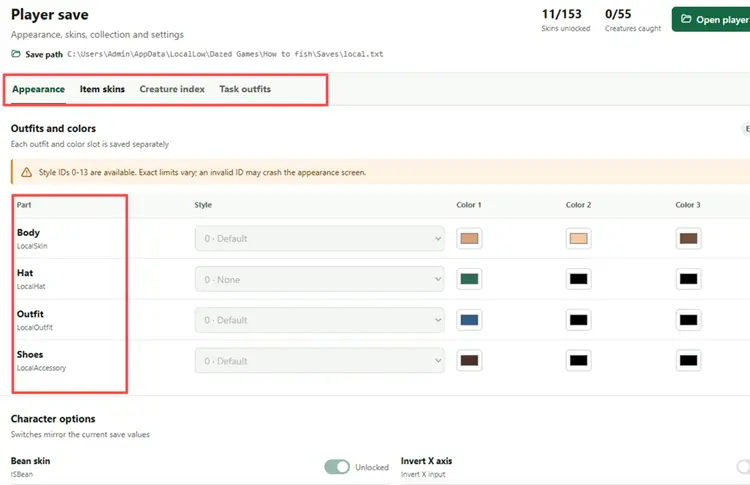
It also includes creature records such as whether a creature has been killed and task-related outfit records. Item skins should use supported values already present in a compatible save rather than adding unknown IDs.
Edit How to Fish World Save Data
World saves use named .txt files and contain broader progress data. You can edit money, playtime, facilities, and unlocks such as the Grill, Boat, and Boat Radar, story-related flags, and multiplayer settings including Steam multiplayer and public or invite-only rooms.
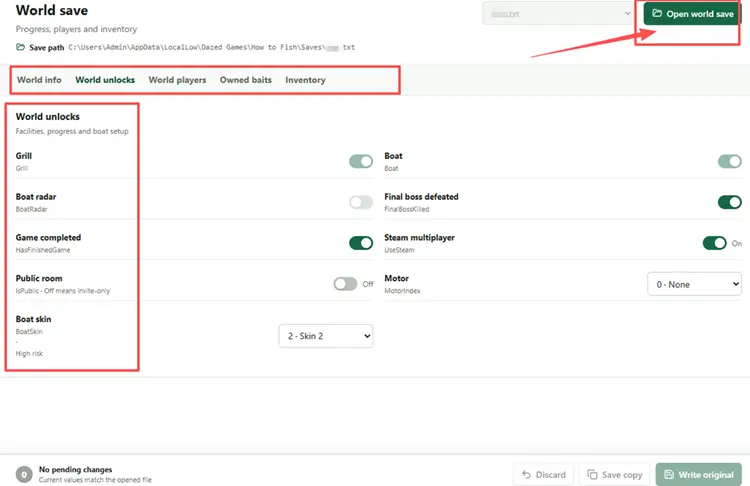
Each world save also contains player-specific and inventory data. After selecting the correct player by SteamID, you can edit supported player stats, bait counts, and recognized inventory entries.
Why Use LagZapper How to Fish Save Editor?
How to Fish saves can be edited as TXT files, but finding valid fields manually is inconvenient. LagZapper provides a visual interface and backup tools. Check the table below to see the advantages of using the How to Fish Save Editor over manual TXT editing.
| Feature | LagZapper Save Editor | Manual TXT Editing |
|---|---|---|
| Editing method | Visual controls and supported limits | Manual field and value editing |
| Field guidance | Labels, warnings, and valid ranges | Requires field and value knowledge |
| Save backup | Automatic backup before writing | Manual file copy |
| Save recovery | Built-in backup and restore | Manual file replacement |
With LagZapper, players can edit supported How to Fish data without searching long TXT strings, while automatic backups provide a quick way to reverse unwanted changes.
How to Use How to Fish Save Editor in LagZapper
LagZapper gives How to Fish players a visual way to edit supported save data without manually searching TXT fields. Follow the three steps below to download LagZapper, open the correct save file, and apply your changes.
Tip: LagZapper supports 3,000+ online games, including Fortnite and VALORANT, with route optimization to help reduce lag, lower ping, and minimize packet loss.
Step 1. Download LagZapper and Open How to Fish Save Editor
First, install LagZapper and open the Save Editor configured for How to Fish.
#1. Download and install LagZapper on your Windows PC.
#2. Launch LagZapper, search for How to Fish, and open the Save Editor tool from the game page.
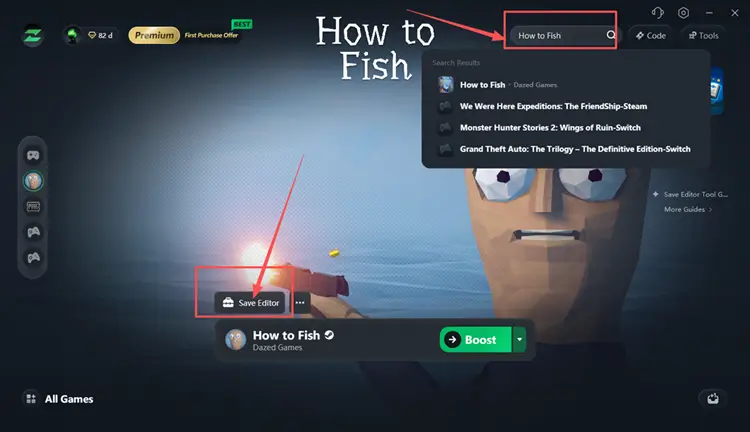
#3. Wait for the How to Fish Save Tool to open and recognize your local save folder.
Tip: If the How to Fish Save Editor does not open on Windows 10/11, install the Windows x64 version of .NET 8 Desktop Runtime, then restart LagZapper and try again.
Step 2. Close How to Fish and Load the Correct Save
Before opening a save file, fully exit How to Fish. Closing Steam is also recommended because an active game or Steam process may overwrite your changes.
#1. Fully close How to Fish and exit Steam before editing or restoring any save.
#2. Select Open player save and open local.txt, or select Open world save and choose the named TXT file for the world you want to edit.
Step 3. Edit, Save, and Verify the Changes
Once the correct save is loaded, use the available switches, dropdowns, and value fields to change supported data. Make one group of changes at a time so problems are easier to identify.
#1. Edit the values you want, such as appearance, money, world unlocks, player stats, or inventory data.
#2. For a first test, click Save copy. When you are ready to update the active save, click Write original, which also creates a tool backup.
#3. Reopen How to Fish and check whether the changes appear correctly in the game. If something goes wrong, restore a previous save from Backups.
Important Editing Limits and Warnings
The limits listed below can help you avoid unsupported changes, game crashes, world-loading failures, and unexpected results when using the Save Editor.
- Do not edit while How to Fish is running. The tool will warn you before writing or restoring a save.
- Unrecognized fields remain disabled to prevent guessed changes to newer or different save layouts.
- Use Save copy for your first test. If the game crashes or a world fails to open, restore the latest working backup.
- Invalid style, skin, boat, or item IDs may cause crashes. Excessive weapon values may also make attacks deal no damage.
How to Back Up and Restore a How to Fish Save
How to Fish Save Editor creates backups before overwriting a save and also supports manual copies, giving you two ways to recover an earlier working file.
Use Automatic or Manual Backups
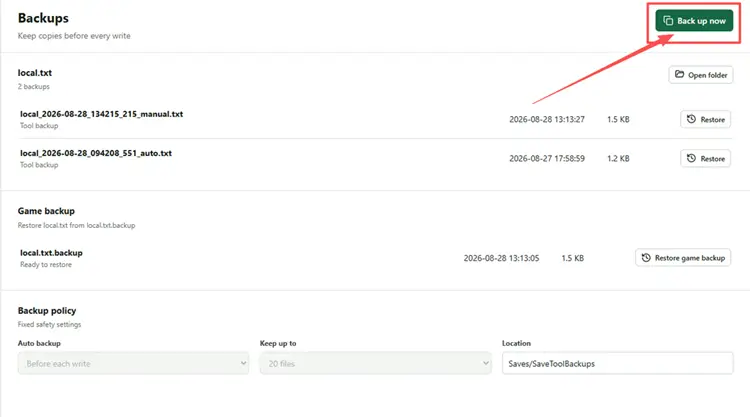
Whenever you click Write original, the editor automatically copies the current file to SaveToolBackups before applying the changes. It keeps up to 20 tool backups for each save name. To create a backup manually, open Backups and click Back up now. You can also copy the entire Saves folder to another location before editing.
Restore a Previous Save
If an edit causes incorrect data, crashes, or loading problems, fully close How to Fish and open Backups in the Save Editor. Find the latest working backup by its filename and creation time, then click Restore. The tool preserves the current file as another backup before replacing it.
Also Read: How to Fish Multiplayer Not Working? Try 8 Useful Fixes
The Bottom Line
The How to Fish Save Editor provides a visual way to adjust player and world save data without manually searching through TXT files. Before editing, close the game, load the correct save, and create a backup. Change one group of values at a time, then verify the result in-game. If anything goes wrong, restore the latest working backup. If you want to try the How to Fish Save Editor, you can download LagZapper to get started.
FAQs About How to Fish Save Editor
Q1. What is the How to Fish Save Editor?
It is a tool that reads and edits supported How to Fish Player Save and World Save files.
Q2. Where is the How to Fish save file location?
The default location is %USERPROFILE%\AppData\LocalLow\Dazed Games\How to Fish\Saves.
Q3. What can the How to Fish save file editor change?
It can modify supported player and world data, including money, skins, inventory, and progress.
Q4. How do I edit a How to Fish save file?
Close How to Fish, load the correct save in LagZapper, edit one group, then save and verify the changes in-game.
Q5. How can I edit money in How to Fish using the LagZapper Save Editor?
Open World Save, change Money under World Info, then save and verify the edited file.
Q6. Does the How to Fish Unlock All Skins Option Work with Every Save?
No. It only modifies item skins already obtained and recognized in the loaded save.