
Is Dota 2 Down? Check Server Status & Fix Connection Issues
Recently, Dota 2 players in several regions have reported sudden connection problems that prevent them from entering the game or using online services normally. With similar complaints appearing across community channels, many are asking, “Is Dota 2 down today?” or whether the issue comes from Steam or their own network.
This guide will explain how to check whether Dota 2 servers are down and fix local connection issues.
Why Does Dota 2 Appear Down or Not Connecting?
Dota 2 may appear offline when Valve services, regional routes, or local network settings interrupt the game’s online connection.
Dota 2 Game Coordinator or Valve Service Outage
When the Dota 2 Game Coordinator is down, matchmaking may stop, online data may disappear, and players can remain stuck searching for the network.
Steam Maintenance or Platform Problems
Steam maintenance or platform failures can disrupt login, Cloud synchronization, downloads, and authentication, sometimes leaving a Dota 2 update not downloading.
Regional ISP or Routing Issues
Regional ISP congestion or poor routing may leave Dota 2 unable to connect to servers in one location while the game remains available elsewhere.
Local Steam or Network Problems
When only one device is affected, expired Steam sessions, unstable Wi-Fi, DNS errors, corrupted files, or firewall rules may prevent Dota 2 from reconnecting.
How to Fix Dota 2 Connection Issues - 6 Fixes
When Dota 2 fails to connect, first determine whether the problem is server-side or local, then work through the fixes below to restore a stable connection.
Fix 1. Check Dota 2 Server Status and Wait
Before changing any local settings, check the live Dota 2 and Steam status to see whether the Dota 2 API or core Steam services are experiencing problems. If the page shows a wider disruption, local fixes will not restore the service, so wait for Valve to resolve it.
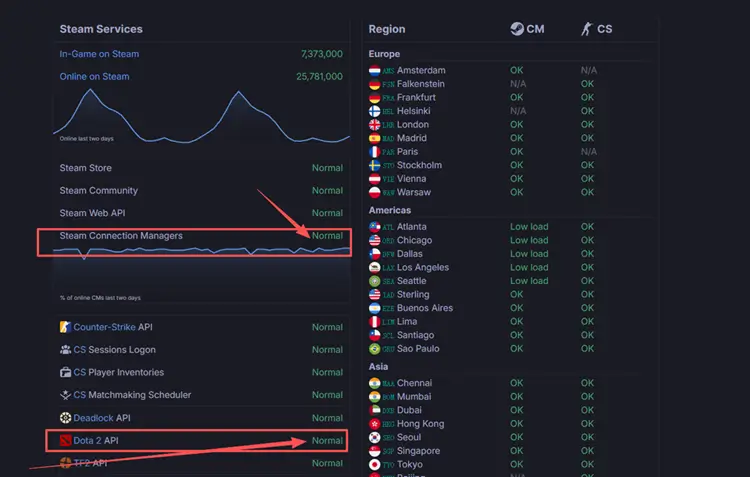
You can also visit the Dota 2 Steam Community or check social platforms and gaming forums to see whether other players are reporting similar login, matchmaking, or connection problems. If many reports appear within a short time, the issue is more likely to be widespread.
Fix 2. Fully Restart Dota 2 and Steam
After a brief outage, update, or failed login attempt, Dota 2 may remain stuck in an old network state even after the service recovers. Fully restarting the game and Steam refreshes the client session, closes stalled background processes, and establishes a new connection to Steam services.
Step 1. Close Dota 2 completely and confirm that it is no longer running in Task Manager.
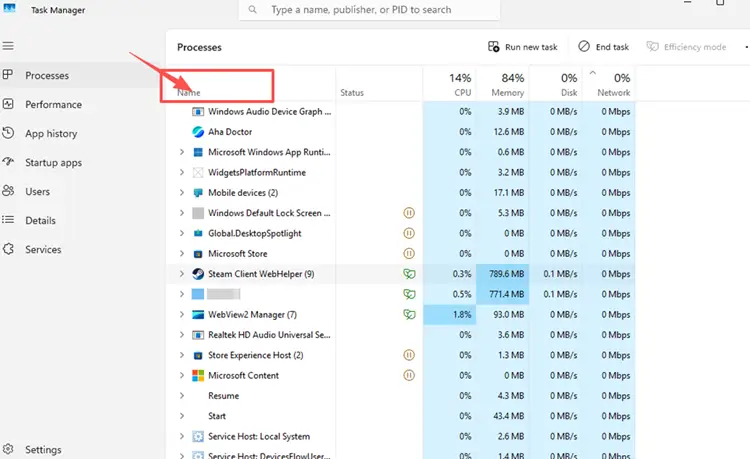
Step 2. Right-click the Steam icon in the system tray and select Exit Steam to shut down the client fully.
Step 3. Reopen Steam, wait for login and update checks to finish, then launch Dota 2 and test the connection.
Tip: If Dota 2 is stuck on “Searching for the Dota 2 Game Coordinator” after the restart, follow the guide to fixing the Dota 2 Game Coordinator error for more targeted solutions.
Fix 3. Fix the Dota 2 Update Not Downloading
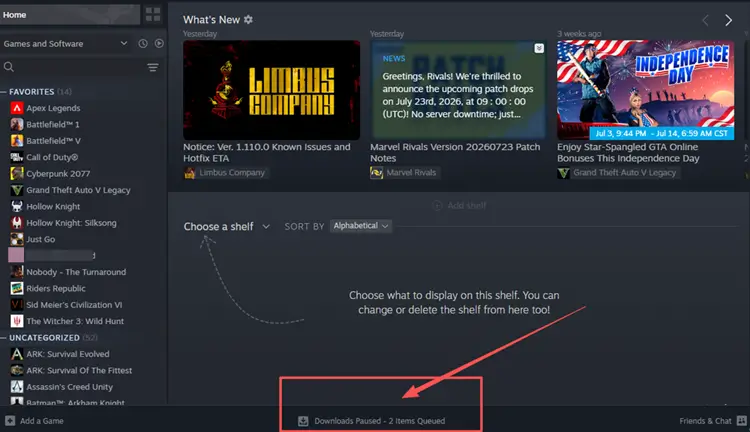
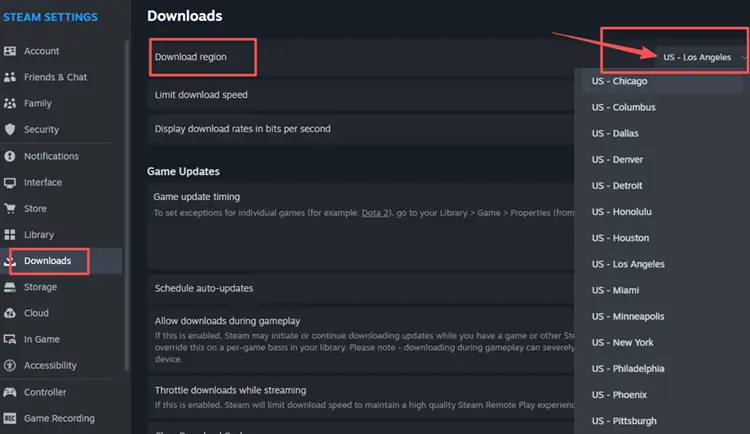
If the Dota 2 update is not downloading, Steam may be stuck on a paused queue, a damaged download cache, or an overloaded regional content server. Clearing the cache can restart stalled downloads without removing installed games, while changing the download region lets Steam use another nearby content server. Check the download queue first, then follow these steps.
Step 1. Open Steam > Downloads, resume the Dota 2 update, and make sure another queued download is not blocking it.
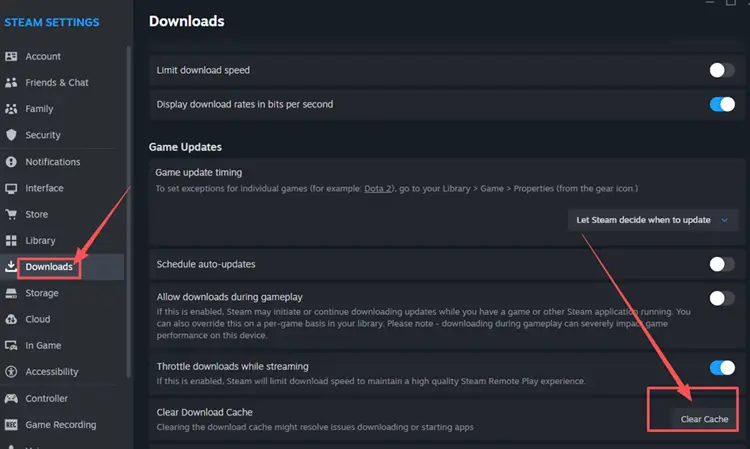
Step 2. Go to Steam > Settings > Downloads > Clear Download Cache, confirm the action, and sign back in after Steam restarts.
Step 3. Return to Downloads > Download Region, select another nearby region, restart Steam, and try downloading the update again.
Fix 4. Restart Your Router and Test Another Network
Restarting your router and modem can clear temporary errors and refresh your ISP connection. Turn them off, wait 30–60 seconds, then power them back on and let the network fully reconnect before reopening Dota 2. If the issue continues, test the game through a mobile hotspot or another network. If that works, your router or ISP may be involved. You can also use Ethernet to reduce Wi-Fi interference and check whether the wireless connection is unstable.
Fix 5. Verify Dota 2 Game Files
An interrupted update or damaged installation can leave Dota 2 with missing or corrupted files, causing launch failures, loading problems, or connection errors after Steam services recover. Steam’s verification tool checks whether the game is installed correctly and reacquires files that need replacing. This will not fix an active server outage, but it can resolve problems limited to your PC.
Step 1. Open Steam Library, right-click Dota 2, and select Properties.
Step 2. Go to Installed Files and click Verify Integrity of Game Files.
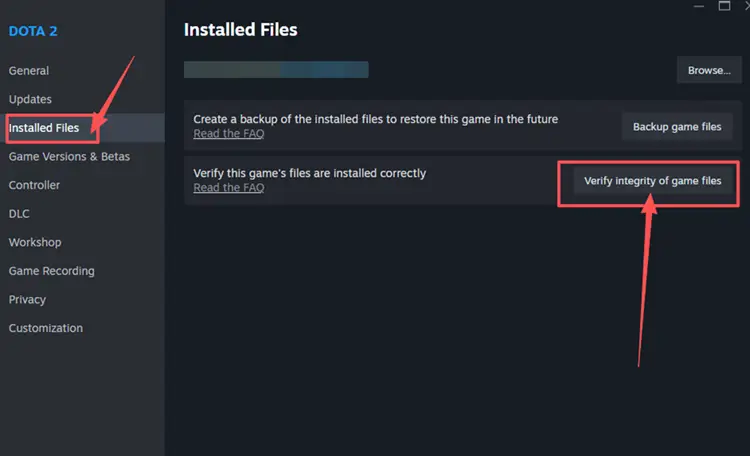
Step 3. Wait for Steam to finish the scan, restart the client, and launch Dota 2 again.
Fix 6. Refresh DNS and Check Firewall Access
When Dota 2 still cannot connect after the servers recover, refresh Windows DNS records and confirm that the firewall is not blocking Steam or the game.
Flush the DNS Cache
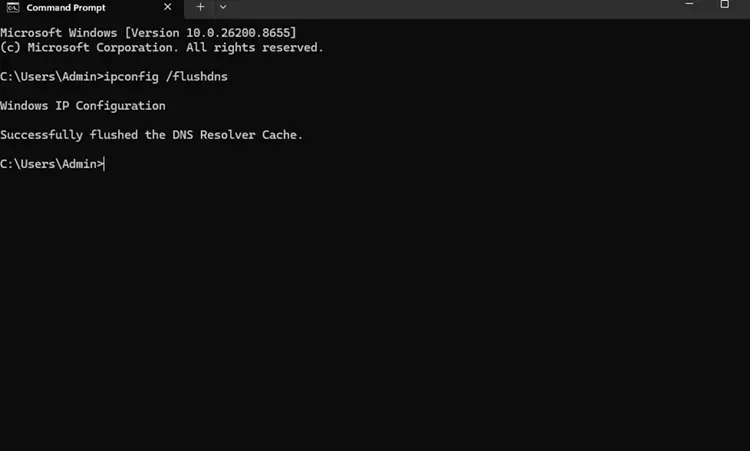
Windows stores recent DNS lookup results so apps can reach online services faster. If the cache contains outdated or incorrect entries, Steam may fail to resolve a required address even when your internet connection works. Flushing it clears those temporary records and forces Windows to request fresh DNS information.
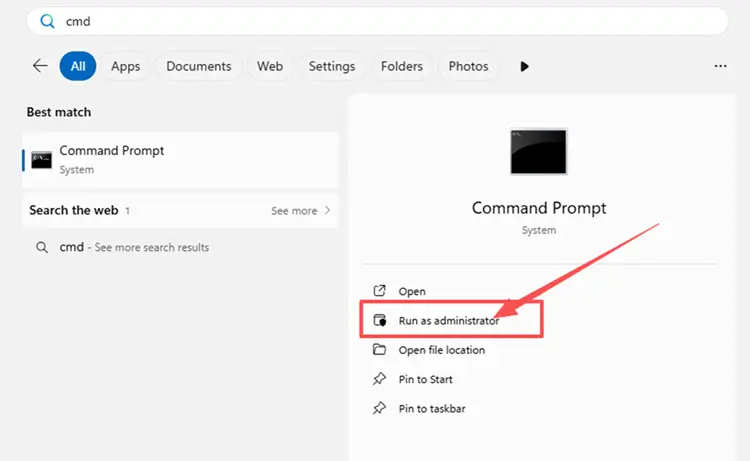
Step 1. Type cmd in the Windows search box, right-click Command Prompt, and select Run as administrator.
Step 2. Enter ipconfig /flushdns, wait for the confirmation message, then restart Steam and test Dota 2 again.
Allow Steam and Dota 2 Through Windows Firewall
Windows Firewall can block Steam or Dota 2 after an update, a rule change, or a new network profile. Allowing the apps through the firewall restores their network access without disabling protection entirely. Microsoft recommends allowing a specific trusted app instead of turning off the firewall or opening unnecessary ports.
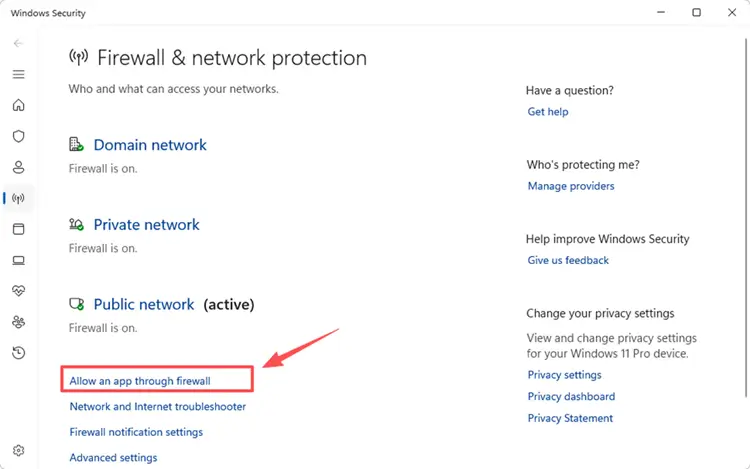
Step 1. Open Windows Security, go to Firewall & network protection, and select Allow an app through firewall.
Step 2. Click Change settings, then select Allow another app. Browse to the Dota 2 installation folder and choose the game executable file to add it.
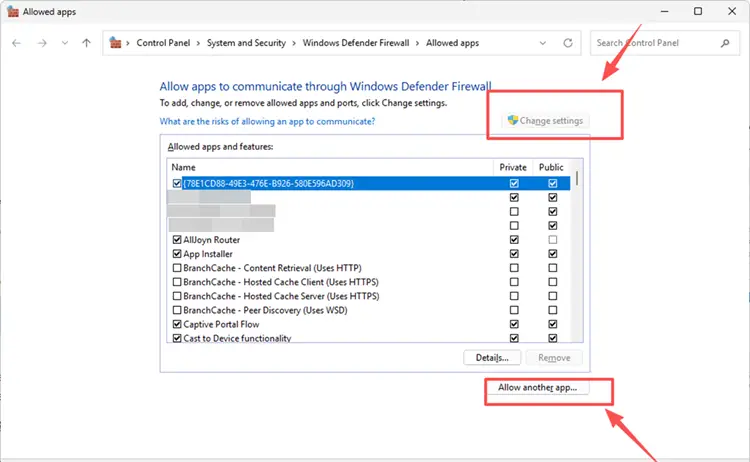
Step 3. Make sure Dota 2 is allowed on your active network, then click OK and relaunch the game.
[Bonus] How to Improve Dota 2 Connection with LagZapper
Dota 2 relies on a stable connection for matchmaking, real-time combat, and reconnecting to an active match. If the servers are online but you still experience high ping, packet loss, lag spikes, disconnects, or unstable regional routing, LagZapper can help optimize the connection route between your PC and the selected Dota 2 server.
Why Use LagZapper for Dota 2?
- Smart Route Optimization: Automatically finds a faster and more stable route to Dota 2 servers, helping reduce high ping, packet loss, jitter, and routing instability.
- Reduce Lag & Improve Stability: Lower ping, reduce game lag, and minimize sudden disconnects or delayed actions during matchmaking, team fights, and cross-region matches.
- One-Click Boost: Optimize your Dota 2 connection in seconds with one click, without complicated setup or manual route adjustments before playing.
- Support for 3,000+ Games: Use LagZapper across 3,000+ online games, including Dota 2, Fortnite, VALORANT, Path of Exile 2, and other popular games.
How to Boost Dota 2 with LagZapper
Follow the steps below to optimize your Dota 2 connection before launching the game.
Step 1. Download and Install LagZapper
Download LagZapper for Windows and follow the on-screen instructions to complete the installation.
Step 2. Open LagZapper and Search for Dota 2
Launch LagZapper, then use the search bar or browse the supported games list to find Dota 2.
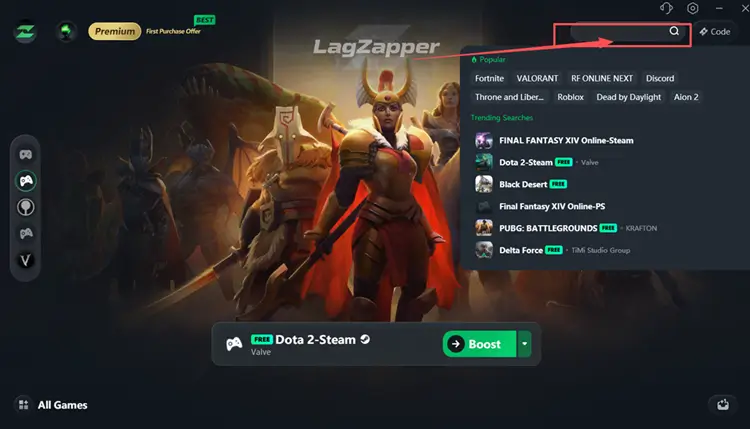
Step 3. Boost and Launch Dota 2
Select your preferred server or node if needed, click Boost, and then launch Steam and Dota 2.
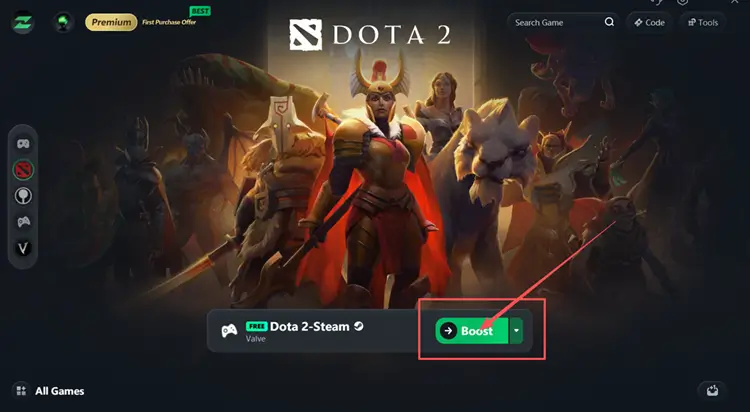
The Bottom Line
Dota 2 connection problems can come from Valve services, Steam, a stalled update, regional routing, or your local network. Check server status and community reports first. If services are online, restart Dota 2 and Steam, repair the update, test a different network, verify game files, and refresh DNS or firewall access. When servers are online but high ping, packet loss, disconnects, or unstable routing continue, download LagZapper to optimize your connection route and improve stability.
FAQs About Is Dota 2 Down
Q1. Is Dota 2 down right now?
Check the latest Dota 2 server status and community reports. Widespread login or matchmaking failures usually indicate a Valve-side outage.
Q2. How do I check Dota 2 server status?
Check Steam Status for the Dota 2 API and Steam Connection Managers, then review official updates and community reports for wider issues.
Q3. Why Are Dota 2 Servers Down?
Maintenance, Valve service failures, Steam platform issues, or an unavailable Game Coordinator can temporarily take Dota 2 servers offline.
Q4. Why is Dota 2 stuck on Searching for the Network?
The client may be unable to reach the Game Coordinator, Steam services, or the network route required for connection.
Q5. Why can’t Dota 2 connect, reconnect, or start matchmaking?
Steam sessions, local files, firewall rules, Wi-Fi, ISP routing, or the Game Coordinator may be interrupting the connection.