
Searching for Dota 2 Game Coordinator: Status, Causes & Fixes
“Searching for Dota 2 Game Coordinator” is one of Dota 2’s most recognizable server-related error messages. It typically appears when Dota 2 cannot connect properly to Valve’s online services, often leaving matchmaking, parties, inventory, and other online features unavailable. This post explains what the Dota 2 searching for game coordinator error means, how to check the Dota 2 Game Coordinator status, and how to identify and fix both server-side and local connection issues.
What Does “Searching for Dota 2 Game Coordinator” Mean?
The “Searching for Dota 2 Game Coordinator” error means the game client cannot establish a connection with Valve’s online services. As a result, matchmaking, parties, inventory, match history, and other online features may become unavailable.
Is the Dota 2 Game Coordinator Down?
Not necessarily. The error may result from a Valve outage, maintenance, an update, regional routing problems, or your own connection. Check “is Dota 2 down” before troubleshooting. If many players report matchmaking failures simultaneously, the coordinator is likely experiencing a server-side disruption. If only you are affected while public services appear normal, the issue is probably local.
Why Is Dota 2 Searching for the Game Coordinator?
Several server-side and local issues can prevent Dota 2 from connecting to the Game Coordinator. The most common causes include:
- Dota 2 servers are unavailable: Maintenance, major updates, or unexpected outages may temporarily interrupt the Dota 2 Game Coordinator.
- Steam has lost its connection: Steam authentication or connectivity problems may prevent Dota 2 from reaching Valve’s online services.
- Your network route is unstable: Congestion, Wi-Fi interference, or poor routing may affect Dota 2 even when other websites work normally.
- DNS resolution is not working: A local or ISP-level DNS problem may prevent your PC from locating the correct Valve service address.
- Firewall or antivirus interference: Security software or other background programs may block Steam and Dota 2 network traffic.
- Dota 2 files are damaged: Missing, outdated, or corrupted game files may prevent the client from loading or connecting correctly.
How to Fix Searching for Dota 2 Game Coordinator
Try the following fixes in order and stop once the Game Coordinator reconnects.
Fix 1. Check the Dota 2 Server Status
Before changing any settings, confirm whether the Game Coordinator issue is affecting other players.
#1. Open Steam Status and check these services:
- Steam Community
- Steam Web API
- Steam Connection Managers
- Dota 2 API
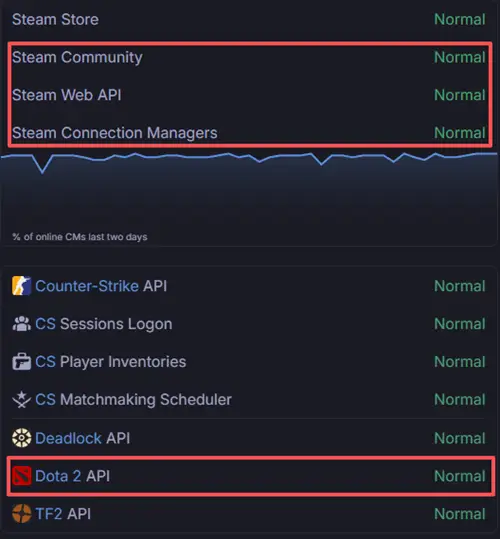
#2. Review the latest Dota 2 Steam Community discussions for widespread Game Coordinator or matchmaking reports.
#3. Check Dota 2 News and Updates for a recent patch that may have temporarily affected online services.
If several sources report the same problem, wait for Valve to restore the service.
Fix 2. Fully Restart Dota 2 and Steam
Closing the Dota 2 window may not fully reset your Steam session because Steam and related processes can continue running in the background. A complete restart can refresh authentication and reconnect the client to Valve’s network.
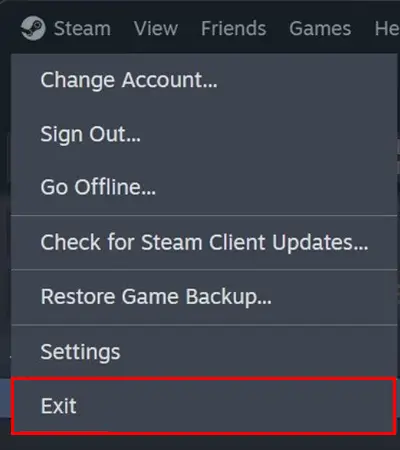
Step 1. Exit Dota 2, then right-click the Steam icon in the system tray and select Exit.
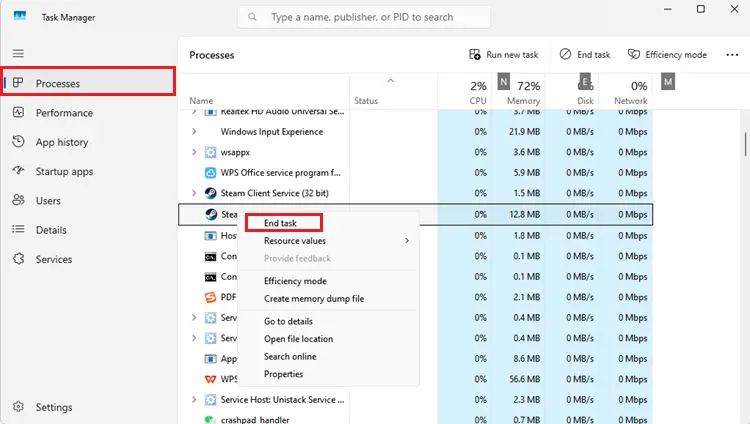
Step 2. Open Task Manager and end any remaining Steam or Dota 2 processes.
Step 3. Reopen Steam, sign in, and launch Dota 2.
A full restart can refresh the Steam session and restore the Game Coordinator connection.
Fix 3. Restart the Router or Test Another Network
Restarting your router can clear temporary connection problems and refresh the route between your PC, ISP, and Valve’s servers. Steam also recommends testing a different connection when diagnosing network-related issues.
Step 1. Close Dota 2 and Steam, then turn off your router for about 60 seconds before restarting it.
Step 2. Reconnect to the internet and launch Dota 2.
Step 3. If the error remains, test Dota 2 through a mobile hotspot or wired connection.
If another network works, the issue likely involves your router, ISP, DNS, Wi-Fi, or network route rather than the Game Coordinator.
Fix 4. Verify the Integrity of Dota 2 Files
Missing or corrupted Dota 2 files may cause launch or connection issues. Steam can scan the installation and restore files that are missing or damaged.
Step 1. Open Steam and go to Library.
Step 2. Right-click Dota 2 and select Properties.
Step 3. Open Installed Files and click Verify integrity of game files.
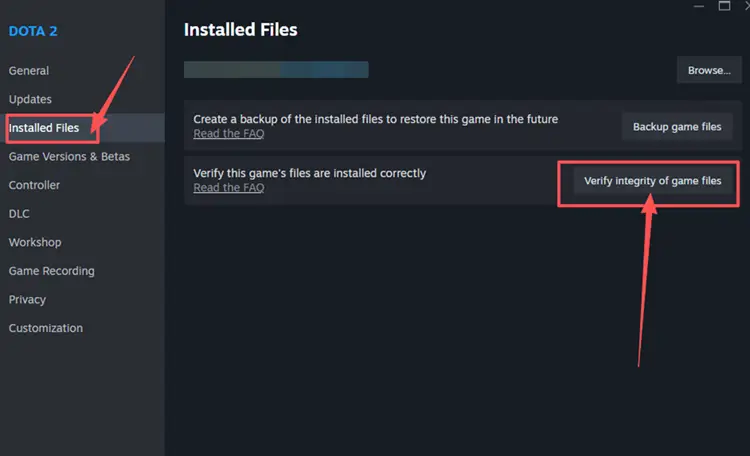
Steam will scan the installation and repair or replace damaged files. The process may take several minutes.
Fix 5. Change Your DNS Server
A slow or unavailable DNS server may prevent Dota 2 from locating Valve’s online services. Try switching to a public DNS provider:
- Google DNS: 8.8.8.8 and 8.8.4.4
- Cloudflare DNS: 1.1.1.1 and 1.0.0.1
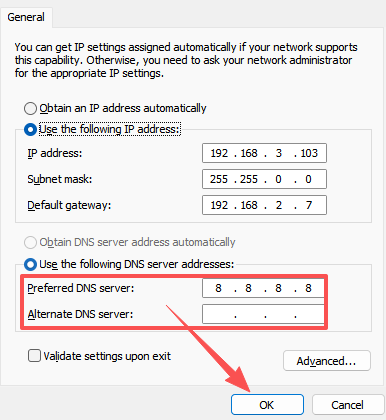
After changing the DNS settings, restart Steam and launch Dota 2 again to check whether the Game Coordinator reconnects.
Fix 6. Allow Steam and Dota 2 Through Windows Firewall
Windows Firewall or antivirus software may block Steam, Dota 2, or Steam Client WebHelper, causing Game Coordinator and matchmaking connection issues. Follow these steps:
Step 1. Press Win + S, search for Windows Security, and open it.
Step 2. Go to Firewall & network protection > Allow an app through firewall.
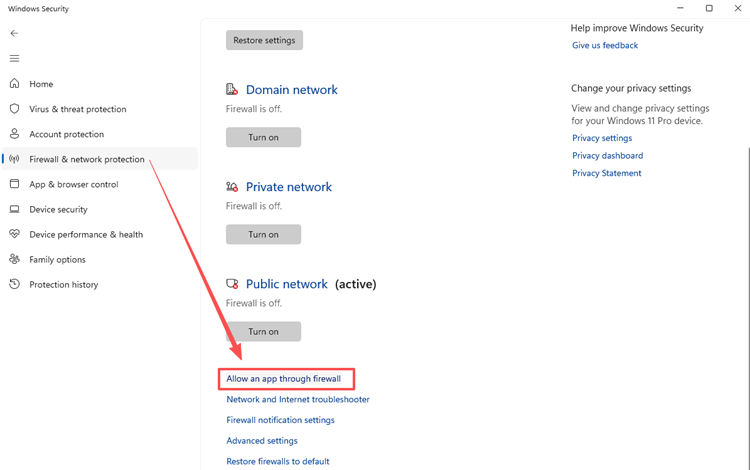
Step 3. Click Change settings, then allow:
- Steam
- Dota 2
- Steam Client WebHelper
Step 4. Check both Private and Public, then click OK.
[Bonus] Optimize Your Dota 2 Connection Route with LagZapper
When Dota 2 servers are online but the Game Coordinator still disconnects, the route between your PC, ISP, and Valve’s servers may be unstable. LagZapper optimizes this connection path to help reduce high ping, packet loss, routing instability, and unexpected disconnects during matchmaking or active matches.
LagZapper Highlights for Dota 2
- Optimizes Dota 2 server routes to help reduce lag during online matches
- Stabilizes Game Coordinator connections for smoother and faster matchmaking
- Reduces ping spikes and packet loss during team fights and active matches
- Improves cross-region routing when connecting to distant Dota 2 servers
- Provides one-click route optimization to help lower ping before playing
How to Optimize Dota 2 with LagZapper
Follow these steps to optimize your Dota 2 connection before launching the game.
Step 1. Download and Install LagZapper
Download LagZapper for Windows and follow the on-screen instructions to complete the installation.
Step 2. Sign In and Search for Dota 2
Open LagZapper, sign in, then enter Dota 2 in the search bar and select it from the supported games list.
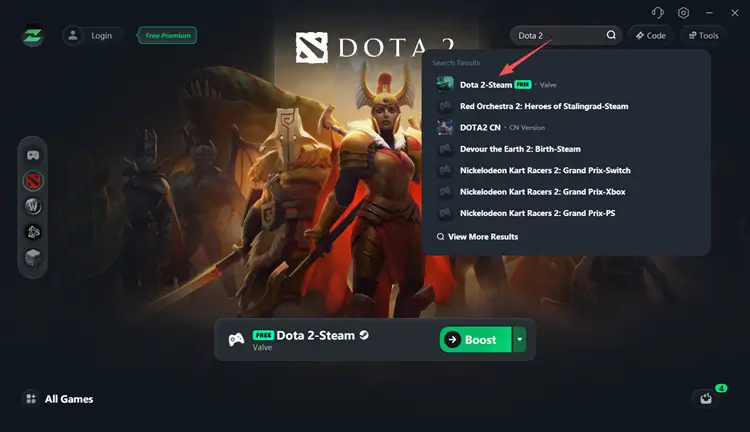
Step 3. Select a Server and Boost
Choose your preferred Dota 2 server or node, then click Boost before launching the game.
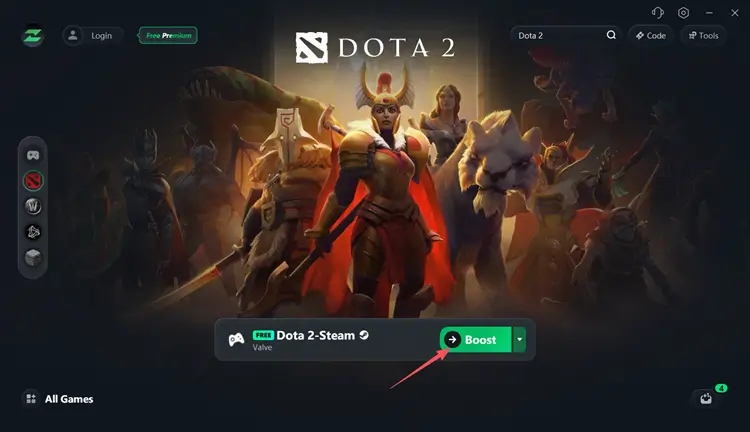
In addition to boosting Dota 2, you can browse the supported games list to find other games, such as Fortnite, AION 2, and more.
The Bottom Line
“Searching for Dota 2 Game Coordinator” may indicate a Valve outage or a local connection problem. Check the server status first, then restart Steam and your router, verify the game files, and review DNS or firewall settings.
When Dota 2 servers are online but your connection remains unstable, use LagZapper to optimize the route, reduce ping spikes and packet loss, and improve matchmaking stability. Download LagZapper and boost Dota 2 before your next match.
FAQs About the Dota 2 Game Coordinator
Q1: What does “Searching for Dota 2 Game Coordinator” mean?
It means Dota 2 cannot connect to Valve’s online services, affecting matchmaking, parties, inventory, match history, and reconnecting.
Q2: Is the Dota 2 Game Coordinator down right now?
Possibly. Check Steam Status and recent player reports. If many users are affected, it is likely a broader server-side outage.
Q3: How do I fix Dota 2 searching for the Game Coordinator?
Check the server status, restart Steam, reboot your router, verify game files, test another network, and review firewall settings.
Q4: Why is Dota 2 stuck on coordinator logging in?
The client reached the coordinator but could not complete authentication due to server load, an expired Steam session, firewall interference, or instability.
Q5: Why is Dota 2 matchmaking not working even though Steam is online?
Steam may be connected while the Game Coordinator, regional routing, DNS, or your local network is experiencing a separate problem.