
MapleStory Classic World Queue Stuck? 7 Fixes for Long Waits & Login Errors
The MapleStory Classic World queue may take longer than expected, stop moving, or reset before you reach Windia. You might also see login errors, get disconnected while waiting, or be sent back to the login screen. These symptoms can make it hard to tell whether the server is busy, the queue is stuck, or your connection has failed.
This guide will explain why the queue gets long or stuck and walk you through seven practical fixes for login errors, queue resets, and connection issues.
Why Is the MapleStory Classic World Queue So Long or Stuck?
Queue delays, login errors, and disconnects can look similar, but they need different responses. Check the table below to match your symptom with a first fix.
| Symptom | Possible Cause | First Fix to Try |
|---|---|---|
| Queue stops and players cannot log in | Maintenance or server issue | Check service notices |
| Queue is long but keeps moving | Heavy server traffic | Stay in the queue |
| Queue resets or login fails after an update | Launcher error or outdated client | Restart and update launcher |
| Queue disconnects during downloads or on Wi-Fi | Unstable local connection | Stabilize your connection |
| Disconnects continue on the same network | Network or routing issue | Test another network |
| Login fails on one PC while servers are online | Firewall restriction or damaged files | Check firewall permissions |
How to Fix MapleStory Classic World Queue Issues
Try the fixes below in order, starting with service notices before changing local settings. If your queue is still moving, stay in line rather than restarting.
Fix 1. Check Classic World Maintenance and Service Notices
Before changing any PC settings, check the official MapleStory news and Steam announcements for Classic World maintenance, login outages, or Windia capacity updates. Nexon has adjusted channel capacity around launch, so a stalled queue or widespread login error may be server-side rather than a problem with your PC.
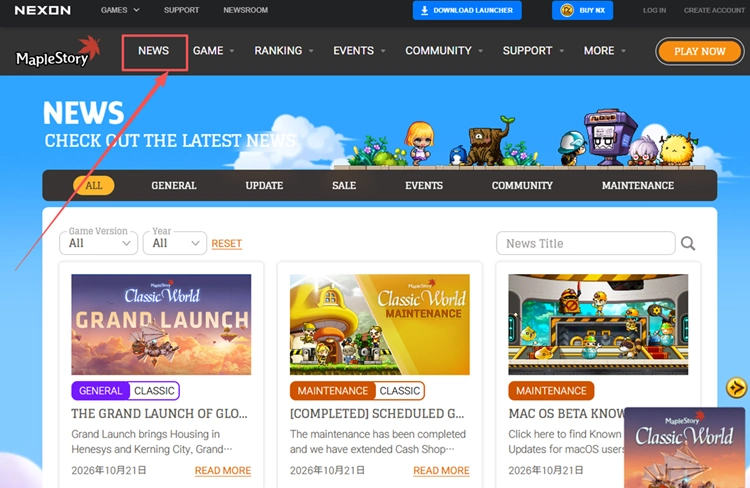
If maintenance is ongoing or other players report the same issue, wait for an official service update before changing network or launcher settings.
Fix 2. Stay in the Queue While It Is Progressing
If your MapleStory Classic World queue position is decreasing, the queue is still progressing. Keep the game open and avoid restarting Steam or Nexon Launcher, as reconnecting could mean losing your place. Only move to the next fix if the queue resets, disconnects, shows an error, or returns you to login.
Fix 3. Restart the Launcher and Install Pending Updates
If the queue resets or returns you to the login screen, close MapleStory Classic World and fully exit Steam or Nexon Launcher. Reopen the launcher and install any pending updates before reconnecting. This may resolve temporary launcher errors or outdated game files that interfere with login. Avoid restarting if your queue is still progressing.
Fix 4. Stabilize Your Connection Before Rejoining
If you were disconnected from the MapleStory Classic World queue, check your connection before joining again. Pause large downloads, streaming, and cloud syncing, then use a wired Ethernet connection instead of Wi-Fi if possible. Restart your router only if your connection remains unstable.
Fix 5. Test Another Network if Disconnects Continue
If MapleStory Classic World keeps disconnecting after you stabilize your connection, try another network, such as a mobile hotspot or a different Wi-Fi connection. If you can log in successfully, your original network or routing may be causing the issue. If both networks fail, the problem may be server-side or related to your PC.
Fix 6. Check Windows Firewall and Security Permissions
If MapleStory Classic World still shows login or connection errors while the servers are online, Windows Firewall or security software may be blocking the game or its launcher. Check their permissions instead of disabling protection. Follow the steps below.
Step 1. Open Windows Security > Firewall & network protection > Allow an app through firewall.
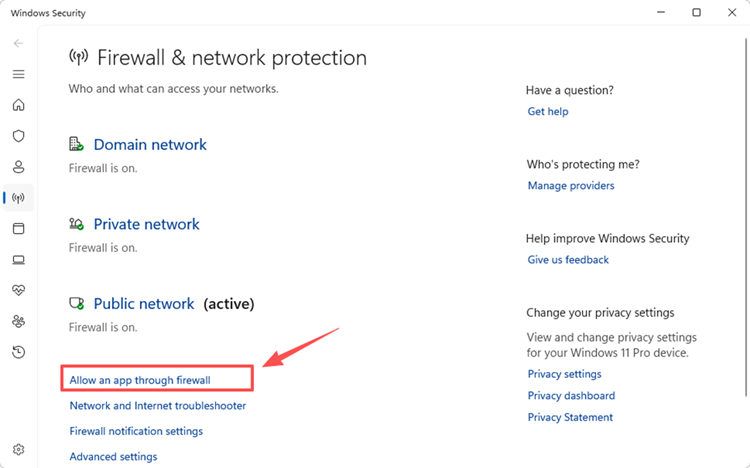
Step 2. Click Change settings. Find MapleStory and Steam or Nexon Launcher, or use Allow another app to add missing executables.
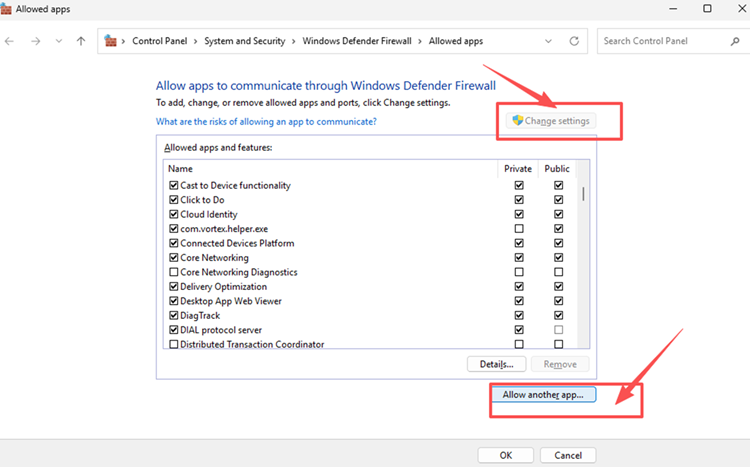
Step 3. Allow the apps on your active network profile, click OK, then relaunch Classic World.
Fix 7. Repair Game Files if Login Problems Continue
If MapleStory Classic World still fails to launch or log in after the earlier checks, missing or corrupted game files may be causing the problem. Repairing the installation can replace damaged files without reinstalling the entire game. Follow the steps for your platform below.
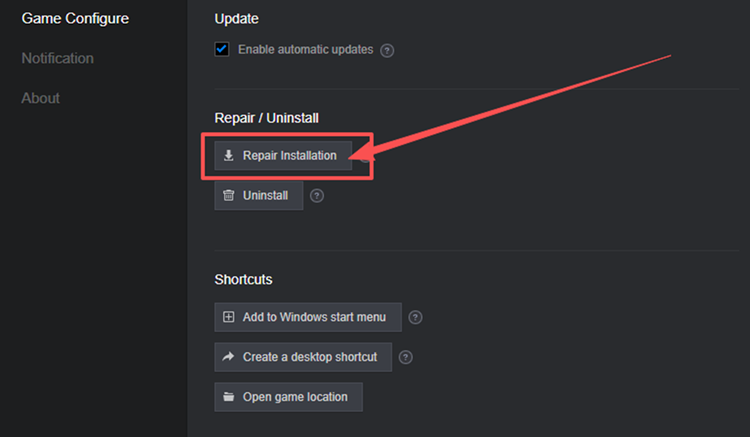
👉 Repair Installation in Nexon Launcher
Step 1. Open Nexon Launcher, click your NexonTag in the top-right corner, and select Launcher Settings > Game Configure.
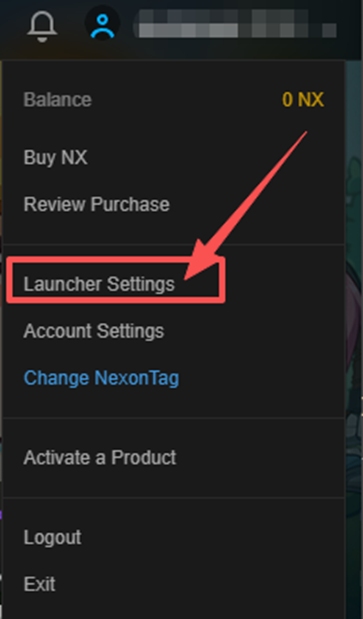
Step 2. Select MapleStory Classic World, click Repair Installation, and confirm OK. Wait for the repair to finish before launching again.
👉 Verify Game Files on Steam
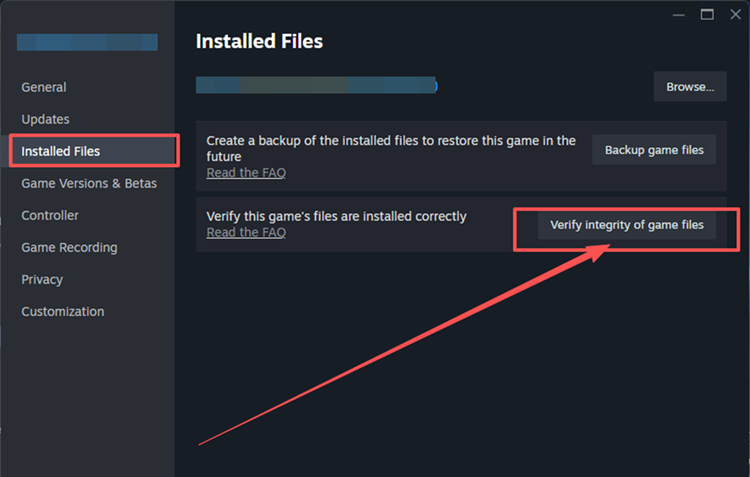
Step 1. Open Steam Library, right-click MapleStory, and select Properties > Installed Files.
Step 2. Click Verify integrity of game files and wait for Steam to finish. Then relaunch Classic World.
[Bonus] Improve Connection Stability with LagZapper
If MapleStory Classic World servers are online but you still experience high ping, packet loss, disconnects, or unstable routing, LagZapper can optimize the connection route between your PC and the game server to help improve connection stability.
Why Use LagZapper for MapleStory Classic World?
LagZapper offers the following features for supported PC games:
- Smart Route Optimization: Finds a faster, more stable route to game servers to help reduce high ping, packet loss, jitter, and routing instability.
- Reduce Lag & Improve Stability: Helps lower ping, reduce game lag, minimize lag spikes, and improve connection stability during gameplay.
- One-Click Boost: Optimizes your game connection without manually changing complicated network, DNS, or router settings.
- Support for 3,000+ Games: Supports over 3,000 PC games, including MMORPGs and other popular online games.
How to Use LagZapper for MapleStory Classic World
Follow the three steps below to optimize your connection.
Step 1. Download and Install LagZapper
Download LagZapper for Windows and follow the on-screen instructions to complete the installation.
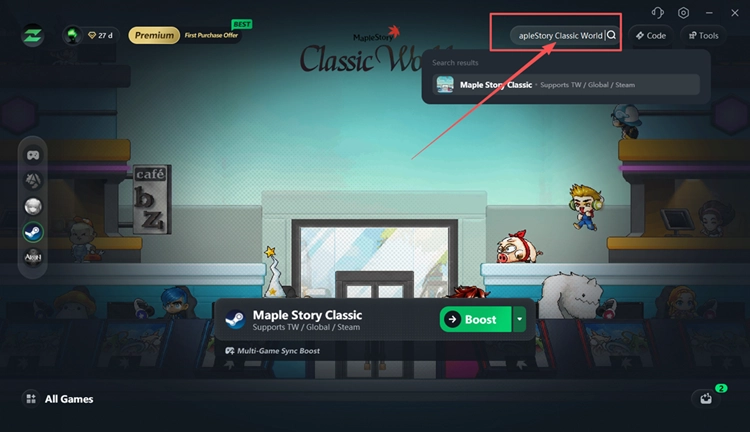
Step 2. Search for MapleStory Classic World
Launch LagZapper, sign in, and search for MapleStory Classic World in the supported games list.
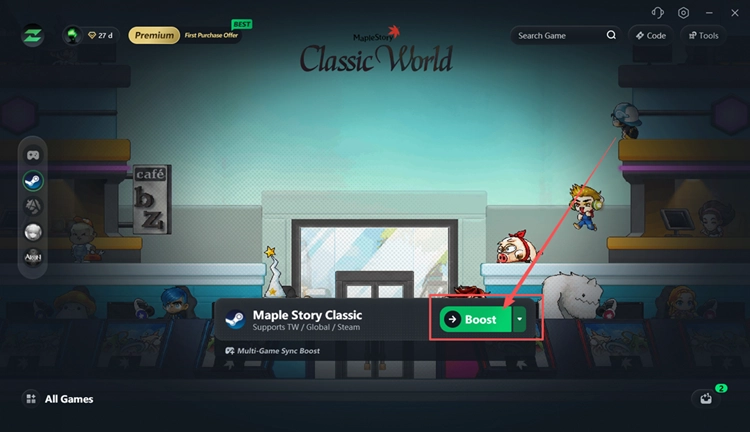
Step 3. Select a Recommended Node and Click Boost
Select a recommended node, click Boost, then launch Classic World through Steam or Nexon Launcher.
Tip: Want to learn more about the game? Check our MapleStory Classic World guide for the release date, Steam and Nexon Launcher downloads, available classes, and beginner leveling tips.
The Bottom Line
MapleStory Classic World queue issues can result from heavy server traffic, maintenance, launcher errors, unstable connections, firewall restrictions, or damaged game files. Check service notices first and stay in the queue if it keeps moving. If login or connection errors continue, follow the fixes above. For routing-related instability, download LagZapper to help optimize your connection.
MapleStory Classic World Queue FAQs
Q1. Why Is the MapleStory Classic World Queue So Long?
Heavy login traffic can exceed available server capacity, requiring players to wait for available space.
Q2. How Long Does the MapleStory Classic World Login Queue Take?
Queue time varies with server capacity and player traffic. There is no guaranteed waiting time.
Q3. Why Is My MapleStory Classic World Queue Stuck?
A stalled queue may result from server congestion or a login interruption. Check official service notices.
Q4. Why Does My MapleStory Classic World Queue Keep Resetting?
Server interruptions or lost login sessions may reset your queue position and require reconnecting.
Q5. What Causes MapleStory Classic World Login Issues After an Update?
Outdated clients or incomplete updates can disrupt login. Restart your launcher and install pending updates.
Q6. How Can I Troubleshoot MapleStory Classic World Connection Issues?
Test another network and check firewall permissions if connection errors continue while servers are online.