
Marvel Rivals Server Connection Failed? 6 Fixes for Connection Issues
Getting Marvel Rivals Server Connection Failed before the main menu? This error can stop the game from logging in, loading account data, or joining matches even when your internet works normally. Marvel Rivals connection failed issues may be caused by server maintenance, temporary outages, account-related problems, or unstable network routing. If Marvel Rivals failed to connect to server outside scheduled downtime and other online services work normally, try the 6 fixes below to restore the connection.
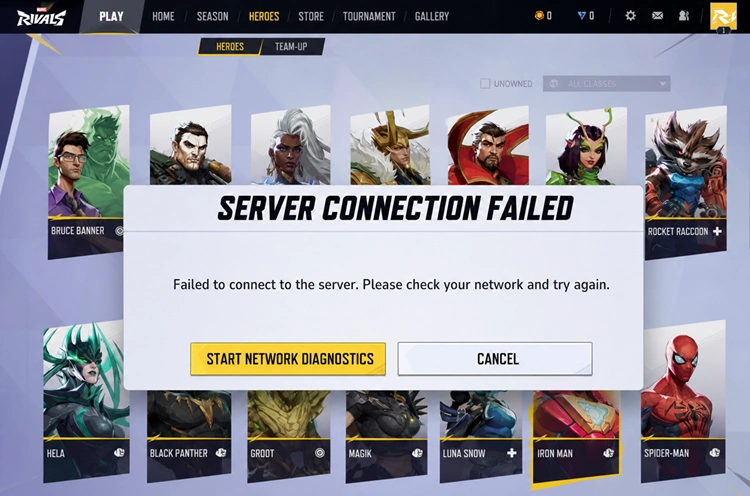
Why Does Marvel Rivals Say Server Connection Failed?
The Marvel Rivals Server Connection Failed error appears when the game cannot establish a stable connection to its online services. If Marvel Rivals can't connect to server, the cause may be on either the server side or your local network.
Common causes include:
- Marvel Rivals server maintenance or outages
- Heavy server traffic or temporary congestion
- Unstable internet or packet loss
- Poor routing to the game server
- Steam or Epic Games Launcher connection issues
- Outdated or corrupted game files
- DNS or network configuration problems
- Firewall or security software blocking the game
- Account-related connection issues
Before changing any PC or network settings, check whether the Marvel Rivals server is not working due to maintenance or a wider outage.
How to Fix “Marvel Rivals Server Connection Failed”
If Marvel Rivals failed to connect to server, try the fixes below to troubleshoot server status, network connection, launcher, and game file issues.
Fix 1. Check Marvel Rivals Server Status First
Before troubleshooting your PC or network, check whether Marvel Rivals servers are down for everyone. If there is scheduled maintenance or a widespread outage, the Marvel Rivals Server Connection Failed error may disappear once the servers return online. Here are the best ways to check the current server status:
- Official Marvel Rivals X Account: Check Marvel Rivals on X for maintenance announcements, outage notices, and updates from the developers.
- Official Marvel Rivals Discord: Join the Marvel Rivals Discord server to see official updates and real-time reports from other players.
- Downdetector: Check Downdetector for spikes in user reports. A sudden increase may indicate a widespread Marvel Rivals server issue.
- Community Reports: Check Discord discussions or social media to see whether other players are experiencing the same Marvel Rivals connection failed error.
If many players are reporting issues at the same time, the issue is likely server-side. If the servers appear online and Marvel Rivals can't connect to server only on your device, continue with the fixes below.
Fix 2. Restart Marvel Rivals and Your Game Launcher
Temporary launcher or login-session errors can cause Marvel Rivals connection issues and prevent the game from reaching its servers.
Step 1. Completely close Marvel Rivals.
Step 2. Exit Steam or Epic Games Launcher from the system tray.
Step 3. Reopen the launcher and start Marvel Rivals again.
If Marvel Rivals still can't connect to server, restart your PC and try again. Restarting the game client can also clear temporary connection or launcher-related errors.
Fix 3. Restart Your Router and Stabilize Your Connection
An unstable connection, packet loss, or temporary routing problem can cause Marvel Rivals connection failed errors even when websites and other apps still work normally.
Step 1. Turn off your router or modem for about 30 seconds.
Step 2. Turn it back on and wait for the internet connection to fully restore.
Step 3. Launch Marvel Rivals and test the connection again.
For better stability, use Ethernet when possible and pause bandwidth-heavy tasks. Restarting your router may also fix temporary Marvel Rivals connection issues.
Fix 4. Verify Marvel Rivals Game Files
Missing or corrupted game files can cause Marvel Rivals connection issues, especially after an update.
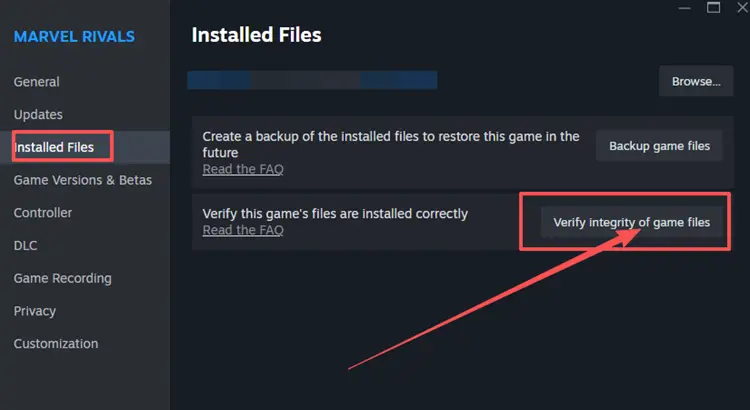
👉 On Steam
Step 1. Open Steam > Library.
Step 2. Right-click Marvel Rivals > Properties.
Step 3. Go to Installed Files > Verify integrity of game files.
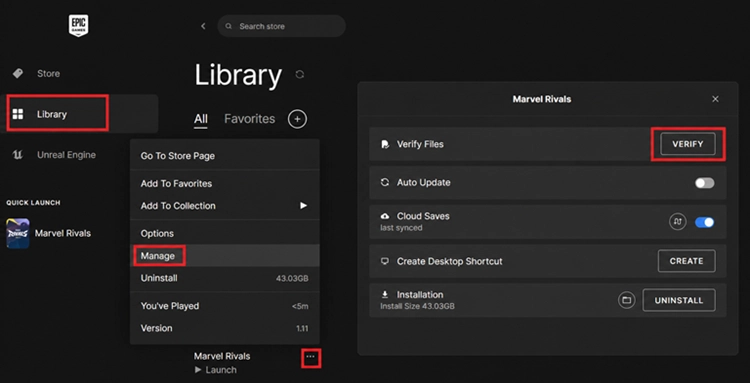
👉 On Epic Games Launcher
Step 1. Open your Library.
Step 2. Click the three dots next to Marvel Rivals.
Step 3. Select Manage > Verify.
After verification finishes, install any pending updates and restart the game.
Fix 5. Change DNS and Flush the DNS Cache
DNS issues can sometimes cause Marvel Rivals connection failed errors by disrupting access to the game’s online services.
Step 1. Search for Command Prompt and select Run as administrator.
Step 2. Enter: ipconfig /flushdns
Step 3. Restart your PC and launch Marvel Rivals again. If the issue continues, try switching to a public DNS:
- Google DNS: 8.8.8.8 / 8.8.4.4
- Cloudflare DNS: 1.1.1.1 / 1.0.0.1
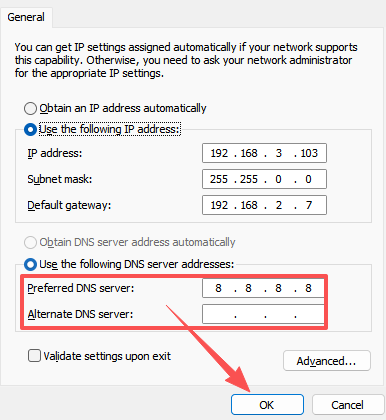
If Marvel Rivals can’t connect to server with your current DNS, changing it may help restore the connection.
Fix 6. Allow Marvel Rivals Through Windows Firewall
Firewall or security software may block Marvel Rivals or its launcher from reaching the game servers.
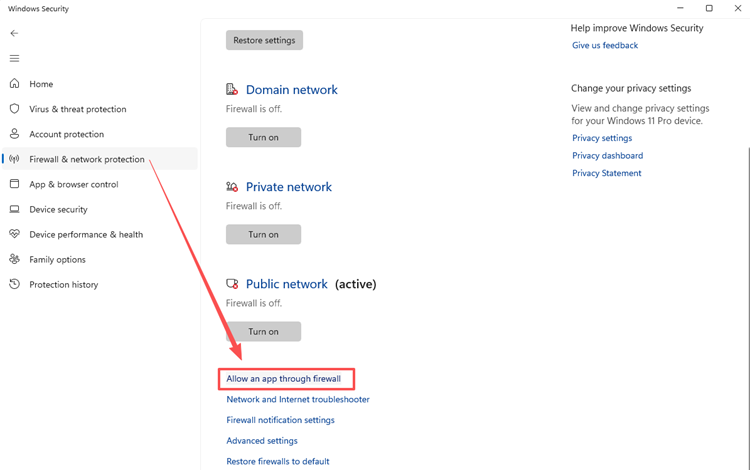
Step 1. Open Windows Security > Firewall & network protection > Allow an app through firewall.
Step 2. Click Change settings > Allow another app, then add the Marvel Rivals executable from its installation folder.
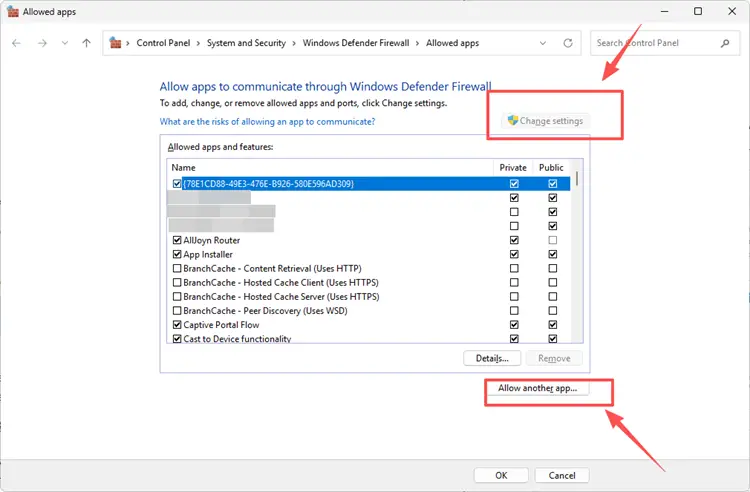
Step 3. Allow Marvel Rivals and your launcher on the active network, click OK, and relaunch the game.
Tip: Avoid disabling your firewall completely; adding Marvel Rivals and its launcher as exceptions is safer.
[Bonus] Optimize the Marvel Rivals Network Route with LagZapper
If Marvel Rivals servers are online but you still experience Server Connection Failed, high ping, packet loss, or repeated disconnects, the issue may be related to the network route between your PC and the game server. LagZapper optimizes game traffic routes and may help improve connection stability when your default route is congested or unstable.
Key Benefits of LagZapper for Marvel Rivals
- Lower high ping: Optimize routes to lower ping for faster skill response and smoother team fights.
- Reduce packet loss: Stabilize data transmission to reduce packet loss, lag spikes, and rubber-banding.
- Improve connection stability: Maintain a steadier route to reduce lag during login, matchmaking, and battles.
- Avoid congested routes: Bypass overloaded paths for a more responsive connection to Marvel Rivals servers.
- Reduce random disconnects: Improve route stability to lower the risk of drops during matches or matchmaking.
How to Boost Marvel Rivals with LagZapper - 3 Simple Steps
If Marvel Rivals servers are online but connection issues continue, LagZapper can help optimize the network route in three steps:
Step 1. Download LagZapper
Download and install LagZapper on your Windows PC.
Step 2. Search for Marvel Rivals
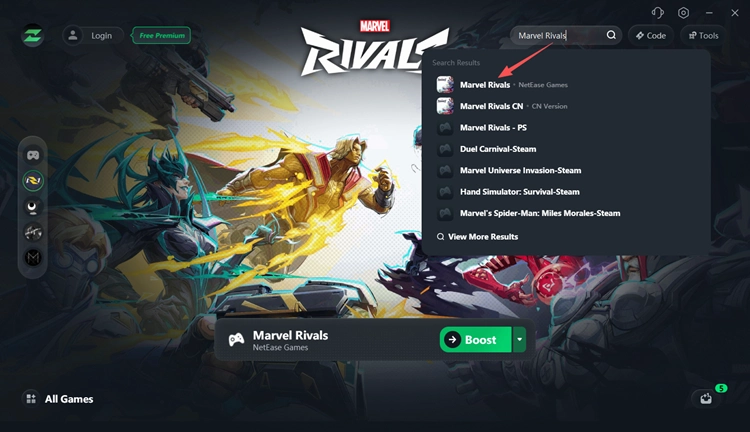
Open LagZapper, enter Marvel Rivals in the search bar, and select the game.
Step 3. Select a Node and Start Boosting
Choose a recommended node or one close to your target game server, click Boost, and then launch Marvel Rivals.
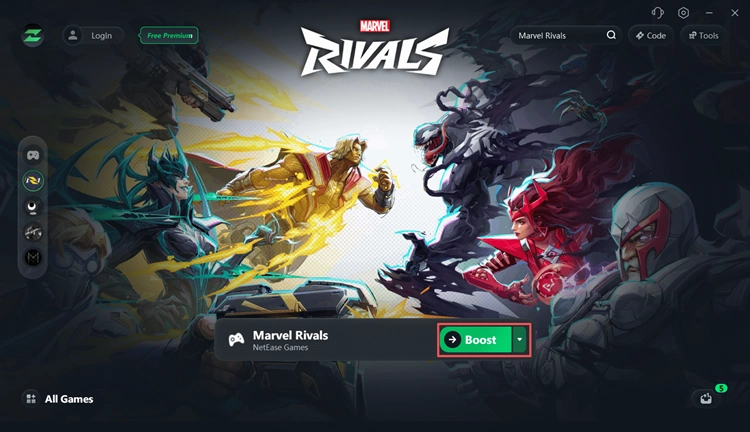
If you experience Marvel Rivals lag, high ping, or unstable connections, optimizing the network route may help improve gameplay stability.
The Bottom Line
If Marvel Rivals Server Connection Failed appears, first check server status, then restart your network, verify game files, flush DNS, and review firewall settings. If connection issues continue alongside high ping, packet loss, or unstable routing, LagZapper can help optimize the network path for a more stable connection. Download LagZapper and boost Marvel Rivals before launching the game again.
FAQs About Marvel Rivals Server Connection Failed
Q1. Are Marvel Rivals servers down right now?
Check official Marvel Rivals announcements and community reports. Scheduled maintenance and major updates can temporarily take the servers offline.
Q2. Why can’t I connect to Marvel Rivals when my internet works?
Your internet may work normally while the route to Marvel Rivals servers experiences packet loss, congestion, DNS, or ISP-related issues.
Q3. Can DNS cause Marvel Rivals connection issues?
Yes. DNS resolution problems can interfere with server connections. Flushing DNS or testing another DNS service may help isolate the issue.
Q4. Can Windows Firewall block Marvel Rivals?
Yes. Incorrect firewall rules may prevent Marvel Rivals from connecting. Allow the game and launcher through Windows Firewall instead of disabling it.
Q5. Why does another Marvel Rivals account work on the same PC?
If another account works on the same device and network, the issue may be account-specific rather than a general network failure.