
MECCHA CHAMELEON Stuck on Loading? How to Fix Infinite Loading Issues
MECCHA CHAMELEON has quickly gained attention among co-op horror fans thanks to its chaotic gameplay and unique social deduction mechanics. However, some players are getting stuck on the loading screen, experiencing infinite loading issues, or encountering errors related to authentication and game startup. This guide will break down the most common reasons behind the MECCHA CHAMELEON not loading issue and show you the best fixes to get back into the game smoothly.
Why Is MECCHA CHAMELEON Stuck on Loading?
1. Corrupted Game Files
Corrupted or incomplete game files can prevent MECCHA CHAMELEON from loading properly, often resulting in an infinite loading screen after an update, interrupted download, or unexpected crash.
2. Visual C++ Runtime Issues
Missing or damaged Visual C++ Redistributable components may prevent the game from launching correctly, causing startup failures, loading freezes, or runtime-related errors.
3. Authentication Token Errors
If the game cannot verify your Steam login session, you may encounter authentication token errors that stop MECCHA CHAMELEON from progressing past the loading screen.
4. Server Connectivity Problems
Temporary server issues, connection interruptions, or backend service outages can prevent MECCHA CHAMELEON from communicating with its servers, leaving players stuck in an endless loading loop.
How to Fix MECCHA CHAMELEON Infinite Loading
Fix 1: Install or Repair Visual C++ Redistributables
Missing or corrupted Microsoft Visual C++ Redistributables can cause MECCHA CHAMELEON infinite loading, launch failures, and other runtime issues. If the required runtime libraries are missing or damaged, the game may fail to get past the loading screen. Installing or repairing the latest Visual C++ Redistributables can often resolve these startup and loading problems.
Step 1. Download LagZapper and search for MECCHA CHAMELEON to download Microsoft's latest Visual C++.
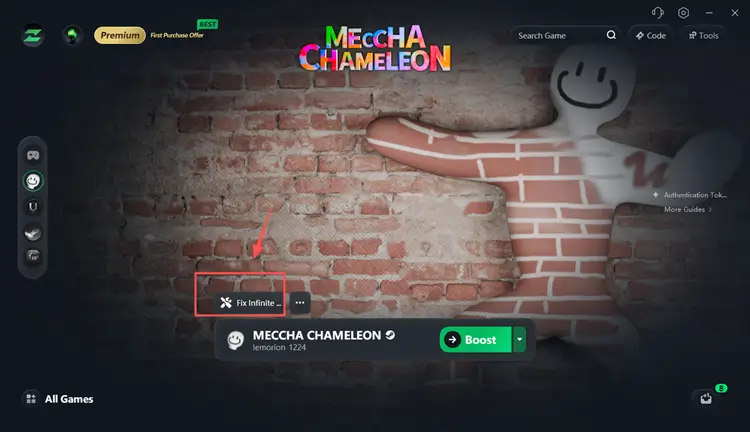
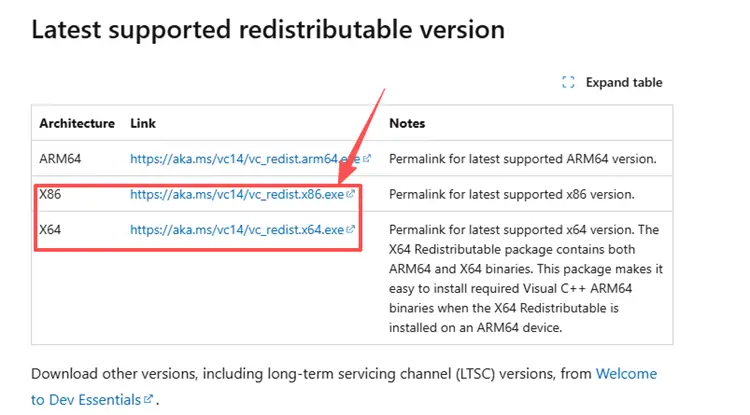
Tip: Also, you can directly visit Microsoft's latest Visual C++ Redistributable download page to find and download the latest x64 and x86 installers.
Step 2. Install the latest Microsoft Visual C++ Redistributables (both x64 and x86 versions). Skip the ARM64 version if you have a standard desktop or laptop processor.
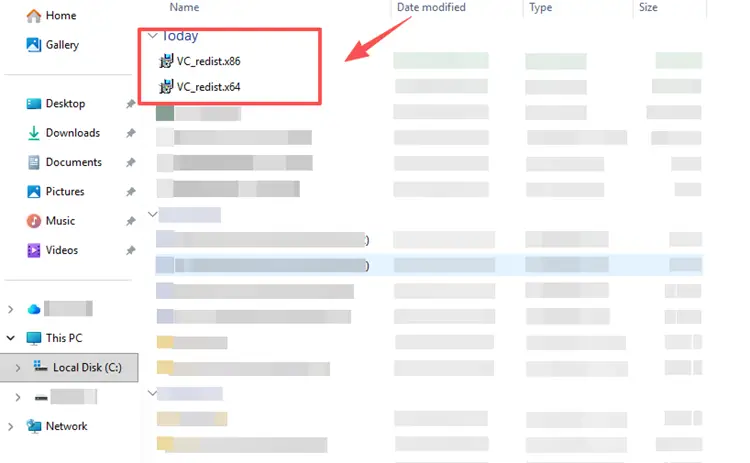
Step 3. Run both installers and complete the installation process.
Step 4. Restart your PC and launch MECCHA CHAMELEON again to check whether the loading issue has been resolved.
Fix 2: Resolve "Invalid or Missing Authentication Token" Error
The MECCHA CHAMELEON authentication token error may appear when the game is unable to verify your Steam login session or establish a valid connection with its authentication services. As a result, some players may see the error message Failed due to invalid or missing authentication token for user (e.g. not logged in) and become stuck on the loading screen before entering the game.
Step 1. Press Win + X and open Windows PowerShell (Admin).
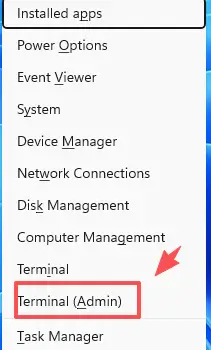
Step 2. Run netsh winhttp reset proxy.
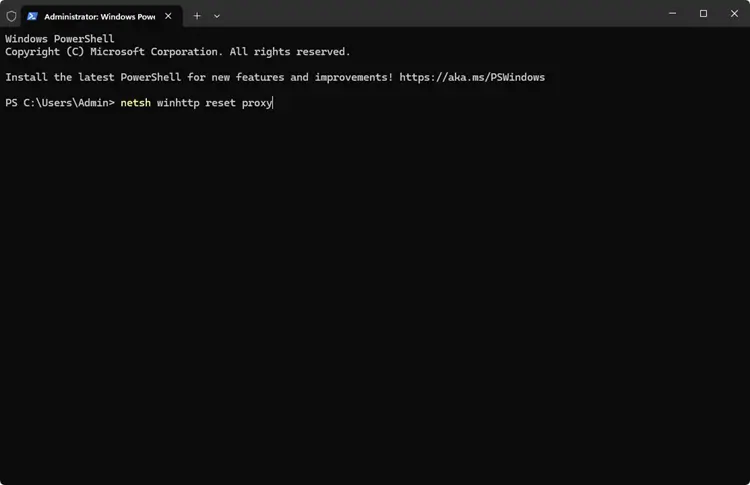
Step 3. Restart the game and try again.
Fix 3: Restart Steam and the Game
A temporary Steam session issue or a failed game initialization can sometimes cause MECCHA CHAMELEON to get stuck on the loading screen. Restarting both the game and Steam refreshes background processes, reconnects authentication services, and clears temporary conflicts that may be preventing the game from loading properly.
Fix 4: Update Your Graphics Driver
If MECCHA CHAMELEON is stuck on the loading screen, an outdated or corrupted graphics driver may be the cause. Updating your GPU driver can improve game stability and compatibility with the latest MECCHA CHAMELEON updates. Follow the steps below to download and install the latest driver from NVIDIA, AMD, or Intel.
Step 1. Open the official NVIDIA Driver Downloads page and download the latest driver for your graphics card.
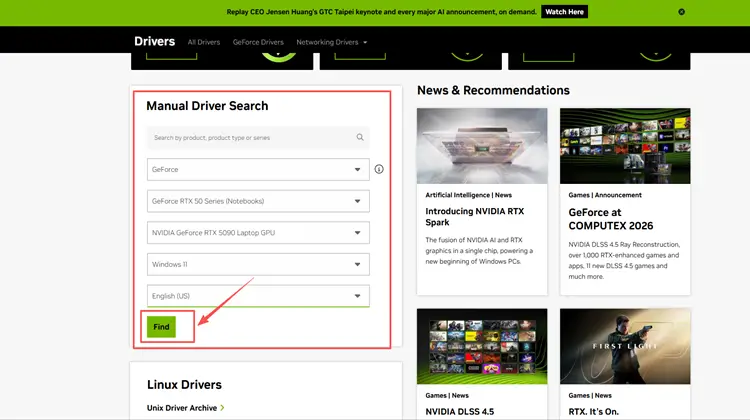
Step 2. Install the driver, restart your PC, and launch MECCHA CHAMELEON again.
Fix 5: Install DirectX Runtime Components
Missing or outdated DirectX runtime components may prevent MECCHA CHAMELEON from initializing its graphics and rendering systems properly, often resulting in a stuck loading screen or immediate launch failure. Installing the official DirectX End-User Runtime ensures all required components are present and correctly configured.
Step 1. Download the DirectX End-User Runtime Web Installer from the official Microsoft website.
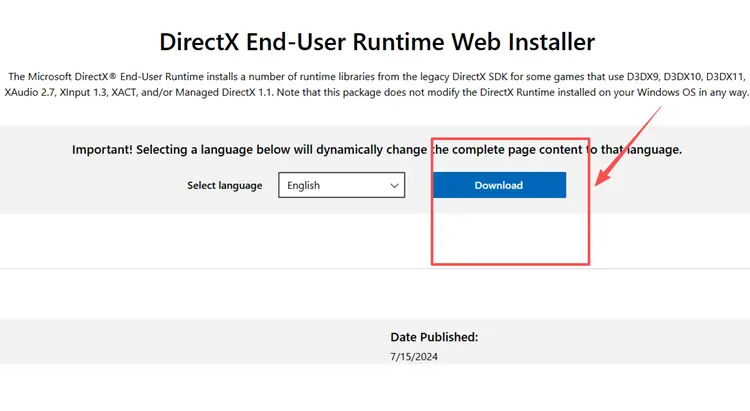
Step 2: Run the installer and follow the on-screen instructions to complete installation.
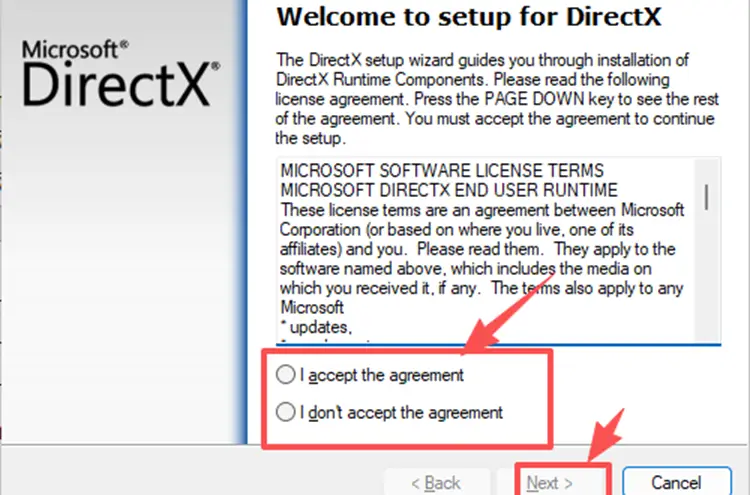
Step 3. Restart your PC and relaunch MECCHA CHAMELEON to check if the loading issue is resolved.
Fix 6: Run Steam as Administrator
Permission-related issues between Steam and Windows can sometimes prevent MECCHA CHAMELEON from properly launching or completing its loading process. Running Steam with administrator rights ensures it can fully communicate with system components and reduces the chance of launch or loading failures.
Step 1. Click the Steam shortcut and select Run as administrator.
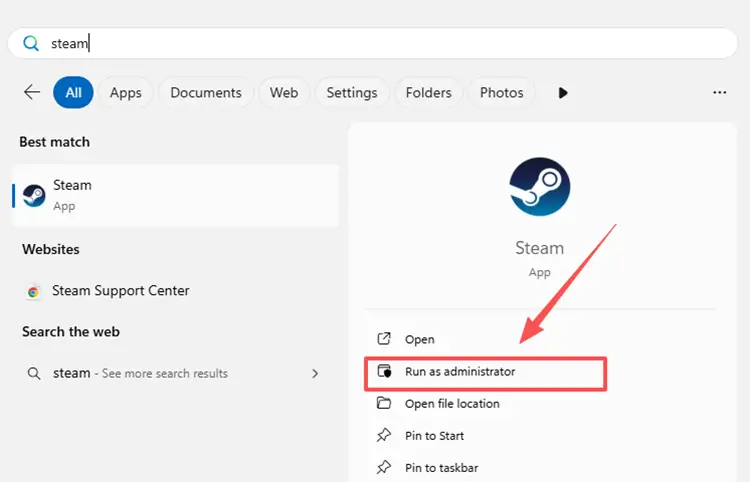
Step 2: Launch MECCHA CHAMELEON again and check if the loading issue is resolved.
Fix 7: Disable Overlays and Close Background Applications
Overlays from Steam, Discord, or GPU software can interfere with MECCHA CHAMELEON’s rendering and authentication processes, sometimes causing infinite loading or unexpected freezes. Disabling them, along with closing unnecessary background apps, can help stabilize the game and prevent loading issues.
Step 1. Press Ctrl + Shift + Esc to open Task Manager.
Step 2. Under the Processes tab, close unnecessary applications running in the background.
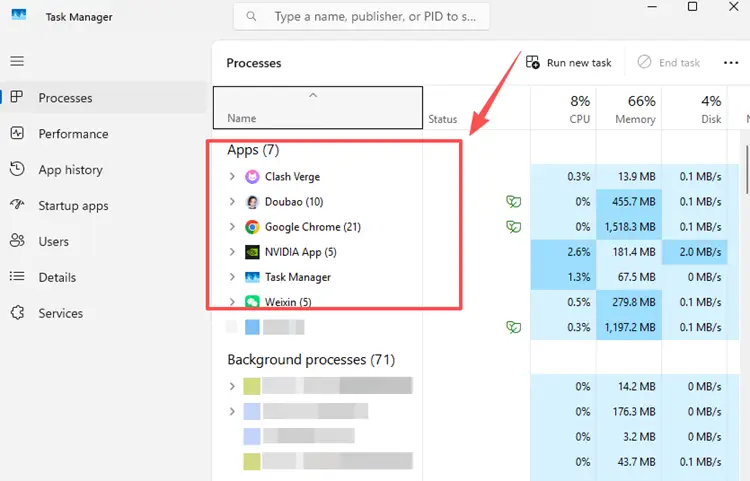
Fix 8: Verify Game Files
Corrupted or missing game files are one of the most common reasons MECCHA CHAMELEON gets stuck on the loading screen or fails to launch properly. This can happen after interrupted downloads, incomplete updates, or file conflicts within Steam. Verifying the game files allows Steam to automatically scan and repair any damaged or missing data, restoring the installation to its original state and often resolving infinite loading issues without requiring a full reinstall.
Step 1. Open Steam and go to your Library, then right-click MECCHA CHAMELEON and select Properties.
Step 2. Navigate to the Installed Files tab and click Verify integrity of game files.
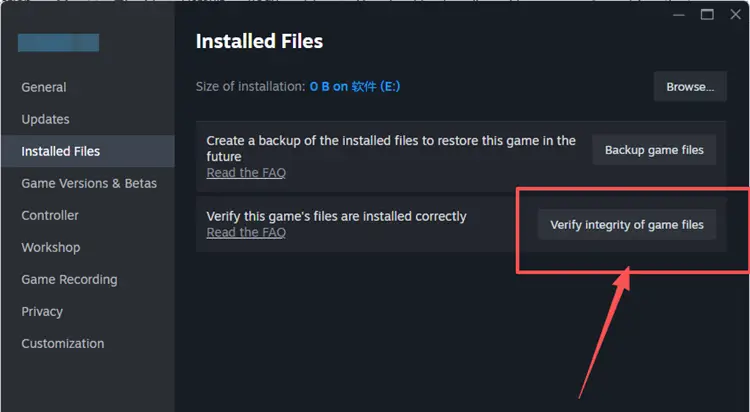
Step 3. Wait for the process to complete, then restart Steam and launch the game again.
Fix 9: Reinstall MECCHA CHAMELEON
If MECCHA CHAMELEON still gets stuck on the loading screen after trying all other fixes, a clean reinstall may help resolve deeper issues such as corrupted installation files, missing updates, or broken game dependencies. Reinstalling ensures you are using a fresh, fully updated version of the game without leftover cache or damaged data that could interfere with startup or authentication.
[Bonus] How to Optimize Your MECCHA CHAMELEON Gameplay with LagZapper
While MECCHA CHAMELEON loading issues are usually caused by game files or system-related problems, network quality still plays an important role in overall gameplay stability. Issues such as high ping, packet loss, lag spikes, and unstable server connections can easily lead to infinite loading screens or failed authentication during startup.
That’s where LagZapper can help. LagZapper is a powerful PC game booster designed to optimize your connection route to MECCHA CHAMELEON servers, reduce game lag and high ping, fix packet loss, and stabilize your network performance during peak hours or cross-region matchmaking.
[Step-by-Step Guide] How to Boost MECCHA CHAMELEON with LagZapper
Step 1. Download and Install LagZapper.
Download LagZapper for Windows and follow the on-screen instructions to complete the installation.
Step 2. Open LagZapper and Search for MECCHA CHAMELEON.
Launch LagZapper, and then use the search bar or browse the supported games list to find MECCHA CHAMELEON.
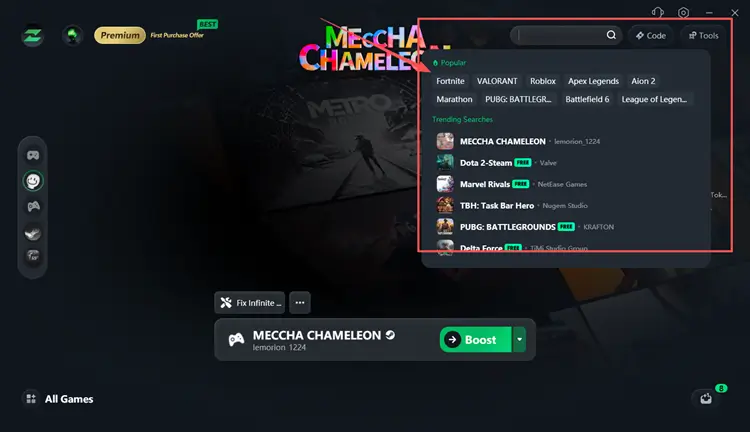
Step 3. Boost and Play MECCHA CHAMELEON.
Select your preferred server or mode if needed, then click Boost to boost MECCHA CHAMELEON.
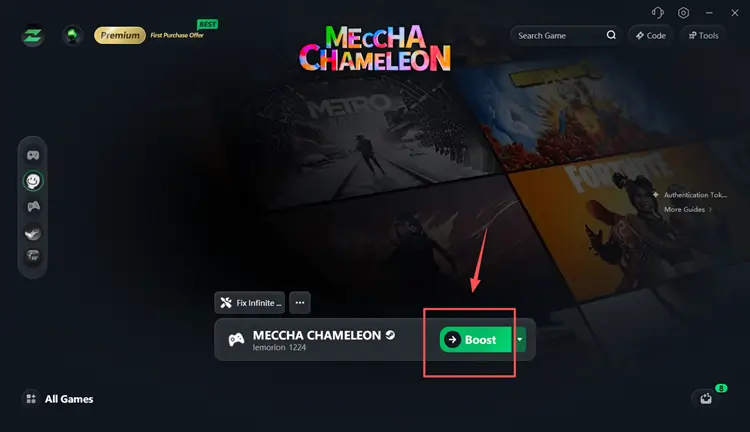
Tip: LagZapper supports 3,000+ online games, including Destiny 2, VALORANT, and Path of Exile 2.
Also Read: MECCHA CHAMELEON Can’t Join Friends? How to Fix Server Issues
The Bottom Line
MECCHA CHAMELEON stuck on loading issues are usually caused by a combination of system and network-related factors, including corrupted game files, missing Visual C++ or DirectX components, authentication token errors, and unstable server connections. In most cases, these problems can be fixed by verifying game files, updating drivers, repairing runtime libraries, and restarting Steam. If the issue is network-related, optimizing your connection can also help improve stability and reduce infinite loading during startup. By following the fixes above step by step, most players should be able to get back into the game without needing a full reinstall. To enjoy a smoother MECCHA CHAMELEON experience, consider using LagZapper Game Booster to optimize your network connection and minimize loading-related issues.
FAQ
Q1: Why is MECCHA CHAMELEON not loading?
MECCHA CHAMELEON not loading is often caused by corrupted game files, missing Visual C++ components, authentication token errors, or temporary server issues.
Q2: How do I fix MECCHA CHAMELEON infinite loading?
You can fix infinite loading by verifying game files on Steam, updating your graphics drivers, reinstalling Visual C++ Redistributables, and restarting Steam before relaunching the game.
Q3: What does “invalid or missing authentication token” mean in MECCHA CHAMELEON?
This error means the game cannot verify your Steam login session. Restarting Steam, logging in again, and ensuring a stable internet connection usually resolves the issue.
Q4: Can outdated graphics drivers cause MECCHA CHAMELEON not to load?
Yes. Outdated or corrupted GPU drivers can prevent the game from initializing properly, leading to loading freezes or black screen issues during startup.
Q5: Do I need to reinstall MECCHA CHAMELEON to fix loading issues?
Reinstalling should only be used as a last resort. Most loading issues can be resolved by verifying files, updating drivers, repairing runtime components, or restarting Steam.