
Mistfall Hunter Not Working? 7 Fixes for Launch and Connection Issues
Mistfall Hunter is a multiplayer PvPvE extraction ARPG from Bellring Games, combining dark fantasy combat with high-risk runs against monsters and rival players. However, some players may find Mistfall Hunter not working as expected, with the game failing to launch, showing a black screen or Fatal Error, stuttering during gameplay, or losing access to Steam authentication, matchmaking, and online sessions.
This guide will explain why Mistfall Hunter may stop working and provide seven useful fixes for launch, performance, and connection problems.
Is Mistfall Hunter Down? Common Problems to Check
“Not working” does not describe one specific error because the game can fail during startup, Steam authentication, loading, matchmaking, or an active session. Check the table below to identify the likely problem area.
| Mistfall Hunter Problem | Possible Cause or Area to Check |
|---|---|
| Stuck in the login queue | Heavy server traffic or authentication service |
| Steam login failed | Expired Steam session or account authentication |
| Black screen after the Unreal logo | Steam session, graphics conflict, or damaged files |
| Fatal Error or crash on startup | GPU driver, overlay, graphics feature, or damaged files |
| Stuttering when entering new areas | GPU driver, background load, or remaining optimization issue |
| Severe lag or match disconnects | Server, Wi-Fi, packet loss, or network routing |
| Keys or controller inputs fail in certain menus | Outdated build or platform-specific input/interface issue |
Tip: If the game launches but your login queue number stops changing, see Mistfall Hunter server queue stuck guide for queue-specific checks and workarounds.
Why Is Mistfall Hunter Not Working?
Several issues can leave Mistfall Hunter unable to launch, load, or stay connected, and identifying where the failure begins makes the right fix easier to choose.
Server Outages and Login Queue Problems
Maintenance or heavy traffic can delay authentication, extend queues, or block access.
Steam Authentication and Session Errors
Expired sessions or account verification failures can prevent login or launch.
Corrupted or Missing Game Files
Interrupted updates or quarantined files may cause crashes, black screens, or missing content.
Graphics Driver and Rendering Problems
Outdated drivers or incompatible graphics features can trigger Fatal Errors, stuttering, or crashes.
Overlay and Security Software Conflicts
Overlays, monitoring tools, or security software may interfere with startup or game processes.
Unstable Network and Routing Problems
Weak Wi-Fi, packet loss, or poor routing can disrupt login, matchmaking, and active sessions.
How to Fix Mistfall Hunter Not Working – 7 Useful Fixes
Try these seven fixes in order to rule out temporary service issues first and get Mistfall Hunter launching, running, and connecting normally again.
Fix 1. Check Mistfall Hunter Server Status and Known Issues
Before changing local settings, check whether Mistfall Hunter is undergoing maintenance, receiving a hotfix, or experiencing a wider login problem. Server-side outages and overloaded authentication services can affect login queues, matchmaking, or reconnection, and these problems cannot be fixed through local PC settings.
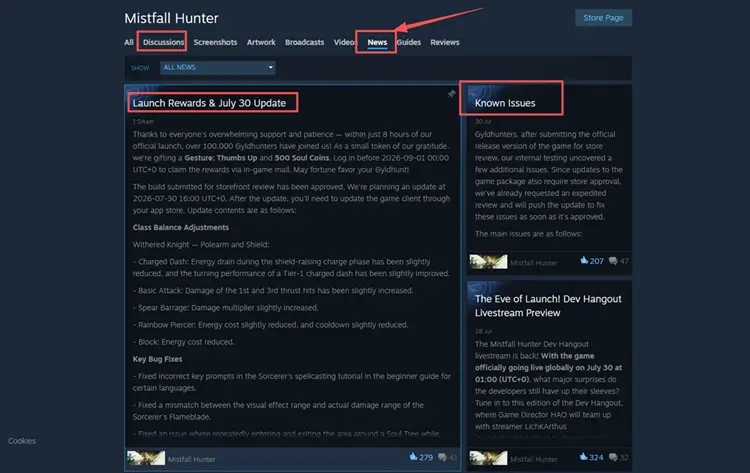
Check the game’s official Steam announcements or other official channels for maintenance notices, known issues, and recent player reports. If many players are experiencing the same login or queue problem, the servers may be unavailable or overloaded. If the issue is confirmed server-side, wait for an official fix before trying advanced local troubleshooting.
Fix 2. Fully Restart Mistfall Hunter and Steam
Closing the game window may not fully end the current Steam session. Completely exiting Mistfall Hunter and Steam, then reopening both applications, can refresh temporary client and authentication states that may cause launch, login, or update problems. Follow the steps below to restart the game and Steam properly.
Step 1. Close Mistfall Hunter. In Steam, click Steam in the upper-left corner and select Exit.
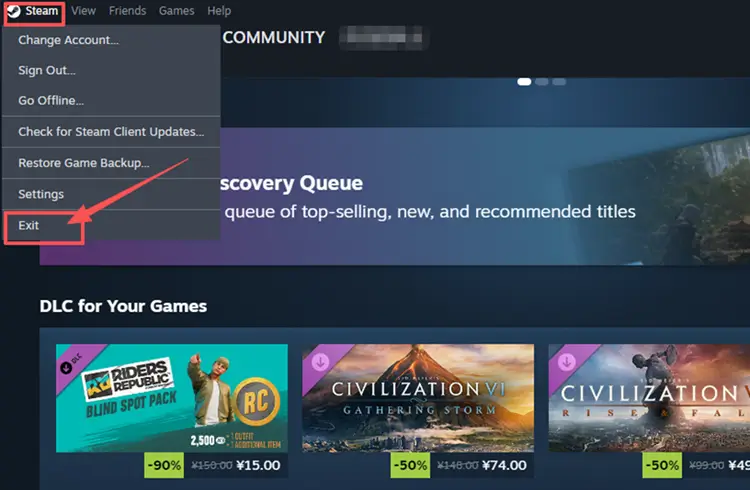
Step 2. Reopen Steam and launch Mistfall Hunter from Library.
Fix 3. Update Mistfall Hunter and Verify the Game Files
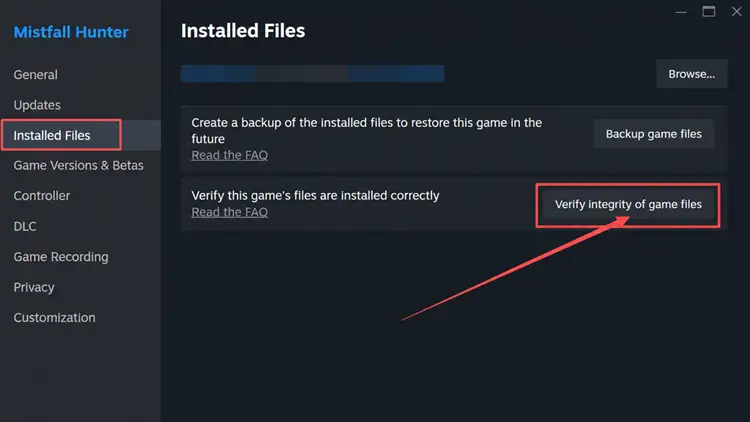
An outdated build or incomplete update can prevent Mistfall Hunter from launching, loading, or connecting properly. Check Steam for pending downloads, then verify the game files. Verification compares the local installation with the current Steam build and replaces missing or damaged files that may cause black screens or crashes. Follow the steps below to verify Mistfall Hunter on Steam.
Step 1. Open Steam Library, right-click Mistfall Hunter, and select Properties.
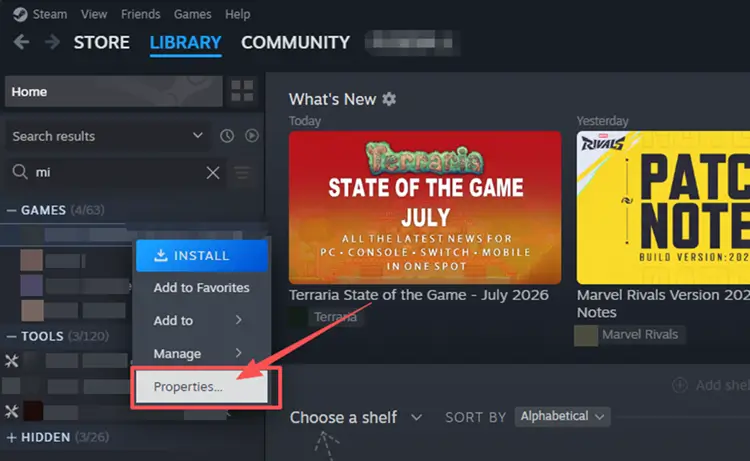
Step 2. Go to Installed Files, then click Verify integrity of game files.
Fix 4. Restart Your Router and Modem
Restart your modem and router, then wait until the internet connection is fully restored before reopening Mistfall Hunter. Launch the game and check whether the Mistfall Hunter connection error, lag, or disconnection issue improves. When possible, connect the PC directly to the router with an Ethernet cable for a more stable connection.
Fix 5. Disable Overlays and Close Unnecessary Background Applications
Overlays and background applications can compete for system resources or interfere with Mistfall Hunter, contributing to crashes, black screens, or unstable performance. Disable any unnecessary in-game overlays, such as Steam Overlay or NVIDIA Overlay. Then follow the steps below to close other unnecessary background applications before relaunching the game.
Step 1. Press Ctrl + Shift + Esc to open Task Manager.
Step 2. Under Processes, select any unnecessary background application and click End task.
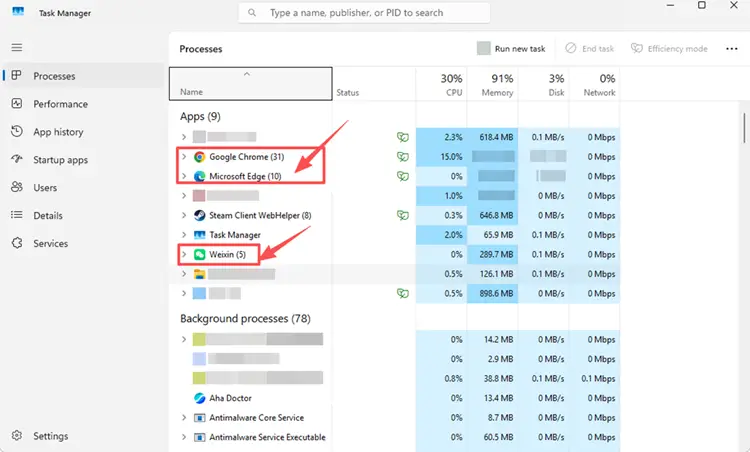
Step 3. Relaunch Mistfall Hunter and check whether the crashing or black-screen issue has been resolved.
Fix 6. Update Your GPU Driver and Fix Rendering Problems
Outdated or incompatible GPU drivers can cause Fatal Errors, black screens, stuttering, or other rendering problems in Mistfall Hunter.
👉 Update Your Graphics Driver
Installing the latest compatible driver may improve stability and resolve driver-related conflicts. Follow the steps below to identify your graphics card and update its driver through NVIDIA App.
Step 1. Open NVIDIA App on your PC and sign in if required.
Step 2. Go to the Drivers tab, check for updates, then download and install the latest Game Ready Driver if available.
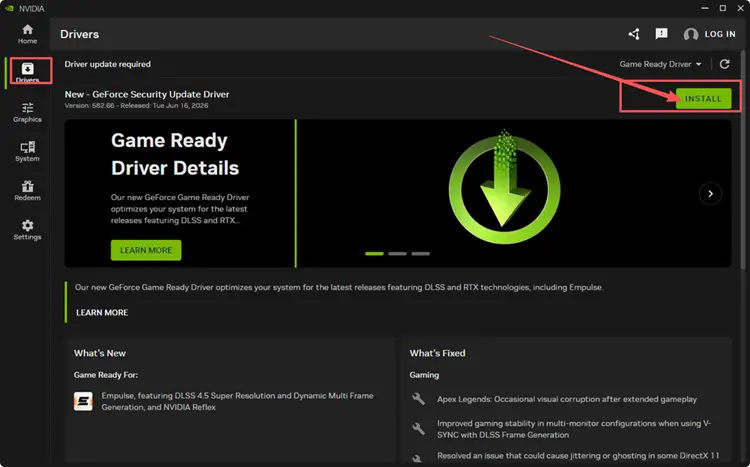
Tip: AMD and Intel users can update their drivers through AMD’s official support tool or Intel Driver & Support Assistant.
👉 Fix Mistfall Hunter Fatal Error
If a Fatal Error persists after updating the driver on a supported NVIDIA GPU, test Smooth Motion with the steps below.
Step 1. Open the NVIDIA app, go to Graphics > Program Settings, and select Mistfall Hunter.
Step 2. Scroll to Driver Settings, set Smooth Motion to Off.
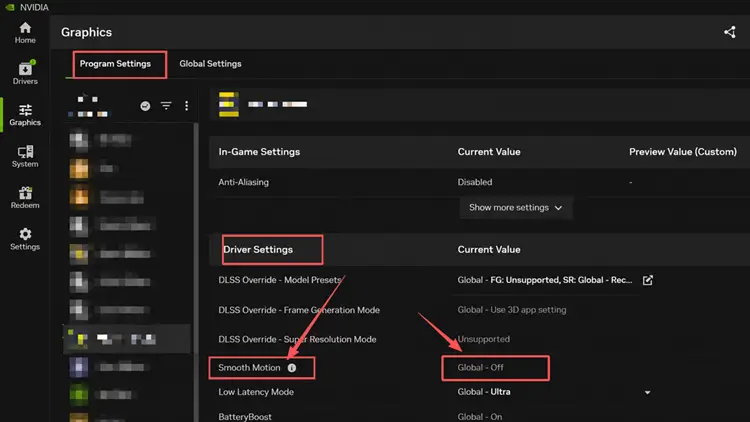
Step 3. Open Global Settings, confirm that Smooth Motion is also set to Off, then relaunch Mistfall Hunter.
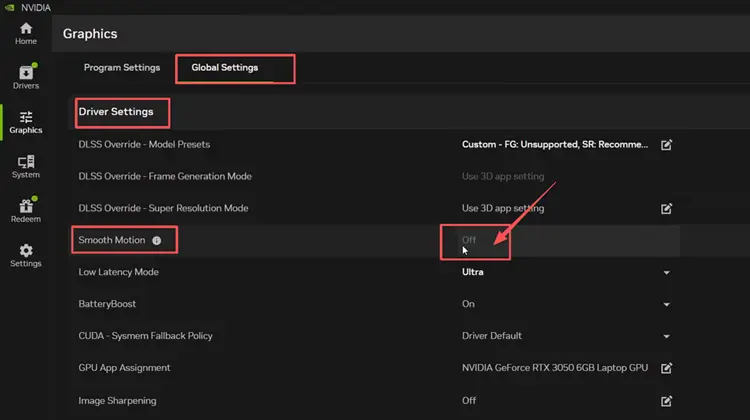
Tip: If Smooth Motion does not appear in NVIDIA App, skip this workaround.
Fix 7. Allow Mistfall Hunter and Steam Through Windows Firewall
Windows Firewall may block Mistfall Hunter, Steam, or related online services from communicating properly. Rather than disabling firewall protection, add both applications to the allowed-app list. Microsoft recommends allowing a trusted app when necessary instead of turning the firewall off or manually opening ports.
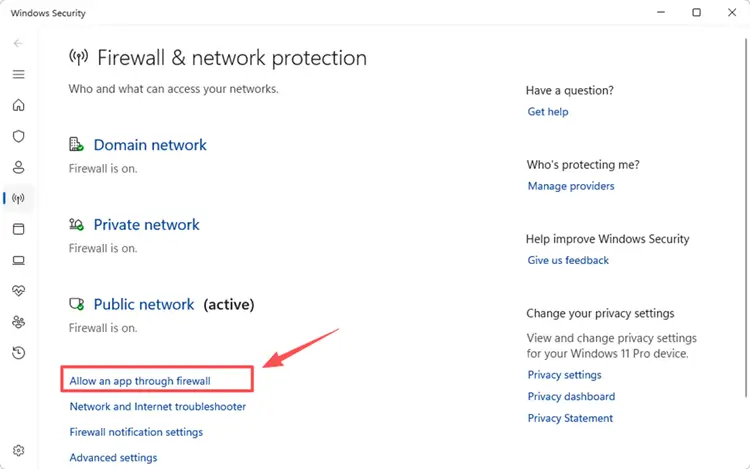
Step 1. Open Windows Security, select Firewall & network protection, and click Allow an app through firewall.
Step 2. Select Change settings, click Allow another app, and add the Mistfall Hunter and Steam executable files.
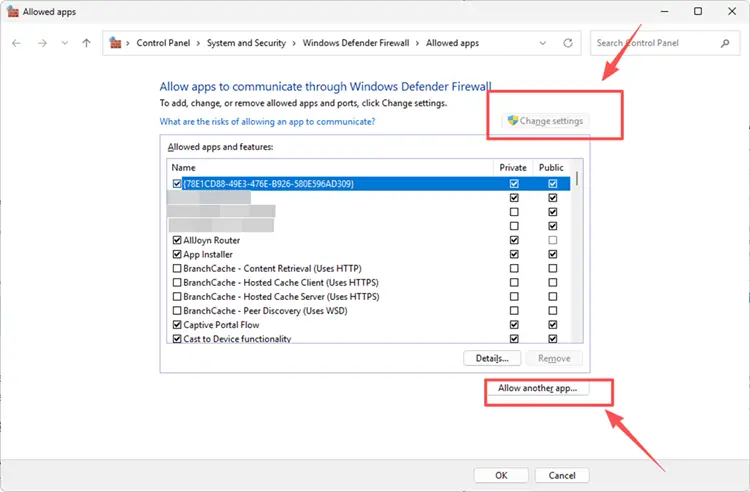
Step 3. Allow both applications on your active network profile, click OK, and restart Steam and Mistfall Hunter.
[Bonus] Optimize Mistfall Hunter Connection with LagZapper
Mistfall Hunter depends on a stable connection for login, matchmaking, real-time PvPvE combat, and extraction. If the game launches normally but online sessions remain unstable, packet loss or inefficient routing may disrupt communication with the server. If the servers are online and local fixes do not resolve the problem, download LagZapper to reduce game lag and packet loss while helping lower ping and improve connection stability.
Tip: LagZapper is an official boosting partner for Mistfall Hunter. Learn more about the LagZapper × Mistfall Hunter collaboration.
Why Use LagZapper for Mistfall Hunter Connection Issues?
- Smart Route Optimization: Finds stable routes to reduce ping, packet loss, and jitter.
- Reduce Lag & Improve Stability: Helps lower ping, reduce game lag, and prevent disconnects.
- One-Click Boost: Optimizes your connection instantly without manual network changes.
- Support for 3,000+ Games: Improves stability across 3,000+ online games.
How to Boost Mistfall Hunter with LagZapper [Step-by-Step Guide]
Follow the steps below to optimize the Mistfall Hunter connection before entering your next expedition.
Step 1. Download and Install LagZapper
Download LagZapper for Windows and follow the on-screen instructions to complete the installation.
Step 2. Open LagZapper and Search for Mistfall Hunter
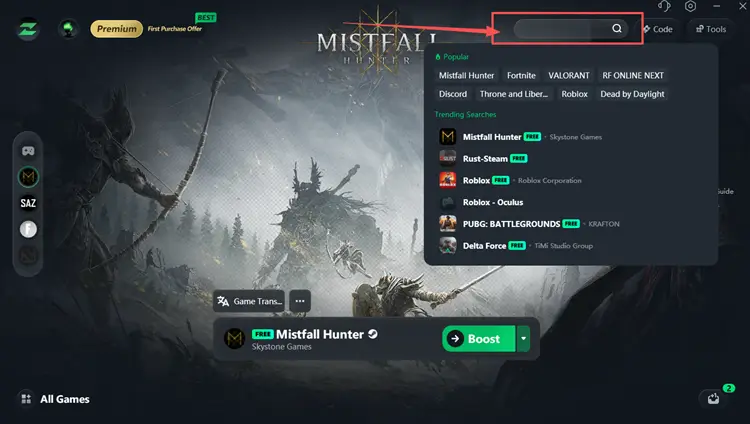
Launch LagZapper, then use the search bar or browse the supported games list to find Mistfall Hunter.
Step 3. Select a Server or Recommended Node and Boost
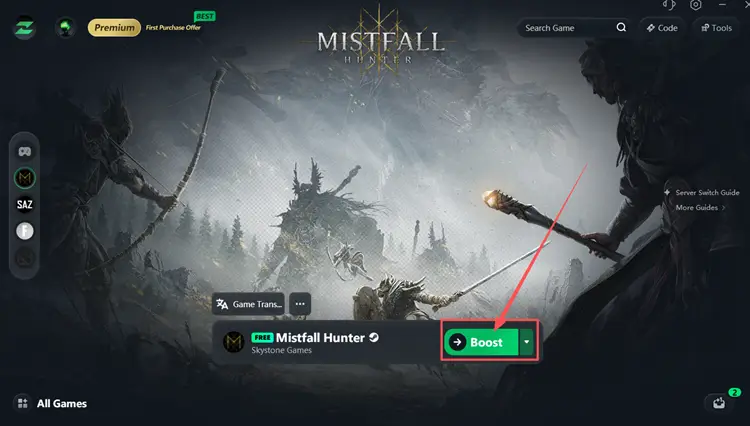
Select a server or recommended node in LagZapper, then click Boost before launching Mistfall Hunter.
The Bottom Line
Mistfall Hunter not working issues may come from server disruptions, Steam authentication errors, damaged files, graphics conflicts, background software, or an unstable network. Check the official server status first, then apply the fix that matches your symptoms. If the game launches but login or matches remain unstable, download LagZapper to optimize routing, reduce packet loss, lower ping, and improve connection stability.