
Palworld 1.0 Won’t Launch? Fix Crashing on Startup on PC - 8 Fixes
After updating to Palworld 1.0, some players have reported that Palworld won’t launch properly. Palworld may briefly appear as Running on Steam, open to a black screen, display a crash report, or close before reaching the main menu. No matter what is causing “Palworld 1.0 not to launch”, this guide shows 8 practical fixes to help resolve Palworld crashing on startup and get the game running again on PC.
Why Won’t Palworld Launch or Keep Crashing on Startup?
Palworld may fail to launch or crash during startup for several reasons, including:
- Outdated mods conflict with Palworld 1.0 files
- Leftover mod loaders still run during startup
- Corrupted or missing game files block launch
- The Palworld 1.0 update was not installed fully
- Outdated GPU drivers cause startup crashes
- Overlays or antivirus software block the game
How to Fix Palworld Won’t Launch After Update 1.0 - 8 Fixes
If Palworld won’t launch after the 1.0 update, try the 8 fixes below to resolve startup crashes and get the game running again.
Fix 1. Completely Remove Old Palworld Mods
Outdated mods are one of the most common reasons Palworld won’t launch after the 1.0 update. Because Palworld 1.0 changed core game systems, files, and mod support, older mods may cause Palworld not launching.
#1. Clean Up Old Mods with LagZapper
LagZapper game booster includes a One-Click Mod Cleanup tool that scans the Palworld installation folder for leftover mod files and loaders.
Step 1. Download, install, and open LagZapper on your PC > Search for and select Palworld.
Step 2. Go to Tools > One-Click Mod Cleanup and back up your save files when prompted.
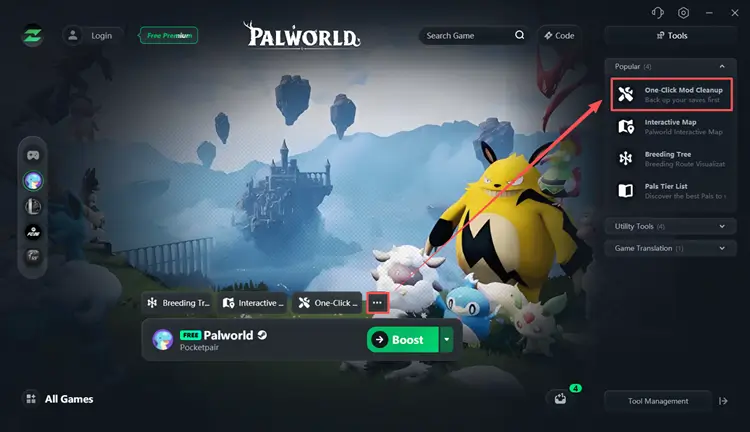
Step 3. Scan for outdated mods and remove the detected files > Restart your PC and relaunch Palworld.
#2. Remove Manually Installed Mods
Besides using LagZapper’s One-Click Mod Cleanup tool, you can manually remove old Palworld mods by following these steps:
Step 1. Open Steam, go to Library, right-click Palworld, and select Manage > Browse Local Files.
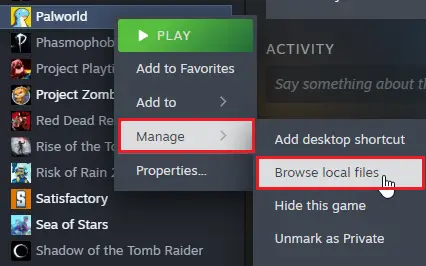
Step 2. Check these folders:
- Open Pal\Content\Paks and remove third-party .pak, .ucas, and .utoc mod files.
- Open Pal\Binaries\Win64 and remove leftover mod loaders or third-party files, including UE4SS files when applicable.
Step 3. Restart your PC, verify the game files, and launch Palworld again.
Tip: Back up uncertain files before deleting them, then verify the game files to restore official files.
Fix 2. Verify Palworld Game Files
The Palworld 1.0 update may leave corrupted or mismatched files, causing launch or connection timed out errors. Verifying the files lets Steam replace damaged components.
Step 1. Open Steam, go to Library, right-click Palworld, and select Properties.
Step 2. Open Installed Files and click Verify integrity of game files.
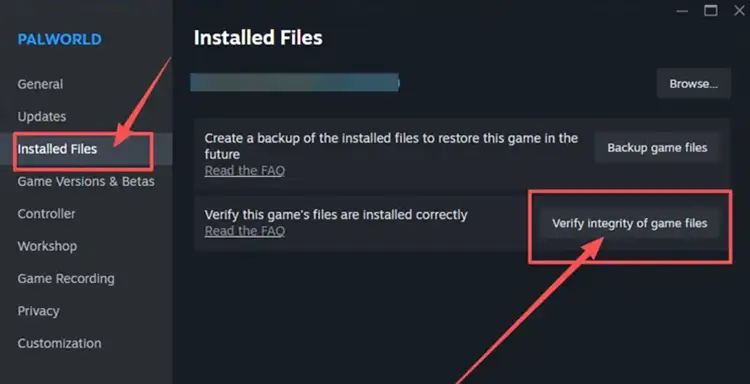
Step 3. Wait for Steam to finish scanning and repairing the files, then restart Steam and relaunch Palworld.
Fix 3. Update Your Graphics Driver and Windows
Outdated or damaged graphics drivers can cause Palworld to show a black screen, crash on startup, or fail to launch. Download and install the latest stable driver for your GPU:
- NVIDIA: NVIDIA App or the GeForce driver page
- AMD: AMD Software: Adrenalin Edition
- Intel: Intel Driver & Support Assistant
After updating the driver, follow the simple steps to update Windows:
Step 1. Press Windows + I and open Windows Update.
Step 2. Click Check for updates and install all available system and driver updates.
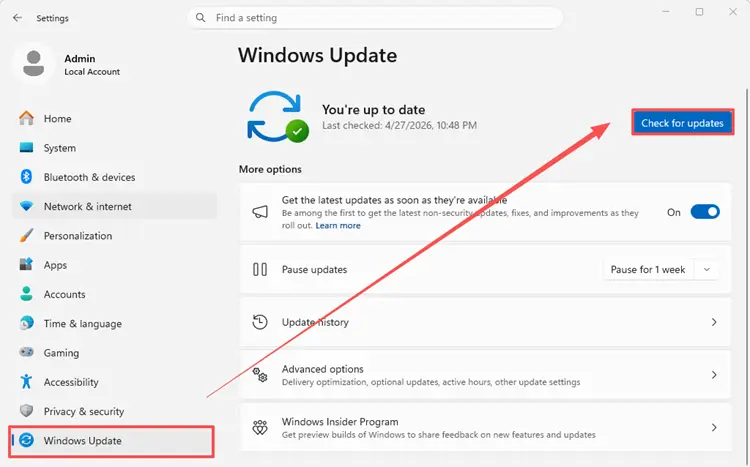
Step 3. Restart your PC and launch Palworld again.
Fix 4. Disable Overlays and Background Programs
Game overlays and monitoring tools can conflict with Palworld during startup, causing a black screen, immediate crash, or crash report.
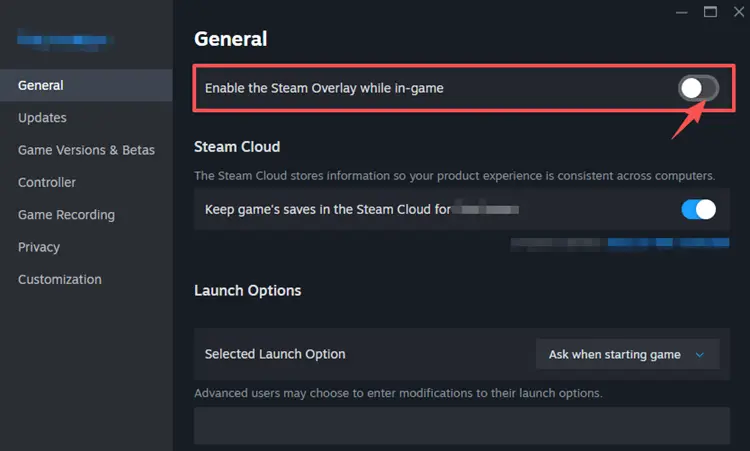
#1. Disable the Steam Overlay
Open Steam, go to Library, right-click Palworld, and select Properties > General. Turn off Enable the Steam Overlay while in-game.
#2. Close Background Programs
Open Task Manager and temporarily disable Discord, NVIDIA, AMD, Xbox Game Bar, MSI Afterburner, RivaTuner, Overwolf, and recording tools.
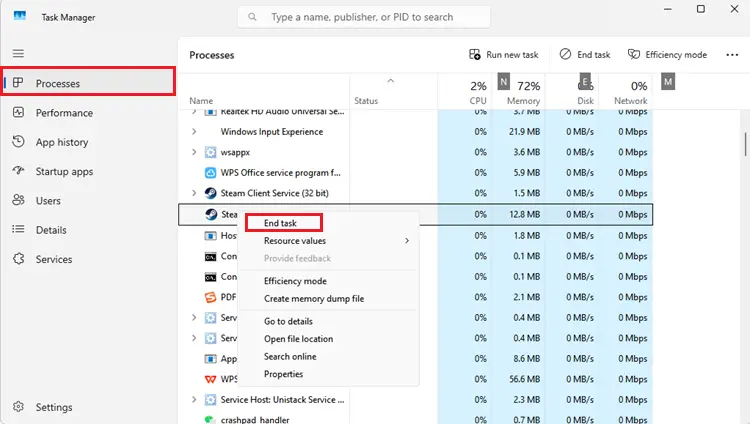
After that, restart your PC and relaunch Palworld. If it works, re-enable each program individually to identify the conflict.
Fix 5. Reset Palworld Configuration Files
Corrupted settings, shader cache, or old configuration files may cause Palworld to crash before reaching the main menu. Resetting the configuration allows the game to create fresh files.
Step 1. Close Palworld and Steam. Press Windows + R, enter %localappdata%\Pal\Saved, and press Enter.
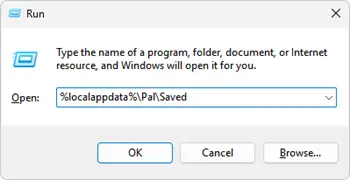
Step 2. Back up the folder, then rename Config to Config_Backup.
Step 3. Restart your PC and launch Palworld. The game will create a new Config folder automatically.
Note: Do not delete the SaveGames folder, as it contains your local worlds and character data.
Fix 6. Allow Palworld Through Windows Security
Firewall or antivirus software may block Palworld, PalServer, or related game traffic after an update. This can cause launch failures, connection errors, or startup crashes. Here’s how to allow Palworld through Windows Firewall:
Step 1. Press Win + S, type Windows Security, and open it.
Step 2. Go to Firewall & network protection > Allow an app through firewall.
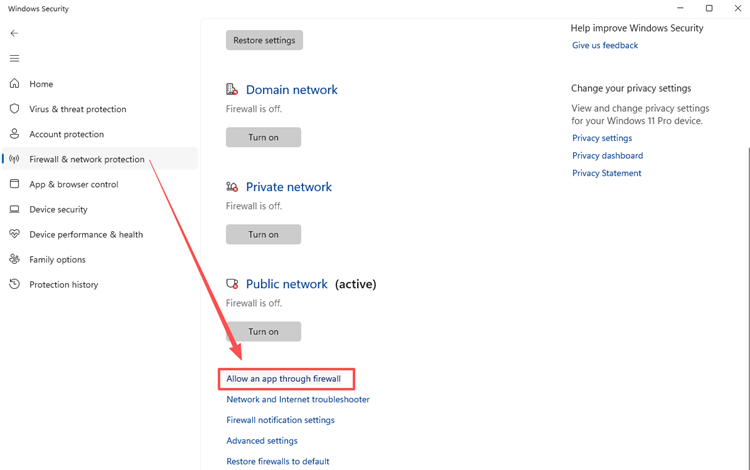
Step 3. Click Change settings, then check whether the following apps are allowed:
- Palworld
- PalServer
- Palworld-Win64-Shipping.exe
Step 4. Make sure both Private and Public boxes are checked, then click OK to save the changes.
Fix 7. Reinstall Microsoft Visual C++ Components
Missing or damaged Microsoft runtime files can prevent Palworld and its Unreal Engine components from launching correctly.
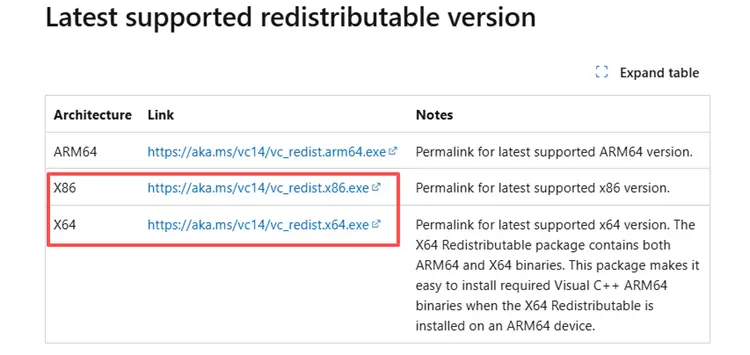
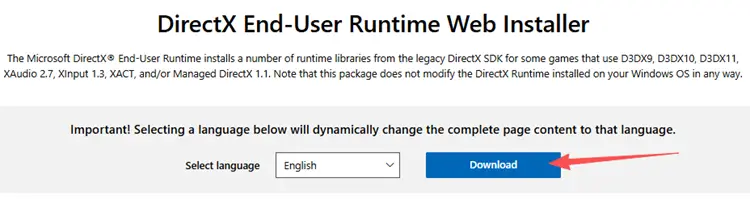
Step 1. Download and install or repair the latest supported versions of:
- Microsoft Visual C++ Redistributable packages for both x64 and x86
- DirectX End-User Runtime Web Installer
Step 2. Restart your PC after the installation.
Step 3. Launch Palworld again to check whether the startup issue is resolved.
Fix 8. Perform a Clean Palworld Reinstall
A standard reinstall may not fix Palworld if old mods or custom files remain in the installation folder. Perform a clean reinstall instead:
Step 1. Back up the SaveGames folder and unsubscribe from all Steam Workshop mods.
Step 2. Uninstall Palworld through Steam, open the previous installation directory, and delete any remaining Palworld files.
Step 3. Restart your PC, reinstall Palworld on an SSD with enough free space, and launch the game before restoring saves, mods, or custom files.
Tip: Install Palworld on an SSD with at least 40 GB of free space, plus extra room for future updates.
[Bonus] How to Play Palworld 1.0 with Friends [No Lag]
Once the Palworld won’t launch issue is fixed and the game opens normally, you can focus on smoother multiplayer. High ping, packet loss, and unstable routing may cause delayed actions, rubberbanding, or disconnections when playing with friends. LagZapper, as a powerful PC game booster, optimizes your connection route to help lower ping, reduce packet loss, and improve Palworld 1.0 multiplayer stability.
Highlights of LagZapper for Palworld
- One-Click Boost: Select Palworld, choose a server, and start boosting without changing complex network settings.
- Reduce Lag: Improves unstable Palworld network routes to reduce lag, delayed actions, and sudden ping spikes.
- Reduce Packet Loss: Stabilizes Palworld data transmission to reduce packet loss, rubberbanding, freezes, and disconnects.
- Lower Ping: Optimizes Palworld connection routes to lower ping for faster movement, combat, and Pal commands.
How to Use LagZapper for Palworld [Step-by-Step Guide]
Follow these steps to optimize your Palworld connection before joining a multiplayer server or playing with friends.
Step 1. Download and Install LagZapper
Download LagZapper for Windows and complete the installation.
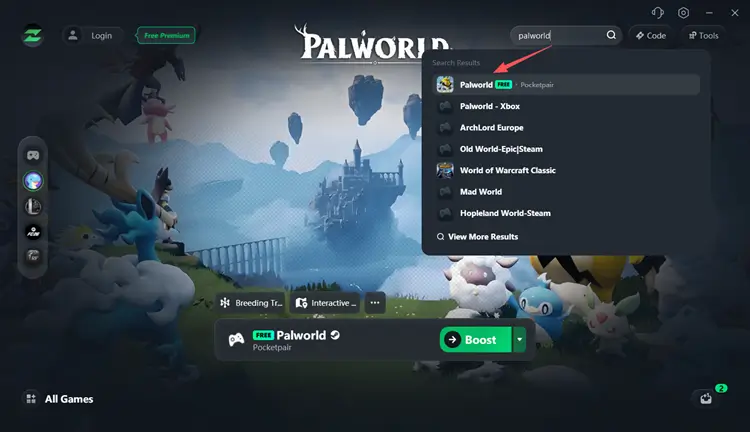
Step 2. Open LagZapper and Select Palworld
Launch LagZapper, sign in to your account, search for Palworld, and select the game.
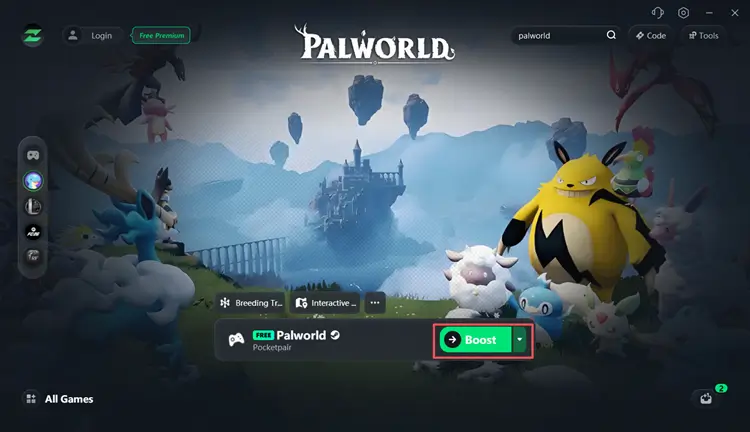
Step 3. Choose a Server and Start Boosting
Select your preferred region or server, then click the Boost button before launching Palworld.
The Bottom Line
When Palworld won’t launch after the 1.0 update, start by removing old mods and mod loaders completely. Then verify the game files, update Windows and your graphics driver, disable overlays, allow Palworld through Windows Security, and reset the local configuration. Once Palworld launches normally, download LagZapper for Windows to optimize your connection route, lower ping, and reduce packet loss.
FAQs About Palworld 1.0 Won’t Launch
Q1: Why won’t Palworld launch after the 1.0 update?
Old mods, corrupted files, outdated drivers, or incomplete updates may prevent Palworld 1.0 from launching correctly.
Q2: Can old mods cause Palworld to crash on startup?
Yes. Outdated mods and leftover loaders may conflict with Palworld 1.0 and cause immediate startup crashes.
Q3: How do I fix Palworld not launching on Steam?
Remove old mods, verify game files, update drivers, disable overlays, and allow Palworld through Windows Security.
Q4: Do I need to reinstall Palworld if it still won’t launch?
Try a clean reinstall if other fixes fail, especially when leftover mods or custom files remain.