
Phantom Blade Zero Crashing? 6 Fixes for Startup & Desktop Crashes
Phantom Blade Zero crashing on PC can interrupt gameplay, cause sudden crashes to desktop, or prevent the game from launching on Steam. Some players may encounter a crash on startup, while others experience freezing or unexpected shutdowns during demanding scenes.
Common causes include outdated graphics drivers, corrupted game files, insufficient hardware, high graphics settings, and background software conflicts. This guide covers six practical fixes for Phantom Blade Zero startup crashes, random crashes, and launch issues on Windows PCs.
Why Does Phantom Blade Zero Keep Crashing?
Common causes of Phantom Blade Zero crashing on PC include:
- Outdated GPU Drivers: Incompatible graphics drivers may cause random crashes, freezing, or startup failures.
- Corrupted Game Files: Missing or damaged files may trigger crashes during startup or loading.
- High Graphics Settings: Demanding settings may increase GPU workload, causing freezing or unexpected crashes.
- Overlay Conflicts: Steam, Discord, or recording overlays may interfere with gameplay and cause crashes to desktop.
- Insufficient Hardware or Storage: Low RAM, unsupported GPUs, or insufficient SSD space may cause installation and performance issues.
- Windows or System Issues: Outdated components, software conflicts, or system instability may trigger recurring crashes.
How to Fix Phantom Blade Zero Crashing on PC
Try these six fixes to resolve startup failures, random crashes, and unexpected crashes to desktop.
Fix 1. Check Phantom Blade Zero System Requirements
Insufficient hardware or SSD space may cause Phantom Blade Zero crashing on PC, freezing, or failing to launch. Make sure your PC meets the Phantom Blade Zero system requirements.
| Component | Minimum Requirement |
|---|---|
| OS | Windows 10/11 64-bit |
| CPU | Intel i7-8700K / Ryzen 5 3600 |
| GPU | GTX 1660 6GB / RX 5500 XT 8GB |
| RAM | 16 GB |
| DirectX | Version 12 |
| Storage | SSD required |
Step 1. Press Windows + R, type dxdiag, and press Enter.
Step 2. Under the System tab, check your CPU, RAM, Windows version, and DirectX version. Open the Display tab to check your GPU.
Step 3. Compare your specs with the minimum requirements and check SSD space under File Explorer > This PC. (Ensure at least 145 GB for installation.)
Fix 2. Verify Phantom Blade Zero Game Files on Steam
Missing or corrupted game files may cause a Phantom Blade Zero crash on startup, loading failures, or unexpected crashes. Use Steam's built-in verification tool to repair damaged files.
Step 1. Open Steam > Library, right-click Phantom Blade Zero, and select Properties.
Step 2. Go to Installed Files > Verify integrity of game files.
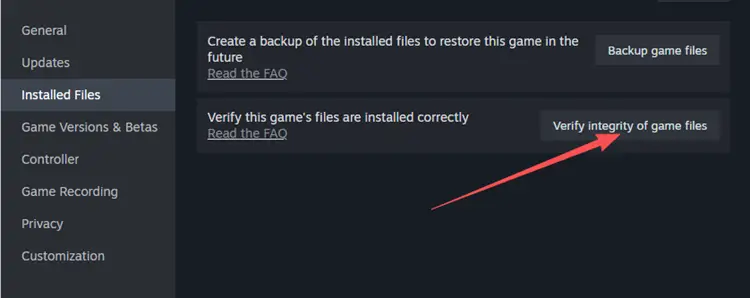
Step 3. Wait for verification to finish, then relaunch Phantom Blade Zero to check whether it runs normally.
Fix 3. Update Your Graphics Drivers
Outdated or incompatible GPU drivers may cause Phantom Blade Zero crashing on PC, especially during startup or graphics-intensive scenes. LagZapper provides quick access to official NVIDIA and AMD driver downloads.
Step 1. Download LagZapper for free, install and open it, then go to Tools > Popular.
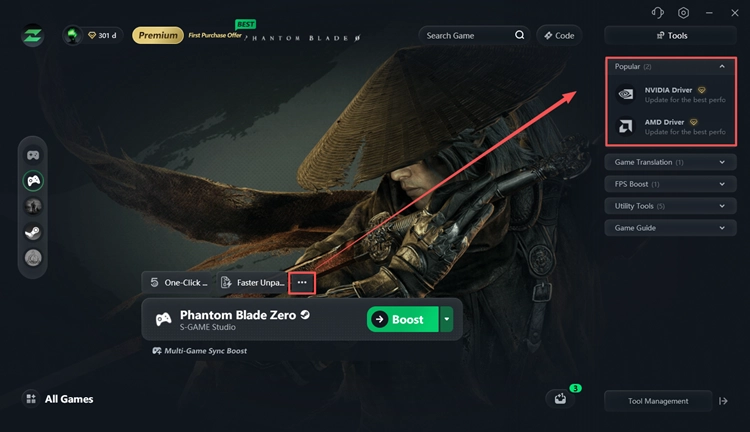
Step 2. Select NVIDIA Driver or AMD Driver to visit the official download page; Intel GPU users can visit the Intel Download Center.
Step 3. Install the latest compatible GPU driver, restart your PC, and relaunch Phantom Blade Zero.
Tip: For crashes that started after a driver update, consider rolling back to a previously stable version.
Fix 4. Lower Graphics Settings and Disable Ray Tracing
High graphics settings, especially ray tracing and path tracing, can increase GPU workload and cause Phantom Blade Zero crashing during combat or demanding scenes.
Step 1. Launch Phantom Blade Zero and open Settings > Graphics.
Step 2. Lower Shadows, Effects, and Textures, then disable Ray Tracing and Path Tracing, where available.
Step 3. Enable supported upscaling, set an FPS limit of 60, and restart the game to test stability.
Tip: LagZapper also offers a one-click DLSS 5 deployment tool for Phantom Blade Zero to enhance graphics. This feature does not directly fix crashes.
Fix 5. Disable Overlays and Background Applications
Steam Overlay, Discord Overlay, and background recording software may cause software conflicts and Phantom Blade Zero crash to desktop issues.
Step 1. Open Steam > Library, right-click Phantom Blade Zero, select Properties > General, and disable Enable the Steam Overlay while in-game.
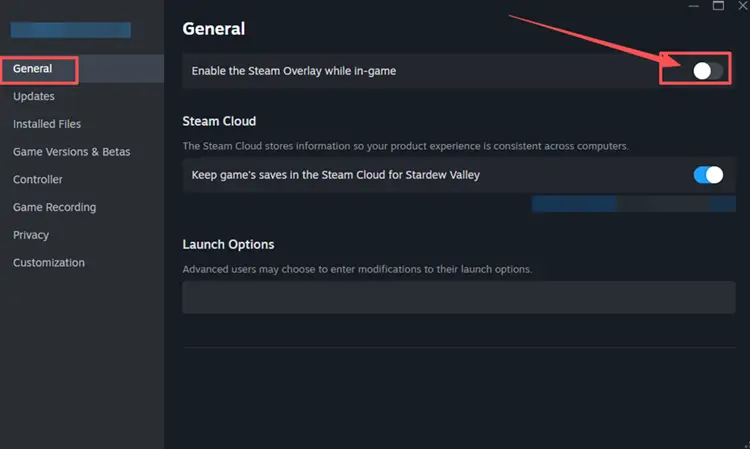
Step 2. Open Discord > User Settings > Game Overlay and disable the overlay. Also turn off NVIDIA or AMD in-game overlays and recording features.
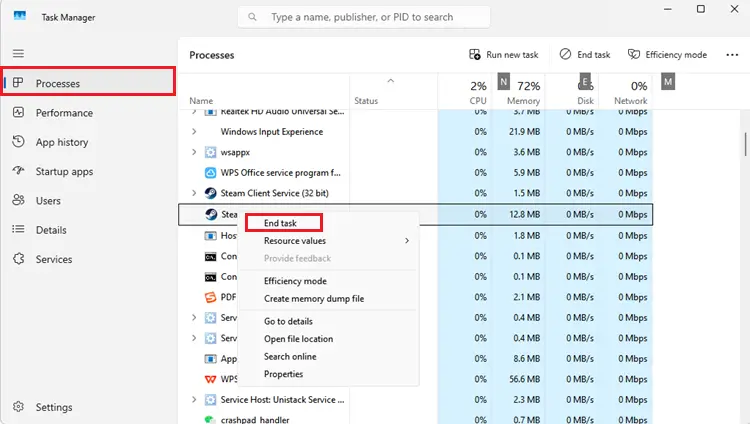
Step 3. Press Ctrl + Shift + Esc to open Task Manager, close unnecessary background applications, and relaunch Phantom Blade Zero to test stability.
Fix 6. Update Windows and Repair System Files
Outdated Windows components or corrupted system files may cause Phantom Blade Zero not launching, startup failures, or recurring crashes.
Step 1. Press Windows + I, go to Windows Update > Check for updates, and install available updates.
Step 2. Open Command Prompt as administrator and run the following commands one at a time:
- DISM /Online /Cleanup-Image /RestoreHealth
- sfc /scannow
Step 3. Wait for both scans to finish, restart your PC, and relaunch Phantom Blade Zero.
Note: These commands repair Windows system files, not game files, and may help resolve system-related crashes.
[Bonus] Optimize Your Phantom Blade Zero Connection With LagZapper
After fixing Phantom Blade Zero crashing on PC, you can also use LagZapper to optimize network connectivity for supported online services. LagZapper helps reduce network-related lag, high ping, and packet loss through optimized routing. It does not directly fix local game crashes.
Why Use LagZapper for Phantom Blade Zero?
- Lower Ping: Optimize network routing to lower ping and reduce latency during gameplay.
- Reduce Packet Loss: Improve connection stability to reduce packet loss and prevent interruptions.
- Reduce Lag: Use optimized network routes to reduce lag and enjoy smoother gameplay.
How to Boost Phantom Blade Zero With LagZapper
Getting started takes only three steps.
Step 1. Download LagZapper
Download LagZapper and install it on your Windows PC.
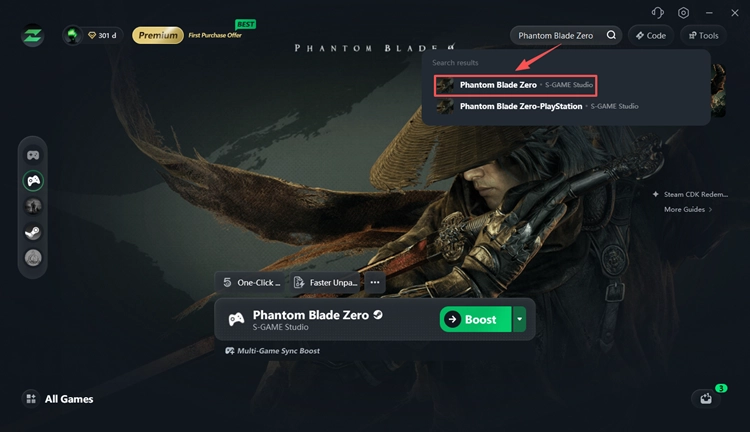
Step 2. Search for Phantom Blade Zero
Open LagZapper, sign in, and search for Phantom Blade Zero in the supported game list.
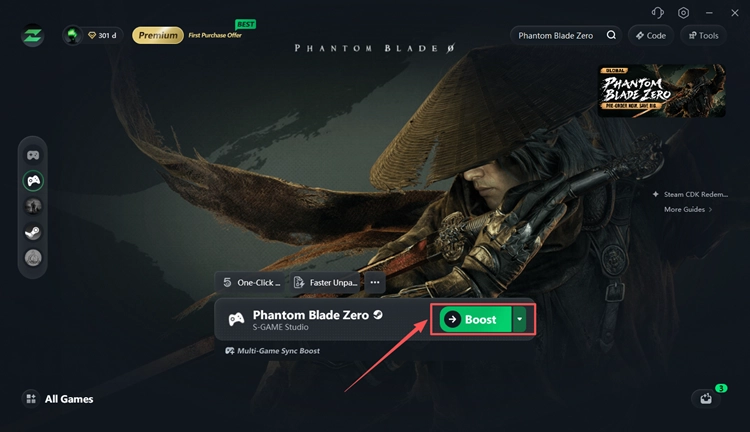
Step 3. Select a Node and Boost
Choose a recommended node and click Boost to optimize your network connection, then launch Phantom Blade Zero.
The Bottom Line
Phantom Blade Zero crashing on PC may result from corrupted game files, outdated GPU drivers, demanding graphics settings, or software conflicts. Start by verifying Steam game files, updating drivers, lowering graphics settings, and disabling overlays.
For persistent crashes, check official updates and Steam community reports for new fixes. LagZapper also offers NVIDIA and AMD driver download shortcuts and network optimization tools. Download LagZapper to access these tools and optimize supported network connections.
FAQs About Phantom Blade Zero Crashing
Q1. Why does Phantom Blade Zero keep crashing on PC?
Outdated GPU drivers, corrupted game files, demanding graphics settings, or software conflicts may cause Phantom Blade Zero crashing on PC.
Q2. How do I fix Phantom Blade Zero crash on startup?
Verify Steam game files, update GPU drivers, disable overlays, and install Windows updates to troubleshoot startup crashes.
Q3. Why is Phantom Blade Zero not launching on Steam?
Incomplete installation, incompatible hardware, outdated drivers, or software conflicts may prevent the game from launching. Also check whether it has unlocked in your Steam region.
Q4. How do I fix Phantom Blade Zero crash to desktop?
Update GPU drivers, verify game files, disable overlays, and lower graphics settings to troubleshoot unexpected crashes.
Q5. Can lowering graphics settings stop Phantom Blade Zero crashes?
Lowering graphics settings and disabling ray tracing may reduce GPU workload and improve stability, especially on lower-end PCs.
Q6. Does Phantom Blade Zero require an SSD?
Yes. Phantom Blade Zero requires an SSD. The game needs approximately 145 GB for installation, while preloading may require about 300 GB of temporary free space.