
Phantom Blade Zero Unpacking Slow? Fix Steam Unpacking Issues and Speed Up Installation
Phantom Blade Zero unpacking slow on Steam? Even after downloading finishes, Steam may continue unpacking files while network speed shows 0 B/s. Installation progress may barely move, and the estimated completion time may keep changing, leaving you waiting to launch the game and wondering whether Steam is still working or the installation has stalled.
This guide will explain common causes, introduce LagZapper’s unpacking acceleration tool, and cover SSD space, background resource usage, and practical troubleshooting steps for stalled Steam installations on your PC.
Why Is Phantom Blade Zero Unpacking So Slow?
Phantom Blade Zero unpacking delays can appear in different ways. Check the table below to match your symptoms with possible causes and the first fix to try.
| Symptom | Possible Cause | First Fix to Try |
|---|---|---|
| 0 B/s, but Steam’s installation progress keeps advancing | Steam is processing local files | Monitor progress and let it finish |
| Slow unpacking on an HDD | Limited storage performance | Use an SSD |
| Installation pauses with a space warning | Insufficient temporary space | Free up installation SSD space |
| Unpacking slows during other demanding tasks | Competing CPU or disk activity | Pause unnecessary background tasks |
| Progress stays unchanged with little Steam activity | Steam may have stalled | Check activity before restarting |
| Repeated download or installation errors | Cached data or game-file issues | Check the error, then troubleshoot cache or files |
Phantom Blade Zero requires approximately 145 GB on an SSD, with at least 300 GB free for preloading.
Speed Up Phantom Blade Zero Unpacking with LagZapper
The Slow Unpacking tool in LagZapper’s Repair Center temporarily raises Steam’s process priority to help reduce resource competition during unpacking.
How to Use LagZapper’s Slow Unpacking Tool
Follow these three steps to access the tool and improve the unpacking process.
Step 1. Download and Open LagZapper
Download and install LagZapper for Windows, then open the app and sign in.
Step 2. Open Phantom Blade Zero Repair Center
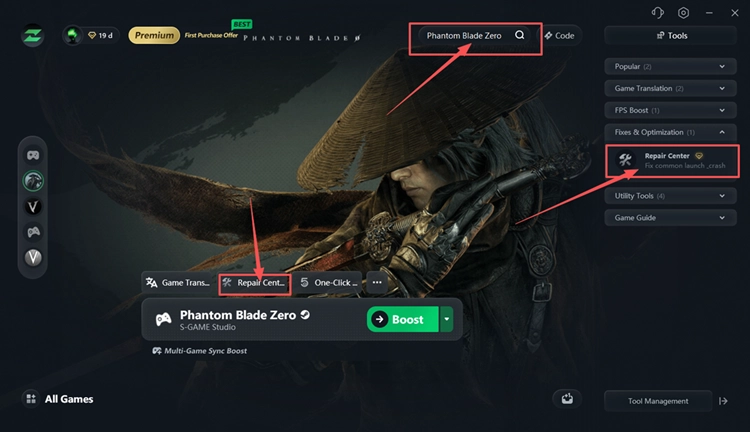
Search for Phantom Blade Zero, select the game, and click Repair Center on its game page.
Step 3. Select Slow Unpacking and Follow the Repair Guide
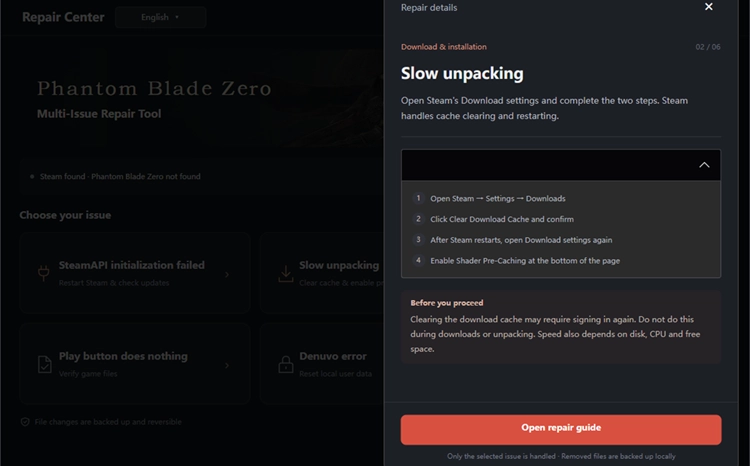
Select Slow unpacking, click Open repair guide, and follow the on-screen instructions. Return to Steam and monitor the unpacking progress.
Tip: LagZapper supports 3,000+ games with one-click game acceleration to help lower ping, reduce game lag, and improve connection stability for a smoother experience in your favorite PC games.
Other Fixes for Slow Phantom Blade Zero Unpacking on Steam
You can also try the following fixes to check SSD space, reduce background load, and troubleshoot Steam installation issues.
Fix 1. Check Disk Activity Before Restarting Steam
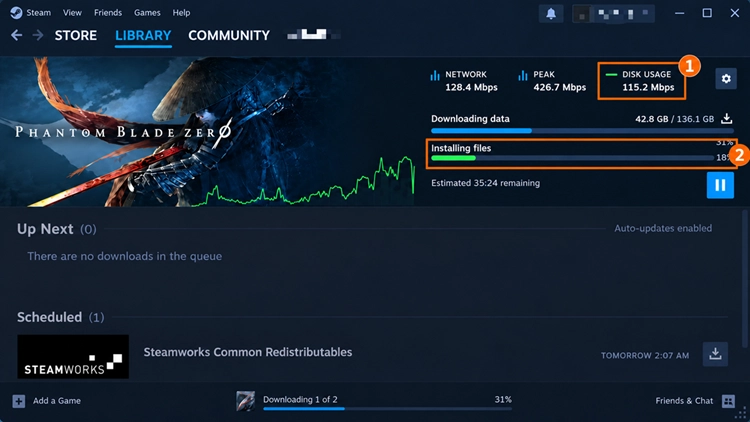
Steam may still be unpacking Phantom Blade Zero when network speed shows 0 B/s. Check Disk Usage and installation progress on Steam’s Downloads page. If installation progress continues to advance, let Steam finish before restarting the client.
Fix 2. Free Up Space on the Installation SSD
Low free space on the installation SSD can prevent Steam from unpacking and writing Phantom Blade Zero’s files. Freeing up space may help if insufficient storage is blocking installation. Before starting a preload, reserve at least 300 GB of free space on the target SSD.
Fix 3. Close Background Apps Using CPU and Disk Resources
File transfers, video exports, and cloud syncing can compete with Steam for CPU and disk resources, slowing Phantom Blade Zero unpacking. Follow the steps below to reduce background load.
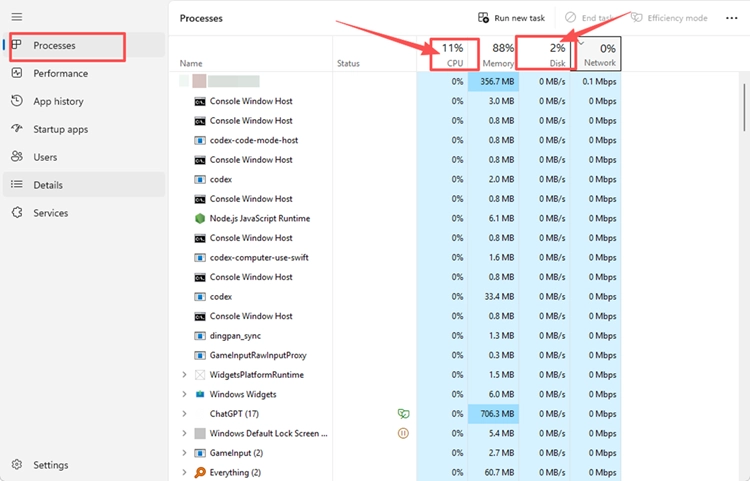
Step 1. Press Ctrl + Shift + Esc to open Task Manager.
Step 2. Under Processes, check the CPU and Disk columns to identify apps using the most resources.
Step 3. Save your work, close unnecessary apps, and pause file transfers or cloud syncing. Keep Steam running and check unpacking progress again.
Fix 4. Restart Steam Only If Unpacking Has Stopped
Temporary Steam client errors can interrupt installation or leave Phantom Blade Zero unpacking stuck. Restarting the client may clear these temporary issues and allow file processing to continue. It is worth trying if progress remains stalled after checking SSD space and background activity.
Fix 5. Clear the Steam Download Cache
If Phantom Blade Zero repeatedly encounters download or installation errors, clearing Steam’s download cache may help resolve problems with cached download data. Try this after restarting Steam has not helped. You’ll need to sign in again afterward. Follow the steps below.
Step 1. Open Steam > Settings > Downloads.
Step 2. In the Clear Download Cache section, click Clear Cache, confirm the prompt, and allow Steam to restart.
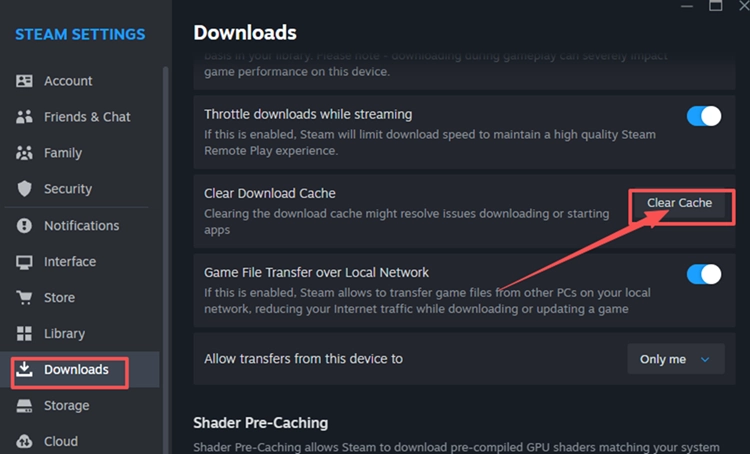
Step 3. Sign back in to Steam, resume the Phantom Blade Zero installation, and check whether progress continues.
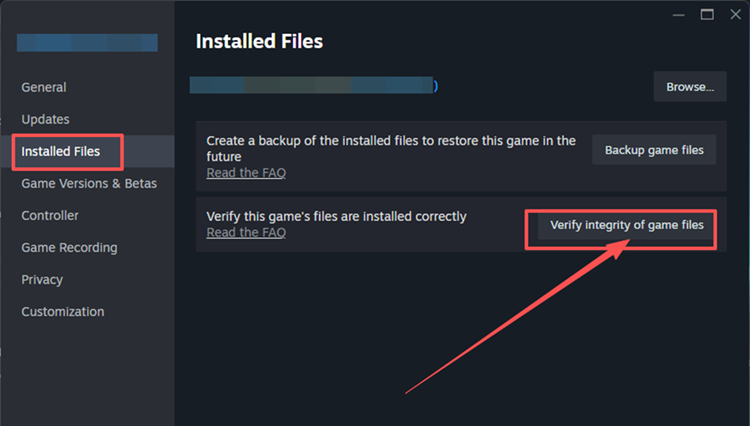
Fix 6. Verify Phantom Blade Zero Game Files on Steam
If Phantom Blade Zero finishes installing but still reports file errors or fails to launch, missing or damaged files may be responsible. Steam can check and repair the installation. Follow the steps below.
Step 1. Open Steam Library, right-click Phantom Blade Zero, and select Properties > Installed Files.
Step 2. Click Verify integrity of game files and wait for the check and any required downloads to finish, then try launching the game.
Tip: If Phantom Blade Zero crashes after installation, check the Phantom Blade Zero crashing guide for troubleshooting steps.
The Bottom Line
If Phantom Blade Zero is unpacking slowly, check installation progress, SSD space, and background resource usage first. Try further Steam troubleshooting if installation stalls or errors persist. You can also download LagZapper and use Slow Unpacking in Repair Center to temporarily raise Steam’s process priority and help improve unpacking performance.
FAQs About Phantom Blade Zero Unpacking Slow
Q1. Why is Phantom Blade Zero unpacking slow?
Limited CPU performance, slow storage, low free space, and competing background tasks can delay unpacking.
Q2. How to speed up Phantom Blade Zero unpacking with LagZapper?
Open the game’s Repair Center, select Slow unpacking, and follow the on-screen repair guide.
Q3. Can insufficient SSD space cause Phantom Blade Zero slow installation?
Yes. Reserve at least 300 GB before preloading; the game itself is approximately 145 GB.
Q4. Is Phantom Blade Zero stuck unpacking if Steam shows 0 B/s?
Not necessarily. Steam may still be processing local files; check whether installation progress keeps advancing.
Q5. Why is Phantom Blade Zero Steam unpacking slow even with fast internet?
Once downloading finishes, unpacking depends on local CPU and storage performance rather than your internet speed.
Q6. Is clearing the cache a useful Phantom Blade Zero unpacking slow fix?
It may resolve persistent download or installation errors, but it does not accelerate normal unpacking.