
PUBG Packet Loss? 7 Fixes for Rubberbanding & Desync on PC
PUBG packet loss can make your character snap backward, enemies jump across the screen, and actions respond late during a gunfight. These problems can appear even when downloads are fast or average ping looks normal, leaving movement, driving, and combat feeling unpredictable at the worst possible moment.
This guide will explain common causes of PUBG packet loss and walk you through seven PC fixes to reduce rubberbanding, desync, and connection interruptions.
Why Am I Getting Packet Loss in PUBG?
PUBG packet loss can appear in different ways, making the source difficult to identify. Check the table below to match common symptoms with possible causes and fixes.
| Symptom | Possible Cause | First Fix to Try |
|---|---|---|
| Multiple players lag at once | PUBG server issues | Check server status |
| Packet loss during downloads | Network congestion | Stop background traffic |
| Random packet loss spikes | Router or PC network glitches | Restart router and PC |
| Unstable connection on Wi-Fi | Wi-Fi interference | Use Ethernet |
| Connection blocked or interrupted | Firewall restrictions | Allow PUBG through Firewall |
| Persistent packet loss on one PC | Network driver issues | Update network adapter driver |
Tip: To check PUBG packet loss, open Settings > Gameplay, enable Network Debug Statistics, and monitor packet loss in the top-left corner during a match to compare results before and after each fix.
[Quick Way] Reduce PUBG Packet Loss with LagZapper
Use LagZapper to help reduce PUBG packet loss, reduce network lag, and stabilize your connection by optimizing the route between your PC and the game server.
Why Use LagZapper for PUBG?
- Smart Route Optimization: Finds a faster and more stable route to PUBG servers, helping reduce high ping, packet loss, jitter, and unstable connections.
- Reduce Lag & Improve Stability: Helps lower ping, reduce game lag, minimize lag spikes, and improve connection stability during gunfights and intense matches.
- One-Click Boost: Optimizes the PUBG connection with one click without manually changing complicated network or router settings.
- Support for 3,000+ Games: Use LagZapper for PUBG and thousands of other popular online games.
How to Boost PUBG with LagZapper
Get started in three steps before entering your next PUBG match.
Step 1. Download and Install LagZapper
Download LagZapper for Windows and follow the on-screen instructions to complete the installation.
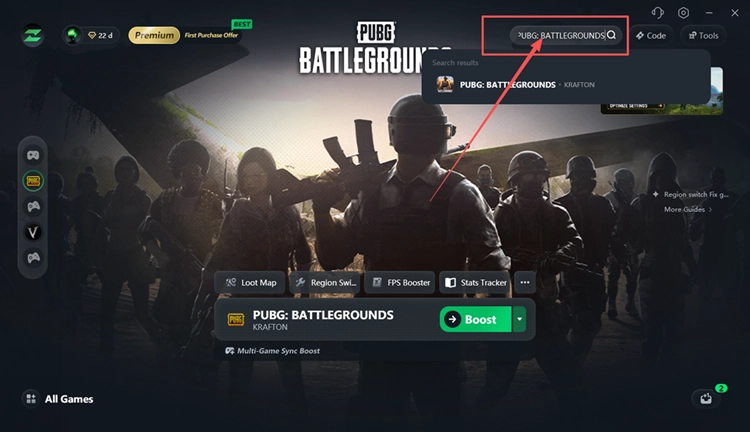
Step 2. Search for PUBG: BATTLEGROUNDS
Open LagZapper, sign in, search for PUBG: BATTLEGROUNDS, and select the game.
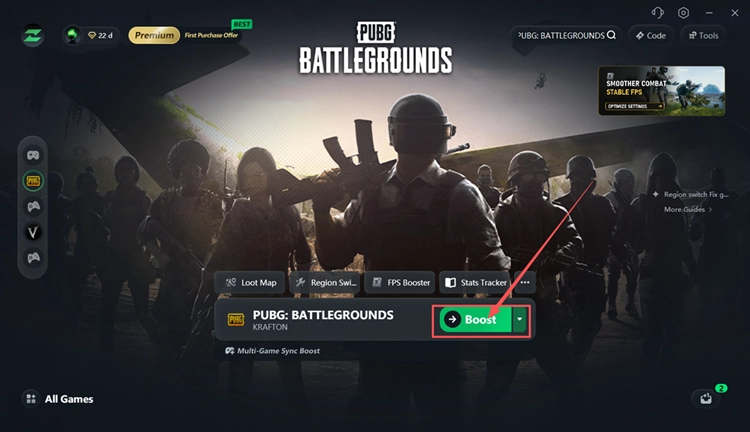
Step 3. Select a Node and Start Boosting
Choose a recommended node and click Boost to optimize the connection route before launching PUBG.
How to Fix PUBG Packet Loss on PC - 7 Useful Fixes
Players can also try the following fixes in order. Test your connection after each step to see whether packet loss improves.
Fix 1. Check PUBG Server Status
Before changing your PC settings, check whether PUBG is undergoing maintenance or experiencing server issues. Review PUBG official announcements and support updates for disruptions.
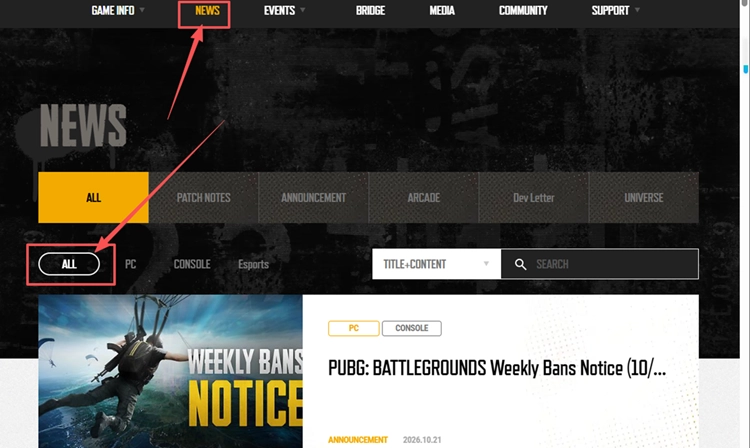
If players in your region report packet loss, rubberbanding, or desync at the same time, the issue may involve PUBG servers or regional routing. When maintenance or an outage is confirmed, wait for service to recover before trying local fixes.
Tip: Want to know if PUBG servers are down? Check PUBG server status guide for ways to check maintenance notices, server outages, and connection issues.
Fix 2. Stop Background Downloads and Uploads
Steam downloads, cloud syncing, and large uploads can compete with PUBG for bandwidth, causing network congestion, packet loss, and rubberbanding. Closing unnecessary network-heavy tasks can help stabilize your connection during matches. Follow the steps below to reduce background network usage.
Step 1. Press Ctrl + Shift + Esc to open Task Manager.
Step 2. Under Processes, check the Network column to identify apps using the most bandwidth.
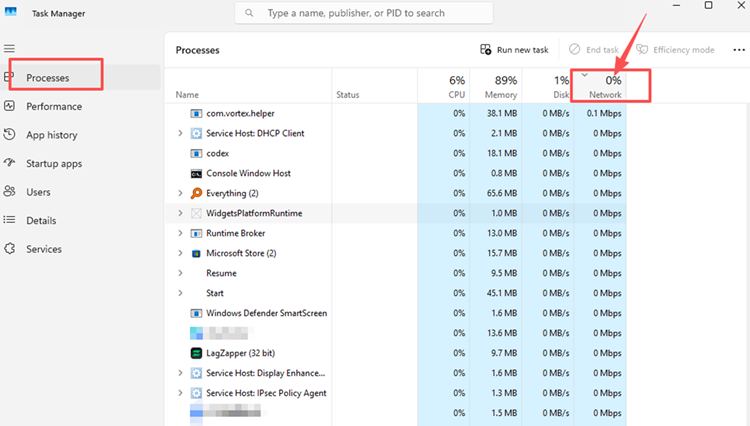
Step 3. Close unnecessary apps and pause active downloads, updates, or cloud syncing before launching PUBG again.
Fix 3. Restart Your Router and PC
Temporary network errors in your router or PC can cause PUBG packet loss and rubberbanding. Close PUBG, restart your PC, and unplug your router for about 30 seconds before plugging it back in. Once your internet connection is restored, launch PUBG again and check whether packet loss improves.
Fix 4. Use Ethernet and Check Your Cable
Wi-Fi interference and weak signals can cause PUBG packet loss, ping spikes, and rubberbanding. Connect your PC directly to the router with an Ethernet cable for a more stable connection. If you already use Ethernet, check for loose or damaged cables and try another LAN port or cable. Launch PUBG again to see whether packet loss improves.
Fix 5. Allow PUBG Through Windows Firewall
Windows Firewall or security software may interfere with PUBG connections when app permissions are missing or incorrect. Instead of disabling protection, make sure PUBG and Steam are allowed through the firewall. Follow the steps below.
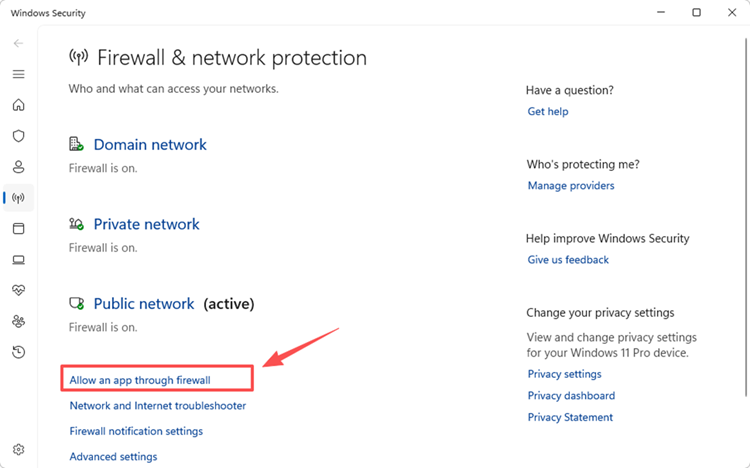
Step 1. Open Windows Security > Firewall & network protection > Allow an app through firewall.
Step 2. Click Change settings. Find PUBG: BATTLEGROUNDS and Steam, or use Allow another app to add either one if missing.
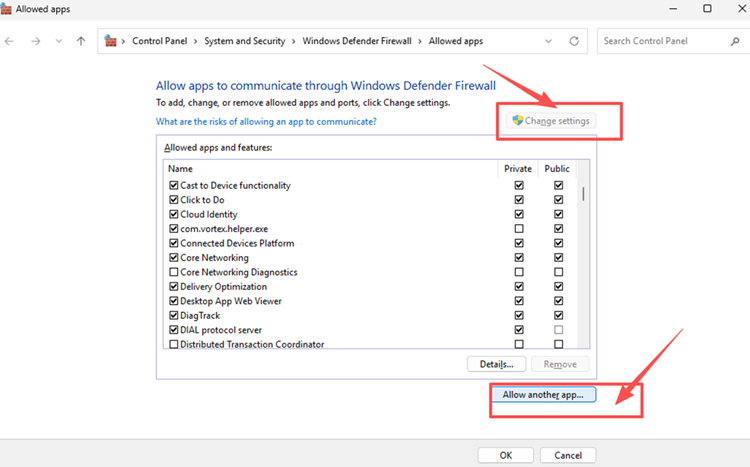
Step 3. Allow both apps on your active network profile, click OK, then relaunch PUBG to test your connection.
Fix 6. Update Your Network Adapter Driver
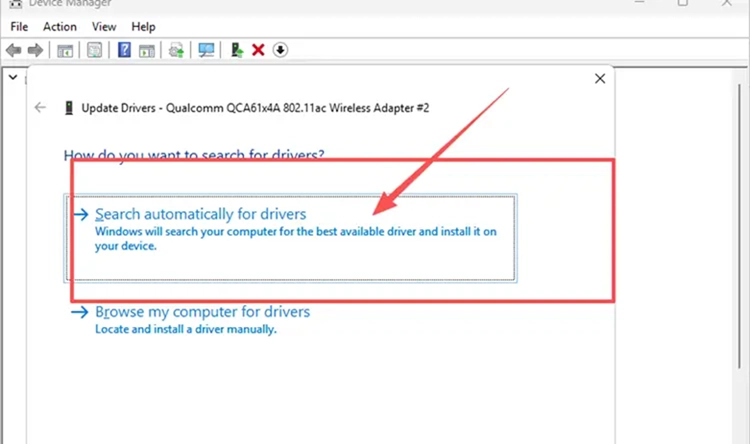
Outdated or corrupted network adapter drivers can cause unstable connections, packet loss, and random disconnects in PUBG. If your connection remains unstable after basic checks, updating your Wi-Fi or Ethernet driver may help improve network stability. Follow the steps below.
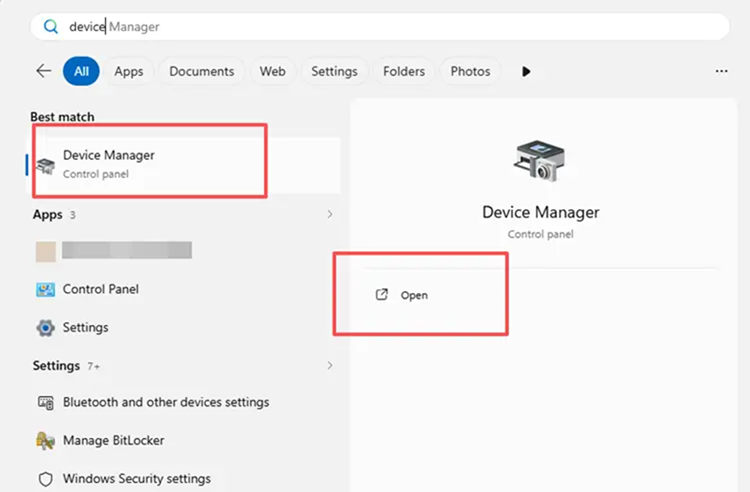
Step 1. Open Device Manager through the Windows search bar.
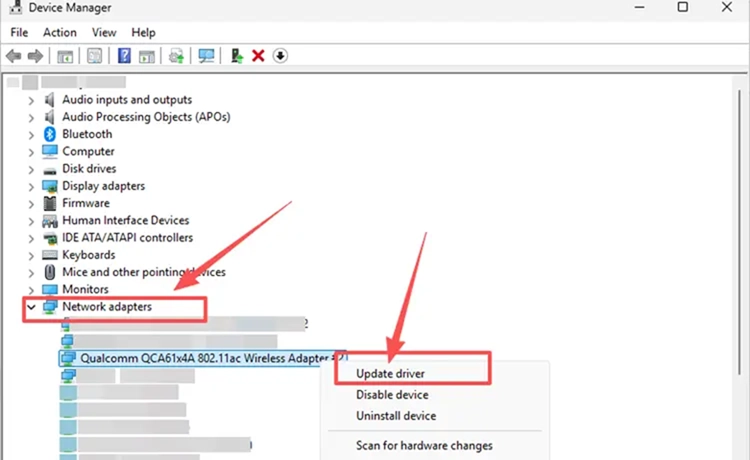
Step 2. Expand Network adapters, right-click your active Wi-Fi or Ethernet adapter, and select Update driver.
Step 3. Select Search automatically for drivers and install any available update. Restart your PC before testing PUBG again.
Fix 7. Reset the Windows Network Stack
Corrupted Winsock or TCP/IP settings may cause connection problems that contribute to PUBG packet loss. Resetting the Windows network stack can help clear local network configuration issues when other fixes haven't worked. Follow the steps below.
Step 1. Type cmd in Windows Search, right-click Command Prompt, and select Run as administrator.
Step 2. Run the following commands one at a time, pressing Enter after each:
- netsh winsock reset
- netsh int ip reset
- ipconfig /release
- ipconfig /renew
- ipconfig /flushdns
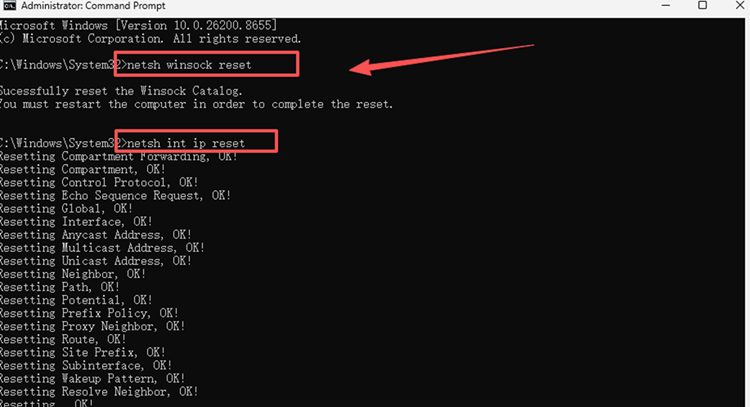
Step 3. Restart your PC, reconnect to the internet, and launch PUBG to check whether packet loss improves.
The Bottom Line
PUBG packet loss can result from server issues, network congestion, unstable Wi-Fi, poor routing, or local network problems. Start by checking server status, stopping background downloads, restarting your router and PC, and using Ethernet. If PUBG servers are online but network routing remains unstable, download LagZapper to optimize your PUBG connection route, reduce packet loss, and improve stability during matches.
FAQs About PUBG Packet Loss
Q1. What causes PUBG packet loss?
Common causes include Wi-Fi interference, network congestion, poor routing, faulty equipment, and temporary server disruptions.
Q2. How can I check PUBG packet loss during matches?
Enable Network Debug Statistics in PUBG settings, then monitor packet loss values during a match.
Q3. Why does PUBG high packet loss happen with low ping?
Ping measures latency, not delivery reliability. Lost packets can still disrupt gameplay despite normal ping.
Q4. Is PUBG rubberbanding always caused by packet loss?
No. High jitter, latency spikes, and server synchronization issues can also cause rubberbanding during matches.
Q5. How to fix packet loss in PUBG when basic fixes fail?
Check firewall permissions, update your network adapter driver, and reset the Windows network stack if needed.
Q6. Which PUBG packet loss fix should I try on Wi-Fi?
Try Ethernet first. If unavailable, improve Wi-Fi signal strength and reduce wireless interference.