
PUBG Switch Server: How to Change Matchmaking Region on PC
Want to play PUBG: BATTLEGROUNDS on EU, Asia, NA, or SEA servers instead of your usual region? Whether you're queuing solo or joining friends overseas, PUBG's automatic matchmaking doesn't offer a simple in-game server selector. If you've searched for PUBG switch server, what matters is changing your actual matchmaking region-not merely switching a network node.
This guide will show you how to switch PUBG regions on PC, select SEA, verify your matchmaking region, play with friends, and handle long matchmaking waits.
Can You Switch Servers in PUBG on PC?
PUBG PC uses automatic region assignment, introduced with PC Update #22 in 2018, and does not offer a standard in-game menu for freely selecting servers. Instead, matchmaking considers connection conditions and queue availability. With LagZapper, you can select a target server region to restrict matchmaking. This helps control your actual matchmaking region, rather than simply switching a network node.
Use LagZapper to Switch PUBG Server Region
Follow these four steps to repair region-switching issues, select your preferred matchmaking region, and start a new PUBG match.
How to Switch PUBG Server Region on PC
Download and Open LagZapper. Complete Region Switch Fix, then select your target region before boosting and launching the game.
Step 1. Download and Install LagZapper
Download LagZapper for Windows and follow the on-screen instructions to complete the installation on your PC.
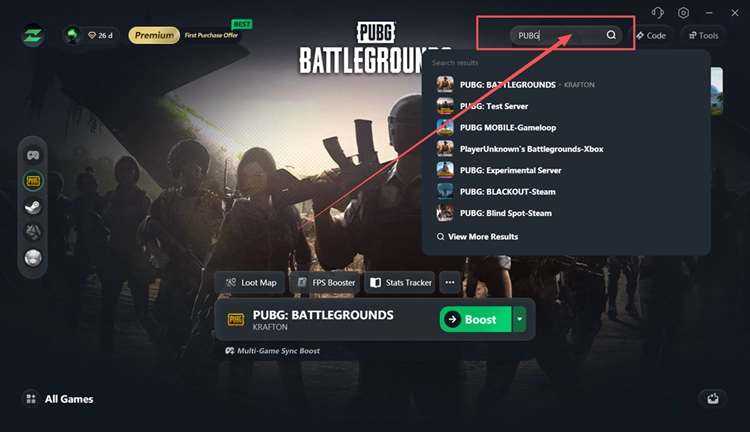
Step 2. Search for PUBG
Open LagZapper, search for PUBG, and select the game to open its acceleration settings.
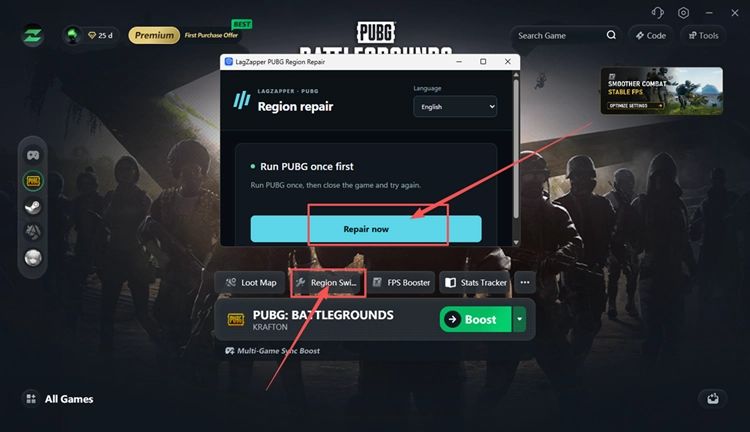
Step 3. Run Region Switch Fix
Open Region Switch Fix. Follow the on-screen prompts, then click Repair now to clear PUBG's saved region data and help ensure server switching works properly. For detailed instructions, see the Region Switch Fix guide.
Step 4. Boost PUBG and Start Matchmaking
Select your target region, such as Southeast Asia (Geo Fence). Click Boost, launch PUBG, and start a new match.
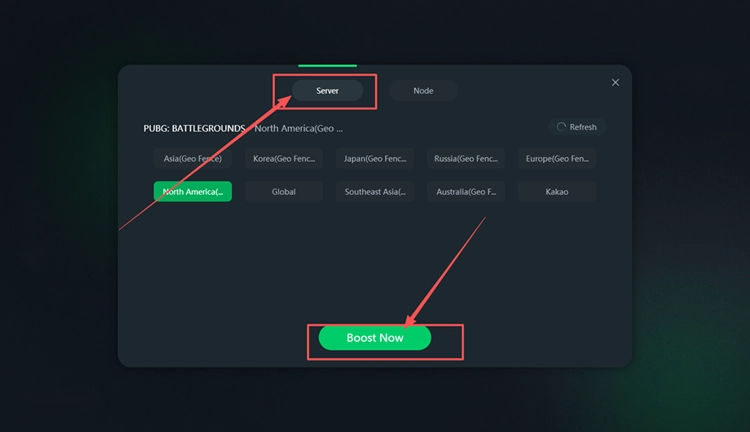
Tip: LagZapper supports PUBG acceleration across Asia, Korea, Japan, Russia, Europe, North America, Southeast Asia, and Australia, with additional Global and Kakao options available in its server selection menu.
Why Use LagZapper for PUBG?
LagZapper can help PUBG players:
- Switch PUBG Server Regions: Select your preferred matchmaking region, such as EU, NA, or SEA, and restrict matches to your chosen region.
- Lower PUBG Ping: Optimize cross-region connections to lower ping and maintain more stable latency during matches.
- Reduce PUBG Lag: Improve network routing to reduce lag, sudden ping spikes, and delayed actions during gameplay.
- Reduce PUBG Packet Loss: Maintain a stable connection to reduce packet loss, desync, and unexpected interruptions.
How to Check Whether Your PUBG Server Region Changed
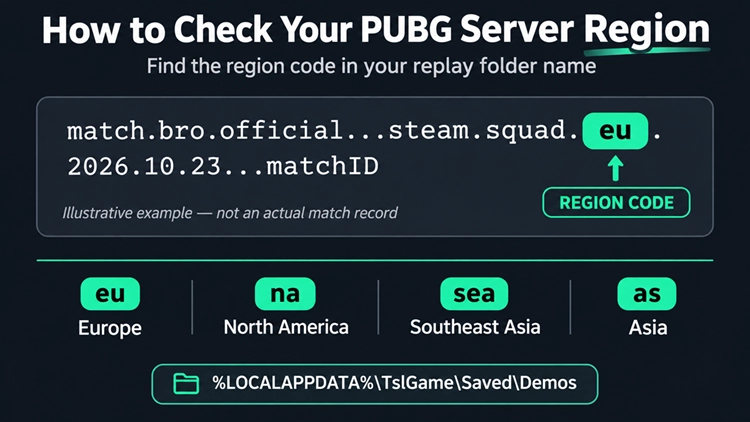
After a new PUBG match, press Win + R and open %LOCALAPPDATA%\TslGame\Saved\Demos. If replay recording is enabled, check the latest replay folder for a region code, such as AS for Asia. Compare it with a replay recorded before switching. You can also check ping and packet loss through Network Debug Statistics, but these readings alone cannot confirm a region change.
How to Change PUBG Server Region When Playing with Friends
Agree on a shared target region before teaming up, since the party leader’s settings influence group matchmaking. Have the leader select that region in LagZapper, boost PUBG, and start matchmaking once everyone is ready.
If you selected EU for solo play and later join another player’s party, recheck that leader’s region settings. Confirm the actual matchmaking region after entering a new match.
What to Do If PUBG Matchmaking Takes Too Long
Restricting matchmaking to your chosen region with Geo Fence narrows the available player pool, so finding a match may take longer.
Check Server Notices and Queue Availability
Check PUBG’s official maintenance and service notices for problems affecting your target region. Confirm that your selected mode and perspective are available there, including Solo, Duo, Squad, TPP, or FPP. If a queue is unavailable, choose a supported option.
Try the Target Region’s Active Hours
Try matchmaking at a busier time in your target region. Check its local time and test evening or weekend sessions. Compare waiting times across several attempts to find a more suitable window for your preferred mode and perspective.
Try Another Acceptable Server Region
If queues remain too long, choose another region that fits your preferences and offers acceptable ping. Close PUBG, select the new region in LagZapper, boost the game, and relaunch before starting a new match.
The Bottom Line
PUBG PC uses automatic region assignment, but you can switch your matchmaking region with LagZapper. Run Region Switch Fix to clear saved region data, select your preferred server region, and verify the result through replay records. Keep in mind that restricting matchmaking to one region may increase queue times.
To switch PUBG servers and improve cross-region connection stability, download LagZapper to select your target region, optimize routing, lower ping, and reduce packet loss.
FAQs About Switching PUBG Servers on PC
Q1. What Does PUBG Switch Server Mean on PC?
It means changing your actual matchmaking region, not just selecting a different network connection node.
Q2. Which PUBG Server Region Is Best for Lower Ping?
Choose a nearby region with stable connectivity, unless you prefer matchmaking with players in another region.
Q3. How to Switch Server on PUBG PC with LagZapper?
Find PUBG in LagZapper, select your target server region, click Boost, and start a new match.
Q4. How to Switch to SEA Server in PUBG on PC?
Choose Southeast Asia, not Asia, in LagZapper's Server menu to target the SEA matchmaking region.
Q5. Why Won't PUBG Change Region After I Select Another Server?
Cached region data may prevent switching. Run Region Switch Fix, then select your preferred region again.