
Roblox Connection Error? 8 Fixes for Failed Joins & Server Issues
If Roblox opens but you cannot join an experience, the game keeps loading, or you get disconnected soon after entering a server, the problem may be a Roblox connection error. It may also appear as “There was a problem reaching our servers,” Error 279, Error 277, failed server access, or unusually high ping that makes gameplay unstable even when your internet seems to work normally.
Don't worry. This guide will explain the possible causes of Roblox connection errors and provide eight practical fixes for failed joins, loading problems, server access issues, and high ping.
Why Is Roblox Not Joining Games or Reaching Servers?
Roblox connection errors can come from the platform, a specific experience, an outdated app, security restrictions, or an unstable network connection. Check the table below to match your symptom with its likely cause and the first fix to try.
| Symptom | Likely Cause | First Fix to Try |
|---|---|---|
| Roblox fails on multiple devices | Roblox platform issue | Check Roblox Status |
| Only one experience cannot be joined | Experience-specific issue | Test another experience |
| Error 279 or ID 17 appears | Game-server connection failure | Test another network |
| Roblox or website keeps loading | App or browser issue | Restart or clear browser data |
| Error 277, disconnects, or high ping | Unstable network connection | Restart the network |
How to Fix Roblox Connection Error - 8 Useful Fixes
Try the fixes below in order or start with the recommended fix in the table if one of the listed symptoms matches your problem.
Fix 1. Check Roblox Server Status and Test Another Experience
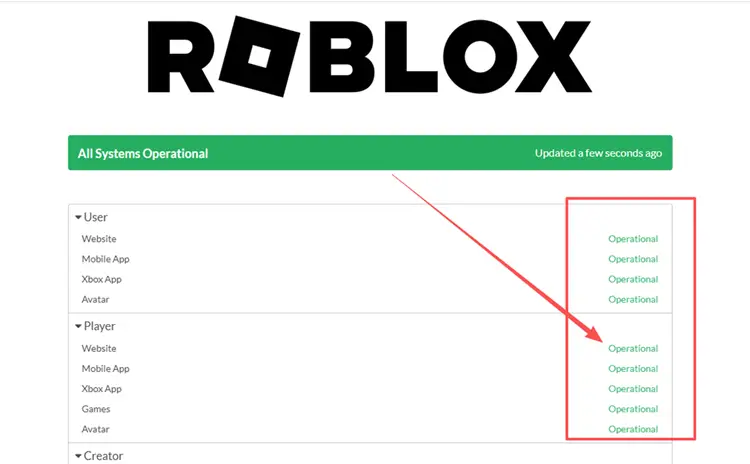
Before changing your device or network settings, check the official Roblox Status page to see whether Game Join, Player, or other services are experiencing an outage. If Roblox is working normally, try joining a different experience. If only one experience fails while others load correctly, the issue is more likely limited to that experience or its server.
Fix 2. Fully Restart Roblox and Your Device
A temporary Roblox process or stalled client session can sometimes interfere with a new server connection. Fully close Roblox instead of leaving it running in the background, restart your device, and then open the app again. Rejoin the same Roblox game to see whether the connection error returns before moving to network or Windows fixes.
Fix 3. Update Roblox or Install the New Roblox - Windows App
An outdated Roblox client may cause loading or connection problems after platform updates. Windows users should also make sure they are using the newer Roblox - Windows app instead of the legacy Microsoft Store version. Follow the steps below to update Roblox or switch to the new app.
Step 1. Open Microsoft Store, search for Roblox - Windows, and select the official Roblox app.
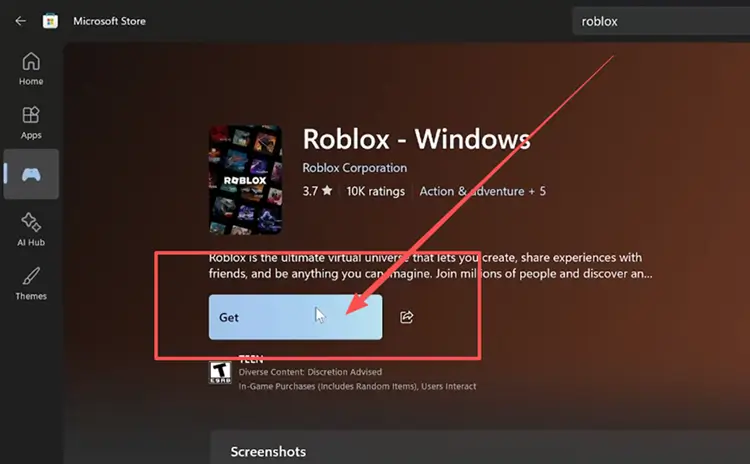
Step 2. Click Update if an update is available, or install Roblox - Windows if you still use the older Roblox app.
Fix 4. Restart the Router and Test Another Network
Temporary router or local network issues can cause failed joins, disconnects, Error 277, or high ping even when Roblox services are online. When you see a Roblox failed to connect message, restart your router and wait about 60 seconds before reconnecting. Still having trouble? Test Ethernet, another Wi-Fi network, or a mobile hotspot. If another network works, your original connection is likely involved.
Fix 5. Clear Browser Data and Disable Problem Extensions
If Roblox pages keep loading, buttons do not respond, or the website cannot launch a game correctly, cached browser data or third-party extensions may be interfering. Roblox recommends clearing temporary internet files and cookies and testing the browser without add-ons. Follow the steps below.
Step 1. Press Ctrl + Shift + Delete in your browser and clear cached files and cookies.
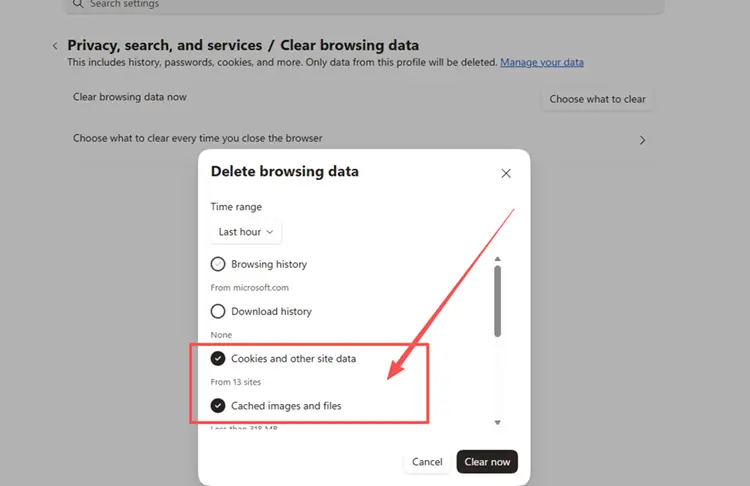
Step 2. Restart the browser, open the Roblox website, and test the affected page or game again.
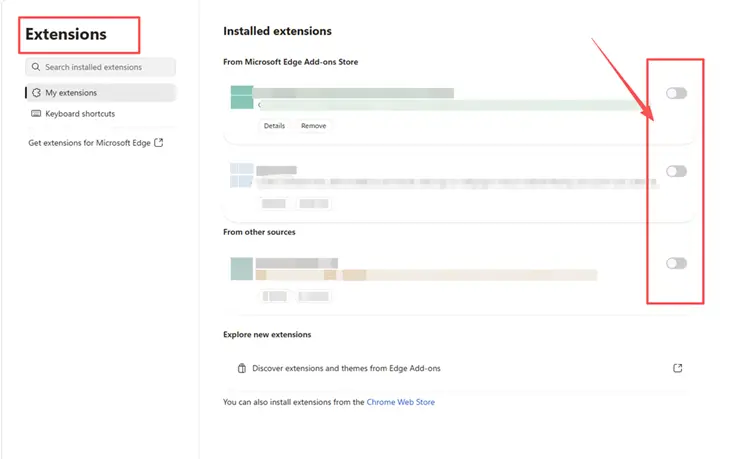
Step 3. If the issue remains, temporarily disable browser extensions and retry Roblox.
Fix 6. Allow Roblox Through Firewall and Security Software
Firewall or antivirus rules may prevent Roblox from connecting to game servers. Add Roblox as an allowed app instead of disabling security protection. Follow the steps below for Windows Firewall:
Step 1. Open Windows Security, select Firewall & network protection, and click Allow an app through firewall.
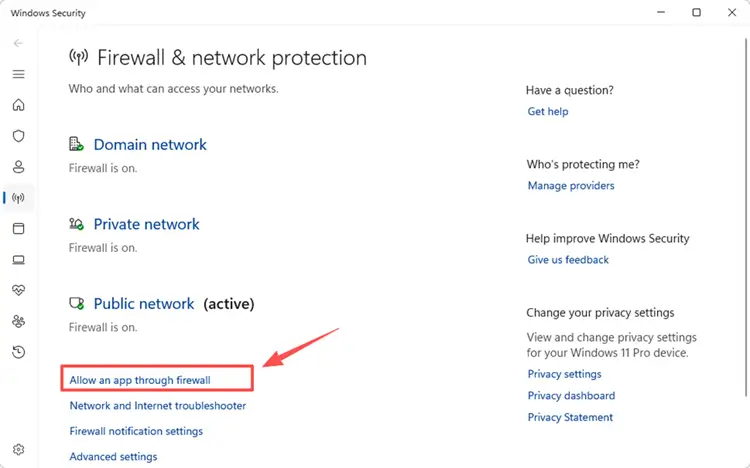
Step 2. Select Change settings and allow Roblox, or click Allow another app to add the Roblox executable if it is missing.
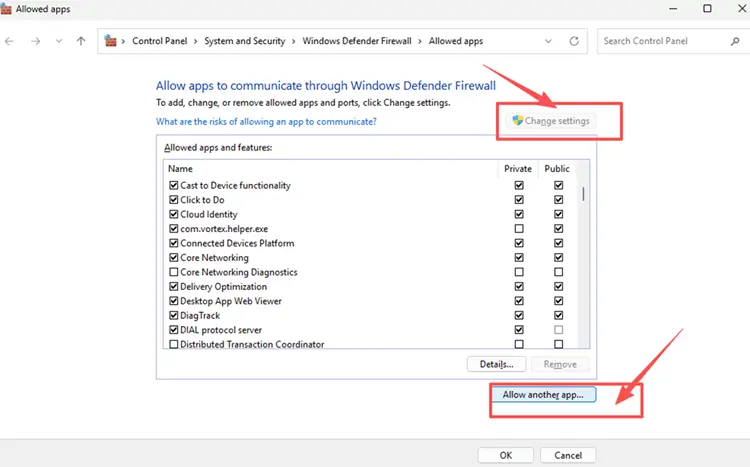
Step 3. Allow Roblox on your active network profile, click OK, and relaunch the app. Add Roblox to your antivirus allow list if needed.
Fix 7. Flush DNS and Reset the Windows Network Stack
Temporary Windows network issues can prevent Roblox from connecting to game servers properly. Flushing DNS and resetting Winsock and TCP/IP can refresh cached network data and clear local connection problems. Follow the steps below to reset the Windows network stack.
Step 1. Type cmd in Windows Search, right-click Command Prompt, and select Run as administrator.
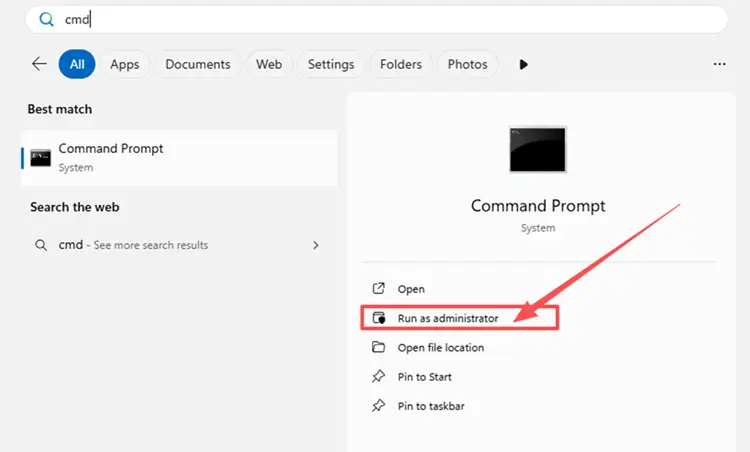
Step 2. Run the following commands one at a time:
- netsh winsock reset
- netsh int ip reset
- ipconfig /release
- ipconfig /renew
- ipconfig /flushdns
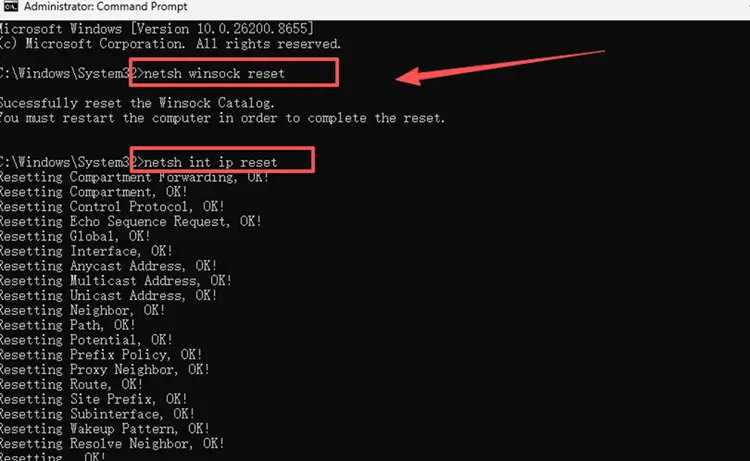
Step 3. Restart your PC, reconnect to the internet, and launch Roblox again to test the connection.
Fix 8. Repair or Reset the Roblox - Windows App
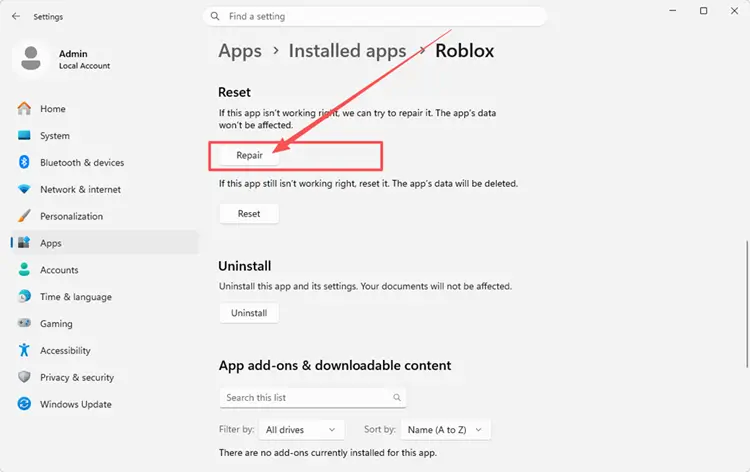
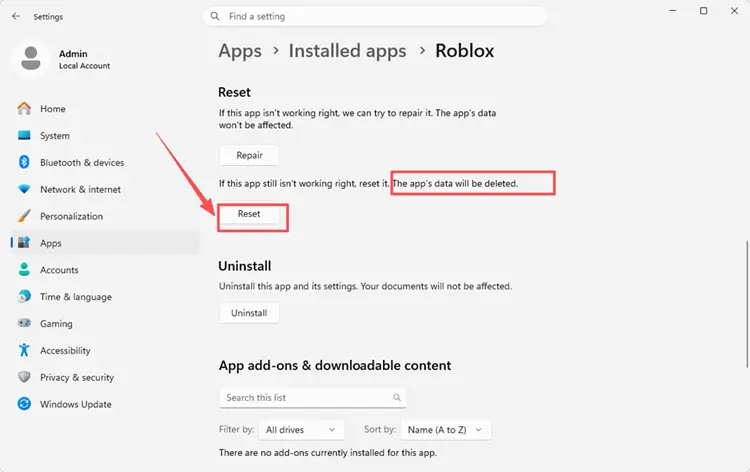
If Roblox - Windows still has loading or connection problems, its local app data may be damaged. Windows can repair supported apps without removing their data, while Reset restores the app to its default state and may remove local app data. Follow the steps below.
Step 1. Open Settings > Apps > Installed apps, find the new Roblox app with the blue icon, and select Advanced options if available.
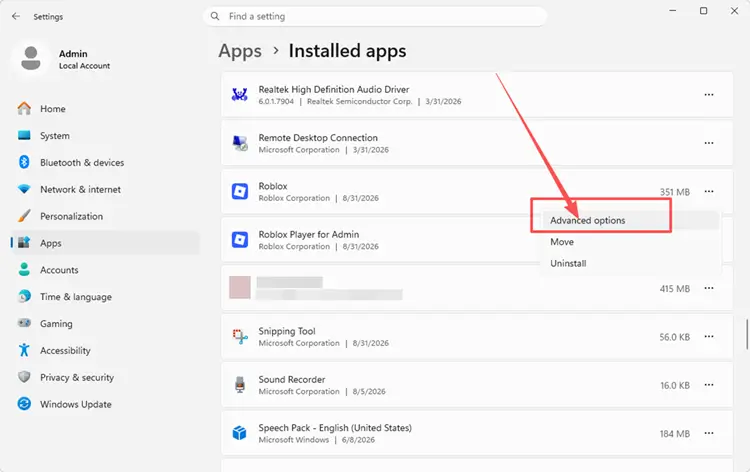
Step 2. Click Repair, wait for Windows to finish, and test Roblox again.
Step 3. If the problem remains, return to Advanced options, click Reset, and relaunch Roblox.
[Bonus] Reduce Roblox High Ping with LagZapper
Roblox relies on a stable connection when joining servers and playing online experiences. If Roblox works but high ping, packet loss, or unstable routing affects gameplay, LagZapper can optimize the route to the game server and improve connection stability.
Why Use LagZapper for Roblox?
- Smart Route Optimization: Finds stable routes to reduce high ping, packet loss, and jitter.
- Connection Stability: Helps reduce game lag, lower ping, and limit sudden latency changes.
- One-Click Boost: Optimizes the connection without manually changing router, DNS, or Windows settings.
- 3,000+ Game Support: Works with Roblox and thousands of other online games.
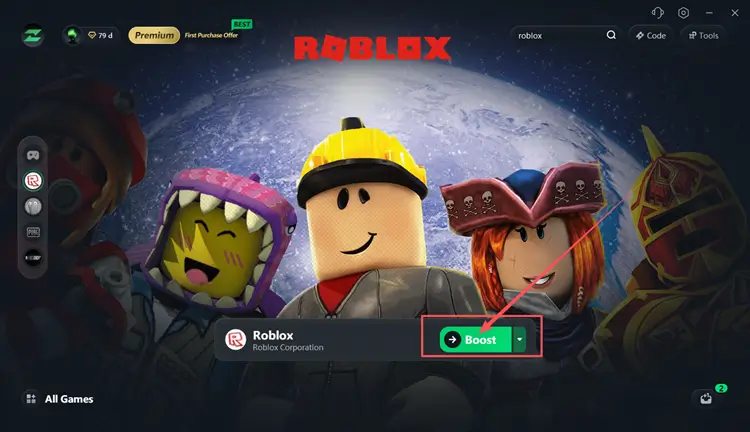
How to Boost Roblox with LagZapper
Follow these three steps to optimize your Roblox connection before joining a game.
Step 1. Download and Install LagZapper
Download LagZapper for Windows and follow the on-screen instructions to complete the installation on your PC.
Step 2. Open LagZapper and Search for Roblox
Launch LagZapper and enter Roblox in the search bar to find the game.
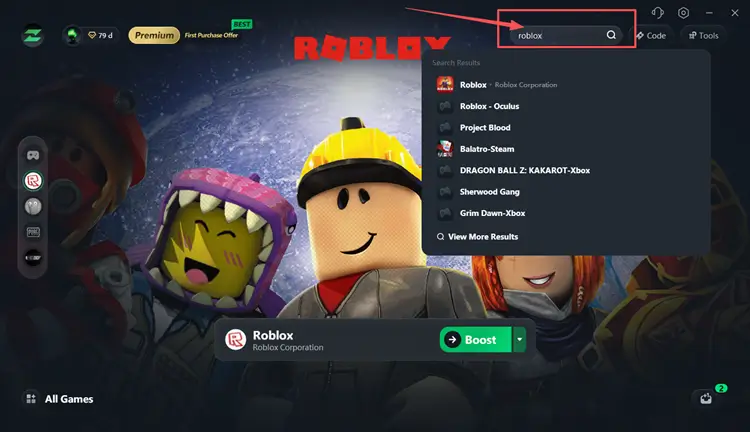
Step 3. Select a Recommended Node and Click Boost
Select a recommended Roblox server or node, then click Boost before launching the game.
Also Read: Why Is Roblox So Laggy? Fix FPS Drops & Ping Instantly
The Bottom Line
A Roblox connection error may come from a platform outage, an outdated app, browser data, firewall restrictions, or an unstable network. Check Roblox Status first, then restart Roblox, update the app, test another network, clear browser data, check firewall permissions, reset the Windows network stack, or repair the app.
If Roblox connects normally but high ping, packet loss, or unstable routing still affects gameplay, download LagZapper to optimize the connection route and improve stability.
FAQs About Roblox Connection Error
Q1. What Causes a Roblox Connection Error?
Server outages, unstable networks, app issues, or firewall restrictions can cause it.
Q2. Why Is Roblox Not Connecting to Server?
Roblox may be down, or your network, firewall, app, or selected game server may have problems.
Q3. How Do I Fix Roblox High Ping?
Restart your network, reduce background traffic, test another connection, or optimize the route to Roblox servers.
Q4. Why Are Roblox Games Not Loading?
Roblox games not loading may result from server issues, app problems, browser data, or network instability.
Q5. What Does Roblox Error Code 279 Mean?
Roblox error code 279 means the client and Roblox servers are having trouble establishing a network connection.