
Why Is Roblox So Laggy? Fix FPS Drops & Ping Instantly (6 Ways)
Roblox is a popular multiplayer platform where players can create, share, and play a wide variety of games. Although it is not a graphically demanding game, many users still experience performance issues such as lag, high ping, and FPS drops. This is commonly known as Roblox lagging, especially when FPS drops or ping spikes happen unexpectedly.
Why is Roblox so laggy all of a sudden? The Roblox lagging issue can be caused by several factors, including unstable internet connections, background apps, or in-game settings. This guide explains why Roblox lags on both low-end and high-end PCs, and provides 6 proven ways about how to fix Roblox lag.
Part 1. Why Is Roblox So Laggy?
“Lag” refers to delays, stuttering visuals, or slow responsiveness during gameplay, all of which can seriously affect the gaming experience. In Roblox, lag may appear as low FPS, delayed input, long loading times, or characters moving out of sync with the game environment. In most cases, Roblox lagging is not caused by a single issue, but rather a combination of several common factors, including:
- Unstable or Slow Internet Connection: A weak or unstable network can cause high ping, packet loss, lag spikes, or frequent disconnections, leading to Roblox lagging.
- High Game Graphics Settings: High in-game graphics settings can overload low-end or mid-range PCs, causing FPS drops and overall performance issues in Roblox.
- Outdated Network Drivers: Old or corrupted drivers can reduce connection stability, leading to inconsistent ping and increased lag during Roblox gameplay.
- Roblox Server Issues: Roblox server downtime can cause global or regional lag spikes, delayed inputs, and reduced game responsiveness for multiple players.
- Corrupted Cache or Temporary Files: Accumulated cache or corrupted temporary files can slow down Roblox loading speed and contribute to persistent lag issues.
- Outdated Roblox Client: Running an outdated version of Roblox may lead to bugs, performance issues, and compatibility problems that affect smooth gameplay.
Part 2. How to Stop Lag on Roblox [Quick Fix with LagZapper]
If you’re searching for how to stop lagging in Roblox, especially when FPS drops or ping spikes happen unexpectedly, you’re not alone. Even on powerful PCs, Roblox can still stutter due to background processes, network instability, or inefficient system resource usage.
When the exact cause isn’t obvious, manually trying various fixes one by one can be both time-consuming and tedious. That’s why many players use a dedicated game booster like LagZapper, designed to optimize system performance and reduce lag automatically.
Why Use LagZapper Game Booster?
LagZapper is designed to optimize both system performance and network conditions for smoother Roblox gameplay. Key features of LagZapper Game Booster include:
- Roblox Lag Reduction: Improves overall Roblox performance by optimizing CPU, memory, and background processes, helping reduce lag, stuttering, and FPS drops during gameplay.
- Latency & Ping Reduction: Minimizes network delay by optimizing routing paths and reducing packet loss, effectively lowering high ping and reducing delays in online gameplay.
- One-Click Boost: LagZapper enables one-click game optimization, improving performance, reducing lag, and removing the need for any manual configuration.
- Global Gaming Servers: Leverages a global server network to deliver stable, optimized connections, ensuring smooth and consistent performance across different regions and Roblox servers.
How to Stop Lag on Roblox with LagZapper [Step-by-Step Guide]
How to stop lagging in Roblox with LagZapper? Just follow the simple steps to optimize your gameplay and enjoy smoother performance:
Step 1. Download & Install LagZapper
Click the download button below to get LagZapper for free and install it on your PC.
Step 2. Launch LagZapper & Sign in
Open LagZapper and sign in to your account to begin optimizing your Roblox gaming performance.
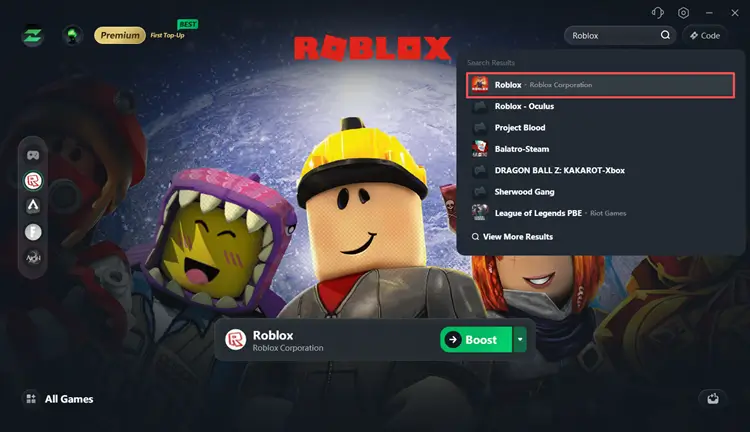
Step 3. Search for Roblox
Use the search bar or browse the game list to locate Roblox, and select it to apply optimized settings.
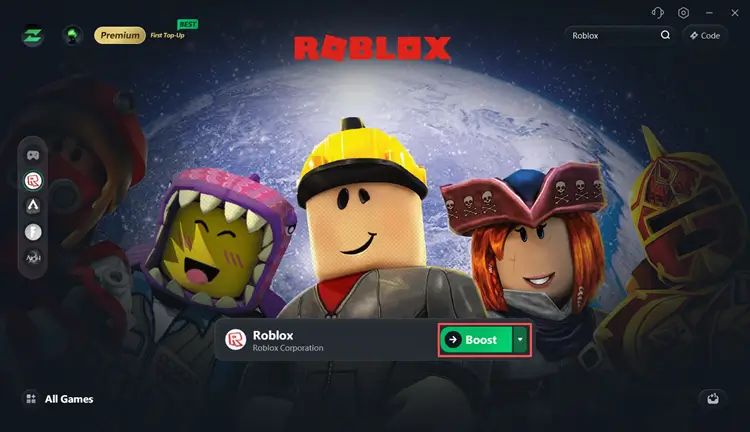
Step 4: Boost & Start Playing
Click the Boost button, and then launch Roblox to experience reduced lag, lower ping, and smoother gameplay.
Part 3. How to Fix Lag in Roblox – 6 Effective Ways
If you’re still struggling with Roblox lag, here are 6 effective ways that you can try.
Way 1. Improve Your Internet Speed
Since Roblox is an online game, the quality of your internet connection plays a huge role in performance. A slow or unstable network can result in high ping, lag, or even disconnections. Make sure your internet plan can handle online gaming, and avoid bandwidth-heavy activities like downloads or streaming while playing. If Roblox cannot join or stay connected to a server, check our guide to fixing a Roblox connection error.
If your connection simply isn’t fast enough, upgrading your internet plan may be the only long-term fix. Generally, Roblox requires at least 32 to 64 Mbps for smooth gameplay. If your current ISP isn’t meeting these requirements, consider switching to a more reliable provider.
Way 2. Try Running Roblox in Administrator Mode
Running Roblox as an administrator can grant it higher priority for system resources, which may help reduce lag in some cases. Here is how to do it:
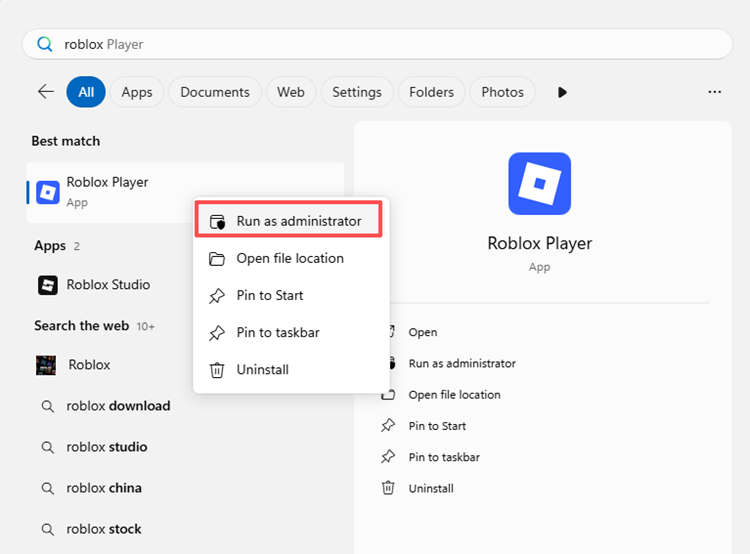
Step 1. Press Windows + S to open the search box, then type Roblox Player.
Step 2. Right-click the Roblox Player icon and select Run as administrator.
Results may vary. While not everyone will see a noticeable improvement, some have reported that this method provides a smoother gaming experience.
Way 3. Reduce Graphics Settings
High graphics settings can put extra strain on your system, especially if you’re using lower-end hardware. Reducing them can help improve FPS and minimize stuttering. To adjust settings in Roblox:
Step 1. Press Esc while in-game, go to Settings, and set Graphics Mode to Manual.
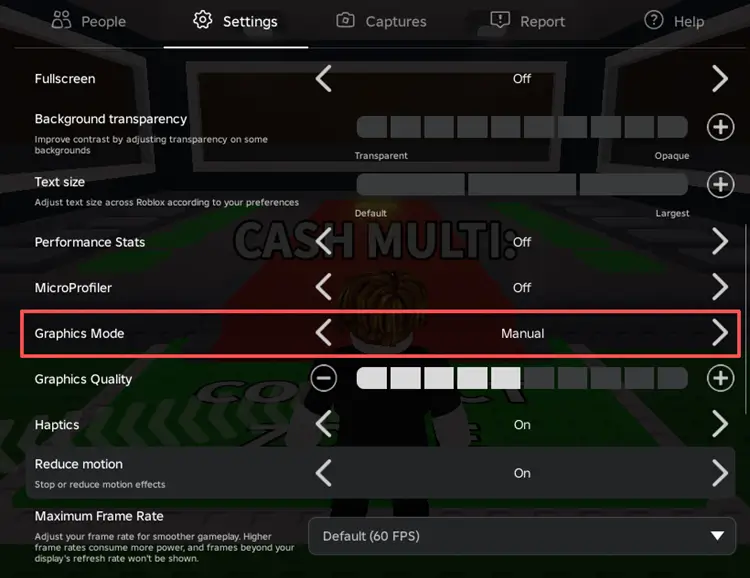
Step 2. Lower the Graphics Quality until performance improves, and enable Reduce Motion for smoother gameplay.
Way 4. Update Your Graphics Driver
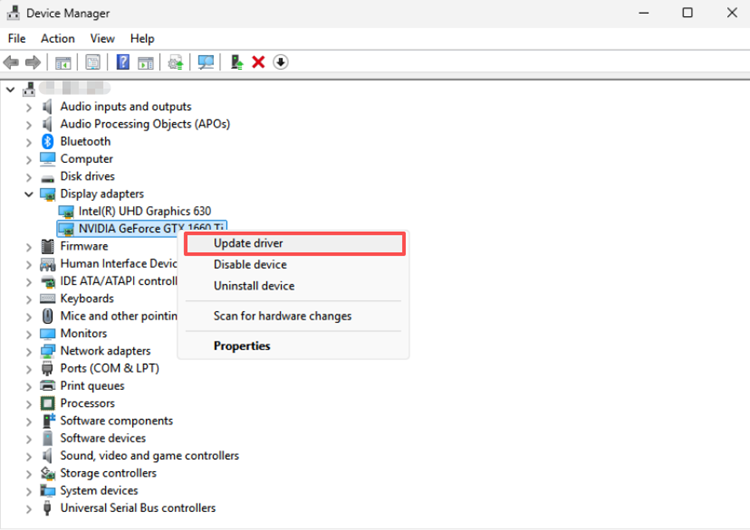
Outdated graphics card drivers can cause performance issues and screen stuttering. Keeping your drivers updated ensures better compatibility and smoother gameplay. Follow simple steps to update your graphics driver:
Step 1. Right-click the Windows icon and choose Device Manager.
Step 2. Expand Display adapters, right-click your GPU, and choose Update driver.
Way 5. Clear Temporary Files
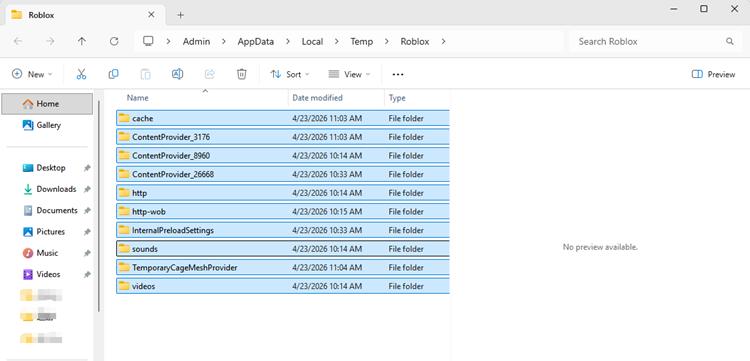
Temporary files can help games load faster, but over time, they build up and may slow down your system. Removing them regularly can free up storage space and improve overall performance.
Step 1. Press Win + R, type %Temp%\Roblox, and press Enter.
Step 2. Press Ctrl + A to select all files, then delete them.
Way 6. Restart Roblox or Your Device
Sometimes, lag is caused by temporary system glitches, and thus restarting Roblox usually resolves these issues quickly. If the problem persists, restart your computer, especially if it’s been running for a long time or frequently put into sleep mode. A fresh reboot clears memory and resets background processes, which can help eliminate lag during gameplay.
The Bottom Line
Roblox lag is usually caused by a mix of network issues, system performance limits, and in-game settings rather than a single problem. Whether you’re experiencing high ping, sudden FPS drops, or unexpected lag, most issues can be fixed with simple optimizations, such as improving network stability, lowering graphics settings, or updating drivers.
If these basic fixes don’t work, using a game booster like LagZapper can further help reduce lag and deliver smoother, more stable Roblox gameplay. Why not give it a try? Download LagZapper right now and enjoy a more responsive Roblox experience.
FAQs on Roblox Lagging
To better understand Roblox lag issues, here are some frequently asked questions that break down the most common concerns.
Q1: What is lag?
Lag refers to delays, stuttering, or slow response time during gameplay, often caused by network or performance issues.
Q2: Can too many background apps cause Roblox lag?
Yes, background apps can consume CPU and RAM, leading to lower FPS and stuttering.
Q3: Does Roblox lag depend on FPS or ping?
Yes. FPS affects visual smoothness, while ping affects network delay and responsiveness.
Q4: Why is Roblox so laggy on a good PC?
Even on a good PC, Roblox can lag due to unstable internet, high ping, server issues, poorly optimized games, or background apps consuming system resources.
Q5: Is Roblox lagging fixable?
In most cases, yes. Lag can usually be reduced or eliminated with proper optimization and system adjustments.
Q6: How to make Roblox run smoothly?
Lower graphics settings, close background apps, update drivers, and ensure a stable internet connection.