
Valheim Lag? 7 Fixes for Stuttering, FPS Drops & Multiplayer Desync
Valheim Lag can appear as constant stuttering, sudden FPS drops, lag spikes, rubberbanding, or delayed actions in multiplayer. Some players may notice short freezes while exploring or heavier performance drops around large bases, while others experience high ping or desync when playing with friends after the 1.0 update.
This guide will explain why Valheim is lagging and show how to reduce high ping, packet loss, stuttering, FPS drops, and multiplayer desync.
Why Is Valheim Lagging?
Before trying fixes, identify whether the slowdown affects frame rate, movement, multiplayer interactions, or only certain areas of the world.
Recent Patch or Version Issues: New updates can introduce performance bugs or leave older builds unstable.
Heavy Graphics and Rendering Load: High visual settings can cause stuttering and sudden FPS drops.
Unstable Network Connection: High ping or packet loss can trigger rubberbanding and delayed multiplayer actions.
Corrupted Files or Incompatible Mods: Damaged files or outdated mods can cause stuttering, crashes, or instability.
Multiplayer Synchronization Problems: An unstable area owner can worsen lag and desync for nearby players.
Large Base and World Load: Dense builds and active objects can reduce performance in busy areas.
[Quick Way] Reduce Valheim High Ping, Lag & Packet Loss with LagZapper
If you can join your Valheim server but high ping, packet loss, lag spikes, rubberbanding, or unstable routing still affect multiplayer, the default network path may be the problem. LagZapper can optimize the connection route between your Windows PC and Valheim servers.
Why Use LagZapper for Valheim
LagZapper can help Valheim players:
- Smart Route Optimization: Finds a faster and more stable route to Valheim servers, helping reduce high ping, packet loss, jitter, and unstable routing.
- Reduce Lag & Improve Stability: Helps lower ping, reduce game lag, minimize lag spikes, and improve responsiveness during multiplayer exploration and combat.
- One-Click Boost: Optimizes the Valheim connection without requiring manual changes to complicated network, DNS, or router settings.
- Support for 3,000+ Games: Supports Valheim and thousands of other popular online games.
How to Reduce Valheim Lag with LagZapper
Follow the three steps below to optimize your Valheim connection before joining a multiplayer world.
Step 1. Download and Install LagZapper
Download LagZapper for Windows and follow the on-screen instructions to complete the installation on your PC.
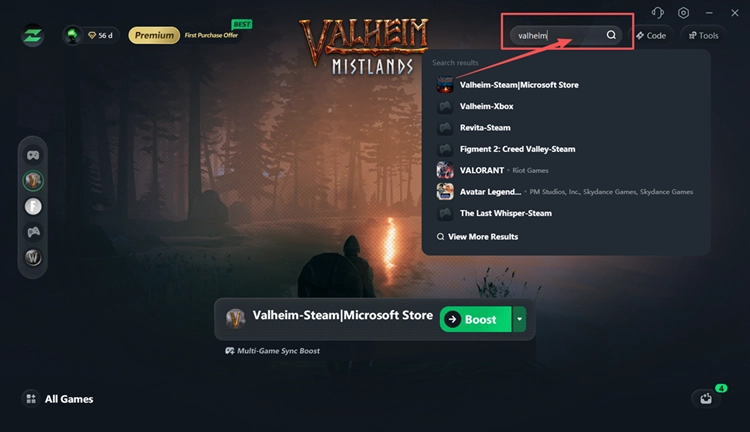
Step 2. Open LagZapper and Search for Valheim
Launch LagZapper, sign in, and enter Valheim in the search box.
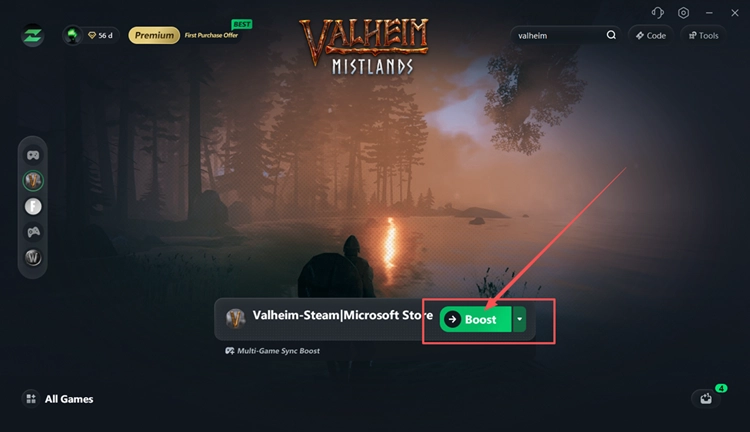
Step 3. Select a Recommended Node and Click Boost
Select a recommended node for Valheim and click Boost. Once the connection is optimized, launch Valheim and join your multiplayer world.
How to Fix Valheim Lag and Stuttering
Follow the fixes below in order to reduce Valheim lag, stuttering, FPS drops, and multiplayer desync.
Fix 1. Update Valheim to the Latest Patch
Valheim 1.0 is still receiving performance fixes. Patch 1.0.15 fixed a terrain duplication issue that could cause performance loss for some players, so an outdated build may leave known problems unresolved.
Check Steam for any pending Valheim updates, install the latest patch, and restart the game. Then revisit the same area to see whether stuttering or FPS drops improve.
Fix 2. Lower Draw Distance and Heavy Graphics Settings
High rendering load can make Valheim feel laggy even when your connection is stable, especially while exploring detailed areas or large bases. Lowering Draw Distance and a few demanding graphics options can help reduce stuttering and FPS drops. Follow the steps below to reduce GPU load without lowering every setting.
Step 1. Open Settings > Graphics in Valheim.
Step 2. Lower Draw Distance and test the same area again.
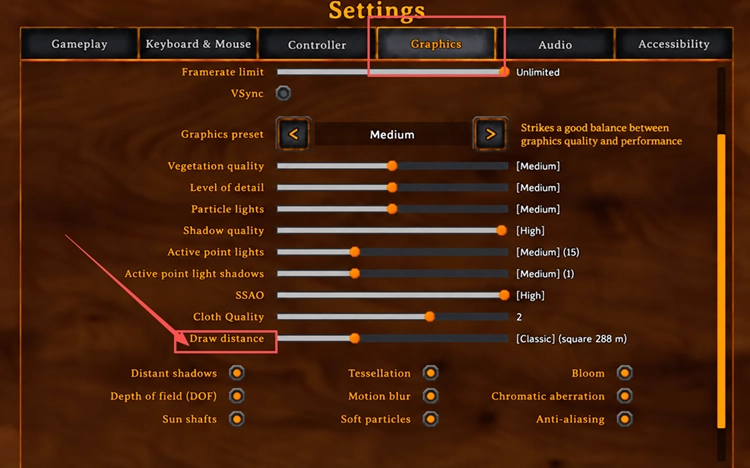
Step 3. If FPS remains low, reduce Shadow Quality, Vegetation Quality, and Active Point Light Shadows.
Fix 3. Restart and Stabilize Your Connection
If Valheim runs smoothly in single-player but shows high ping, lag spikes, rubberbanding, or delayed actions in multiplayer, the problem may be connection-related. Temporary network instability or bandwidth-heavy background activity can make multiplayer lag more noticeable.
Restart Valheim, Steam, and your router, then pause large downloads, cloud syncing, or streaming. If possible, switch from Wi-Fi to Ethernet and rejoin the same world to check whether the connection becomes more stable.
Fix 4. Verify Valheim Files and Test Without Mods
Corrupted game files or incompatible mods can cause Valheim stuttering, FPS drops, or other performance problems. Verify the base game first, then test Valheim without mods to determine whether the issue comes from the installation or modified content.
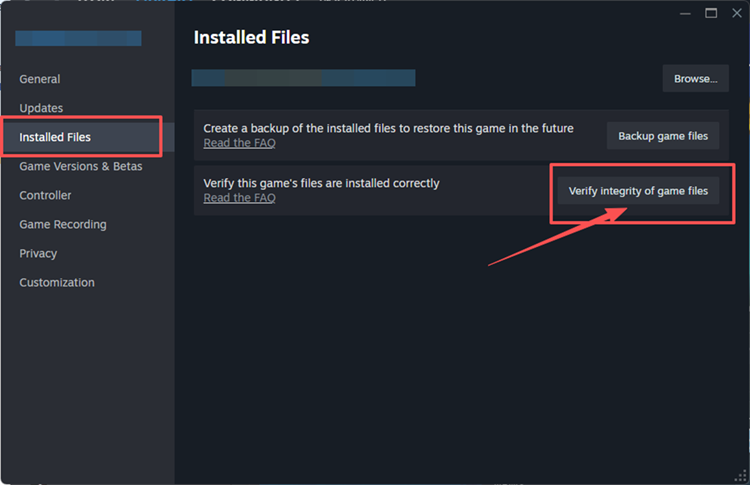
👉 Verify Game Files on Steam
Step 1. Open Steam Library, right-click Valheim, and select Properties > Installed Files.
Step 2. Click Verify integrity of game files and wait for Steam to finish the scan.
👉 Temporarily Disable Mods
Temporarily disable all Valheim mods in your mod manager, then launch the game and test the same world or area again. If performance improves, re-enable mods gradually to identify the incompatible one.
Tip: If Valheim started acting differently after the 1.0 update, check whether your mods are still compatible: Valheim Mods Not Working After 1.0? Try 8 Useful Fixes.
Fix 5. Update Your GPU Driver and Test DirectX 11 or Vulkan
An outdated GPU driver or an unstable rendering mode can contribute to Valheim stuttering, FPS drops, or crashes. Updating the driver first gives the game a cleaner baseline, while comparing DirectX 11 and Vulkan can help identify which renderer works better on your PC. Follow the steps below.
Step 1. Download and install the latest stable driver for your NVIDIA, AMD, or Intel GPU, then restart your PC.
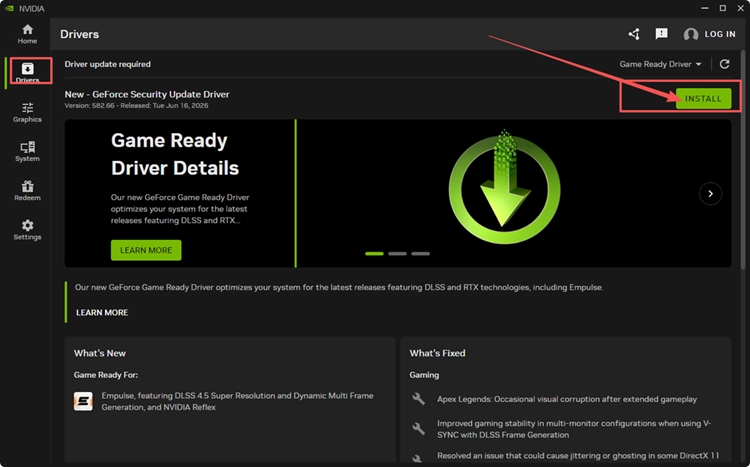
Step 2. Launch Valheim normally with DirectX 11 and test the area where stuttering or FPS drops usually occur.
Step 3. In Steam Library, click Play for Valheim and select Play Valheim using Vulkan. Test the same area and keep the more stable renderer.
Fix 6. Let the Most Stable Player Enter the Area First
In Valheim multiplayer, the first player to enter an area can become its network owner and handle much of the local simulation. If that player has an unstable connection or poor performance, nearby players may experience more rubberbanding, delayed actions, or desync.
When exploring a demanding area together, let the player with the most stable connection and PC enter first. Have the other players follow after the area loads, then check whether multiplayer desync improves.
Fix 7. Reduce Load Around Large Bases
Large Valheim bases can put much more load on your PC than open areas, especially when many structures, lights, animals, and active objects are concentrated together. If FPS drops mainly near your base, move away and compare performance first.
If FPS improves outside the base, reduce unnecessary fires, lights, densely packed structures, or large groups of animals. Spreading farms, crafting areas, or other busy sections across separate locations can also reduce concentrated load.
The Bottom Line
Valheim lag can come from performance, graphics, mods, large bases, or multiplayer connection issues. Install the latest patch first, then use your symptoms to choose the most relevant fix instead of changing every setting at once. If multiplayer still suffers from high ping, packet loss, lag spikes, or unstable routing, download LagZapper to optimize the connection route and improve network stability.
FAQs About Valheim Lag
Q1. How Do I Fix Valheim Stuttering?
Update Valheim, lower demanding graphics settings, verify files, and compare DirectX 11 with Vulkan.
Q2. What Causes Valheim Desync in Multiplayer?
Valheim desync can worsen when the area owner has an unstable connection or poor performance.
Q3. What Causes Valheim Server Lag?
Valheim server lag can involve network instability, demanding worlds, host performance, or synchronization problems.
Q4. How Can I Reduce Valheim Multiplayer Lag?
Use Ethernet, stop bandwidth-heavy background activity, and let the most stable player enter areas first.
Q5. Why Is Valheim High Ping Even with Fast Internet?
Valheim high ping can persist because server distance, congestion, or inefficient routing affects latency.