
WoW Forever BLZ51901016? 7 Fixes for Disconnects & Login Errors
Seeing the WoW Forever BLZ51901016 error when you try to log in? The game may fail to connect, disconnect before you reach the realm screen, or leave you unable to load the server list. The problem can affect access to the Beta even when Battle.net opens normally, making it unclear whether the issue comes from Blizzard’s services or your local setup.
This guide will explain what BLZ51901016 means, help you distinguish WoW Forever Beta maintenance from a local problem, and walk you through seven practical fixes for disconnects and login errors.
What Does BLZ51901016 Mean in WoW Forever?
BLZ51901016 is an existing World of Warcraft error code linked to disconnections and getting stuck while retrieving the realm list. Blizzard connects the error mainly with system requirements or connection issues, and recommends checking drivers, network stability, and corrupted UI files or add-ons during troubleshooting.
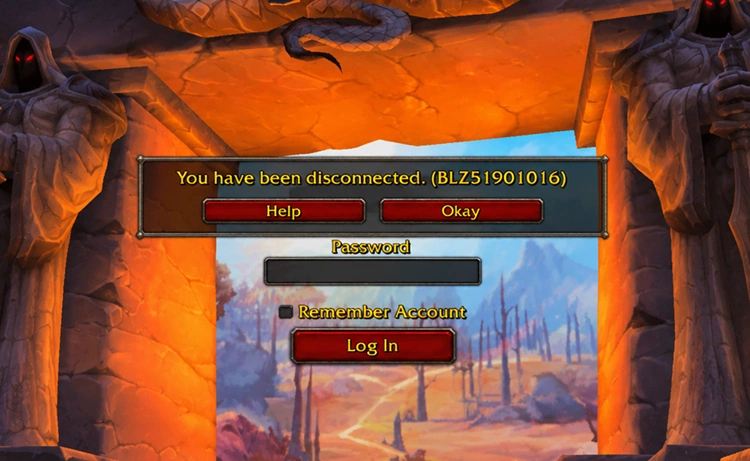
Why Am I Getting WoW Forever BLZ51901016?
WoW Forever BLZ51901016 can appear in several login and connection situations. Check the table below to match your symptoms with the best place to start troubleshooting.
| Symptom | Possible Cause | First Fix to Try |
|---|---|---|
| BLZ51901016 appears suddenly for many players | Beta maintenance or server outage | Check server status |
| Error starts after a Beta update | Outdated or incorrect game client | Restart Battle.net and update |
| Random disconnects or unstable login | Unstable local connection | Stabilize your connection |
| Login still fails after updating | Damaged or incomplete game files | Scan and Repair |
| Game cannot connect while other apps work | Firewall or security software conflict | Check app permissions |
| Stuck on Retrieving Character List after login | Character service, cache, or connection issue | Fix Retrieving Character List |
How to Fix WoW Forever BLZ51901016 -7 Useful Fixes
Try the fixes below in order, starting with the quickest checks before moving to deeper connection, file, and system troubleshooting.
Fix 1. Check WoW Forever Beta Maintenance and Server Status
BLZ51901016 can appear during WoW Forever Beta maintenance even when your PC and connection are working normally. Recent player reports show the error occurring while Beta servers were down for patching or fixes. Check maintenance notices and server status first before changing any local settings.
Fix 2. Restart Battle.net and Update the Correct WoW Forever Client
WoW Forever Beta receives new client builds during testing, so an outdated build can cause login or connection problems after maintenance. Fully close and reopen Battle.net, select World of Warcraft: Forever Beta from the Game Version menu, install any pending update, and then launch the game again.
Fix 3. Stabilize Your Local Connection
An unstable Wi-Fi or local network can trigger BLZ51901016 even when the WoW Forever servers are online. Restart your router, pause heavy downloads or cloud syncing, and use Ethernet instead of Wi-Fi when possible. Then relaunch Battle.net and check whether the connection becomes more stable.
Fix 4. Scan and Repair WoW Forever
If BLZ51901016 starts after an update and other players can connect normally, damaged or incomplete game files may be affecting your client. Use Battle.net’s Scan and Repair tool to check the installation and repair detected file problems.
Step 1. Open Battle.net > World of Warcraft, select World of Warcraft: Forever Beta, click the gear icon beside Play, and choose Scan and Repair.
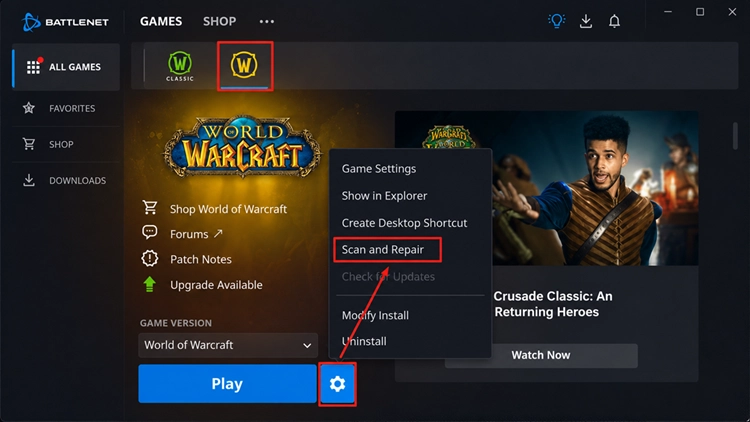
Step 2. Click Begin Scan, wait for the repair to finish, then relaunch WoW Forever and test the login.
Fix 5. Check Firewall and Security Software Permissions
If WoW Forever still shows BLZ51901016 while the servers are online, Windows Firewall or security software may be blocking the game or Battle.net. Check their permissions instead of disabling protection. Follow the steps below.
Step 1. Open Windows Security > Firewall & network protection > Allow an app through firewall.
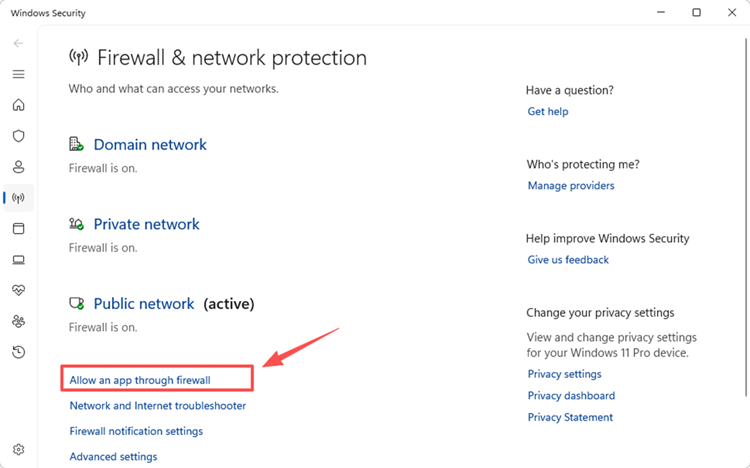
Step 2. Click Change settings. Find World of Warcraft and Battle.net, or use Allow another app to add either one if missing.
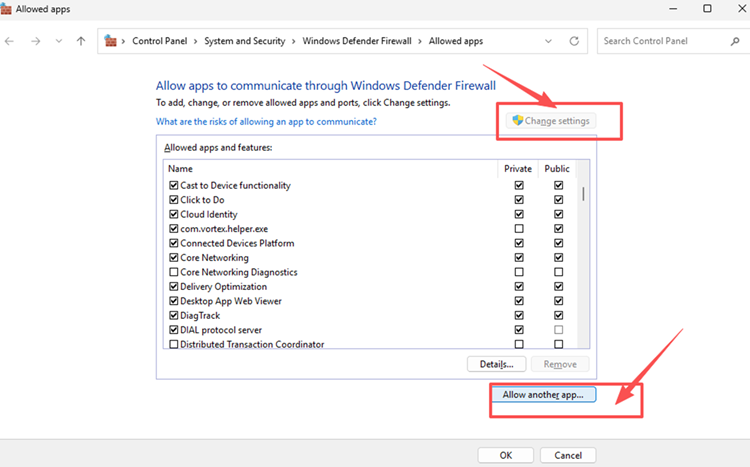
Step 3. Allow both apps on your active network profile, click OK, then relaunch Battle.net and test WoW Forever again.
Fix 6. Reset the WoW Forever UI and Add-ons
Corrupted UI files or incompatible AddOns can interfere with WoW Forever and cause login or connection problems. Disable third-party AddOns first. If BLZ51901016 continues, close the game, open the WoW Forever installation folder, rename the Cache, Interface, and WTF folders with an “Old” suffix, then relaunch the game to rebuild the default UI files.
Fix 7. Update Drivers and Check System Compatibility
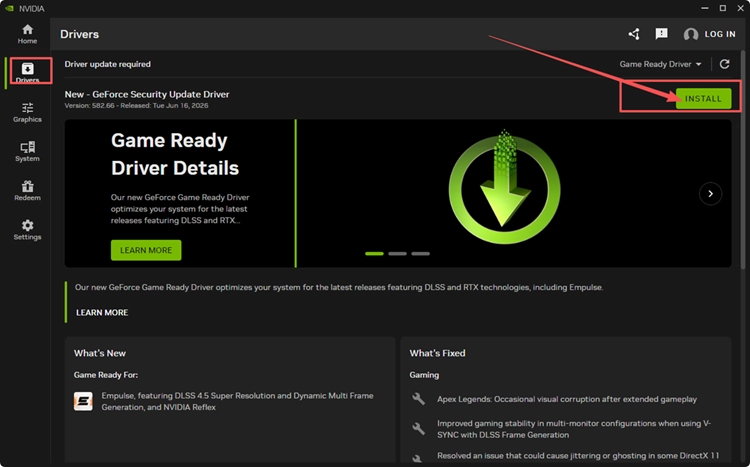
If BLZ51901016 continues after the earlier fixes, check that your PC meets the current WoW Forever requirements and that your device drivers are up to date. Outdated graphics or network drivers can create compatibility problems, so install available updates, restart your PC, and test the game again.
[Bonus] Reduce WoW Forever Connection Problems with LagZapper
If WoW Forever servers are online but you still experience high ping, packet loss, disconnects, or unstable routing, LagZapper can optimize the connection route between your PC and the game server to help improve connection stability.
Why Use LagZapper for WoW Forever?
LagZapper can help WoW Forever players:
- Smart Route Optimization: Finds a faster and more stable route to WoW Forever servers to help reduce high ping, packet loss, jitter, and routing instability.
- Reduce Lag & Improve Stability: Helps lower ping, reduce game lag, minimize lag spikes, and improve connection stability during gameplay.
- One-Click Boost: Optimizes the WoW Forever connection without manually changing complicated network, DNS, or router settings.
- Support for 3,000+ Games: Supports WoW Forever and more than 3,000 other online games.
How to Use LagZapper for WoW Forever
Follow the three steps below to optimize your WoW Forever connection before launching the game.
Step 1. Download and Install LagZapper
Download LagZapper for Windows and follow the on-screen instructions to complete the installation.
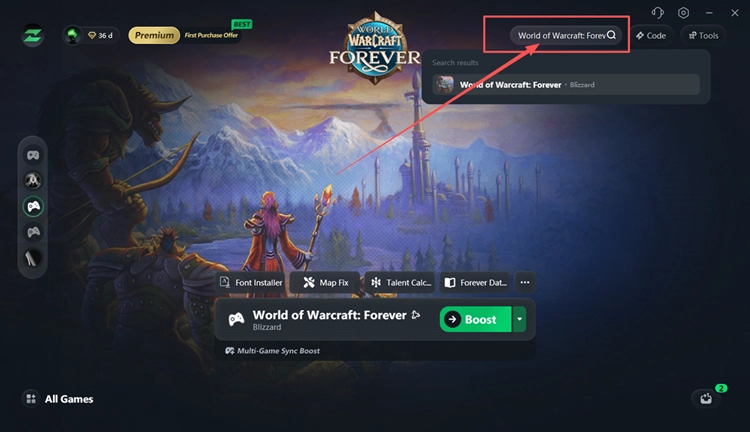
Step 2. Search for WoW Forever
Launch LagZapper, sign in, and enter World of Warcraft: Forever in the search box.
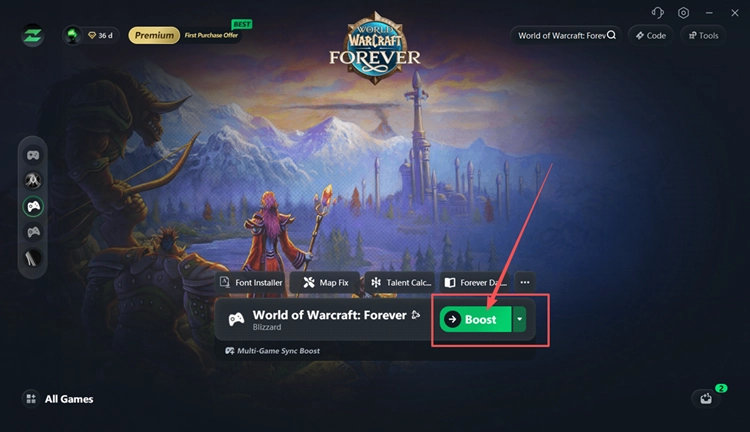
Step 3. Select a Recommended Node and Click Boost
Choose a recommended WoW Forever node, click Boost, then launch the game through Battle.net.
The Bottom Line
WoW Forever BLZ51901016 can come from Beta maintenance, an outdated client, unstable connections, damaged files, firewall restrictions, UI conflicts, or compatibility problems. Check the server status first, then work through the local fixes in order. If unstable routing remains after the game connects normally, download LagZapper to optimize the connection and improve stability.
FAQs About WoW Forever BLZ51901016
Q1. What Does WoW Forever BLZ51901016 Mean?
It is a WoW disconnect error linked to login, connection, or system compatibility problems.
Q2. Why Am I Getting the WoW Forever BLZ51901016 Error?
Maintenance, client issues, unstable connections, damaged files, or local software conflicts can trigger it.
Q3. Is WoW Forever Down When BLZ51901016 Appears?
Not always. Check current maintenance and player reports before assuming the servers are down.
Q4. What Is the Best WoW Forever BLZ51901016 Fix?
Check server status first, then update the client and troubleshoot local connection issues.
Q5. Can AddOns Cause WoW Forever Beta BLZ51901016?
Corrupted UI files or incompatible AddOns can contribute to client-side connection and login problems.