
AION 2 Keeps Disconnecting? 8 Fixes for Connection Errors and Random Disconnects
If AION 2 keeps disconnecting after you enter the game, you may be kicked from the server, forced to reconnect repeatedly, or dropped during a dungeon, teleport, or zone transition. Even a brief interruption can break up gameplay and make it difficult to complete time-sensitive activities normally. This guide will explain why AION 2 keeps disconnecting and provide eight practical fixes to help you restore a more stable connection on PC.
Why Does AION 2 Keep Disconnecting?
AION 2 disconnects can come from server-side problems, local network instability, game files, or Windows network settings. Check the table below to identify the most likely cause.
| Symptom | Possible Cause | First Fix to Try |
|---|---|---|
| Multiple disconnects followed by failed reconnect attempts | Server outage or maintenance | Check AION 2 server status |
| Disconnects start after a game update | Outdated game files or a temporary PURPLE issue | Update AION 2 and restart PURPLE |
| Disconnects happen while downloading or syncing files | Background apps are using too much bandwidth | Pause background downloads and cloud sync |
| Random drops happen more often on Wi-Fi | Unstable wireless connection or router issues | Restart your router and use Ethernet |
| Disconnects occur while loading, teleporting, or changing areas after an update | Incomplete or damaged game files | Scan and repair AION 2 |
| AION 2 disconnects on one PC while other devices stay online | Firewall, Windows network stack, or network adapter issues | Allow AION 2 and PURPLE through Windows Firewall |
How to Fix AION 2 Keeps Disconnecting - 8 Useful Fixes
The table above can help you narrow down where the connection problem may be coming from. Start with the fix that best matches your symptoms, or try the eight fixes below in order.
Fix 1. Check AION 2 Server Status and Maintenance
Before changing any network settings, check the official AION 2 Announcements for maintenance or known server issues. You can also search social media or community discussions to see whether other players are reporting similar disconnects. If many players are disconnecting at the same time, the problem is likely server-side rather than your PC or network. In that case, wait for the service to recover before trying local fixes.
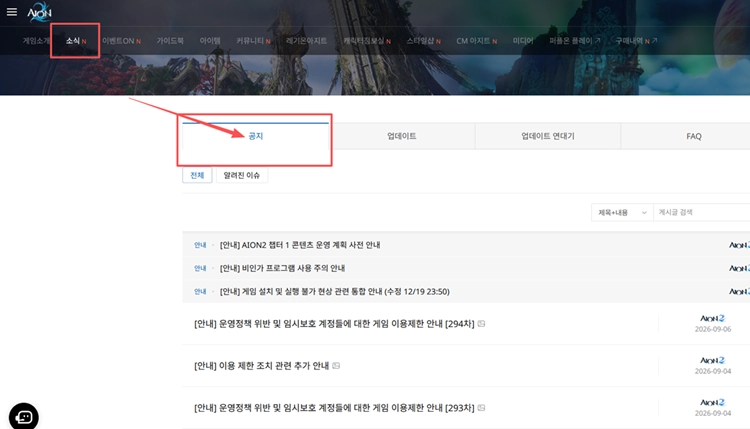
Tip: Players preparing for the upcoming Launch Scale Test can also check our AION 2 Playtest guide for test dates, preload details, and access information.
Fix 2. Update AION 2 and Restart PURPLE
If the disconnects started after an AION 2 update, make sure the latest game version is fully installed. Then completely exit PURPLE instead of leaving it minimized in the background, and reopen the launcher before starting the game again. This can clear a temporary launcher session and ensure AION 2 starts with the latest files.
Fix 3. Pause Background Downloads and Cloud Sync
Cloud syncing, video streaming, browser downloads, and launcher updates can continue using bandwidth while you play. If these tasks run in the background, they may make an already unstable AION 2 connection more likely to drop. Follow the steps below to reduce unnecessary network activity:
Step 1. Press Ctrl + Shift + Esc to open Task Manager.
Step 2. In Processes, check the Network column for apps using the most bandwidth.
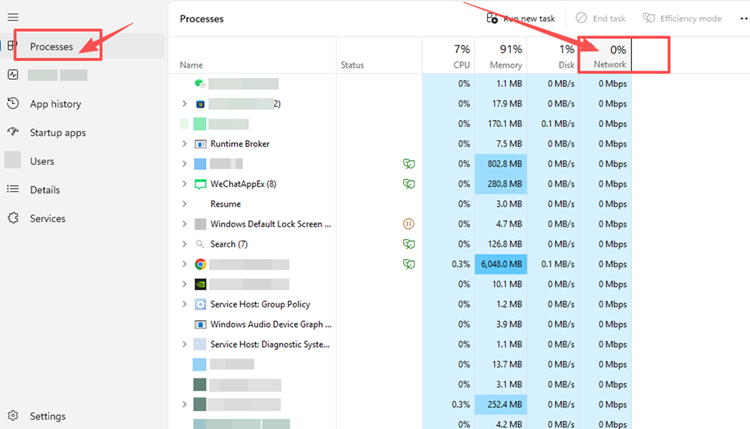
Step 3. End only non-essential tasks, then pause active downloads, updates, and cloud syncing before launching AION 2.
Fix 4. Restart Your Router and Use a Wired Connection
Temporary router issues or an unstable Wi-Fi signal can cause brief connection drops while playing AION 2. Turn off your router for about 30-60 seconds, then reconnect after the network is fully restored. If you are using Wi-Fi, switch to a wired Ethernet connection when possible to reduce wireless interference and improve connection stability.
Tip: If disconnects improve but latency remains high, check our AION 2 high ping guide for more fixes targeting ping spikes, packet loss, and routing issues.
Fix 5. Scan and Repair AION 2 Game Files
If AION 2 started disconnecting after an update, incomplete or damaged game files may cause problems when loading areas or transitioning between zones. PURPLE includes a built-in file scan that can check the installation and repair affected files. Follow the steps below to scan AION 2:
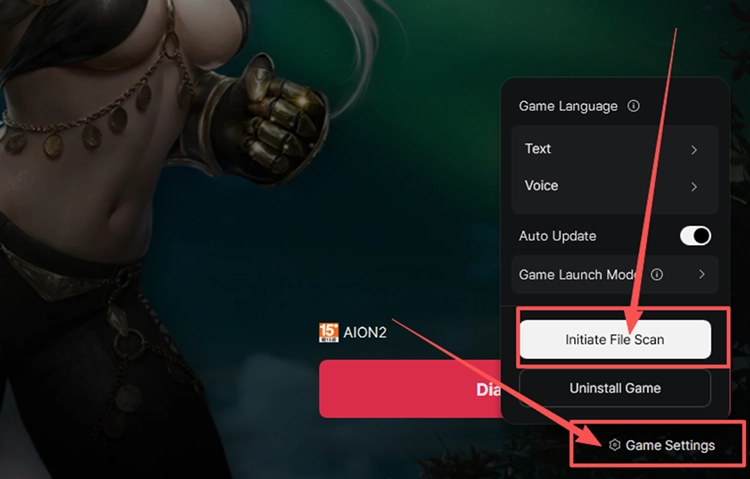
Step 1. Open PURPLE, select AION 2, click the menu beside Play, and select Game Settings.
Step 2. Click Initiate File Scan and wait for PURPLE to finish checking the installation.
If AION 2 closes completely or crashes instead of simply losing connection, check our AION 2 Crash guide for crash-specific fixes.
Fix 6. Allow AION 2 and PURPLE Through Windows Firewall
Windows Firewall may block AION 2 or PURPLE from communicating properly with the game servers. Instead of disabling the firewall, add both programs to the allowed apps list so they can use the network normally. Follow the steps below:
Step 1. Open Windows Security, select Firewall & network protection, and click Allow an app through firewall.
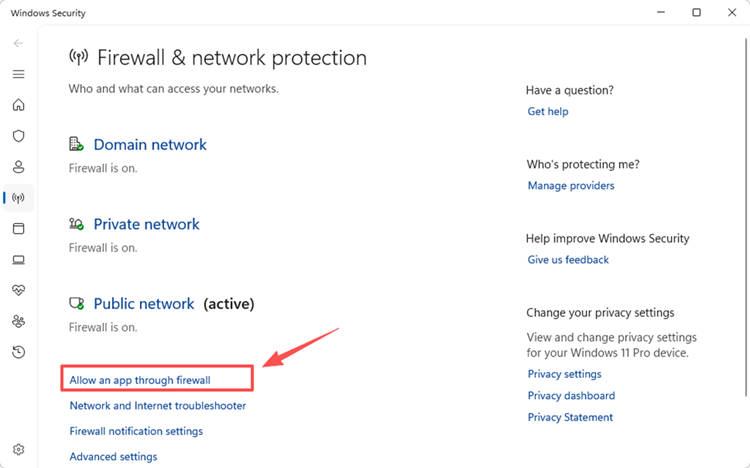
Step 2. Click Change settings, select Allow another app, and add the executable files for AION 2 and PURPLE.
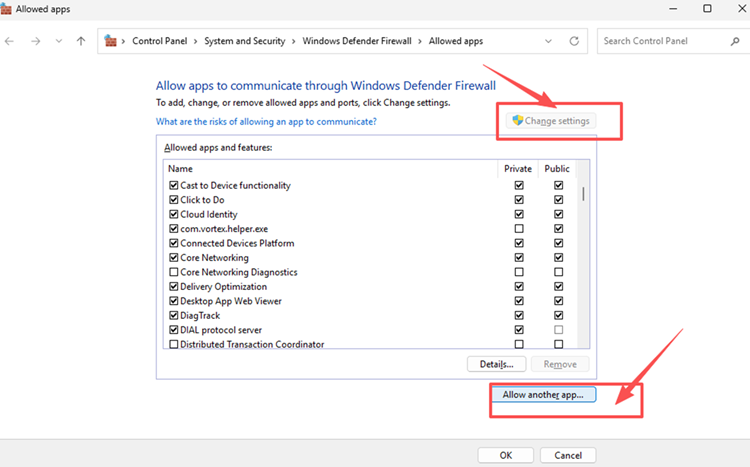
Step 3. Allow both apps on your active network profile, click OK, and restart PURPLE before launching AION 2 again.
Fix 7. Flush DNS and Reset Winsock
Corrupted DNS cache or Winsock settings can interfere with how Windows handles game connections and may contribute to repeated connection errors. Flushing DNS clears cached resolver data, while resetting Winsock restores the Windows socket catalog. Follow the steps below:
Step 1. Search for Command Prompt, right-click it, and select Run as administrator.
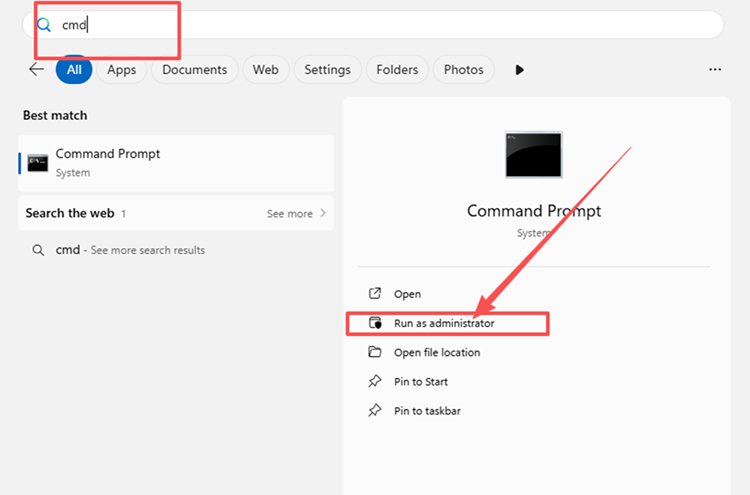
Step 2. Run the following commands one at a time:
- ipconfig /flushdns
- netsh winsock reset
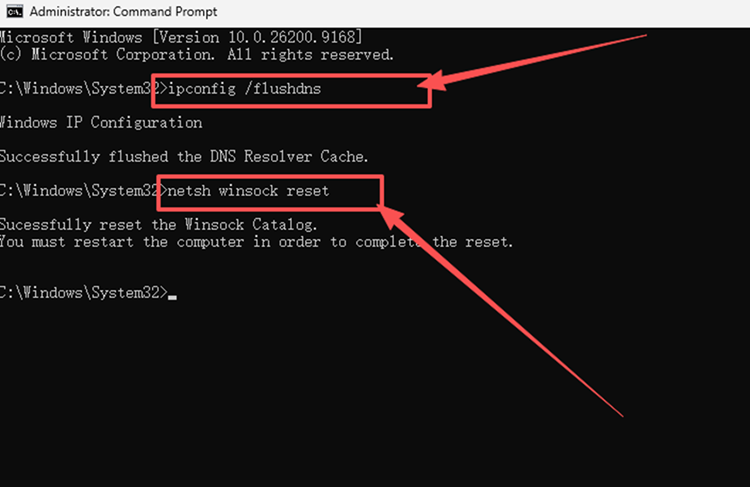
Step 3. Restart your PC, then launch PURPLE and test AION 2 again.
Fix 8. Update Your Network Adapter Driver
An outdated or unstable network adapter driver can affect your Wi-Fi or Ethernet connection and contribute to random AION 2 disconnects. If the connection remains unstable after the earlier fixes, update the active network adapter driver and test the game again. Follow the steps below:
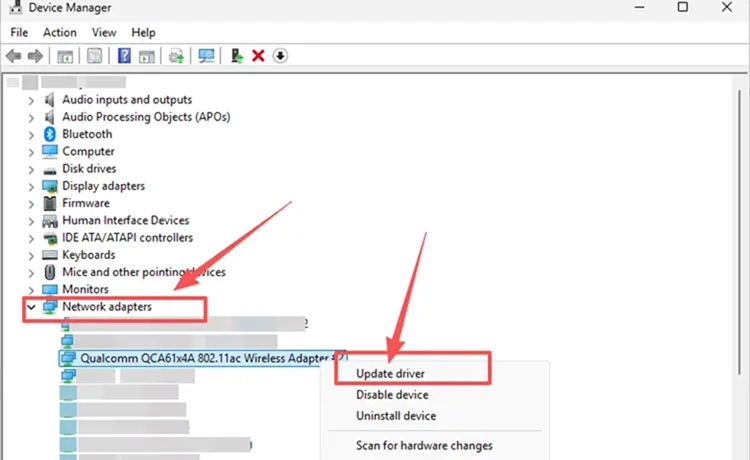
Step 1. Open Device Manager through the Windows search bar.
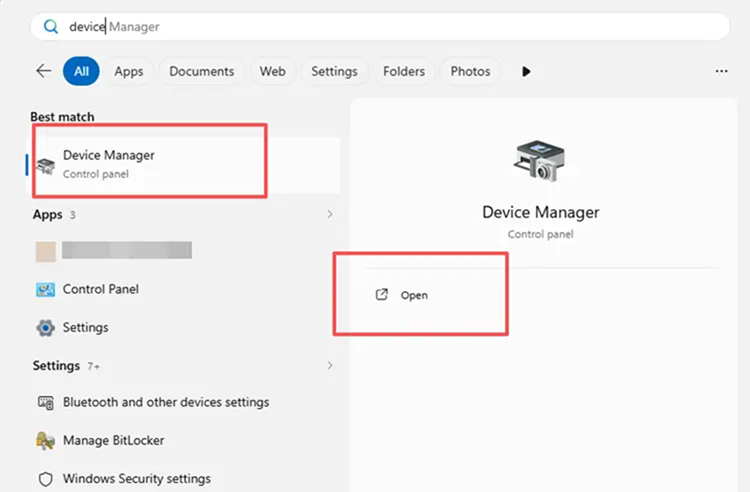
Step 2. Expand Network adapters, right-click your active Wi-Fi or Ethernet adapter, and select Update driver.
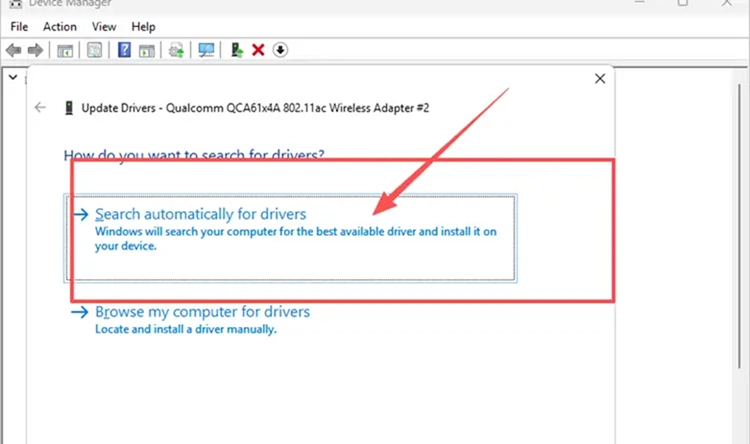
Step 3. Select Search automatically for drivers, install any available update, and restart your PC before testing AION 2 again.
[Bonus] Reduce AION 2 Disconnects with LagZapper
If AION 2 servers are online but high ping, packet loss, or unstable routing still causes random disconnects, the problem may lie along the connection route to the game server. LagZapper can optimize that route, helping reduce game lag and improve connection stability during dungeons, PvP, and other online activities.
Why Use LagZapper for AION 2?
LagZapper can help AION 2 players:
- Smart Route Optimization: Finds a faster and more stable route to AION 2 servers, helping reduce high ping, packet loss, jitter, and routing instability.
- Improve Connection Stability: Helps lower ping, reduce game lag, and limit sudden connection problems caused by unstable routes.
- One-Click Boost: Optimizes the AION 2 connection without manually changing complicated network, DNS, or router settings.
- Support for 3,000+ Games: Supports AION 2 and thousands of other popular online games.
How to Boost AION 2 with LagZapper
Follow the three steps below to optimize your AION 2 connection before entering the game.
Step 1. Download and Install LagZapper
Download LagZapper for Windows and follow the on-screen instructions to complete the installation.
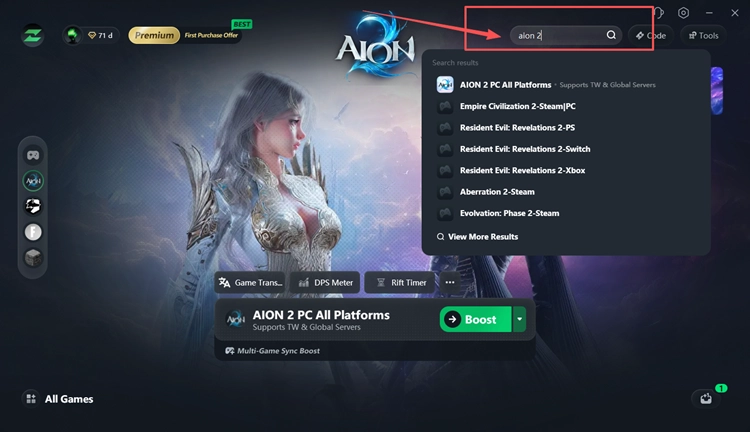
Step 2. Open LagZapper and Search for AION 2
Launch LagZapper, sign in, and enter AION 2 in the search box.
Step 3. Select a Recommended Node and Click Boost
Select your AION 2 server and a recommended node, click Boost, then launch the game through PURPLE.
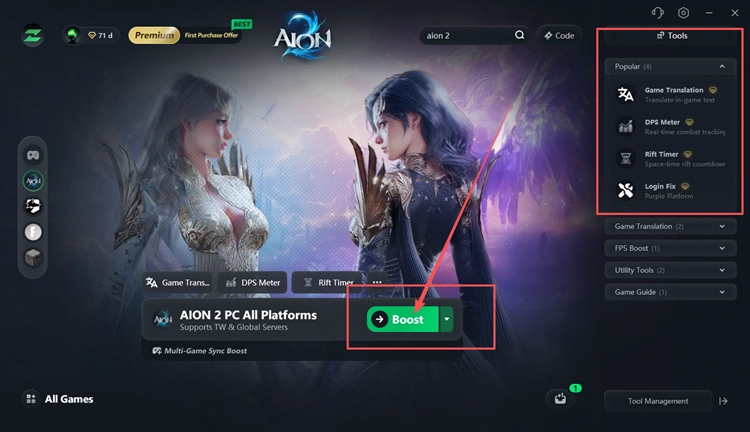
Tip: Beyond connection optimization, LagZapper also adds practical AION 2 tools: DPS Meter for real-time combat stats, Rift Timer for spawn countdowns, Login Fix for PURPLE login problems, and Game Translation for Russian and Turkish.
The Bottom Line
AION 2 disconnects may come from server issues, background traffic, unstable Wi-Fi, damaged game files, firewall restrictions, or Windows network problems. Work through the eight fixes above based on your symptoms. If unstable routing, high ping, or packet loss continues to interrupt gameplay, download LagZapper to optimize the connection route.
FAQs About AION 2 Keeps Disconnecting
Q1. Why Does AION 2 Keep Disconnecting?
Server issues, unstable networks, background traffic, firewall rules, or damaged files can cause repeated disconnects.
Q2. Is AION 2 Down If Everyone Keeps Disconnecting?
If many players disconnect at the same time, AION 2 may be experiencing a server outage or maintenance.
Q3. Why Am I Unable to Connect to Server AION 2?
Server maintenance, network instability, firewall restrictions, or PURPLE connection problems may prevent the connection.
Q4. What Does an AION 2 Connection Lost Message Mean?
An AION 2 connection lost message means communication between your PC and the game server was interrupted.
Q5. How Do I Fix an AION 2 Connection Error?
Check server status first, then troubleshoot your local network, firewall, game files, and Windows settings.