
AION 2 Packet Loss & Lag: 6 Fixes for Connection Issues
AION 2 packet loss can cause sudden lag spikes, rubberbanding, delayed skills, unstable movement, and frequent disconnects while exploring Atreia. These issues may appear even when your ping looks normal, making combat and movement feel inconsistent.
A stable connection between your PC and the game server is essential for smooth gameplay. Unstable Wi-Fi, network congestion, and inefficient routing can lead to AION 2 lag, network lag, frequent disconnects, and other connection issues.
Why Am I Getting Packet Loss in AION 2?
AION 2 packet loss happens when game data drops somewhere between your PC and the AION 2 server. It can occur even with a fast internet connection. Common causes include:
- Poor ISP Routing: Congested or unstable routes can cause AION 2 network lag and packet loss.
- Network Congestion: Downloads, streaming, and other devices may compete for bandwidth.
- Unstable Wi-Fi: Weak signals or interference can create packet loss and lag spikes.
- Distant Server Region: Longer routes may increase latency and connection instability.
- Server Issues: Heavy server load or maintenance can cause AION 2 connection issues.
- Jitter: Frequent latency changes can lead to rubberbanding and unstable gameplay.
A normal speed test does not rule out packet loss, jitter, or routing problems between your PC and the game server.
[Quick Way] Reduce AION 2 Packet Loss with LagZapper
AION 2 packet loss, lag spikes, or unstable connections can continue even when the game servers are running normally. A congested or inefficient route between your PC and the AION 2 server may be the cause.
LagZapper is a Windows game booster that optimizes your network route to AION 2 servers. It can help reduce packet loss, lower ping, reduce lag, and improve connection stability during gameplay.
Why Use LagZapper for AION 2?
- Reduce Packet Loss: Helps stabilize your connection when the default route is congested or unreliable.
- Reduce AION 2 Lag: Helps reduce lag spikes and network lag caused by inefficient routing.
- Lower AION 2 Ping: Optimizes the route to the game server to reduce AION 2 high ping.
- Smart Route Optimization: Finds a more stable network path between your PC and the AION 2 server.
How to Boost AION 2 with LagZapper
Boost AION 2 in three steps.
Step 1. Download and Install LagZapper
Download LagZapper for Windows and complete the installation.
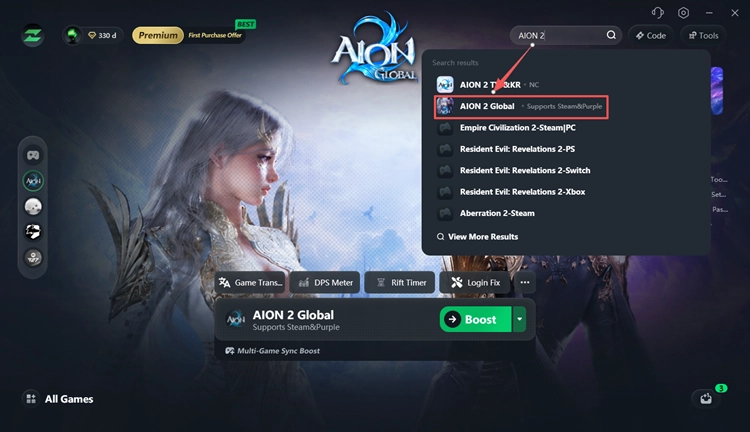
Step 2. Search for AION 2
Open LagZapper, sign in, search for AION 2, and select the game.
Step 3. Select a Node and Boost
Choose an optimized node and click Boost.
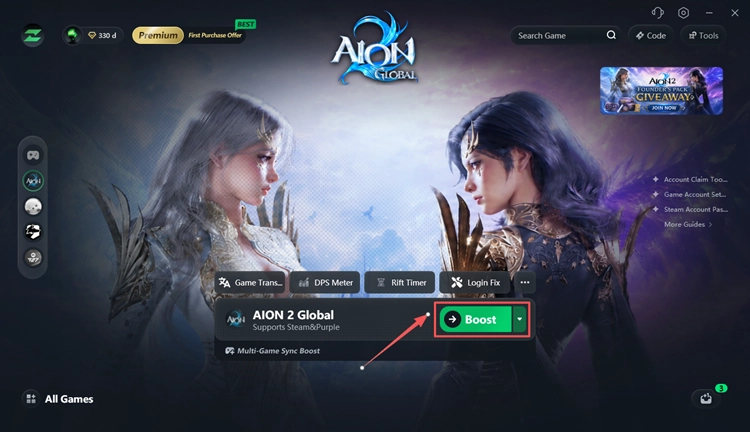
Then launch AION 2 and check whether packet loss, lag spikes, and connection stability improve.
How to Fix AION 2 Packet Loss and Lag
Still experiencing AION 2 packet loss, rubberbanding, lag spikes, or disconnects? Try these fixes in order.
Fix 1. Check AION 2 Server Status
Check the latest AION 2 server status and official announcements for maintenance, outages, or temporary server issues. Server congestion can cause lag, disconnects, login errors, and other connection problems, especially when many players are affected at the same time.
Also Read: AION 2 Server Status: Are Servers Down Right Now?
Fix 2. Restart Your Router and Stop Background Traffic
Restart your modem and router first, then reduce unnecessary network traffic before launching AION 2 again.
Step 1. Pause downloads, streaming, cloud backups, uploads, and background updates.
Step 2. Press Ctrl + Shift + Esc to open Task Manager.
Step 3. Check the Network column and close unnecessary apps using large amounts of bandwidth.
Heavy background traffic can cause AION 2 packet loss, lag spikes, and unstable connections. Launch the game again and check whether the connection improves.
Fix 3. Use Ethernet Instead of Wi-Fi
Connect your PC directly to the router with an Ethernet cable whenever possible. Ethernet is generally more stable than Wi-Fi and is less affected by interference or weak signals.
When Ethernet is unavailable:
- Move closer to the router.
- Use 5 GHz or 6 GHz Wi-Fi.
- Reduce active devices on the network.
- Avoid playing with a weak Wi-Fi signal.
A clear improvement on Ethernet usually indicates that Wi-Fi is contributing to AION 2 packet loss or network lag.
Fix 4. Reset Windows Network Settings
Windows network or DNS issues can sometimes contribute to AION 2 connection instability.
Step 1. Search for cmd in Windows. Right-click Command Prompt and select Run as administrator.
Step 2. Run these commands one at a time:
- netsh winsock reset
- netsh int ip reset
- ipconfig /flushdns
Step 3. Restart your PC, then launch AION 2 and check whether packet loss, lag, or connection instability improves.
Fix 5. Check Packet Loss and Jitter
A fast internet connection can still suffer from packet loss or jitter. Check whether your latency remains stable instead of relying only on download speed.
AION 2 rubberbanding, delayed skills, or sudden lag spikes with relatively low ping often indicate packet loss or jitter rather than slow internet speed.
Fix 6. Try a Closer AION 2 Server
Connecting to a distant server can increase latency and make the network route less stable. Choose the closest available AION 2 region whenever possible.
Not sure which region to use? Check the AION 2 server list before switching servers.
The Bottom Line
AION 2 packet loss can come from server congestion, poor routing, unstable Wi-Fi, jitter, or heavy network traffic. Check the server first, then restart your network, reduce background traffic, test Ethernet, and reset your Windows network settings.
When the servers are online but the route remains unstable, download LagZapper to optimize your connection path and help reduce packet loss, lag spikes, high ping, and network lag.
FAQs About AION 2 Packet Loss
Q1. Why am I getting packet loss in AION 2?
Common causes include poor ISP routing, unstable Wi-Fi, network congestion, jitter, distant servers, or temporary AION 2 server issues.
Q2. How do I fix packet loss in AION 2?
Check server status, restart your network, stop background traffic, use Ethernet, test packet loss and jitter, reset Windows network settings, and try a closer server.
Q3. Why is AION 2 lagging with good internet?
Fast download speed does not guarantee a stable gaming connection. Poor routing, packet loss, or jitter between your PC and the AION 2 server can still cause lag.
Q4. Why does AION 2 rubberband with low ping?
Low average ping can still come with packet loss or jitter. Missing packets may cause your character to jump backward, freeze, or respond inconsistently.
Q5. Can AION 2 server congestion cause packet loss?
Server congestion or temporary service problems can contribute to lag, disconnects, and unstable connections, especially during periods of heavy player activity.
Q6. Can LagZapper help reduce AION 2 packet loss?
LagZapper optimizes the network route between your PC and the AION 2 server, which can help reduce packet loss, high ping, lag spikes, and unstable routing.