
PoE 2 0.5 Connection Failed? Fix Server, Gateway, and Instance Errors
Path of Exile 2 Patch 0.5: Return of the Ancients brings players back to Wraeclast with new endgame content, balance updates, and fresh league-start activity. However, major updates often come with one common issue: PoE 2 0.5 connection failed. This guide will cover the most common PoE 2 0.5 connection errors, explain how to check whether the problem is server-side or network-related, and show you practical fixes to help you reconnect and play more smoothly.
Is PoE 2 Down or Is It Your Network?
Before changing any settings, it helps to figure out where the problem is coming from. A PoE 2 connection issue may be caused by the game servers, your local network, or the route between your ISP and the selected gateway.
#1. Check the Game Server
If many players are reporting the same error, the issue happens right after Patch 0.5 or a league launch, several gateways fail at the same time, or official channels mention server instability, it is more likely a server-side problem. If your other games and websites work normally, the best option is to wait for updates and try again later.
#2. Check Your Local Network or Routing
If other players can log in normally but your connection keeps timing out, or you also notice high ping and packet loss in other online games, the issue may be related to your local network, ISP routing, firewall settings, or Wi-Fi stability.
Tip: Having trouble accessing the same characters after switching between Steam, PS5, or Xbox? Check our Path of Exile 2 account linking guide to verify your linked platform and PoE sub-account.
Why PoE 2 0.5 Connection Failed Happens?
PoE 2 0.5 connection failed errors can happen for many reasons, especially after a major update like Patch 0.5: Return of the Ancients. Some issues are caused by server pressure, while others come from unstable routing, packet loss, local network settings, or launcher problems. Common reasons include:
- Server Overload After Patch Launch
Major updates often bring many players back at the same time. Login servers, gateway servers, and instance servers may become unstable during peak hours.
- Unstable Gateway Connection
A nearby gateway is not always the best option. Poor ISP routing to one gateway can cause high ping, packet loss, failed instance connections, or disconnects.
- ISP Routing Issues
Even if you have high-speed broadband, your ISP may still route game traffic through congested or unstable paths, causing spikes in latency or slow loading screens when switching zones.
- Packet Loss
Packet loss can lead to rubberbanding, input delay, skill lag, failed instance errors, or sudden disconnects during mapping and boss fights.
- Firewall or Antivirus Blocking
Security software (such as firewalls or antivirus programs) may mistakenly block PoE 2, its launcher, login server, or patch server connection.
- DNS Cache Issues
Outdated or corrupted DNS records may prevent your system from properly resolving and connecting to game servers.
- Broken Patch Files or Launcher Issues
Incomplete patch file downloads, Steam platform errors, or malfunctions in the standalone launcher can cause patching, launch, or connection failures.
How to Fix PoE 2 0.5 Connection Failed [5 Useful Fixes]
The following fixes can help you identify whether the problem comes from the PoE 2 servers, your selected gateway, local DNS settings, firewall rules, or unstable network routing. Try them in order to improve your chance of reconnecting successfully.
Fix 1. Restart the Game and Launcher
If you are playing through Steam, exit Steam fully before opening the game again. This simple step can help clear temporary login failures, patching errors, stuck loading screens, and short-term connection problems. Steam recommends restarting your computer and launching Steam again before deeper troubleshooting, especially when game files or updates are not loading correctly.
Fix 2. Change Your PoE 2 Gateway
If you can reach the login screen but keep disconnecting when entering areas, changing your gateway may help. Start with the nearest gateway first. If it still causes high ping or random disconnects, try another regional gateway.
A better gateway should usually give you:
- Lower ping
- Fewer ping spikes
- Less packet loss
- Faster loading between areas
- Fewer disconnects during maps
Sometimes, the closest gateway is not the most stable one, especially if your ISP routes traffic poorly to that server.
Fix 3. Flush DNS
Flushing DNS can help if your PC is still using old or unstable DNS records. Microsoft lists ipconfig /flushdns as the command used to flush the DNS resolver cache when troubleshooting DNS name resolution problems. Follow the simple steps:
Step 1. Click the Windows icon and type cmd in the search box.
Step 2. Right-click Command Prompt and select Run as administrator.
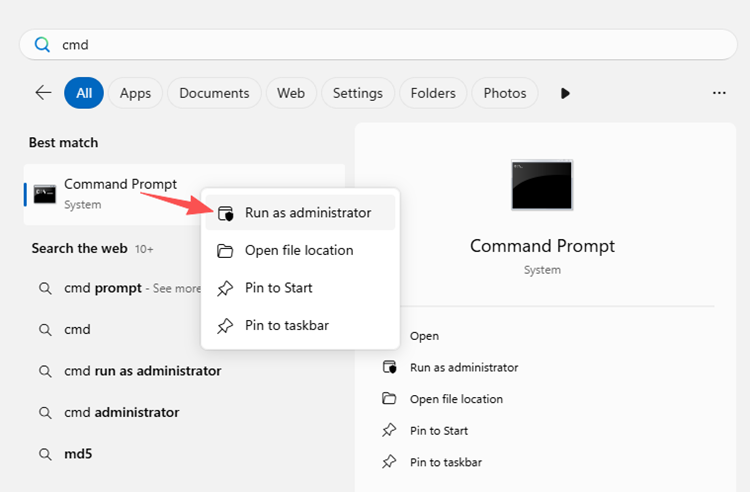
Step 3. Enter the following command and press Enter: ipconfig /flushdns
If the command works, Windows should show a message saying that the DNS Resolver Cache has been successfully flushed. After that, close Command Prompt, restart Path of Exile 2, and try connecting again.
Fix 4. Allow PoE 2 Through Firewall
Windows Firewall or third-party antivirus software may mistakenly block Path of Exile 2, its launcher, or some of the network traffic required to connect to login, patch, and instance servers. When this happens, you may experience connection failures, login errors, patching issues, or unexpected disconnects. Here is a full guide:
Step 1. Open Windows Security from the Start menu > Select Firewall & network protection.
Step 2. Click Allow an app through firewall. Microsoft recommends using an app exception rather than disabling the firewall entirely, as it is generally the safer option.
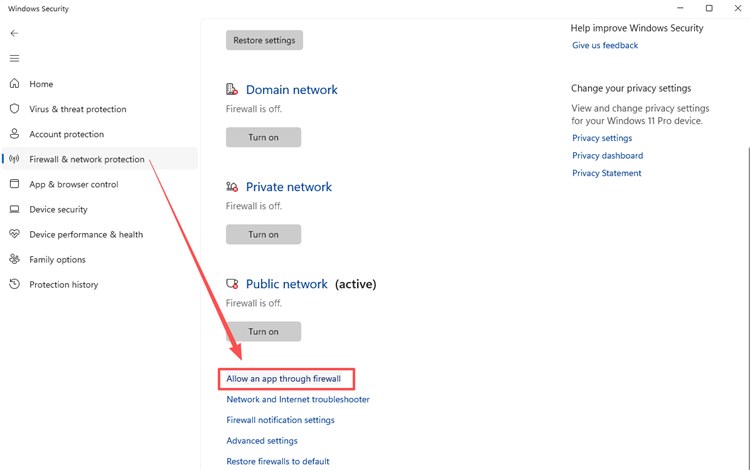
Step 3. Click Change settings > Locate Path of Exile 2, PathOfExile.exe, or the game launcher in the list.
Fix 5. Verify Game Files
If the connection issue started after Patch 0.5, some game files may not have updated or installed correctly. Missing, damaged, or incomplete files can cause launch problems, patching errors, crashes, stuck loading screens, or connection failures when entering the game. Here is how to verify your game files on Steam:
Step 1. Open Steam and go to your Library > Right-click Path of Exile 2 > Select Properties.
Step 2. Go to the Installed Files tab > Click Verify integrity of game files.
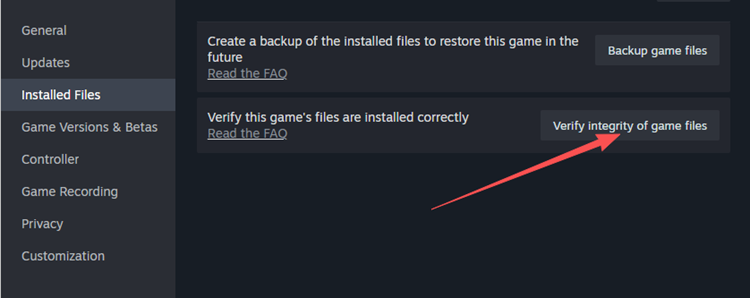
Step 3. Steam will scan the local files and replace any missing or corrupted files if needed. After the process finishes, restart Steam and launch Path of Exile 2 again.
How to Use LagZapper to Optimize Your Route to PoE 2 Servers
If your PoE 2 connection issue is caused by unstable routing, packet loss, or high ping, LagZapper can help optimize your connection path to Path of Exile 2 servers. This game booster is designed for online games where stable routing matters, including newly released and trending games such as RF Online Next, MECCHA CHAMELEON, and other popular PC games. Instead of relying only on your default ISP route, LagZapper helps find a more stable path for game traffic. This may reduce connection instability during login, mapping, boss fights, and peak-hour gameplay.
How to Use LagZapper for PoE 2 [Step-by-Step Guide]
Step 1. Download and Install LagZapper
Download LagZapper for Windows and follow the on-screen instructions to complete the installation.
Step 2. Open LagZapper and Sign In
Launch LagZapper and sign in to your account. This allows LagZapper to prepare route optimization for your game connection.
Step 3. Search for Path of Exile 2
Search for Path of Exile 2 in LagZapper, or browse the supported games list to find it.
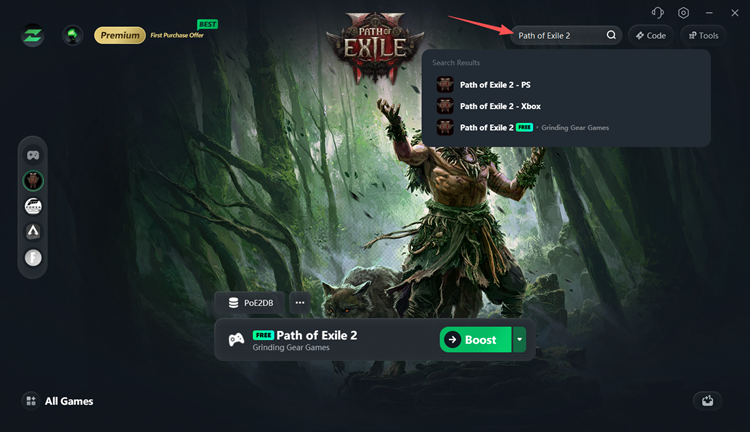
Step 4. Select a Route and Start Boosting
Choose the best available server or node, then click Boost before launching PoE 2.
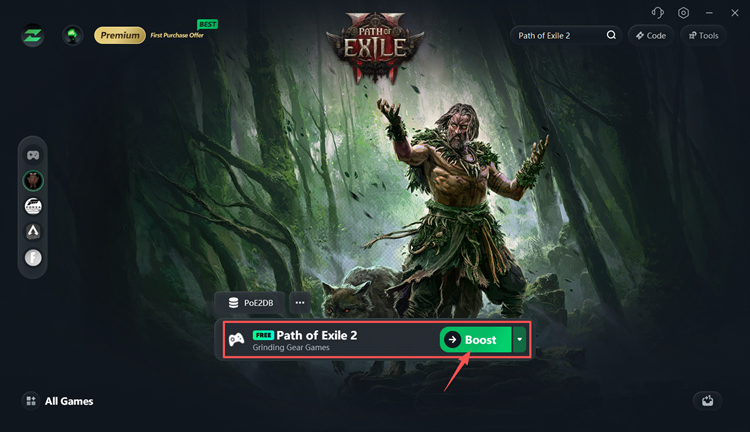
Once boosting is active, open the game and test your gateway connection.
The Bottom Line
PoE 2 0.5 connection failed errors can happen for many reasons, especially during a major update like Return of the Ancients. If the issue comes from server overload or official maintenance, the best option is to wait for updates and try again later. But if the problem is related to your own network, gateway selection, packet loss, high ping, or unstable routing, the fixes above can help improve your connection.
For players who keep seeing errors like failed to connect to instance, gateway timeout, high ping, or random disconnects, download LagZapper and use it to optimize your route to PoE 2 servers for a smoother, more stable gameplay experience.
PoE 2 0.5 Connection Failed FAQ
Q1: Why does PoE 2 fail to connect after Patch 0.5?
PoE 2 may fail to connect after Patch 0.5 because of server load, unstable gateways, packet loss, ISP routing issues, firewall settings, or damaged patch files.
Q2: What does failed to connect to instance mean in PoE 2?
“Failed to connect to instance” means PoE 2 could not connect you to a map, town, hideout, boss area, or other game instance.
Q3: Should I change gateway in PoE 2?
Yes. Try changing gateway if you experience high ping, failed instance errors, or disconnects. A nearby gateway may be more stable than your default one.
Q4: Can packet loss cause PoE 2 disconnects?
Yes. Packet loss can cause lag spikes, rubberbanding, delayed actions, loading failures, and disconnects, especially during combat or when entering new areas.
Q5: Can a game booster help with PoE 2 connection issues?
Yes, if the issue is related to routing, high ping, or packet loss. LagZapper can help optimize routes to PoE 2 servers.