
WARDOGS Anti Cheat Error? 7 Fixes for Elytra Launch Issues
WARDOGS is a 100-player Tactical All-Out Warfare FPS developed by BULKHEAD, with three teams fighting across a large-scale destructible battlefield. However, a WARDOGS anti cheat error can stop the game before you ever reach the battlefield. A WARDOGS Elytra launcher error may report that an anti-cheat module could not be downloaded or installed, that the Elytra service failed to start, or that the game could not launch.
This guide will explain why the WARDOGS Elytra Anti-Cheat error happens and provide seven practical fixes for common download, installation, and launch failures.
Why Does the WARDOGS Elytra Anti-Cheat Error Happen?
WARDOGS Elytra errors can appear at different stages of the anti-cheat startup process. Check the table below to identify your likely issue first.
| Symptom | Possible Cause | First Fix to Try |
|---|---|---|
| Error appears after an update | Incomplete or mismatched update | Update WARDOGS and restart |
| Game or anti-cheat files fail to load | Missing or damaged files | Verify WARDOGS files |
| Elytra fails before WARDOGS launches | Possible permission issue | Run Steam as administrator |
| Anti-cheat login fails | Possible local network-stack issue | Reset DNS and Winsock |
| Elytra is blocked during startup | Possible software interference | Close Vanguard or test Smart App Control |
| Elytra remains missing or damaged | Incomplete anti-cheat installation | Reinstall Elytra Anti-Cheat |
Note: WARDOGS does not officially support Linux yet, and Proton compatibility is still in development. The Windows fixes below may not apply to Linux or Proton users.
How to Fix WARDOGS Anti Cheat Error - 7 Useful Fixes
Start with the fix that best matches your problem in the table above. If it does not work, try the seven fixes below in order.
Fix 1. Update WARDOGS and Restart Your PC
WARDOGS has already received updates targeting anti-cheat problems, so an outdated build may no longer match the current Elytra components. Fully exit WARDOGS and Steam, install any pending game updates, and restart your PC. Reopen Steam and launch WARDOGS again to refresh the game, launcher, and anti-cheat session.
Fix 2. Verify WARDOGS Game Files in Steam
Missing or damaged WARDOGS files can prevent Elytra from loading its launcher or module correctly. Steam can compare the local installation with the current build and restore mismatched files. Follow the steps below to verify WARDOGS game files.
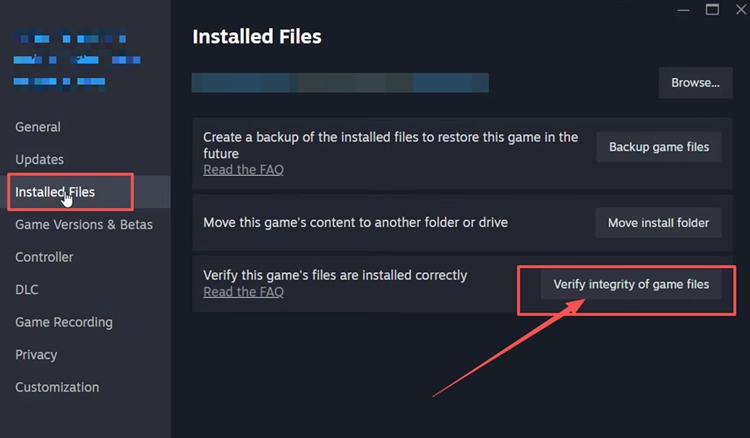
Step 1. Open Steam Library, right-click WARDOGS Playtest, and select Properties > Installed Files.
Step 2. Click Verify integrity of game files, wait for the process to finish, and then relaunch WARDOGS.
Fix 3. Run Steam as Administrator
Steam may not have sufficient permission to start or update Elytra on some Windows systems. Setting Steam to always run as administrator gives it elevated access whenever it opens, which may prevent permission-related anti-cheat launch failures. Follow the steps below to enable this setting.
Step 1. Fully exit Steam. Right-click the Steam desktop shortcut and select Open file location.
Step 2. Right-click steam.exe, select Properties > Compatibility, and check Run this program as an administrator. Click Apply > OK.
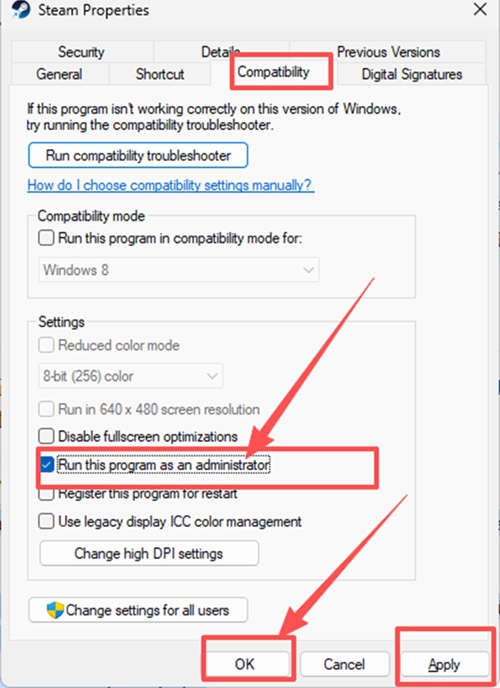
Step 3. Reopen Steam, click Yes when prompted, and launch WARDOGS from your Library.
Fix 4. Reset DNS and Winsock
A WARDOGS anti-cheat login error can appear when Windows retains corrupted DNS or socket data. Resetting both components may restore communication with the authentication service. For Access Denied or code 1147405308, see our WARDOGS error code 1147405308 guide. Follow the steps below to reset DNS and Winsock.
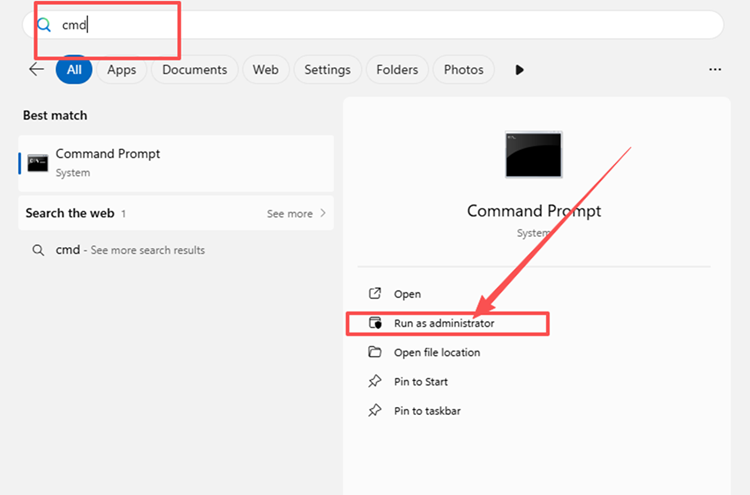
Step 1. Press the Windows key, type cmd in the search box, and select Run as administrator under Command Prompt. Click Yes if prompted.
Step 2. Run ipconfig /flushdns, followed by netsh winsock reset.
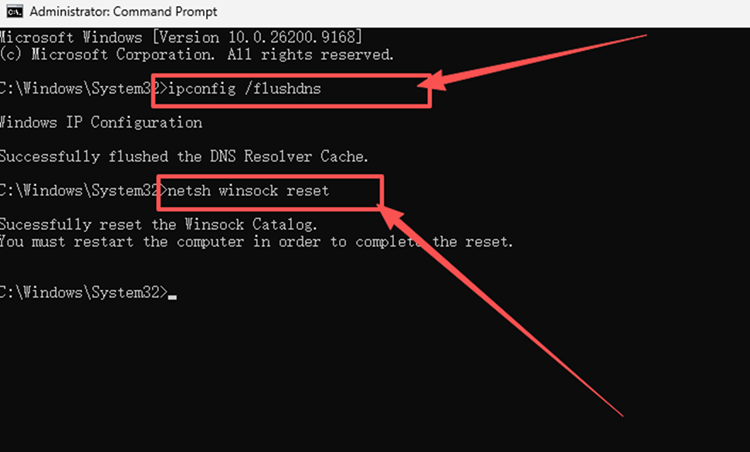
Step 3. Restart your PC and launch WARDOGS again.
Fix 5. Exit Riot Vanguard and Restart Your PC
WARDOGS and Riot Vanguard have no direct connection. If Vanguard is installed and running, close it and restart Windows before launching WARDOGS to rule out interference from another anti-cheat driver. Skip this check if Vanguard is not installed.
Fix 6. Temporarily Turn Off Smart App Control
On Windows 11, Smart App Control may prevent Elytra from launching if Windows classifies the component as untrusted. Temporarily turn it off to check whether it is causing the WARDOGS anti-cheat error. Remember to enable Smart App Control again after testing. Follow the steps below.
Step 1. Open Windows Security and select App & browser control.
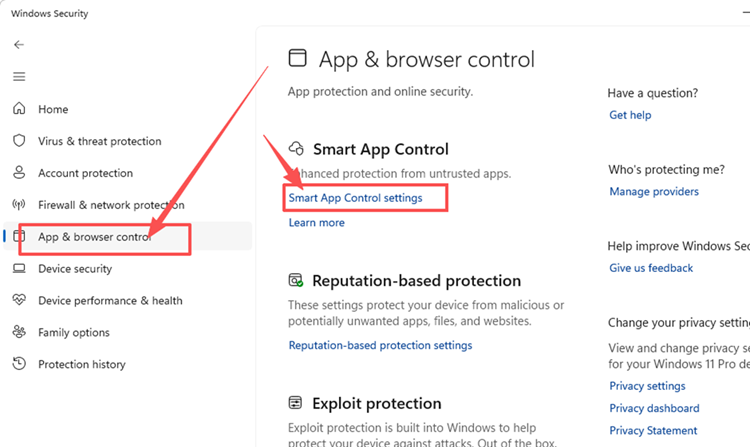
Step 2. Open Smart App Control settings, select Off, and confirm the change.
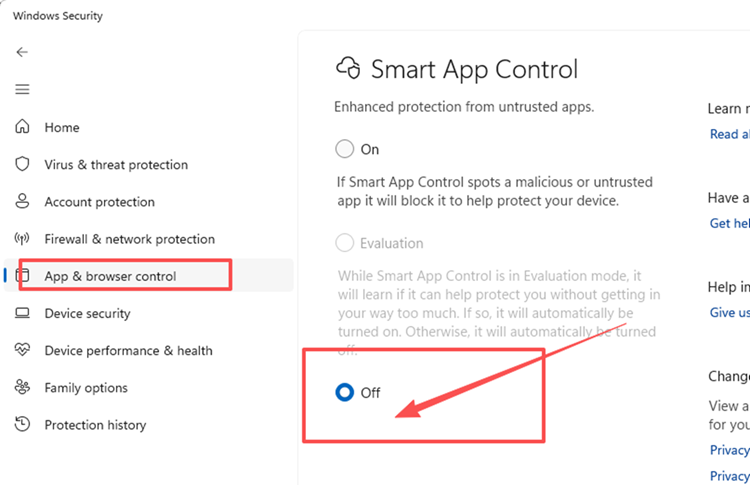
Step 3. Restart your PC and test WARDOGS. After testing, return to Smart App Control settings and select On.
Fix 7. Reinstall Elytra Anti-Cheat
A damaged or incomplete Elytra installation may prevent the anti-cheat module from starting or logging in correctly. Reinstall Elytra Anti-Cheat to replace its missing or corrupted components, then restart your PC and test WARDOGS again. If WARDOGS instead crashes on startup, restarts your PC, or shows a BSOD, see our guide to fixing WARDOGS crashing on PC.
[Bonus] Reduce WARDOGS Lag After Fixing the Anti-Cheat Error
WARDOGS supports large-scale online battles with up to 100 players, so a stable connection is important during combat. If the game launches normally but high ping, packet loss, or unstable routing affects gameplay, LagZapper can optimize the route between your PC and the game server and improve connection stability.
Why Use LagZapper for WARDOGS?
- Smart Route Optimization: Finds stable routes to reduce high ping, packet loss, jitter, and routing instability.
- Connection Stability: Helps reduce game lag, lower ping, and limit sudden latency changes during large-scale battles.
- One-Click Boost: Optimizes the WARDOGS connection without manually changing router, DNS, or Windows settings.
- 3,000+ Game Support: Works with WARDOGS and thousands of other online games.
How to Boost WARDOGS with LagZapper
Follow these three steps to optimize your WARDOGS connection before joining an online match.
Step 1. Download and Install LagZapper
Download LagZapper for Windows and follow the on-screen instructions to complete the installation on your PC.
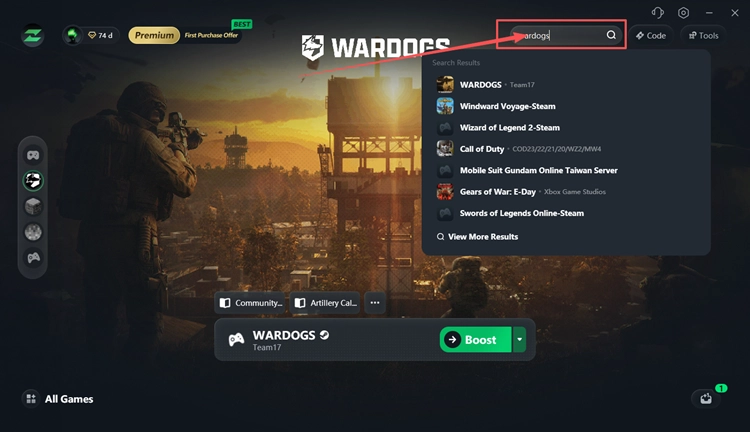
Step 2. Open LagZapper and Search for WARDOGS
Launch LagZapper and enter WARDOGS in the search bar to find the game.
Step 3. Select a Recommended Node and Click Boost
Select a recommended WARDOGS server or node, then click Boost before launching the game.
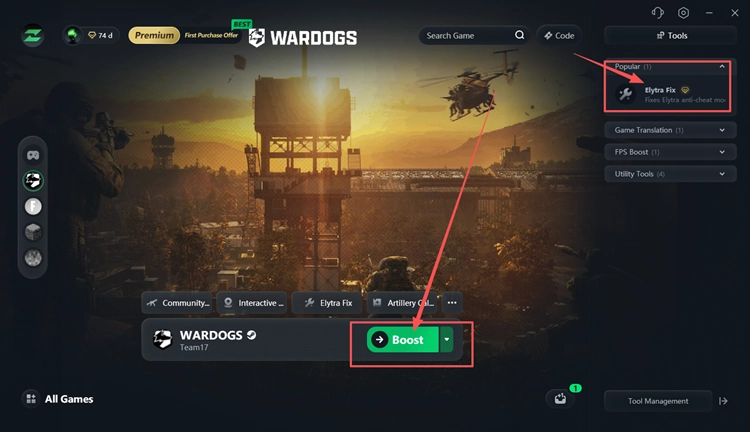
Tip: If ElytraLauncher.log shows InstallModule failed and Access is denied, use LagZapper’s built-in Elytra Fix. It detects and repairs %TEMP% permission issues, and supports one-click restore.
The Bottom Line
A WARDOGS anti cheat error may result from an outdated build, damaged game files, insufficient permissions, authentication problems, security software, or a damaged Elytra installation. Update WARDOGS, verify its files, run Steam as administrator, reset DNS and Winsock, close Vanguard if installed, temporarily disable Smart App Control, or reinstall Elytra.
If high ping, packet loss, or unstable routing affects your online matches, download LagZapper to optimize the connection route and improve stability.
FAQs About WARDOGS Anti Cheat Error
Q1. What Is the WARDOGS Anti Cheat Error?
It means the required anti-cheat protection failed to initialize, preventing WARDOGS from launching or authenticating.
Q2. Why Does the WARDOGS Elytra Anti Cheat Error Occur?
Outdated builds, damaged files, permission restrictions, security blocks, or authentication failures may interrupt Elytra startup.
Q3. How Do I Fix WARDOGS Anti Cheat Failed to Log In Correctly?
Restart WARDOGS, reset DNS and Winsock, then retry when its online services are available.
Q4. What Does a WARDOGS Anti Cheat Module Error Mean?
Elytra failed while downloading, validating, or installing a module required to launch WARDOGS.
Q5. What Does a WARDOGS Elytra Service Error Mean?
The required Elytra Windows service is missing, unregistered, or unable to start during launch.
Q6. Does WARDOGS Support Linux via Proton?
Not yet. WARDOGS does not officially support Linux, and Proton compatibility is still in development.