
WARDOGS Crashing on PC? Fix Startup Crashes and BSODs
WARDOGS crashing is affecting some players during the latest Playtest. Recent Reddit reports mention WARDOGS crashing on startup, full PC restarts when the game launches, and WARDOGS blue screen / BSOD errors when the Elytra launcher appears. Some players also say verifying or reinstalling the game did not resolve the issue, while current discussions frequently point to Elytra anti-cheat initialization as a possible factor.
Closed Beta 02 begins on September 3 at 18:00 UTC. Since this is still a Playtest build, some WARDOGS PC crashing, anti-cheat crashes, or WARDOGS won't launch issues may still require an official update.
Why Does WARDOGS Keep Crashing?
There is no single confirmed cause of every WARDOGS crash. Current reports point to several possible factors:
- Elytra anti-cheat failing during initialization
- Missing or corrupted Playtest files
- GPU driver or Windows compatibility issues
- Overlays and background software interfering with startup
- Hardware-accelerated GPU scheduling conflicts
- Virtualization or kernel-level compatibility problems
- Beta-specific bugs that require an official patch
Many recent WARDOGS Playtest crashing reports occur when Elytra starts, but this does not confirm that Elytra causes every crash.
Tip: WARDOGS launches successfully but fails during login? See how to fix WARDOGS error code 1147405308.
How to Fix WARDOGS Crashing on PC - 7 Fixes
Try the fixes below in order, starting with simple Steam checks before changing Windows security or BIOS settings.
Fix 1. Restart Your PC and Steam
A full restart can clear stuck Steam processes, launcher sessions, and temporary anti-cheat errors that may cause WARDOGS crashing on startup.
Step 1. Close WARDOGS and fully exit Steam.
Step 2. Restart your PC.
Step 3. Reopen Steam and launch WARDOGS Playtest.
Fix 2. Verify WARDOGS Playtest Files
Missing or corrupted game files can prevent WARDOGS from launching correctly or cause crashes before reaching the main menu.
Step 1. Open Steam > Library, right-click WARDOGS Playtest, and select Properties.
Step 2. Go to Installed Files > Verify integrity of game files.
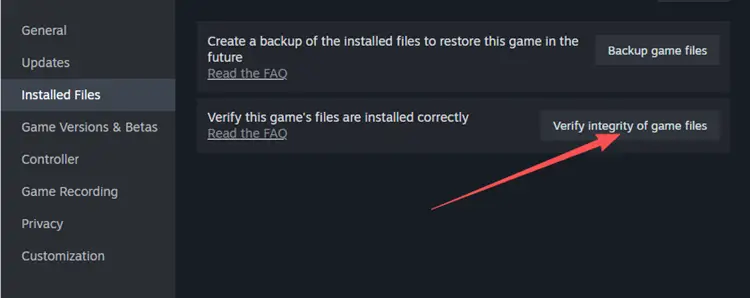
Step 3. Restart Steam after verification finishes.
Tip: WARDOGS launches normally but can't join a server? See our WARDOGS can't join server guide.
Fix 3. Reinstall Elytra Anti-Cheat
Elytra service or launcher errors can prevent the anti-cheat from initializing correctly and cause a WARDOGS anti cheat crash. Reddit users report that reinstalling Elytra from the WARDOGS folder helped with missing-service errors, while some players were able to launch after using the Repair option instead.
Step 1. Open the WARDOGS installation folder and locate the Elytra setup tool.
Step 2. Run Elytra-Setup.exe and reinstall Elytra. You can also try Repair when that option is available.
Step 3. Restart your PC and launch WARDOGS again.
Tip: Use only the Elytra installer included with WARDOGS. Avoid downloading anti-cheat installers from third-party websites.
Fix 4. Update Your GPU Driver and Windows
Outdated or incompatible system drivers can contribute to WARDOGS PC crashing, BSOD errors, or unexpected PC restarts during launch.
Step 1. Install the latest stable NVIDIA or AMD graphics driver.
Step 2. Open Settings > Windows Update and install available updates.
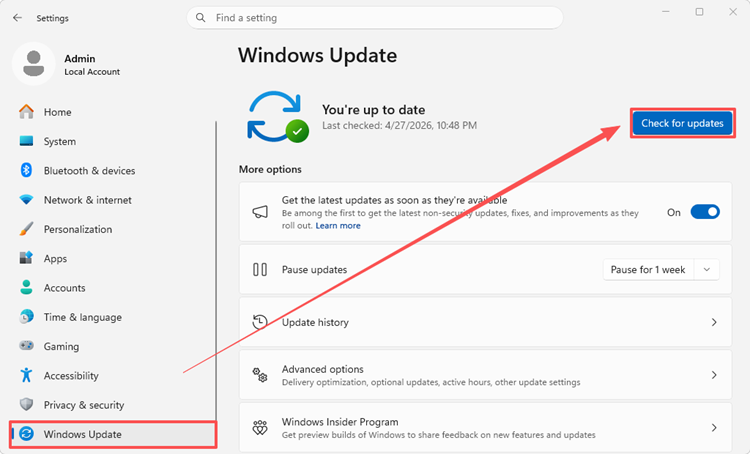
Step 3. Restart your PC and test WARDOGS again.
Fix 5. Disable Overlays and Background Apps
Overlays and monitoring software can hook into game processes and interfere with WARDOGS or Elytra during startup.
Step 1. Close MSI Afterburner, RivaTuner, recording tools, macro software, and other unnecessary background apps.
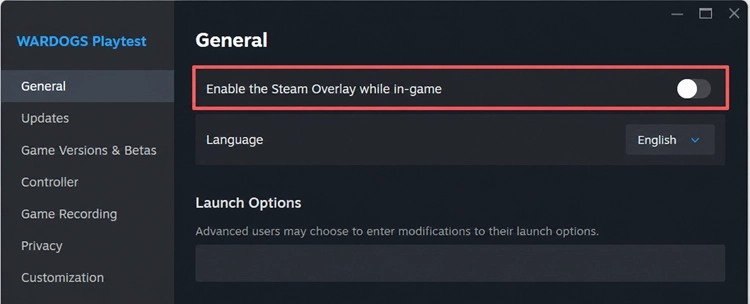
Step 2. Open Steam > WARDOGS Playtest > Properties > General.
Step 3. Disable Enable the Steam Overlay while in-game and relaunch WARDOGS.
Fix 6. Disable Hardware-Accelerated GPU Scheduling
me players report that disabling Hardware-Accelerated GPU Scheduling helped with WARDOGS startup crashes or BSODs. This remains a community workaround and may not work on every PC.
Step 1. Open Settings > System > Display > Graphics.
Step 2. Open Change default graphics settings or Advanced graphics settings.
Step 3. Turn off Hardware-Accelerated GPU Scheduling, restart your PC, and test WARDOGS again.
Fix 7. Check CPU Virtualization as a Last Resort
Some players with WARDOGS BSODs or PC restarts on launch report that disabling CPU virtualization or VT-D helped the game start. This is an advanced community workaround.
Warning: Changing virtualization settings can affect Hyper-V, WSL, virtual machines, and Windows security features, and may trigger a BitLocker recovery prompt. Have your recovery key ready before continuing.
Step 1. Make sure your BitLocker recovery key is available before changing BIOS settings.
Step 2. Enter BIOS/UEFI and temporarily disable CPU virtualization.
Step 3. Restart Windows and test WARDOGS.
[Bonus] Reduce WARDOGS Lag and Connection Issues With LagZapper
After fixing WARDOGS startup crashes, you may still experience high ping, packet loss, disconnects, or unstable routing during online matches. LagZapper is a PC game booster that optimizes the network route between your PC and the WARDOGS server to help improve connection stability.
Why Use LagZapper for WARDOGS?
- Reduce lag with a more stable route to WARDOGS servers.
- Reduce packet loss during large multiplayer matches.
- Lower ping and reduce sudden latency spikes in matches.
- Switch between available nodes to find a more stable regional route.
How to Boost WARDOGS With LagZapper
Follow these three steps after WARDOGS can launch normally.
Step 1. Download and Install LagZapper
Download LagZapper for Windows, complete the installation, and sign in.
Step 2. Search for WARDOGS
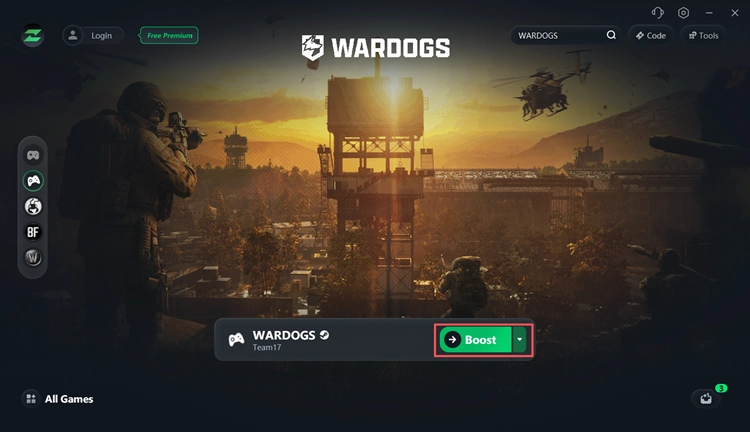
Open LagZapper and enter WARDOGS in the search bar.
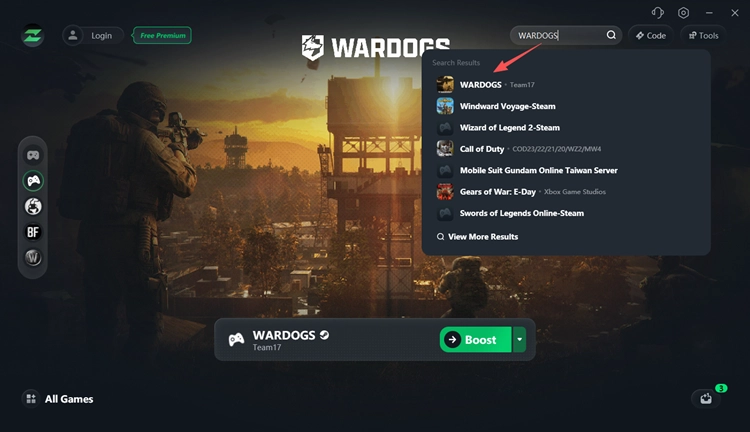
Step 3. Select a Node and Start Boosting
Choose a recommended node or one near your WARDOGS server region, click Boost, then launch the game through Steam.
The Bottom Line
When WARDOGS keeps crashing on PC, start by restarting Steam, verifying the Playtest files, reinstalling Elytra, updating Windows and your GPU driver, and disabling conflicting overlays. HAGS or virtualization changes should only be tested when the safer fixes fail. Some Beta-related BSODs may still require an official update. Once the game launches normally, download LagZapper to reduce ping, packet loss, and unstable routing during online matches.
WARDOGS Crashing FAQ
Q1. Why does WARDOGS crash on startup?
WARDOGS may crash because of Elytra anti-cheat, corrupted files, outdated drivers, background apps, or Playtest compatibility bugs.
Q2. Why does WARDOGS restart my PC when I launch it?
Some players report full PC restarts or BSODs during Elytra startup. The exact cause has not been officially confirmed.
Q3. How do I fix WARDOGS crashing on launch?
Restart your PC, verify game files, reinstall Elytra, update Windows and GPU drivers, and disable overlays.
Q4. Is Elytra causing WARDOGS crashes?
Elytra is mentioned in many current crash reports, but it has not been confirmed as the cause of every WARDOGS crash.
Q5. Why does WARDOGS give me a blue screen?
A WARDOGS BSOD may be related to drivers, anti-cheat, virtualization, or other system-level compatibility issues.
Q6. Can LagZapper fix WARDOGS crashing?
No. LagZapper helps with high ping, packet loss, lag, and unstable routing, not startup crashes or BSODs.