
WARDOGS Error WD-L020: 7 Fixes for Changing Launcher Codes
WARDOGS is now in Early Access, but some players are hitting WARDOGS error WD-L020 before they can reach the game. Unlike a server queue or login wait, this issue appears during the launcher stage and can block WARDOGS from starting. A notable pattern is that the WD-L020 prefix stays the same while the suffix may change after each launch attempt.
This guide will explain what WD-L020 means, what the changing suffix may indicate, and provide seven practical fixes for the WARDOGS launcher error.
What Is WARDOGS Error WD-L020?
WARDOGS error WD-L020 is a launcher-stage error that can prevent the game from starting before you reach the login queue. The WD-L020 prefix remains consistent, while the suffix may change between launch attempts, suggesting it may serve as a diagnostic identifier.
Reported WD-L020 variants include:
- WD-L020-0788c14d7639
- WD-L020-6cdb2c7fe241
- WD-L020-5279f8a87fef
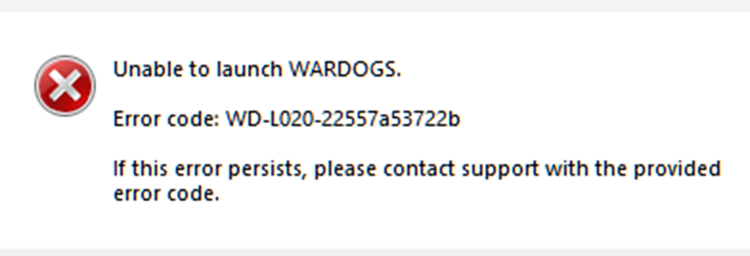
Although these codes have different suffixes, they appear to belong to the same WD-L020 error family.
WARDOGS WD-L020 vs. WD-L014
WARDOGS WD-L020 and WD-L014 can both prevent the game from launching, but they are separate launcher error families with different prefixes and reported variants.
- WD-L014 is commonly associated with the Unable to launch WARDOGS message and has appeared with several different suffixes.
- WD-L020 appears in recent Early Access reports where repeated launch attempts can show a different suffix while the WD-L020 prefix remains the same.
Tip: Seeing WD-L014 instead? Follow the dedicated WARDOGS error WD-L014 guide for broader startup troubleshooting.
Why Does WARDOGS Error WD-L020 Happen?
WARDOGS error WD-L020 does not yet have one confirmed cause. Launcher, Steam, background software, or Elytra issues may contribute. Check the table below for possible causes.
| Symptom | Possible Cause | First Fix to Try |
|---|---|---|
| WD-L020 started after an update | Outdated or mismatched client files | Install the latest WARDOGS update |
| Error returns after repeated launch attempts | Stuck WARDOGS, Steam, or Elytra process | Close remaining processes |
| WARDOGS fails with other anti-cheat apps running | Background software conflict | Close unnecessary security or anti-cheat apps |
| Launcher cannot load required game files | Missing or damaged files | Verify game files |
| Launcher fails to start correctly | Steam permission issue | Run Steam as administrator |
| Elytra fails during startup | Anti-cheat initialization issue | Repair Elytra |
How to Fix WARDOGS Error WD-L020 - 7 Fixes
Try the fixes below in order, starting with basic Steam and launcher checks before moving to security software, permissions, and Elytra troubleshooting.
Fix 1. Check for and Install the Latest WARDOGS Update
Before changing Windows or Elytra settings, make sure Steam has finished installing the latest available WARDOGS build. An outdated or partially updated client may leave launcher files mismatched. Open Steam Downloads, install any pending WARDOGS update, wait for downloading and unpacking to finish, then launch the game again.
Fix 2. End Remaining WARDOGS, Steam, and Elytra Processes
Closing the game or Steam window may leave related processes running in the background. A stale launcher or anti-cheat session can interfere with the next launch attempt. Fully end the related processes before starting WARDOGS again.
Step 1. Close WARDOGS and fully exit Steam from the Windows system tray.
Step 2. Open Task Manager and end any remaining WARDOGS, Steam, WARDOGS Launcher, or clearly labeled Elytra processes.
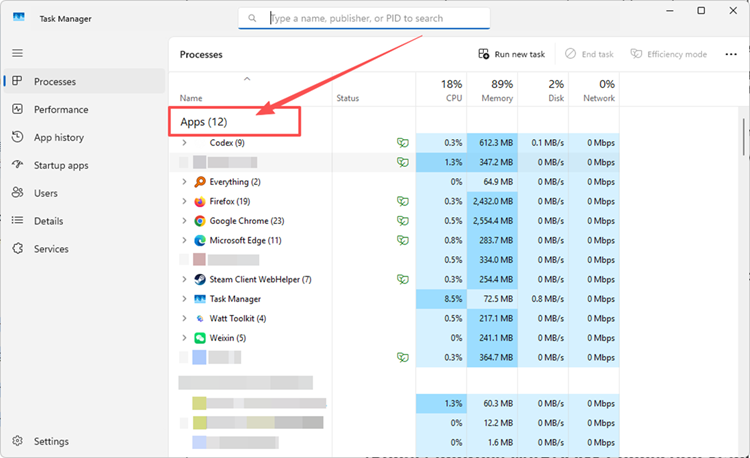
Step 3. Reopen Steam and launch WARDOGS again.
Fix 3. Temporarily Close Other Anti-Cheat and Security Software
Other anti-cheat drivers or security tools may interfere with Elytra during startup. If you use Riot Vanguard or other third-party anti-cheat software, temporarily exit it before launching WARDOGS. You can also pause third-party security software briefly for testing, then re-enable all protection afterward.
Fix 4. Verify WARDOGS Game Files in Steam
Missing, damaged, or mismatched WARDOGS files may prevent the launcher from loading correctly, especially after an update. Steam can compare your local installation with the current build and restore files that do not match. Follow the steps below to verify the game files.
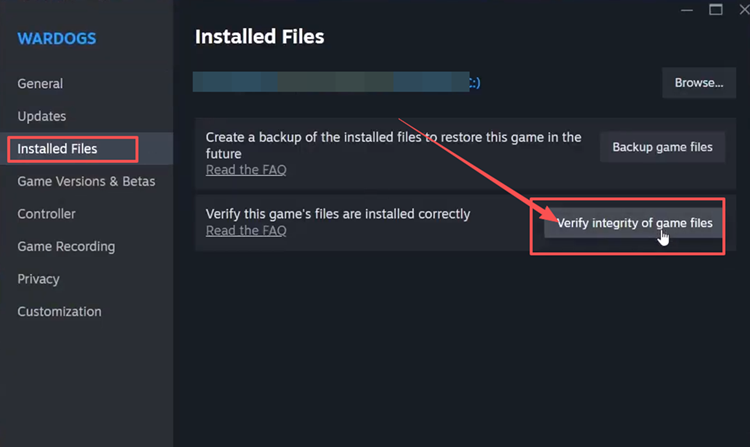
Step 1. Open Steam Library, right-click WARDOGS, and select Properties > Installed Files.
Step 2. Click Verify integrity of game files, wait for Steam to finish, and then relaunch WARDOGS.
Fix 5. Run Steam as Administrator
If Steam does not have sufficient permission to start or update launcher and Elytra components, running it with elevated access may help rule out a permission-related launch issue. Test WARDOGS once with Steam running as administrator by following the steps below.
Step 1. Fully exit Steam, including from the Windows system tray.
Step 2. Right-click Steam from the Start menu or desktop and select Run as administrator.
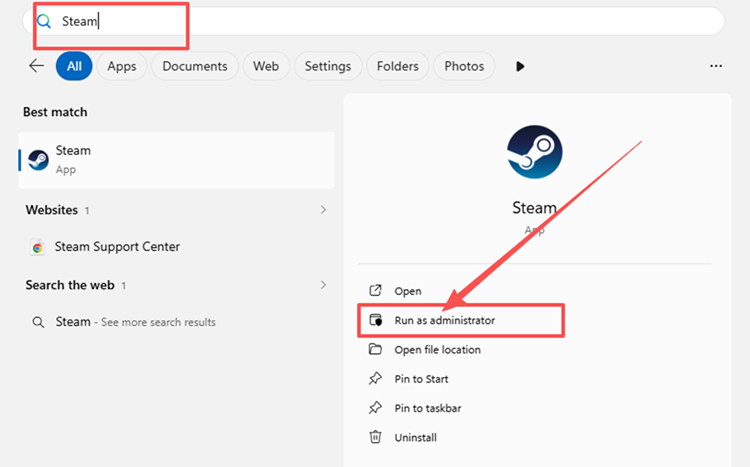
Step 3. Click Yes when prompted, then open your Library and launch WARDOGS again.
Fix 6. Repair Elytra Anti-Cheat
If the previous fixes do not remove WD-L020, repair Elytra to rule out a damaged or incomplete anti-cheat installation. WARDOGS includes its own Elytra setup tool, and some versions provide a Repair option for restoring its components. Follow the steps below.
Step 1. Open Steam Library, right-click WARDOGS, and select Manage > Browse local files.
Step 2. Locate Elytra-Setup.exe, run it, and select Repair if the option is available.
Step 3. Wait for the repair to finish, restart your PC, and launch WARDOGS again.
Fix 7. Clear Steam’s Download Cache
A stale or corrupted Steam download cache can sometimes interfere with game updates or prevent a game from starting. Clearing it will not remove WARDOGS or other installed games, but Steam will sign you out afterward. Follow the steps below to reset the cache.
Step 1. Open Steam and go to Steam > Settings > Downloads.
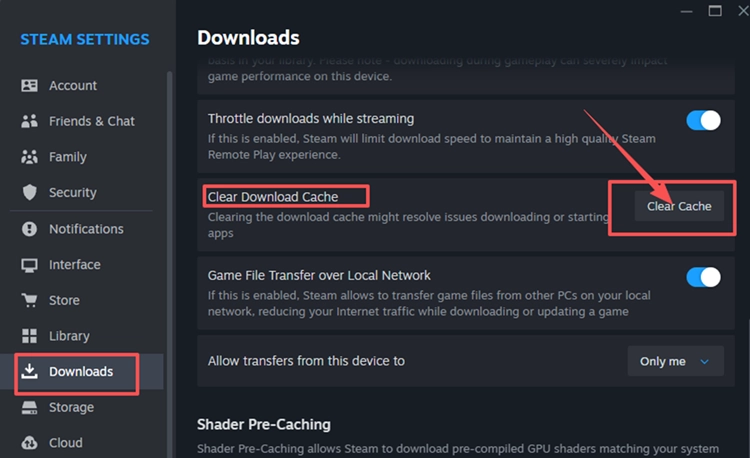
Step 2. Click Clear Download Cache, then select Confirm.
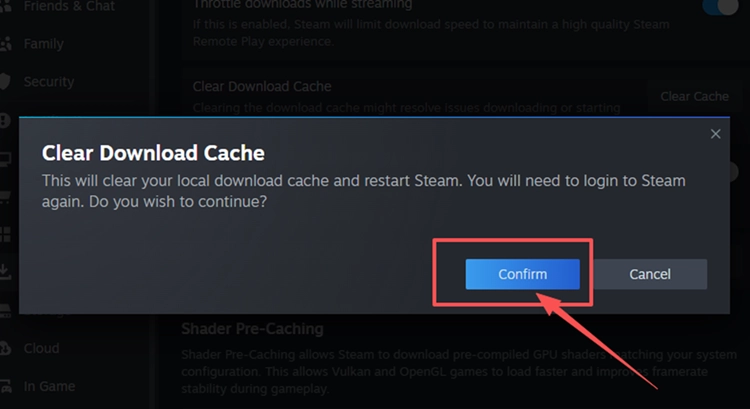
Step 3. Sign back into Steam after it restarts, then launch WARDOGS again.
[Bonus] Improve WARDOGS Connection Stability With LagZapper
WARDOGS features large-scale online battles where a stable connection can make a real difference. LagZapper can optimize the route between your PC and WARDOGS servers, helping reduce high ping, packet loss, jitter, and sudden latency spikes for a smoother and more stable online experience.
Why Use LagZapper for WARDOGS?
- Smart Route Optimization: Finds a faster and more stable route to WARDOGS servers, helping reduce high ping, packet loss, jitter, and routing instability.
- Improve Connection Stability: Helps lower ping, reduce game lag, and limit sudden latency spikes during large multiplayer battles.
- One-Click Boost: Optimizes your WARDOGS connection without manually changing complicated router, DNS, or Windows network settings.
- Support for 3,000+ Games: Supports WARDOGS and thousands of other online games.
How to Boost WARDOGS with LagZapper
Follow these three steps to optimize your WARDOGS connection before joining an online match.
Step 1. Download and Install LagZapper
Download LagZapper for Windows and follow the on-screen instructions to complete the installation on your PC.
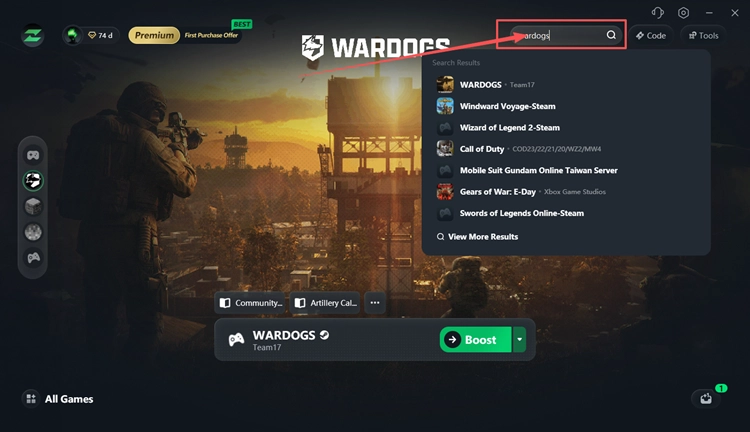
Step 2. Open LagZapper and Search for WARDOGS
Launch LagZapper and enter WARDOGS in the search bar to find the game.
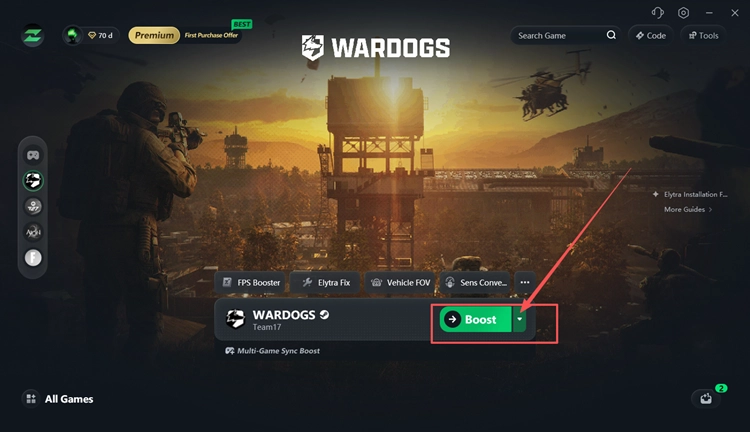
Step 3. Select a Recommended Node and Click Boost
Select a recommended WARDOGS server or node, then click Boost before launching the game.
Also Read: WARDOGS Error 1628505091: Join Timed Out
The Bottom Line
WARDOGS error WD-L020 is a launcher-stage error whose suffix may change between launch attempts, while its exact root cause remains unconfirmed. Start with the latest WARDOGS build, close remaining processes, check software conflicts, verify game files, test Steam administrator access, repair Elytra, and clear the Steam download cache when needed.
If WARDOGS launches successfully but high ping, packet loss, or unstable routing affects your matches, download LagZapper to optimize the connection route and improve stability.
FAQs About WARDOGS Error WD-L020
Q1. What Is WARDOGS Error WD-L020?
WARDOGS error WD-L020 is a launcher-stage error that can prevent the game from starting.
Q2. Why Does the WD-L020 Suffix Keep Changing?
Its exact purpose is unconfirmed, but the changing suffix may contain diagnostic information.
Q3. How Do I Fix WARDOGS WD-L020?
Update WARDOGS, end stuck processes, verify files, check software conflicts, and repair Elytra.
Q4. Is WARDOGS Launcher Error WD-L020 a Server Queue Issue?
Reported WD-L020 cases occur before players reach the login or server queue.
Q5. Why Is WARDOGS Not Launching After an Update?
Incomplete updates, mismatched files, stuck processes, or launcher conflicts may prevent WARDOGS from starting.
Q6. Can Other Anti-Cheat Software Cause a WARDOGS Launch Error?
It may interfere with Elytra on some PCs, but it is not a confirmed universal cause.