
WoW Forever Crashing? 7 Fixes for Error #109 & Loading Crashes
Since the WoW Forever Beta opened on September 17, some players have reported WoW Forever crashing when entering the world or loading a character. Common symptoms include Error #109 with “A thread has become unresponsive,” freezes at the loading screen, crashes after character select, black screens, and GPU driver timeouts that can force the game to close.
This guide will explain why WoW Forever keeps crashing and cover seven fixes for Error #109, loading-screen freezes, character-select crashes, and GPU driver timeouts.
Why Does WoW Forever Keep Crashing?
WoW Forever can crash at different stages, from character loading to entering the world. Match your symptom with the likely cause and first fix in the table below.
| Symptom | Possible Cause | First Fix to Try |
|---|---|---|
| Error #109 / thread unresponsive | Secondary Lighting setting | Set it to Fair |
| Crash after character select | DX12 rendering instability | Switch to DX11 |
| Freeze on loading screen | High graphics load | Lower Game Quality |
| Crashes after a Beta update | Beta build issue | Install latest update |
| Black screen / driver timeout | GPU driver instability | Update GPU driver |
| Random or repeated crashes | UI or AddOn conflict | Reset WoW Interface |
How to Fix WoW Forever Crashing - 7 Useful Fixes
Start with the fix that best matches your symptom in the table above. If the cause is unclear, try the following fixes in order.
Fix 1. Set Secondary Lighting to Fair
If WoW Forever crashes while entering the world, Secondary Lighting may be causing GPU rendering instability during loading. Setting it to Fair can help prevent Error #109, black screens, and driver timeouts. Follow the steps below before loading your character.
Step 1. Stay on the character selection screen and open System > Graphics.
Step 2. Find Secondary Lighting, set it to Fair, and click Apply.
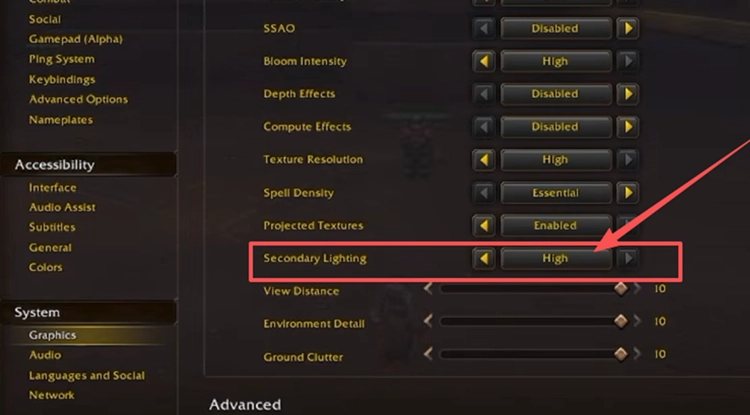
Step 3. Enter the world again and check whether WoW Forever still crashes.
Fix 2. Switch from DirectX 12 to DirectX 11
On Windows, if WoW Forever crashes after character select or during world loading, DirectX 11 can provide a more stable rendering path than DirectX 12 in some cases. Switching the graphics API may help bypass loading crashes and GPU-related freezes. Follow the steps below.
Step 1. From the character selection screen, open System > Graphics.
Step 2. Find Graphics API and change DirectX 12 to DirectX 11.
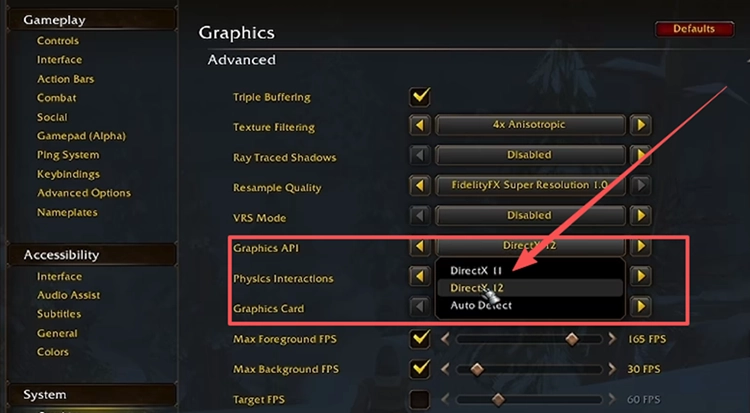
Step 3. Apply the change, restart WoW Forever, and try entering the world again.
Fix 3. Lower Base Game Quality Before Entering the World
Higher graphics settings can increase GPU load while WoW Forever is loading a character or area. Temporarily lowering Base Game Quality to 1 or 2 reduces several graphics effects at once and may help prevent loading-screen freezes or crashes. Follow the steps below before entering the world.
Step 1. From the character selection screen, open Options > Graphics.
Step 2. Set Base Game Quality to 1 or 2 and click Apply.
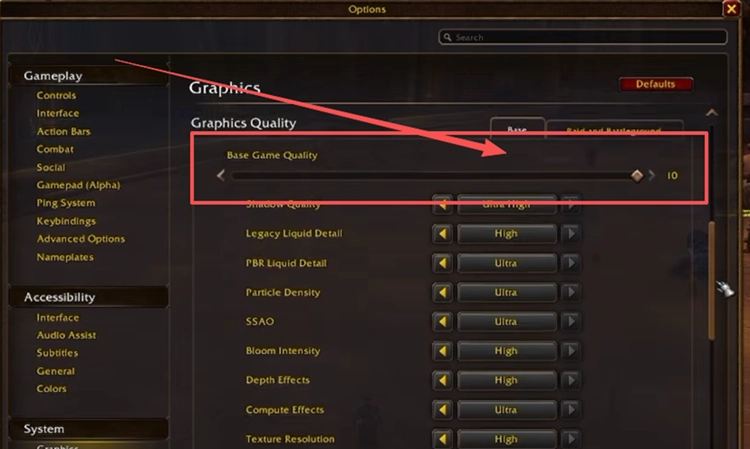
Step 3. Enter the world again. If the game stays stable, gradually increase the graphics quality later.
Tip: If WoW Forever also shows green maps, green shadows, or black textures, see the WoW Forever Green Screen guide for targeted graphics fixes.
Fix 4. Check for and Install WoW Forever Beta Updates
WoW Forever is still in Beta, so stability fixes and client changes can arrive through new builds. If crashes continue after loading or entering the world, close the game, open Battle.net, and install any pending WoW Forever update before relaunching. Running the latest Beta build helps rule out crashes already addressed by newer client updates.
Fix 5. Update Your GPU Driver
An outdated graphics driver can cause black screens, GPU timeouts, or graphics-related crashes in WoW Forever. Updating to the latest driver can improve compatibility with the current Beta build and graphics features. Follow the steps below to check for an available update.
Step 1. Open the NVIDIA app and select the Drivers tab.
Step 2. Check for updates, then download and install the latest available Game Ready Driver.
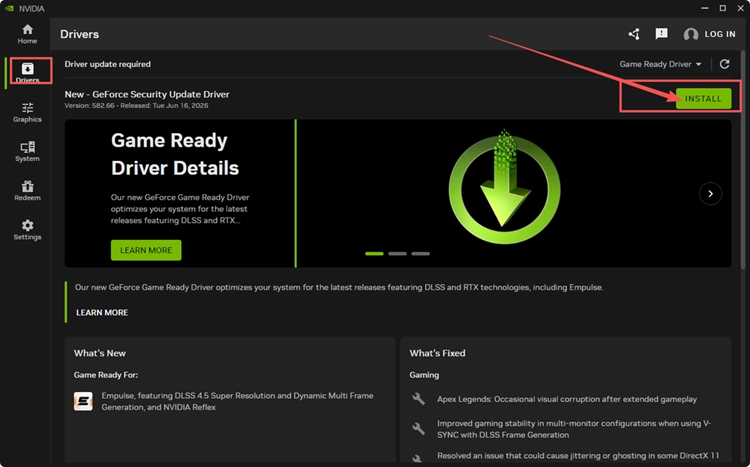
Step 3. Restart your PC and launch WoW Forever again.
Tip: AMD and Intel users can update through AMD Software: Adrenalin Edition or Intel Driver & Support Assistant.
Fix 6. Reset the WoW Interface and Disable AddOns
Corrupted UI files or incompatible AddOns can cause crashes, freezes, or other unexpected behavior in WoW Forever. Disable all third-party AddOns first and relaunch the game. If the issue continues, reset the WoW user interface to rebuild its local configuration files, then test the game again with the default UI. Blizzard also recommends disabling AddOns and resetting the UI when troubleshooting WoW issues.
Fix 7. Scan and Repair WoW Forever
Damaged or missing game files can cause WoW Forever to crash during startup or loading. Battle.net’s Scan and Repair tool checks the installation and repairs detected file problems. Use it if the previous fixes have not resolved the crash.
Step 1. Open Battle.net, select World of Warcraft, choose World of Warcraft: Forever Beta from the Game Version menu, then click the gear icon beside Play and select Scan and Repair.
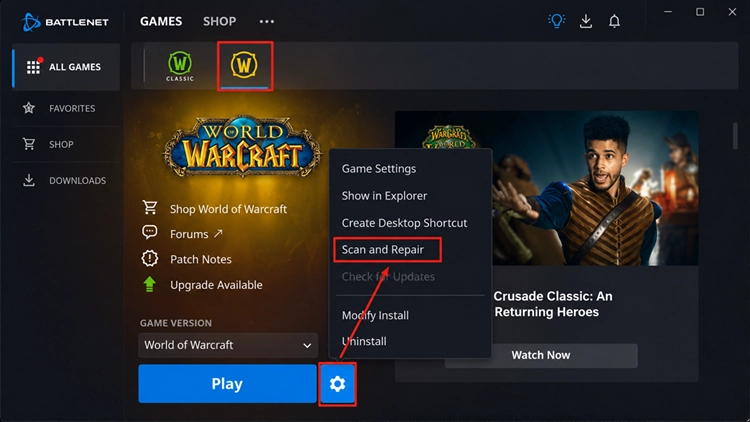
Step 2. Click Begin Scan, wait for the repair to finish, then launch WoW Forever again.
[Bonus] Improve WoW Forever Connection Stability with LagZapper
After fixing the crash, high ping, packet loss, or unstable routing can still affect WoW Forever gameplay. LagZapper can optimize the connection route between your PC and the game server to reduce game lag, lower ping, and improve connection stability.
Why Use LagZapper for WoW Forever
- Smart Route Optimization: Finds stable routes to reduce high ping, packet loss, and jitter.
- Connection Stability: Helps reduce game lag, lower ping, and limit sudden latency changes.
- One-Click Boost: Optimizes the connection without manually changing router, DNS, or Windows settings.
- 3,000+ Game Support: Supports World of Warcraft and thousands of other online games.
How to Boost WoW Forever with LagZapper
Follow these three steps to optimize your WoW Forever connection before launching the game.
Step 1. Download and Install LagZapper
Download LagZapper for Windows and follow the on-screen instructions to complete the installation.
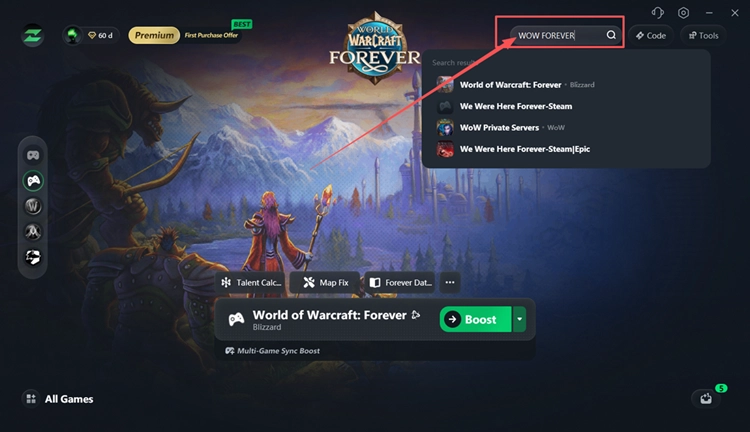
Step 2. Search for World of Warcraft: Forever
Open LagZapper and enter World of Warcraft: Forever in the search bar, then select the game.
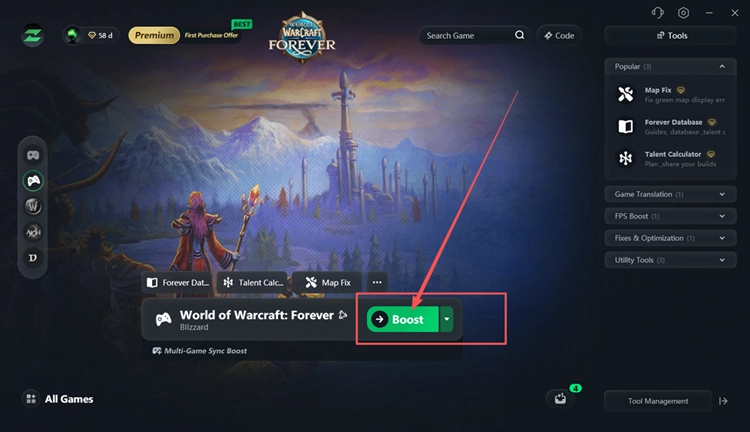
Step 3. Select a Node and Click Boost
Choose a recommended server or node and click Boost. Once boosting is active, launch WoW Forever through Battle.net.
Also Read: WoW Forever High Ping & Lag: EU Latency Fixes
The Bottom Line
WoW Forever crashing can involve Secondary Lighting, DirectX 12, graphics load, Beta updates, GPU drivers, AddOns, or damaged files. Start with Secondary Lighting Fair and DirectX 11 for loading or character-select crashes, then try the remaining fixes as needed. If high ping, packet loss, or unstable routing remains after the game runs normally, download LagZapper to improve connection stability.
FAQs About WoW Forever Crashing
Q1. Why Does WoW Forever Keep Crashing?
Graphics settings, Beta instability, drivers, AddOns, or damaged files can cause repeated crashes.
Q2. What Is WoW Forever Error 109?
It means a game thread became unresponsive, causing WoW Forever to freeze or crash.
Q3. How Do I Fix WoW Forever Crashing on Loading Screen?
Set Secondary Lighting to Fair, try DX11, then lower Base Game Quality.
Q4. Why Does WoW Forever Crash After Character Select?
Rendering instability during world loading can trigger a crash before the character enters.
Q5. Can Secondary Lighting Cause WoW Forever Crashing?
Higher Secondary Lighting settings can contribute to certain world-entry crashes and GPU timeouts.
Q6. Can DirectX 11 Fix a WoW Forever Crash?
DX11 can bypass some graphics-related loading crashes, but it will not fix every case.