
WoW Forever Install Button Greyed Out? 6 Easy Fixes
Is your WoW Forever install button greyed out on Battle.net? Reddit discussions suggest that some players can pre-install the game, while others encounter a disabled Install button, the message "This game cannot be installed yet," or Windows 11 compatibility errors that prevent installation. This post explains why the WoW Forever install button is greyed out and shows you 6 fixes to get the pre-download working.
Why Is the WoW Forever Install Button Greyed Out?
Players have reported several issues preventing the WoW Forever pre-download on Battle.net. Common causes and symptoms include:
- Install button disabled: The Install button is greyed out and cannot be clicked.
- Installation unavailable: Battle.net displays "This game cannot be installed yet," blocking the download.
- Incorrect game version: The launcher shows WoW Forever Beta instead of the release version.
- Account or launcher issues: The correct game account or installation option is missing.
- System compatibility errors: Battle.net incorrectly flags Windows 11 or compatible hardware as unsupported.
How to Fix WoW Forever Install Button Greyed Out
Try these six fixes in order to resolve the WoW Forever install button disabled issue.
Fix 1. Select the Correct WoW Forever Game Version
Selecting the wrong game version on Battle.net may cause the WoW Forever Install button to remain greyed out. Follow these steps:
Step 1. Open Battle.net and select World of Warcraft; click the Game Version dropdown menu.
Step 2. Select WoW: Forever, and then check the Install button.
Fix 2. Check Your WoW Account and Region
A Reddit user reported that switching WoW accounts after restarting Battle.net restored the Install option. Selecting the wrong WoW account or region may also prevent installation. Follow these steps:
Step 1. Open Battle.net and select World of Warcraft.
Step 2. Open the Account dropdown and select your intended WoW account.
Step 3. Verify your Battle.net region, restart the launcher, and check whether the Install button is available.
Tip: Having trouble reserving a character name after installation? Check our WoW Forever name reservation not working guide for login, account, and Ruleset issues.=
Fix 3. Check WoW Forever Pre-Download Availability
WoW Forever pre-install not working? Battle.net may display "This game cannot be installed yet" when pre-download is unavailable for the selected account or game version. Follow these steps:
Step 1. Open Battle.net and check whether the WoW Forever Pre-install or Install button is available.
Step 2. Verify that you're signed in to the correct Battle.net account and have selected the release client.
Step 3. Verify your account access and check the official WoW Forever announcement for installation availability.
Note: WoW Forever launches November 4, 2026, at 3:00 PM PST. Pre-installation does not grant early gameplay access.
Fix 4. Restart Battle.net and Switch the Launcher Layout
Some players reported that switching the Battle.net launcher layout restored the disabled Install button. A Reddit user also confirmed that switching to the new layout enabled WoW Forever pre-installation. Follow these steps:
Step 1. Close Battle.net, then press Ctrl + Shift + Esc to open Task Manager. End any remaining Battle.net processes.
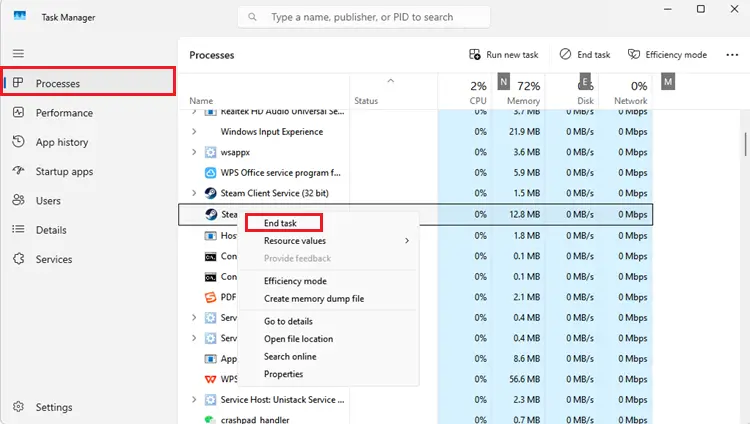
Step 2. Restart Battle.net and install any available launcher updates.
Step 3. Switch between the old and new launcher layouts, where available, then check whether the Pre-install button becomes active.
Fix 5. Check Windows Compatibility and System Requirements
Some players reported WoW Forever installation errors despite meeting the system requirements. One Reddit user encountered a Windows 11 compatibility warning that prevented installation. Follow these steps:
Step 1. Press Win + R, type winver, and check your Windows version.
Step 2. Right-click Battle.net.exe and select Properties > Compatibility.
Step 3. Uncheck Run this program in compatibility mode for, click Apply, and restart Battle.net.
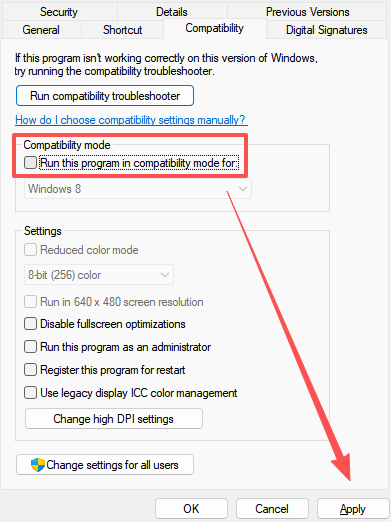
Also check your SSD storage, Windows updates, and GPU drivers against the official system requirements.
Fix 6. Try the Battle.net Command-Line Install Workaround
Some Reddit users reported successfully starting the WoW Forever pre-download using a Battle.net command-line argument when the Install button was disabled. Follow these steps:
Step 1. Completely close Battle.net, including background processes.
Step 2. Press Win + R, type cmd, and press Enter.
Step 3. Enter the following command and press Enter to launch the installer: "C:\Program Files (x86)\Battle.net\Battle.net.exe" --game=WoWF --install
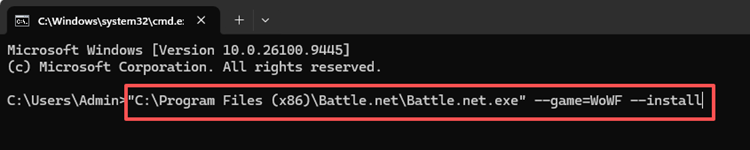
Adjust the Battle.net installation path as needed, then check whether the download starts.
Note: This is a community-reported workaround, not an official Blizzard fix. It does not bypass account restrictions or grant early access.
[Bonus] Optimize WoW Forever Connection With LagZapper
Once WoW Forever is installed, a stable connection is essential for smooth gameplay. High ping, packet loss, and unstable network routes can cause lag, delayed actions, and unexpected disconnects.
LagZapper is a PC game booster that optimizes network routes between your PC and WoW Forever servers. With one-click boosting, it helps lower ping, reduce packet loss, and improve connection stability for a smoother gaming experience.
Why Use LagZapper for WoW Forever?
- Lower WoW Forever Ping: Reduce WoW Forever high ping caused by inefficient network routes.
- Reduce WoW Forever Packet Loss: Minimize packet loss and improve connection stability.
- Reduce WoW Forever Lag: Optimize network routes to reduce lag and gameplay interruptions.
How to Boost WoW Forever With LagZapper
Follow these three steps to optimize your WoW Forever connection.
Step 1. Download and Install LagZapper
Download LagZapper for Windows and complete the installation.
Step 2. Open LagZapper and Select WoW Forever
Launch LagZapper, sign in, and search for WoW Forever in the supported games list.
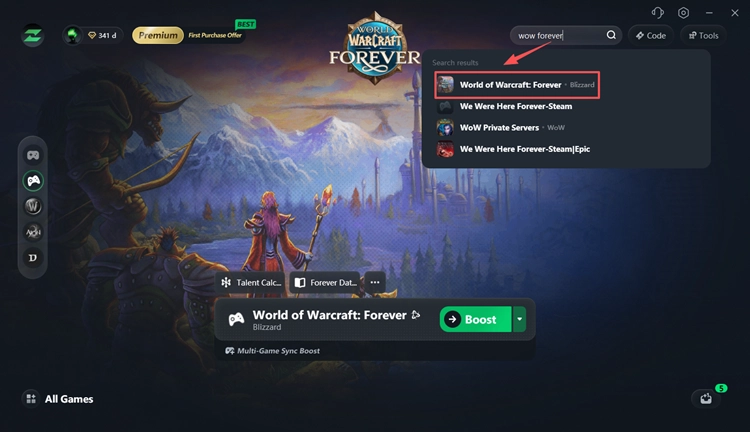
Step 3. Boost and Play WoW Forever
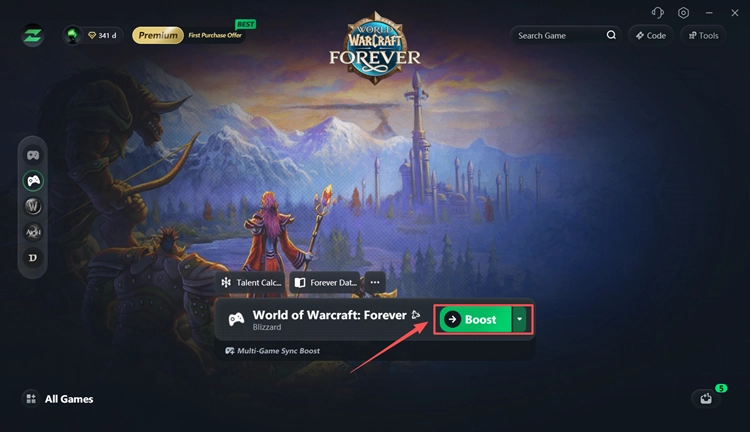
Select an available server or node, click Boost, and launch WoW Forever with an optimized connection.
The Bottom Line
A WoW Forever install button greyed out issue may result from incorrect game versions, account settings, launcher glitches, or Windows compatibility errors. Start by checking your game version, restarting Battle.net, and verifying your account settings. Community workarounds may also help when standard fixes fail.
Still unable to install? Contact Blizzard Support with the exact error message. Once the game is installed, download LagZapper to optimize your WoW Forever connection and reduce network-related lag.
FAQs About WoW Forever Install Button Greyed Out
Q1. Why is my WoW Forever install button greyed out?
Common causes include incorrect game versions, Battle.net account settings, launcher glitches, and pre-download restrictions. Check your game version and restart Battle.net first.
Q2. How do I fix "This game cannot be installed yet" in WoW Forever?
Select the WoW: Forever release client, verify your account, and restart Battle.net. The community-reported command-line workaround may also help.
Q3. Can I pre-install WoW Forever before launch?
Yes. Some players have successfully pre-installed WoW Forever through Battle.net, while others have encountered disabled Install buttons or launcher errors.
Q4. Do I need to buy WoW Forever to install it?
A separate upgrade purchase is not required for standard gameplay. An active World of Warcraft subscription or Game Time is required to play at launch.
Q5. Why can't I install WoW Forever on Windows 11?
Some players have reported Windows 11 compatibility errors. Disable compatibility mode, update Battle.net, and verify your system requirements.
Q6. Can I install WoW Forever without the beta?
Yes. Open Battle.net and select WoW: Forever instead of WoW: Forever Beta from the Game Version menu.