
WoW Forever Low FPS? 7 Fixes for FPS Drops & Stuttering
If you are dealing with WoW Forever low FPS in the Beta, the game may feel smooth at first and then begin dropping frames, stuttering during movement, or slowing down in busy areas. Performance can also degrade during longer sessions, even when the hardware should be capable of running the game at higher frame rates.
This guide will explain why WoW Forever has low FPS and walk you through seven fixes for WoW Forever FPS drops, stuttering, graphics settings, frame limits, and GPU-related performance issues.
Why Is WoW Forever FPS So Low?
WoW Forever FPS issues can appear differently depending on your system and play session. Check the table below to identify your symptoms and where to start.
| Symptom | Possible Cause | First Fix to Try |
|---|---|---|
| Low FPS on an older Beta build | Outdated Beta client | Update the Beta client |
| FPS gradually drops over time | Session performance degradation | Relog your character |
| Low FPS or choppy movement | Secondary Lighting | Set it to Fair |
| FPS drops in effects-heavy areas | Demanding graphics settings | Lower Compute Effects |
| FPS feels capped or inconsistent | Frame or latency settings | Check Target Framerate |
| Stuttering persists after graphics changes | AddOn or background load | Disable AddOns and heavy apps |
[Quick Way] Boost WoW Forever FPS with LagZapper
LagZapper includes the FPS Master plugin to optimize relevant game settings based on your PC configuration, helping improve WoW Forever low FPS, frame drops, and stuttering.
Why Use LagZapper for WoW Forever?
- One-Click FPS Boost: FPS Master can optimize relevant game settings based on your PC configuration without requiring multiple manual adjustments.
- Smart Route Optimization: Finds a faster and more stable route to WoW Forever servers, helping reduce high ping, packet loss, jitter, and unstable routing.
- Reduce Lag & Improve Stability: Helps lower ping, reduce game lag, minimize lag spikes, and improve responsiveness during multiplayer exploration and combat.
- Support for 3,000+ Games: Use LagZapper with WoW Forever and thousands of other supported online games.
How to Use FPS Master for WoW Forever
Follow these three steps to use FPS Master and optimize WoW Forever settings based on your PC configuration.
Step 1. Download and Install LagZapper
Download LagZapper for Windows and follow the on-screen instructions to complete the installation.
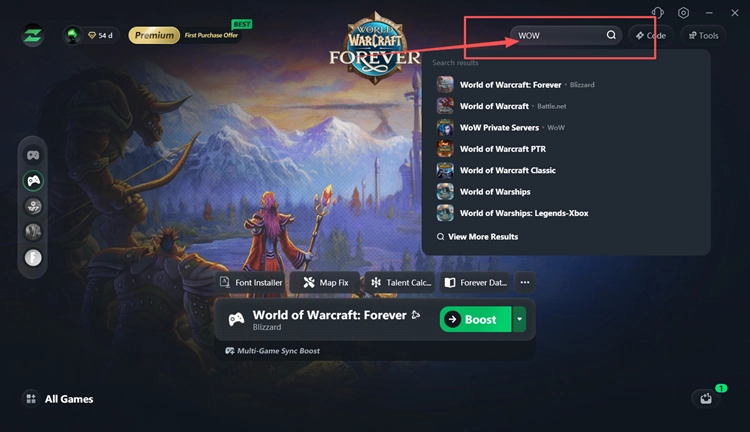
Step 2. Open LagZapper and Select WoW Forever
Launch LagZapper, enter World of Warcraft: Forever in the search bar, and select the game from the results.
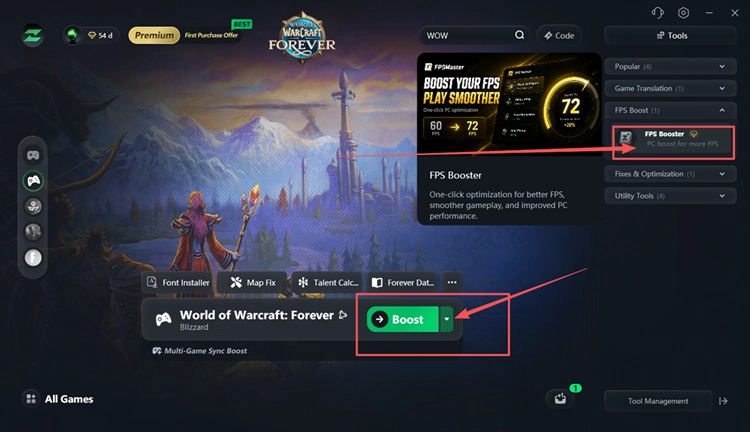
Step 3. Open FPS Booster and Run FPS Master
Open Tools > FPS Boost > FPS Booster, click Try Now, then use FPS Master to optimize relevant game settings based on your PC configuration.
Tip: If your FPS is stable but WoW Forever still feels delayed, check our WoW Forever High Ping & Lag guide for network latency fixes.
How to Fix WoW Forever Low FPS and Stuttering - 7 Useful Fixes
If you need a WoW Forever low FPS fix, try the following fixes in order and test performance after each change.
Fix 1. Update the WoW Forever Beta Client
WoW Forever is still in Beta, so Blizzard may release new client builds with fixes and stability changes during testing. Close WoW Forever, open the Battle.net app, and install any pending Beta update. Then relaunch the game and check whether FPS and stuttering improve.
Fix 2. Relog When FPS Gradually Drops
If WoW Forever runs smoothly at first but FPS gradually drops during a longer session, relogging can refresh the current game session and temporarily restore performance.
Return to the character selection screen, then log back into the same character. If FPS remains low, fully restart the WoW Forever Beta client and test again.
Fix 3. Set Secondary Lighting to Fair
Secondary Lighting can place a heavy rendering load on the current WoW Forever Beta. Setting it to Fair reduces that lighting workload and can help improve FPS, frame pacing, and stuttering. Follow the steps below to test the setting.
Step 1. Open WoW Forever and go to System > Graphics.
Step 2. Find Secondary Lighting, set it to Fair, and click Apply.
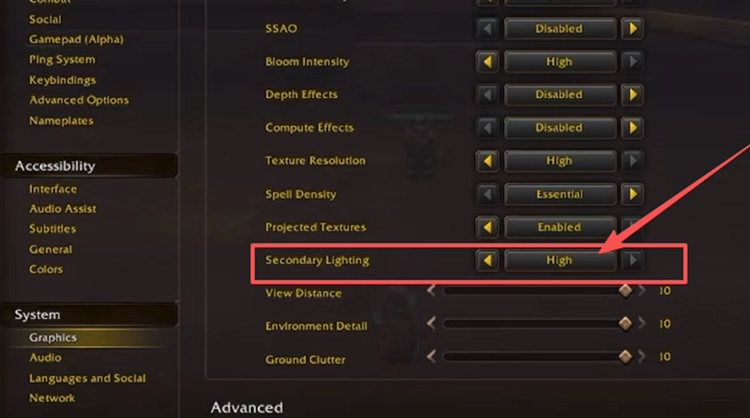
Step 3. Return to the same area and check whether FPS and stuttering improve.
Fix 4. Lower Compute Effects and Demanding Graphics Settings
High Compute Effects and other demanding graphics settings can increase GPU load and make FPS drops or stuttering more noticeable in WoW Forever. Instead of lowering every option at once, reduce the heaviest settings first and compare performance after each change. Follow the steps below.
Step 1. Open System > Graphics in WoW Forever.
Step 2. Lower Compute Effects from Ultra to High or Good, then reduce Shadow Quality if FPS is still low.
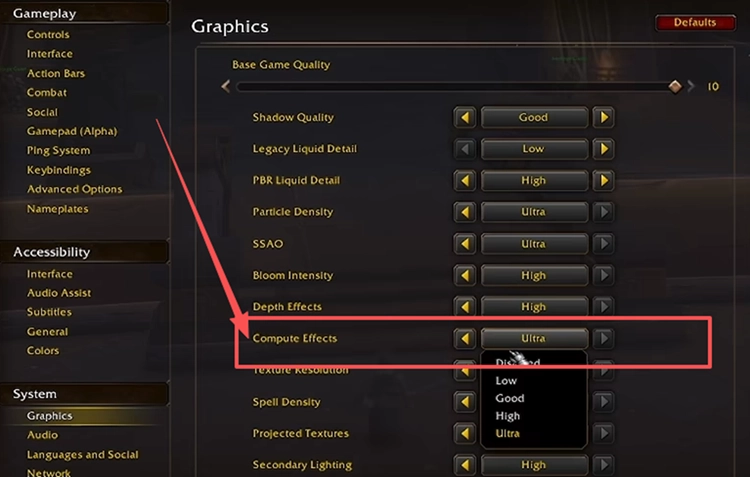
Step 3. Apply the changes and test FPS in the same area before lowering additional graphics settings.
Fix 5. Check Target Framerate and Low Latency Mode
Target Framerate and Low Latency Mode can affect FPS limits and frame pacing in the current WoW Forever Beta. Disabling Target Framerate and testing Low Latency Mode on Disabled can help remove unexpected caps or micro-stuttering. Follow the steps below.
Step 1. Open System > Graphics and locate Target Framerate and Low Latency Mode.
Step 2. Turn Target Framerate off, then set Low Latency Mode to Disabled.
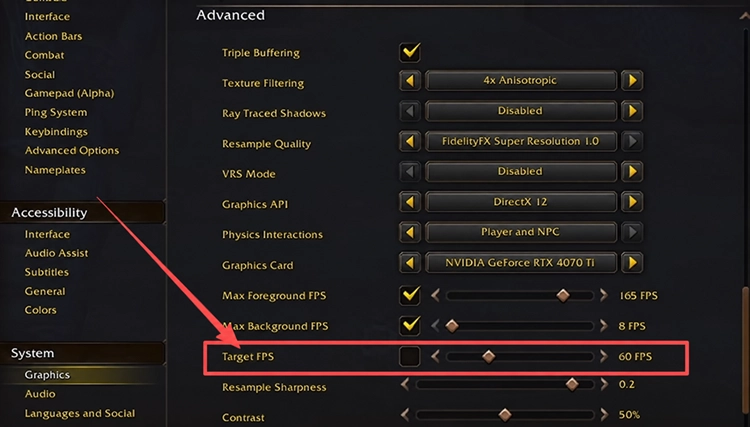
Step 3. Apply the changes and test FPS in the same area to compare performance.
Fix 6. Test Without AddOns and Heavy Background Apps
AddOns, overlays, browsers, and recording tools can use extra CPU, GPU, or memory resources. Temporarily disable third-party AddOns, close unnecessary background apps, restart WoW Forever, and test the same area again to see whether FPS or stuttering improves.
Fix 7. Update Your GPU Driver
An outdated or unstable graphics driver can contribute to low FPS, stuttering, and graphics-related performance issues in WoW Forever. Updating to the latest driver can improve compatibility with the current Beta client and GPU features. Follow the steps below to check for an update.
Step 1. Open the NVIDIA app and select the Drivers tab.
Step 2. Check for updates, then download and install the latest available Game Ready Driver.
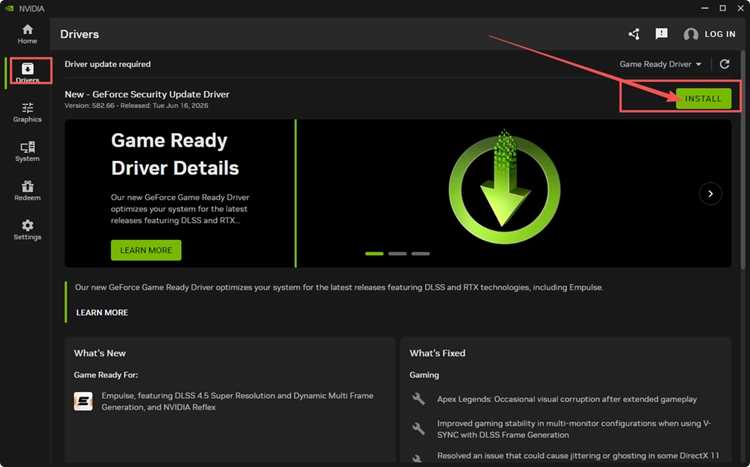
Step 3. Restart your PC and launch WoW Forever again.
Tip: AMD and Intel users can update through AMD Software: Adrenalin Edition or Intel Driver & Support Assistant.
The Bottom Line
WoW Forever performance issues can involve Beta client updates, session performance, demanding graphics settings, frame limits, AddOns, or GPU drivers. Start with FPS Master, then test Secondary Lighting, Compute Effects, and Target Framerate before moving through the remaining fixes. If you want a quicker performance setup, download LagZapper and run FPS Booster for WoW Forever.
FAQs About WoW Forever Low FPS
Q1. Why Is My WoW Forever FPS So Low?
Graphics load, frame settings, Beta performance issues, background apps, or GPU drivers can reduce FPS.
Q2. How Do I Fix WoW Forever Low FPS?
Update the Beta client, optimize graphics settings, check frame limits, and update your GPU driver.
Q3. Why Does WoW Forever FPS Drop Over Time?
Long sessions can cause performance degradation; relogging or restarting the Beta client may temporarily restore FPS.
Q4. Can Secondary Lighting Cause WoW Forever FPS Issues?
Yes. Higher Secondary Lighting settings can significantly increase rendering load and reduce FPS.
Q5. How Can I Improve WoW Forever Beta Low FPS?
Lower demanding graphics settings, disable unnecessary frame limits, and close resource-heavy background applications.
Q6. Does Target Framerate Affect WoW Forever Performance?
Yes. Target Framerate can limit performance, so disabling it is worth testing for inconsistent FPS.