
WoW Forever Download Slow? 6 Fixes for Battle.net
Is your WoW Forever download slow, stuck at 0 B/s, or taking forever on Battle.net? Some players have reported slow pre-download speeds, downloads stuck on initializing, and updates that keep stopping during the beta period. These issues can occur even when other games download normally.
This guide covers six practical fixes for WoW Forever download issues on PC, from removing Battle.net speed limits to clearing launcher cache and checking network connections.
Why Is WoW Forever Downloading So Slowly?
WoW Forever slow download speed isn't always caused by a poor internet connection. Battle.net bandwidth limits, background downloads, and launcher issues can slow down installation. A download stuck at 0 B/s may also indicate that Battle.net is unpacking or verifying game files rather than downloading new data.
Here are the most common causes:
| Possible Cause | Common Symptoms |
|---|---|
| Battle.net bandwidth limits | Consistently slow download speeds |
| Background downloads | Download speed fluctuates or drops |
| Battle.net launcher glitches | Downloads pause or keep stopping |
| File unpacking or verification | Download stuck at 0 B/s |
| Corrupted launcher cache | Download stuck on Initializing |
| Network congestion or low disk space | Slow downloads or failed updates |
During the WoW Forever beta, some players reported download speeds of just a few hundred KB/s to several MB/s despite having faster internet connections.
How to Fix WoW Forever Slow Download on PC
Try these six fixes to improve WoW Forever download speed and resolve stuck downloads on Battle.net. For installation issues that prevent the download from starting, see our WoW Forever install button greyed out guide.
Fix 1. Remove Battle.net Download Speed Limits
Battle.net's bandwidth limits can slow down WoW Forever downloads, even on a fast internet connection. Removing these limits may help improve download speed.
Step 1. Open Battle.net and click the Battle.net icon in the upper-left corner.
Step 2. Go to Settings > Downloads and locate the Download Limits section.
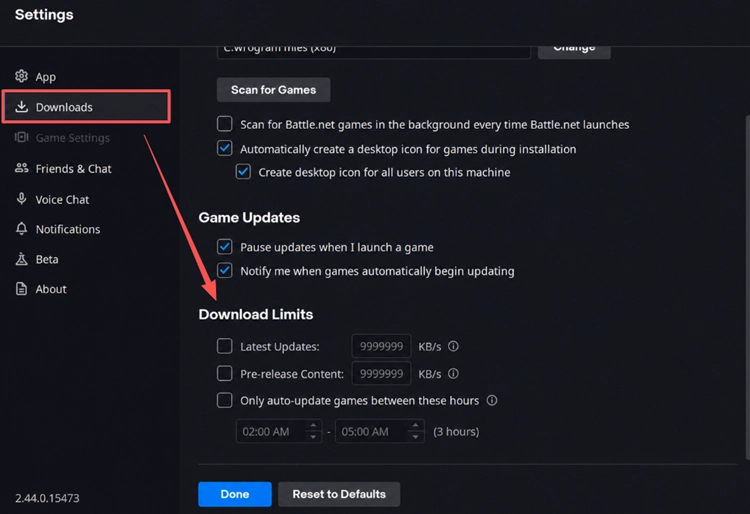
Step 3. Uncheck Latest Updates and Pre-release Content to remove download speed limits. Click Done to save your changes, then resume your WoW Forever download.
Tip: Battle.net may display download speeds in MB/s rather than Mbps. For example, an 80 Mbps connection can theoretically reach 10 MB/s before network overhead.
Fix 2. Pause Background Downloads and Updates
Background downloads and updates can consume bandwidth and slow down WoW Forever downloads on Battle.net. Follow these steps:
Step 1. Press Ctrl + Shift + Esc to open Task Manager.
Step 2. Open the Processes tab and check for apps using high network bandwidth.
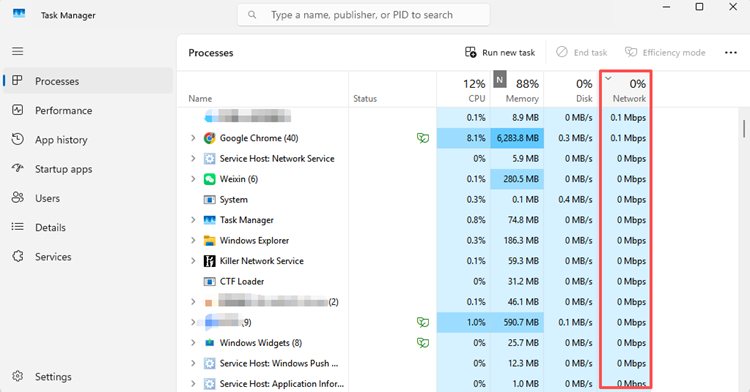
Step 3. Pause unnecessary downloads in Steam, Windows Update, or cloud-syncing apps. Return to Battle.net and check whether WoW Forever download speed improves.
Fix 3. Restart Battle.net and Its Update Agent
A WoW Forever download that keeps stopping may be caused by a temporary Battle.net launcher or Update Agent issue. Restarting both processes can help restore stalled downloads.
Step 1. Completely close Battle.net, including its system tray icon.
Step 2. Open Task Manager and end any remaining Battle.net or Agent processes.
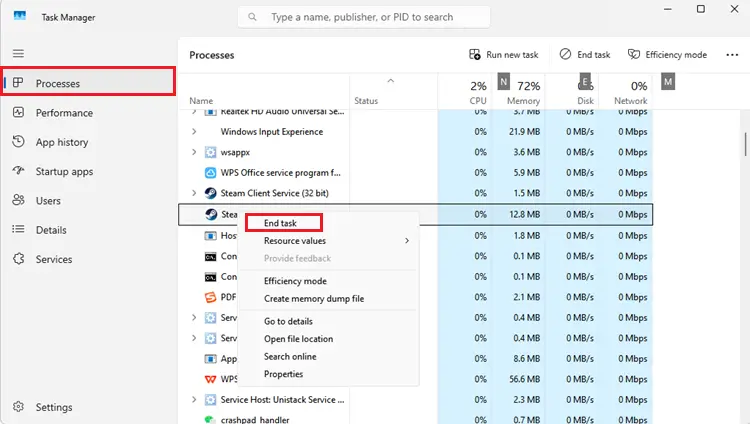
Step 3. Restart Battle.net, select WoW Forever, and resume the download.
Fix 4. Fix Battle.net Downloads That Keep Disconnecting
DNS resolution problems can occasionally interrupt Battle.net connections and cause downloads to stall. Flushing the Windows DNS cache may help resolve connection-related download issues.
Step 1. Type cmd in Windows Search and select Run as administrator.
Step 2. Enter ipconfig /flushdns and press Enter.
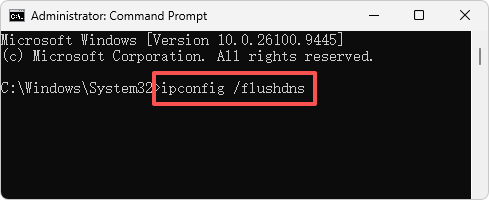
Step 3. Restart Battle.net and resume downloading WoW Forever.
Fix 5. Clear Battle.net Cache When Download Is Stuck on Initializing
A WoW Forever download stuck on Initializing may be related to outdated or corrupted Battle.net cache files. Clearing the launcher cache can help Battle.net rebuild temporary data and resume the download.
Step 1. Completely close Battle.net and its background Agent processes.
Step 2. Press Windows + R, type %ProgramData%, and press Enter.
Step 3. Locate the Blizzard Entertainment folder and rename it to Blizzard Entertainment.old. Then restart Battle.net and retry the download.
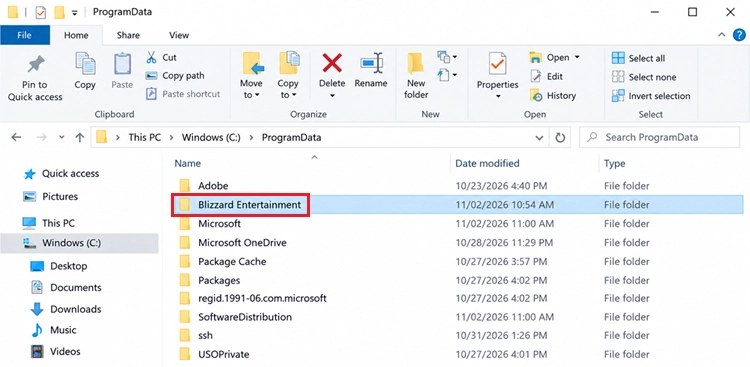
Note: Battle.net automatically recreates the cache folder. Do not delete your World of Warcraft installation folder.
Fix 6. Check Your Network Connection and Disk Space
An unstable connection or insufficient disk space can cause WoW Forever downloads to slow down, stop unexpectedly, or fail to complete. When your WoW Forever download is not working despite restarting Battle.net, check your network and storage. Follow these steps:
Step 1. Restart your router and check your internet connection.
Step 2. Use a wired Ethernet connection to reduce Wi-Fi interference.
Step 3. Go to Settings > System > Storage and make sure the installation drive has enough free space.
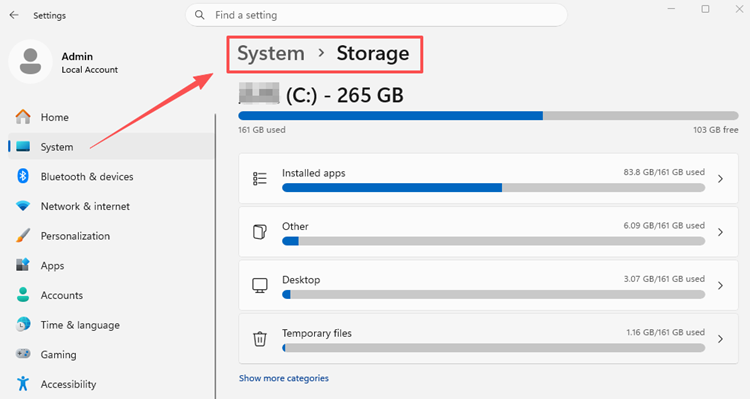
Tip: Installing WoW Forever on an SSD with sufficient free space can speed up file unpacking and updates.
[Bonus] Optimize WoW Forever Connection With LagZapper
Once your WoW Forever download is complete, connection quality becomes just as important as download speed. Issues like WoW Forever high ping, packet loss, and unstable network routes can lead to lag spikes, delayed actions, and unexpected disconnects.
LagZapper is a PC game booster that optimizes network routes between your PC and game servers. With one-click boosting, it helps lower ping, reduce packet loss, and improve connection stability for a smoother WoW Forever experience.
Why Use LagZapper for WoW Forever?
- Lower WoW Forever Latency: Optimize network routes to lower ping, improve responsiveness, and enjoy faster in-game actions.
- Improve WoW Forever Connection Stability: Reduce packet loss and maintain smoother communication with game servers for more consistent gameplay.
- Enjoy Smoother WoW Forever Gameplay: Reduce lag, minimize network-related lag spikes, and experience fewer delays during battles.
- Prevent WoW Forever Disconnects: Maintain a more stable connection to game servers and minimize unexpected interruptions during gameplay.
How to Boost WoW Forever With LagZapper
Follow these three steps to optimize your WoW Forever connection.
Step 1. Download and Install LagZapper
Download LagZapper for Windows and complete the installation.
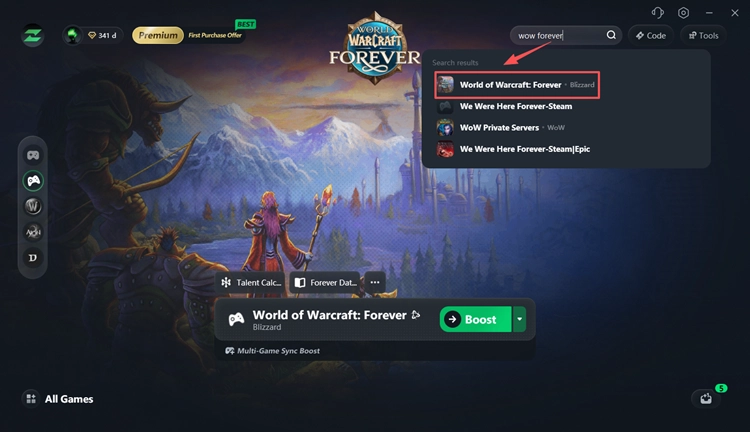
Step 2. Open LagZapper and Select WoW Forever
Launch LagZapper, sign in, and search for WoW Forever in the supported games list.
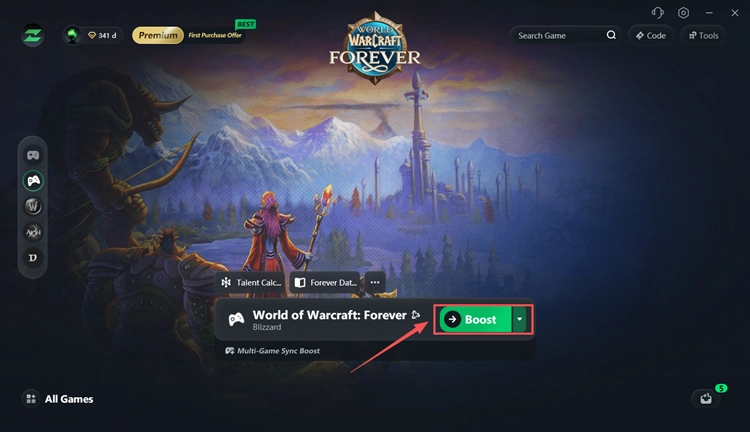
Step 3. Boost and Play WoW Forever
Select an available server or node, click Boost, and launch WoW Forever with an optimized connection.
Ready for smoother gameplay? Download LagZapper and optimize your WoW Forever connection in just a few clicks.
The Bottom Line
WoW Forever slow download issues can often be fixed by removing Battle.net speed limits, pausing background downloads, restarting the launcher, or clearing its cache. Once installed, you can also check our WoW Forever crashing guide for help with game crashes and freezes.
For smoother gameplay, use LagZapper to optimize your network connection, lower ping, reduce packet loss, and minimize network-related lag.
FAQs About WoW Forever Slow Download
Q1. Why is my WoW Forever download so slow?
Battle.net bandwidth limits, background downloads, launcher glitches, and network congestion can slow down downloads. Check your download speed settings first.
Q2. How do I speed up WoW Forever downloads on Battle.net?
Go to Battle.net Settings > Downloads and remove unwanted speed limits. Pause background downloads, restart Battle.net, and use a wired connection.
Q3. Why is my WoW Forever download stuck at 0 B/s?
Battle.net may be unpacking or verifying game files. Check disk activity in Task Manager and allow file processing to finish.
Q4. How do I fix WoW Forever download stuck on Initializing?
Restart Battle.net and its Update Agent. Clear the launcher cache if the download remains stuck on Initializing.
Q5. Why does my WoW Forever download keep stopping?
Unstable connections, launcher glitches, or insufficient disk space may interrupt downloads. Restart Battle.net and check your network and storage.
Q6. What should I do if my WoW Forever download is not working?
Check Battle.net download settings, restart the launcher, and verify available disk space. Clearing the launcher cache may help resolve persistent download issues.