
WARDOGS Voice Chat Not Working? Fix Mic and VOIP Issues
WARDOGS voice chat not working is becoming a common issue for players during the latest Playtest. Some players report that their mic is not transmitting even though Windows and Steam detect it correctly, while others cannot hear teammates through proximity or local voice chat.
These problems may appear as WARDOGS mic not working, VOIP not working, proximity chat not working, or local voice chat failing completely. In some cases, the issue may also be related to temporary WARDOGS voice services being down rather than your microphone or PC settings.
Why Is WARDOGS Voice Chat Not Working?
The most common situations currently reported include:
- Your mic works in Windows but not in WARDOGS.
- The microphone test works, but push-to-talk does not transmit.
- A red crossed-out microphone appears in-game.
- Local or proximity chat stops working while squad chat still works.
- Nobody in the match can hear or speak.
- WARDOGS reports that it cannot connect to the VOIP server.
- Voice chat works on one server but fails on another.
When everyone in the same match loses voice communication at once, the issue is more likely related to WARDOGS voice services or the current server than your local microphone setup.
How to Fix WARDOGS Voice Chat Not Working: 8 Fixes
Try the fixes below when WARDOGS voice chat stops working, your mic is not transmitting, or local VOIP suddenly disappears during a match.
Fix 1. Toggle VOIP Off and On From the Scoreboard
Start with this fix when WARDOGS VOIP is not working or local voice chat disappears. BULKHEAD has recommended resetting voice communication by disconnecting and reconnecting VOIP from the scoreboard.
Step 1. Join a WARDOGS match and open the full scoreboard.
Step 2. Press U once to disconnect VOIP.
Step 3. Press U again to reconnect VOIP. Wait a few seconds, then test your microphone.
If voice chat does not reconnect immediately, repeat the process once or twice.
Fix 2. Turn Voice Chat Off and Back On in Settings
Players on Reddit have also shared a WARDOGS Discord workaround recommending that you toggle Voice Chat off and back on, though it may not help during a wider voice-service outage.
Step 1. Open Settings > Audio and locate the Voice Chat option.
Step 2. Turn Voice Chat off, wait a few seconds, then turn it back on.
Step 3. Return to the match and test your microphone and local voice chat again.
Fix 3. Leave the Server and Join Another Match
Some WARDOGS voice chat problems may be server-specific. Players have reported proximity or local voice chat failing in one match while working normally after switching servers or restarting the game.
Step 1. Leave the current match and return to the Server Browser.
Step 2. Join a different server.
Step 3. Test both proximity and squad voice chat again.
When several players on the same server lose voice at the same time, the problem is more likely related to the server or voice service than your Windows microphone settings.
Tip: Can't join another server or the Server Browser is empty? See our WARDOGS can't join server guide.
Fix 4. Check the Correct Microphone in WARDOGS
The wrong input device can cause WARDOGS mic not working or mic not transmitting issues even when voice chat is enabled.
👉Open Settings > Audio, select the correct microphone, and run the built-in mic test.
- Mic test fails: Check your Windows microphone and input settings.
- Mic test works but players still cannot hear you: The issue is more likely related to WARDOGS VOIP or the current server.
Fix 5. Check Push-to-Talk and Voice Channels
WARDOGS uses separate local/proximity and squad voice channels. One channel may stop working while the other still works normally.
Step 1. Open the voice settings and make sure voice chat is enabled.
Step 2. Check the push-to-talk bindings for both local/proximity and squad voice.
Step 3. Join a match and test each voice channel separately.
If squad voice works but local chat does not, the issue is more likely limited to the local/proximity VOIP channel rather than your microphone. Recent players have reported exactly this behavior.
Fix 6. Check Windows Microphone Access
Windows permissions can cause WARDOGS mic not working issues when the game cannot access your input device.
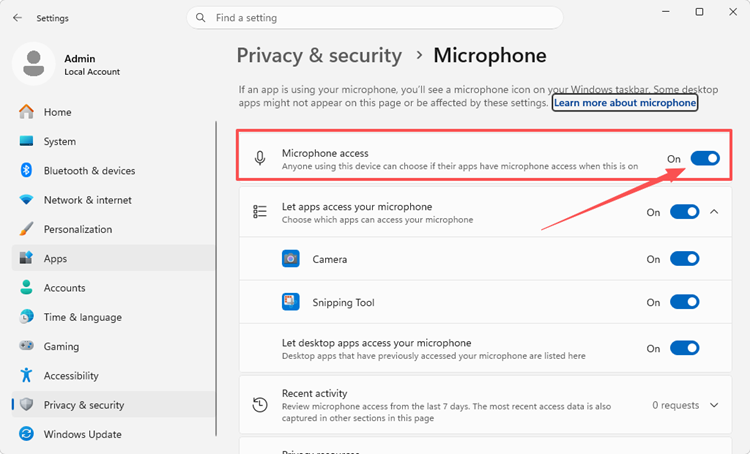
Step 1. Open Settings > Privacy & security > Microphone, then turn on microphone access and allow desktop apps to use it.
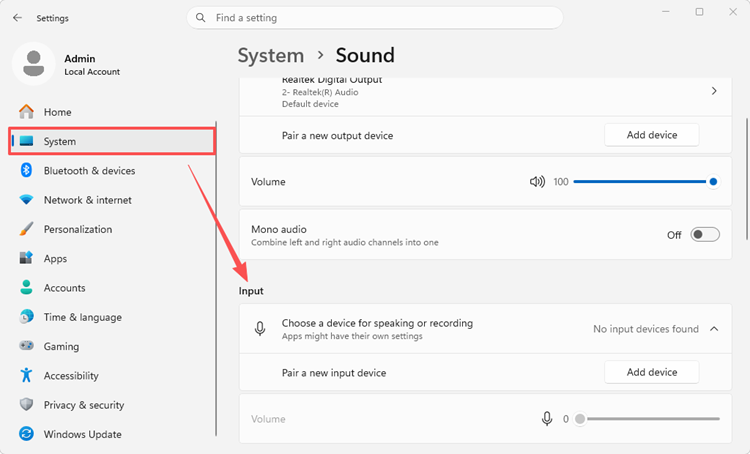
Step 2. Go to Settings > System > Sound > Input, select your microphone, and run a test.
Step 3. Launch WARDOGS again and check whether your mic is transmitting.
When the microphone works in Windows but not in WARDOGS, the problem is more likely related to the game, VOIP, or the current server.
Fix 7. Restart WARDOGS and Steam
Restarting both WARDOGS and Steam can reset a broken voice session and may help when WARDOGS voice chat or VOIP stops working unexpectedly.
Step 1. Close WARDOGS completely and exit Steam.
Step 2. Reopen Steam and launch WARDOGS.
Step 3. Join a new server and test voice chat again.
When WARDOGS sends you back to the login queue, shows Access Denied, or fails to authenticate with online services, see our WARDOGS error code 1147405308 guide.
Fix 8. Verify WARDOGS Game Files
Corrupted or missing files may affect WARDOGS voice chat, so try verifying the game files. However, this will not fix a wider VOIP outage caused by the voice service provider.
Step 1. Open Steam > Library, right-click WARDOGS, and select Properties.
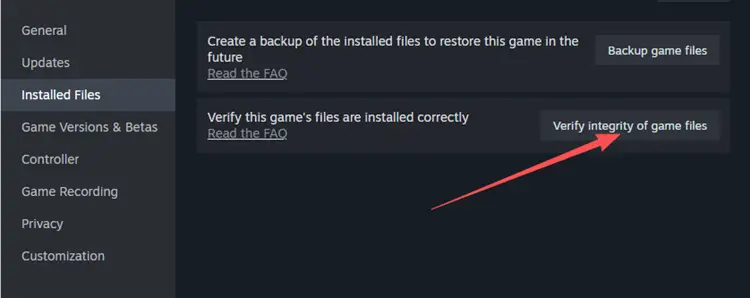
Step 2. Go to Installed Files > Verify integrity of game files.
Step 3. Restart WARDOGS after verification finishes and test voice chat again.
When WARDOGS closes, freezes, restarts your PC, or triggers a blue screen instead of launching normally, see our WARDOGS crashing guide.
[Bonus] Reduce WARDOGS Lag and Connection Issues With LagZapper
Fixing voice chat does not necessarily solve other multiplayer connection problems. You may still experience high ping, packet loss, lag, disconnects, or unstable routing during WARDOGS matches.
LagZapper optimizes the network route between your PC and WARDOGS servers to help improve connection stability during online gameplay. It cannot fix WARDOGS voice services being down, but it can help with separate network-related issues.
Key Features of LagZapper for WARDOGS
- Reduce lag and sudden latency spikes during WARDOGS multiplayer matches.
- Lower ping with a faster, more stable route to WARDOGS servers.
- Reduce packet loss that can cause stuttering, delays, and unstable connections.
- Switch between available nodes to find a more stable WARDOGS server route.
How to Boost WARDOGS With LagZapper
Follow these three steps to optimize your WARDOGS connection with LagZapper.
Step 1. Download and Install LagZapper
Download LagZapper for Windows, complete the installation, and sign in.
Step 2. Search for WARDOGS
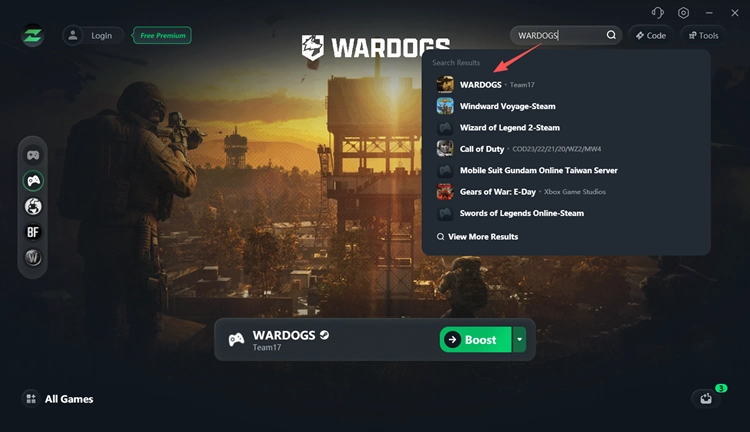
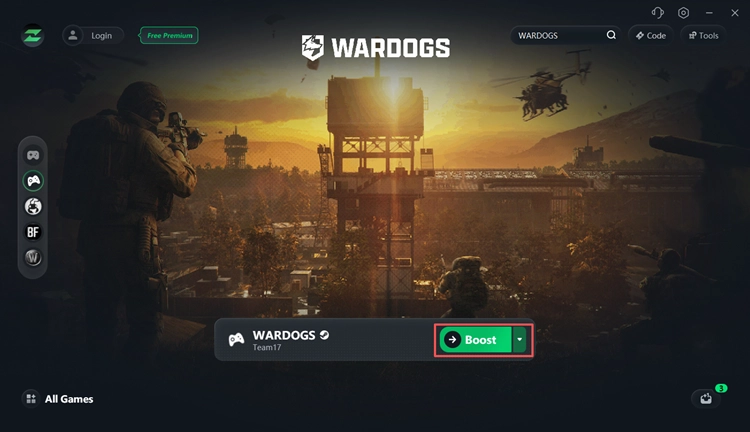
Open LagZapper and enter WARDOGS in the search bar, then select the game from the results.
Step 3. Start Boosting WARDOGS
Choose a recommended node or one near your WARDOGS server region, click Boost, then launch the game through Steam.
The Bottom Line
When WARDOGS voice chat is not working, first reset VOIP, restart voice chat, and try another server. Then check your microphone, push-to-talk controls, Windows permissions, and game files. Some WARDOGS mic and proximity chat problems may also be server-side. For separate issues such as high ping, packet loss, or unstable routing, download LagZapper to optimize your WARDOGS connection before your next match.
WARDOGS Voice Chat Not Working FAQ
Q1. Why is my mic working in settings but not in WARDOGS?
WARDOGS VOIP or the current server may be failing even when your microphone works normally.
Q2. How do I reset voice chat in WARDOGS?
Open the scoreboard and press U twice to disconnect and reconnect VOIP.
Q3. Why can nobody hear anyone in my WARDOGS match?
When multiple players lose voice at the same time, WARDOGS voice services may be down or the current server may have a VOIP issue.
Q4. Is WARDOGS proximity chat broken?
It can be. Some players report WARDOGS proximity chat not working while squad voice still works. Switching servers may restore local voice chat.
Q5. Why does WARDOGS show a red X on my microphone?
It usually means voice communication is muted, disconnected, or your mic is not transmitting. Reset VOIP and check your microphone and push-to-talk settings.
Q6. Can a WARDOGS anti cheat error affect voice chat?
Usually not directly. If WARDOGS fails to launch because of Elytra or another anti-cheat issue, see our WARDOGS anti cheat error guide for dedicated fixes.